
Creating and editing tickets
Use Tickets → Create Ticket, or + Create Ticket on the ticket list, when a customer contacts you by phone or chat and you want the request in the help desk. The same form opens with Edit Ticket to change an existing ticket.
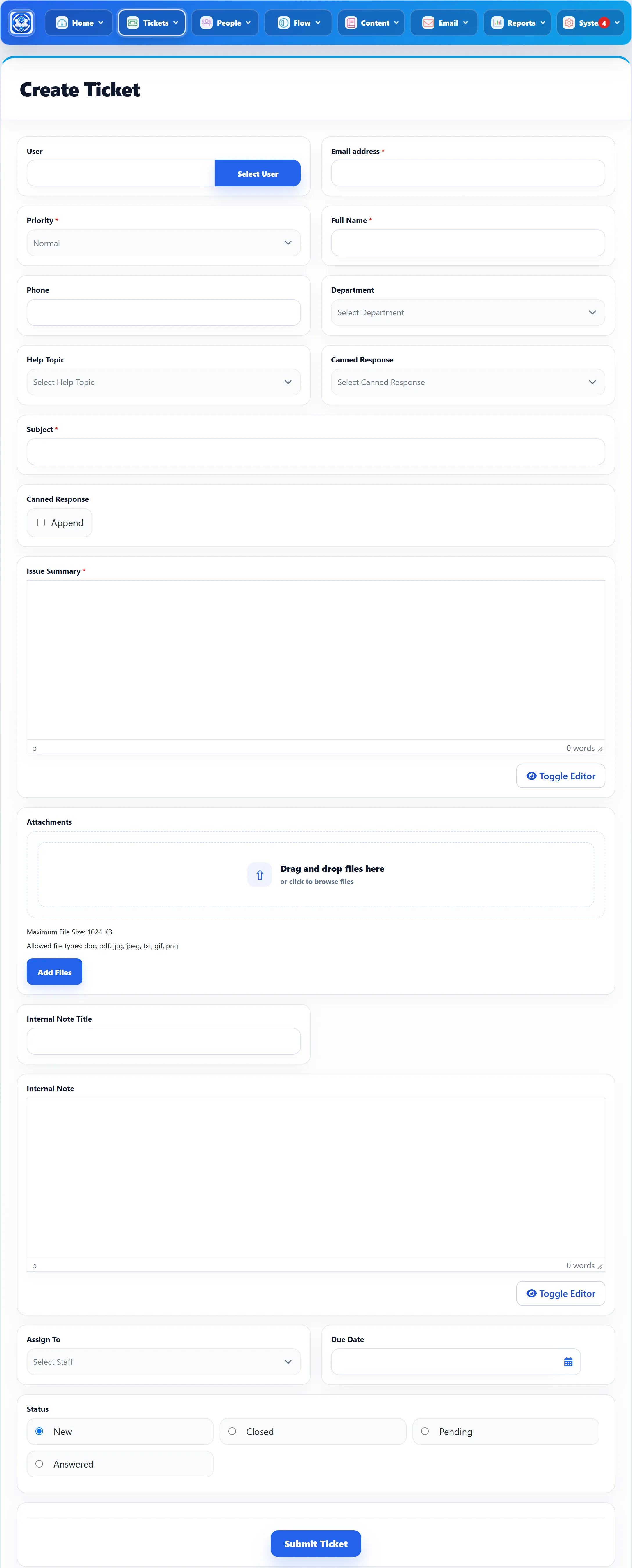
The form
Section titled “The form”The fields, their names, their order and whether they are required all come from Ticket fields. Unpublished fields are left out. Custom ticket fields appear in the same list.
| Field | What it does |
|---|---|
| User | The customer’s Joomla account. Select User opens a search by Username, Name and Email address; click a name to pick it. Picking fills Full Name and Email address when they are empty. Leave it empty for a customer without an account. |
| Email address | Where the customer’s emails go. Required. |
| Full Name | The customer’s name. Required. |
| Phone, Phone Ext | The customer’s phone number and extension. Phone Ext is unpublished until you publish it. |
| Priority | Starts on the default priority. Required. |
| Department | Changing it reloads the Help Topic and canned response lists for that department. |
| Help Topic | The help topic, from the chosen department. |
| Canned Response | Picks a canned response to put in Issue Summary. Append (in the box above Issue Summary) adds it to the end instead of replacing the text. |
| Subject, Issue Summary | The request itself. Both required. |
| Attachments | Files from the customer, within the size and type limits shown. |
| Internal Note Title, Internal Note | An internal note to save on the ticket. Only your team sees it. |
| Assign To | The staff member to assign the ticket to. |
| Due Date | When the ticket should be dealt with. Once it has passed, the ticket can be marked overdue. See Statuses and flags. |
| Status | New (the default), Closed, Pending or Answered. |
Saving
Section titled “Saving”The Joomla toolbar above the form has four buttons:
| Button | Does |
|---|---|
| Submit Ticket | Saves and keeps the ticket open in the form. |
| Save & New | Saves and opens an empty form. |
| Save & Close | Saves and goes back to the ticket list. |
| Cancel | Goes back to the ticket list without saving. On an existing ticket it reads Close. |
Submit Ticket at the bottom of the form saves and goes back to the ticket list.
What happens to a new ticket
Section titled “What happens to a new ticket”- The ticket gets its tracking ID and is saved with the status you chose.
- If the customer’s address is on the banned list, you see “This email address is on the ban list. Customers using it cannot open tickets themselves.” The ticket is still created. The limits that apply to customers (maximum tickets, open tickets, duplicate subjects) don’t apply to you.
- A matching SLA rule is applied (Pro).
- If you left Assign To empty and an assignment rule matches, the ticket is assigned automatically (Pro).
- Automation rules for new tickets run (Pro), and the ticket is placed with the customer’s organisation (Pro).
- The New Ticket email goes out as switched on under System → Settings → Mail Settings, and the history records who created the ticket.
Editing a ticket
Section titled “Editing a ticket”Edit Ticket on the ticket screen or in the ticket list opens the form with the ticket’s current values. Once a ticket is linked to a Joomla account, User can no longer be changed.
- Existing attachments are listed under Attachments, each with Delete Attachment, which removes the file at once.
- Status sets the status directly. It sends no email and does not tell the ticket’s watchers.
- Anything you write in Internal Note is added as a new internal note.
- If the ticket is overdue and you move its Due Date into the future, the overdue flag is cleared.
Saving an edit sends no email. The history records that the ticket was updated and by whom.