
Integrations
Flow → Integrations connects the help desk to other systems in two ways:
- Webhooks send ticket events (a ticket was created, replied to, closed…) to a web address you control, so another system can react to them.
- API keys let another system call the ticket API. They are covered on Web Services API.
Only Joomla Super Users can open this screen.
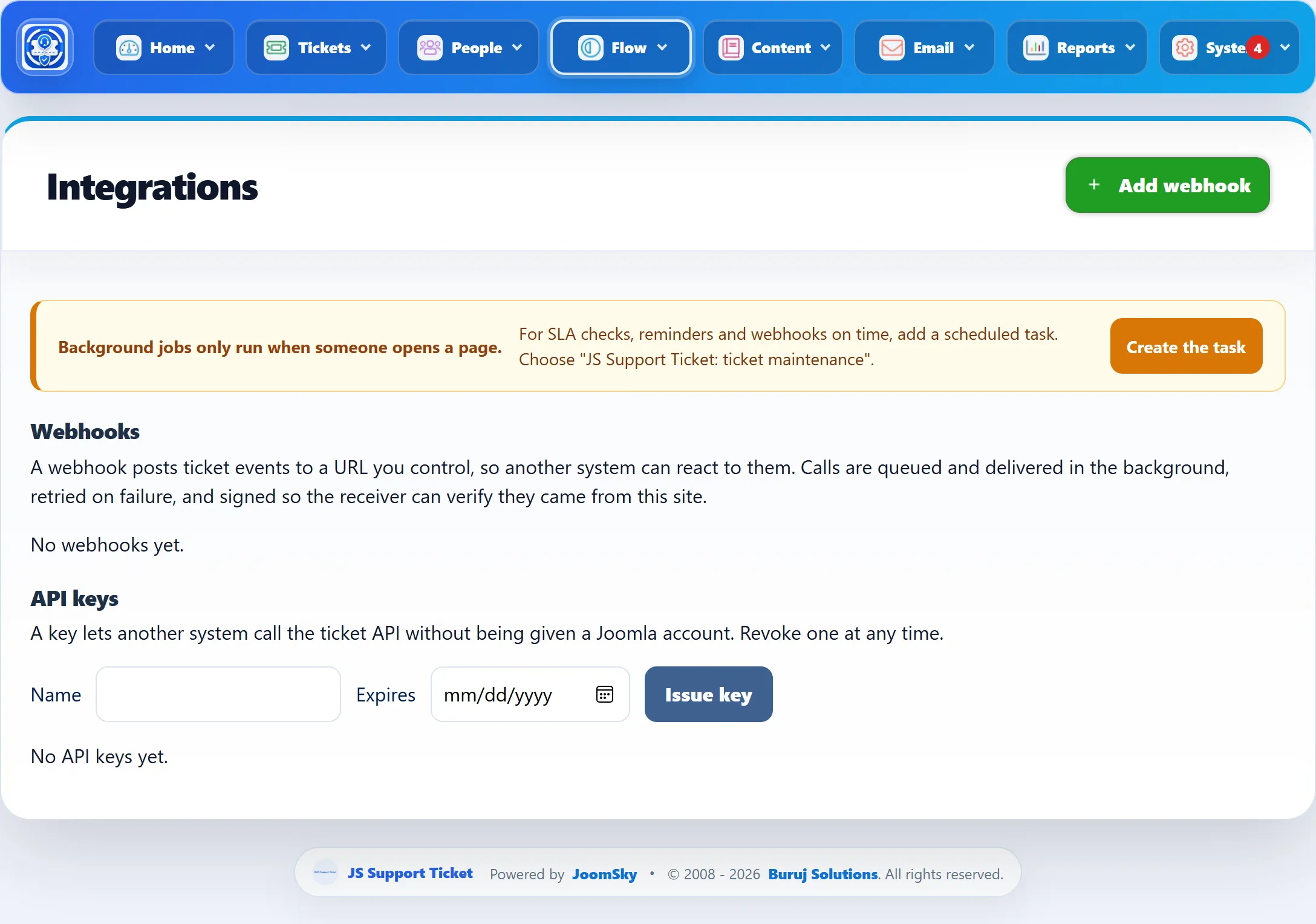
The webhook list
Section titled “The webhook list”| Column | What it shows |
|---|---|
| Name | Your name for the webhook. |
| Endpoint | The address calls are sent to. |
| Events | The events it receives, or All events. |
| Signed | A tick when it has a signing secret. |
| Queue | Calls waiting to be sent, and how many of those are retrying after a failure. |
| Last result | ok after a successful call, ok (test) after a successful test, otherwise the error, such as HTTP 500. |
| Published | Whether the webhook is active. |
Send test posts a test call to the webhook straight away, and the result shows under Last result.
Adding a webhook
Section titled “Adding a webhook”-
Click Add webhook.
-
Enter a Name and the Endpoint URL.
-
Tick the events to send, or leave them all unticked to receive every event.
-
Enter a Signing secret, or click Generate for a random one, and give the same secret to the receiving system.
-
Click Save Webhook.
-
Click Send test in the list to check the receiver answers.
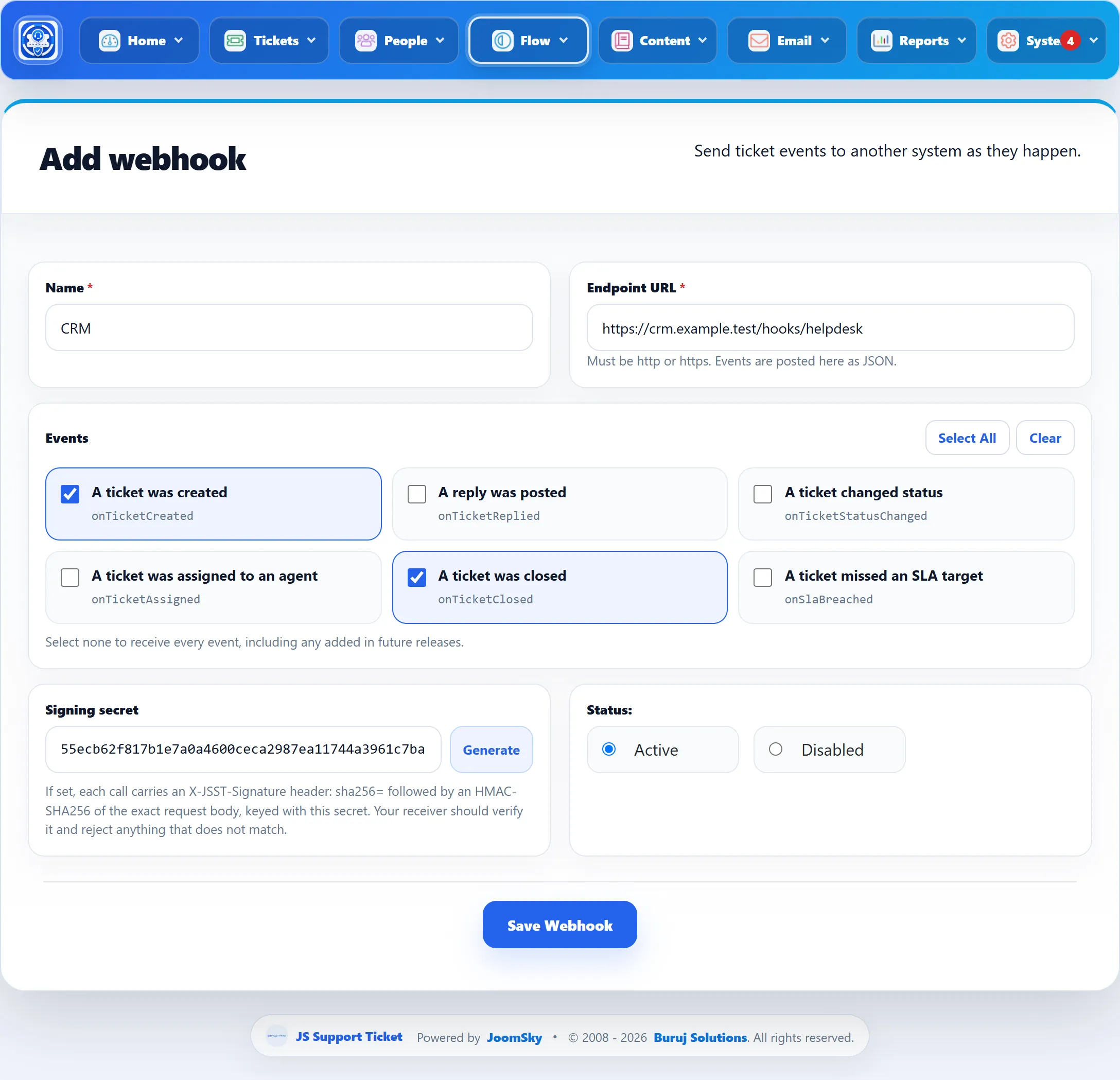
| Field | What it does | Default |
|---|---|---|
| Name | Your name for the webhook. Required. | |
| Endpoint URL | Where events are posted, as JSON. Must start with http:// or https://. Required. |
|
| Events | The events to send. Select All and Clear tick or clear them all. With none ticked the webhook receives every event, including any added in later versions. | None ticked |
| Signing secret | If set, each call is signed so the receiver can check it came from your site. | |
| Status | Active or Disabled. Disabled webhooks are not sent anything, and calls already queued wait. | Active |
Events
Section titled “Events”| Event | Sent when | Name in the call |
|---|---|---|
| A ticket was created | A new ticket is saved. | onTicketCreated |
| A reply was posted | A reply is added, by the customer or the team. | onTicketReplied |
| A ticket changed status | A ticket’s status changes. | onTicketStatusChanged |
| A ticket was assigned to an agent | A ticket is assigned. | onTicketAssigned |
| A ticket was closed | A ticket is closed. A close is also sent as a status change. | onTicketClosed |
| A ticket missed an SLA target | A ticket misses a first-response or resolution target of its SLA rule. | onSlaBreached |
What the receiver gets
Section titled “What the receiver gets”Each call is an HTTP POST with a JSON body describing the event. The body
always has event (the name above) and firedAt (the time), plus details of
the ticket, such as its id. The test call has the event name
onWebhookTest.
The call carries these headers:
| Header | Value |
|---|---|
Content-Type |
application/json |
X-JSST-Event |
The event name. |
User-Agent |
JS Support Ticket Webhook |
X-JSST-Signature |
Only when a secret is set: sha256= followed by an HMAC-SHA256 of the exact body, keyed with the secret. |
The receiver should work out the same HMAC from the body it received and reject any call whose signature does not match.
Delivery and retries
Section titled “Delivery and retries”Events are not sent while the visitor waits. They are queued, and the help desk’s background job sends them. A call succeeds when the receiver answers with a 2xx status within 15 seconds. A failed call is retried after 5, 25, 125 and 625 minutes and then after a day; after six failed attempts it is dropped.
For calls to go out promptly, set up the scheduled task described on Background jobs. The notice at the top of this screen offers Create the task while it is missing.