
Roles and permissions
A role is a starting set of departments and permissions, such as “Manager” or “Agent”. When you add a staff member and pick a role, its ticks are copied to that person, and you can adjust them before saving.
A fresh install has one role, Manager, with every permission except
ALLOW_MAIL_SYSTEM, and access to the Support department the install
creates.
Open People → Roles.
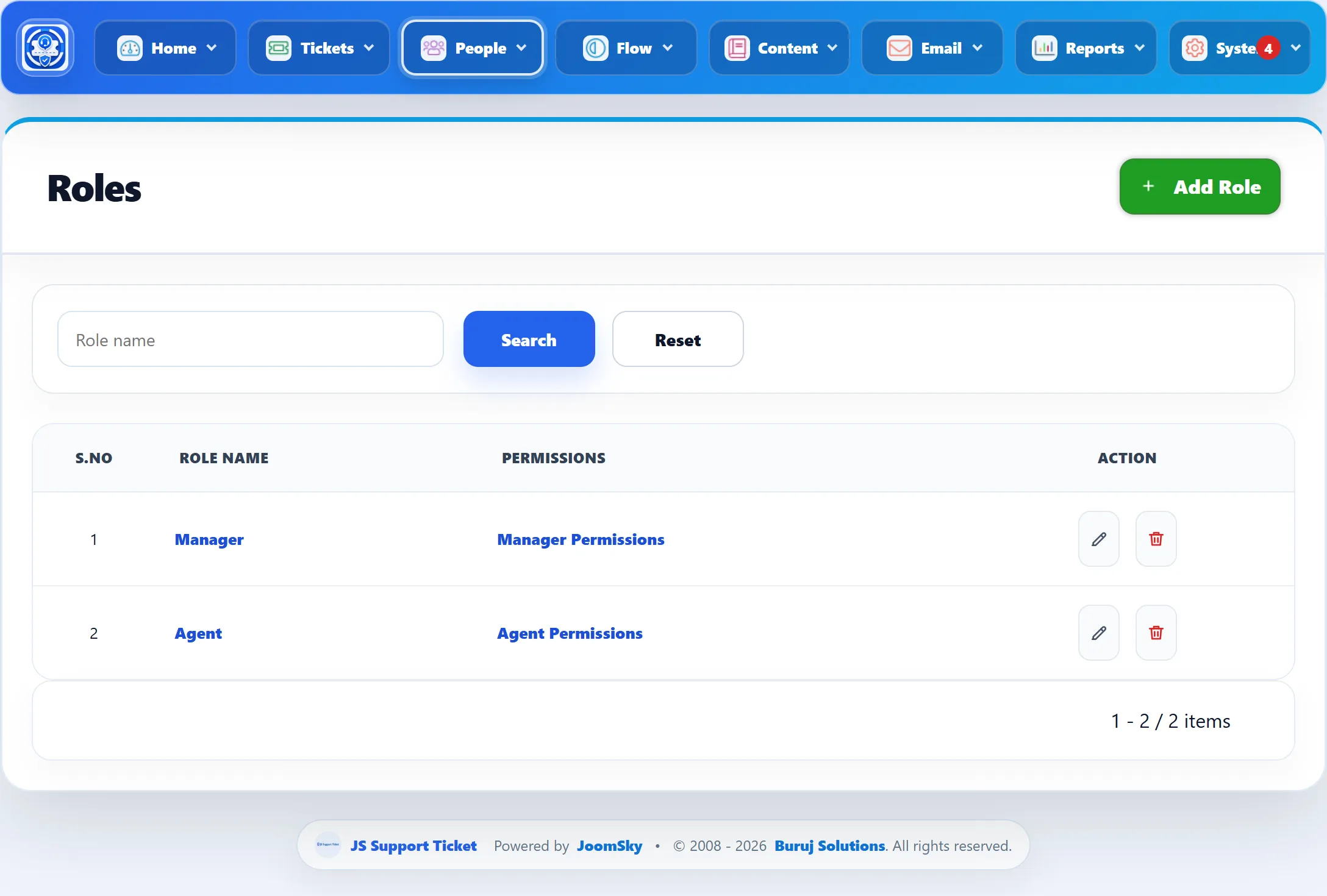
| Column | What it shows |
|---|---|
| Role name | Click it to edit the role. |
| Permissions | “Manager Permissions” and so on: a read-only view of the role’s departments and permissions. |
Search by Role name to narrow the list.
Adding a role
Section titled “Adding a role”-
Click Add Role.
-
Enter a Name.
-
Under Choose what this role can access, tick the departments the role works in, in the Department Section.
-
Tick the permissions in each section. Select / Deselect All ticks or clears a whole section. The permissions reference says what each one allows.
-
Click Save Role.
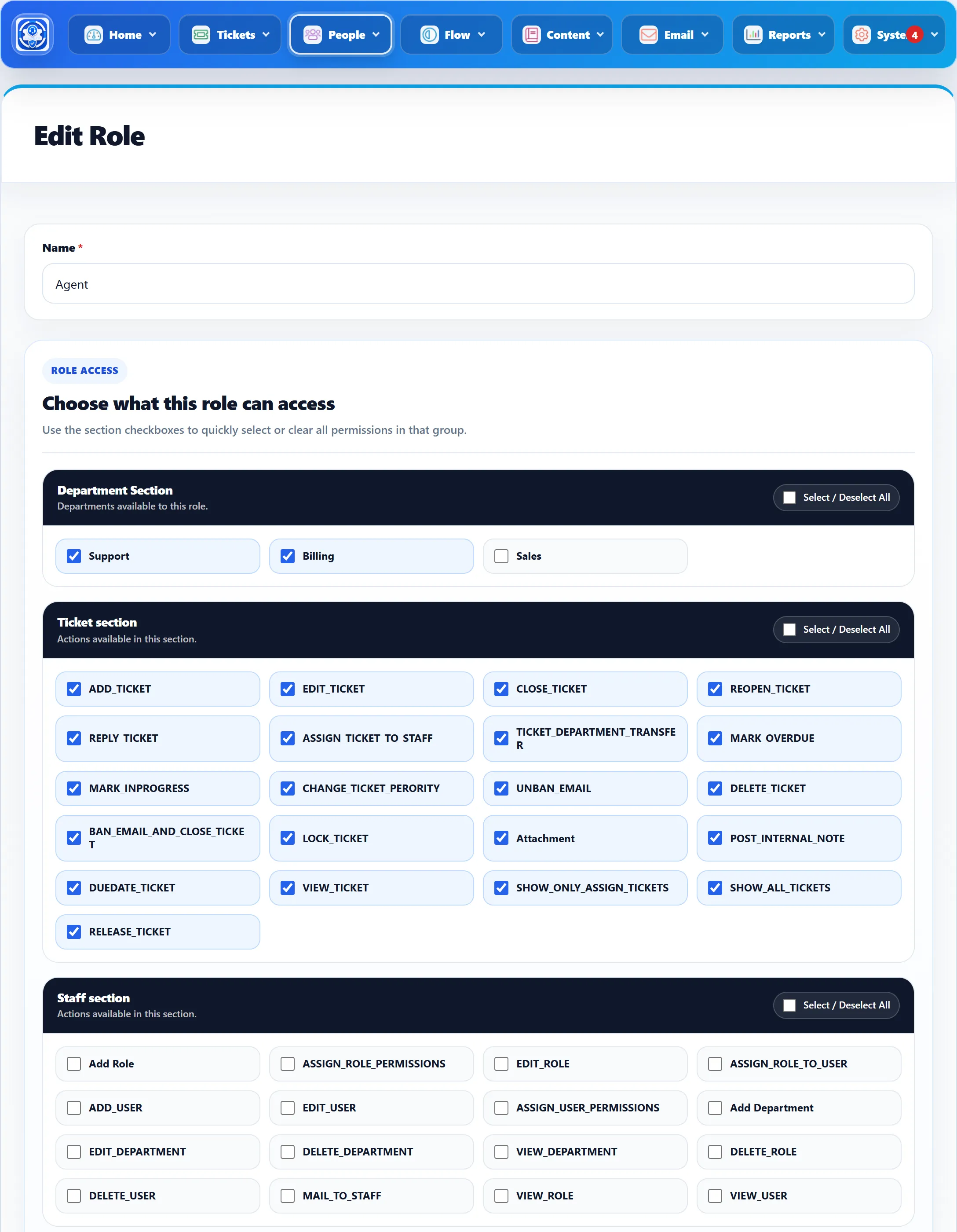
The sections are:
| Section | Covers |
|---|---|
| Department Section | The departments whose tickets the role works. |
| Ticket section | Creating, answering and managing tickets. |
| Staff section | Managing staff members, roles and departments. |
| Knowledge base section | Knowledge base categories and articles. |
| FAQ section | FAQs. |
| Download section | Downloads. |
| Announcement section | Announcements. |
| Mail section | The internal mail system. |
Most permissions show as raw names, for example ADD_TICKET or
TICKET_DEPARTMENT_TRANSFER; only Attachment, Add Role,
Add Department, Add FAQ, Add Download and Add Announcement are
translated.
How roles reach staff
Section titled “How roles reach staff”- Picking a role on a staff member copies the role’s ticks into the permission editor. What is saved is the staff member’s own list.
- Editing a role later changes only what new staff members start with. People who already have the role keep their own ticks. To give everyone a new permission, edit each staff member.
- Changing the role on an existing staff member replaces their ticks with the new role’s, before you save.
What departments do
Section titled “What departments do”Department access decides which tickets a staff member works. Unless they have the permission to see all tickets, a staff member sees:
- tickets in the departments ticked for them,
- tickets assigned to them, and
- tickets they are watching.
The same department list limits the canned responses they are offered, and decides who automatic assignment and “all agents” notifications can reach.
Who can change permissions
Section titled “Who can change permissions”On the administrator side, a Joomla Super User can do everything. A staff
member who manages roles or staff from the front end needs
ASSIGN_ROLE_PERMISSIONS to change a role’s ticks and ASSIGN_USER_PERMISSIONS
to change a staff member’s. Even then, they can only hand out permissions they
hold themselves; anything else they tick is dropped when the form is saved.
Without those permissions they can still edit the rest of the record, and the
existing ticks are left as they were.
Deleting a role
Section titled “Deleting a role”Click the delete button in the list. A role that any staff member was given cannot be deleted; you see “This role is in use and cannot be deleted.”