
Notifications
Who gets an email when something happens to a ticket is set on one screen: System → Settings → Mail Settings. Each event has a switch for each kind of recipient. Change the ones you want and click Save Settings.
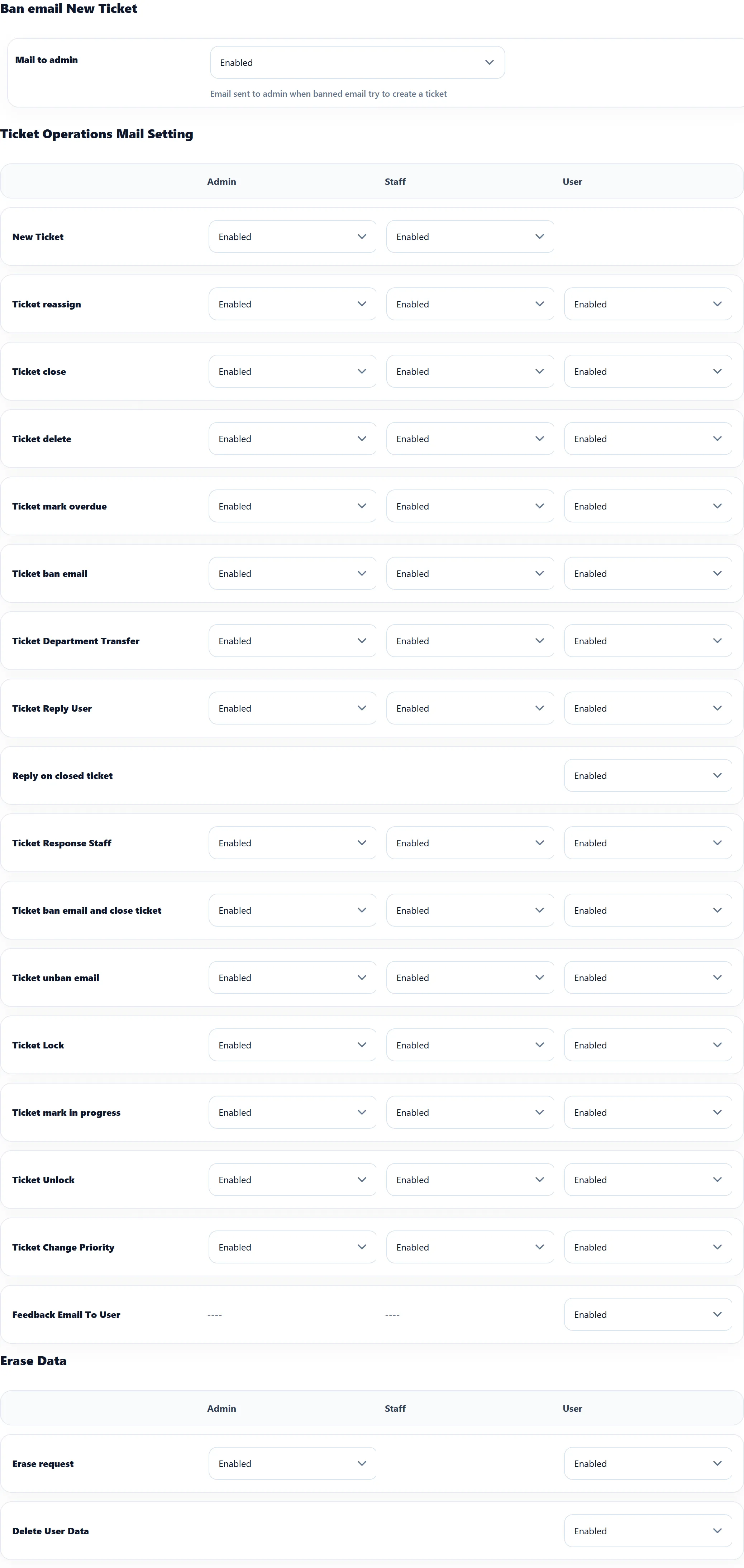
The three columns mean:
- Admin: the Default admin email (System → Settings → Default System Email). See System email addresses.
- Staff: the staff member the ticket is assigned to. For an unassigned ticket there is nobody to send to, and the email is logged as skipped. Two events reach more staff; see the table.
- User: the customer who raised the ticket.
Every switch is Enabled on a new install. What each email says comes from its email template.
Ticket Operations Mail Setting
Section titled “Ticket Operations Mail Setting”| Event | Sent when | Admin | Staff | User | Template |
|---|---|---|---|---|---|
| New Ticket | A ticket is created. | ✓ | ✓ | always | New Ticket Admin Alert, Staff Ticket, New Ticket |
| Ticket reassign | A ticket is assigned to another staff member. | ✓ | ✓ | ✓ | Reassign Ticket |
| Ticket close | A ticket is closed. | ✓ | ✓ | ✓ | Close Ticket |
| Ticket delete | A ticket is deleted. | ✓ | ✓ | ✓ | Delete Ticket |
| Ticket mark overdue | A ticket is marked overdue. | ✓ | ✓ | ✓ | Mark overdue |
| Ticket ban email | A customer’s address is banned. | ✓ | ✓ | ✓ | Ban email |
| Ticket Department Transfer | A ticket is moved to another department. | ✓ | ✓ | ✓ | Department Transfer |
| Ticket Reply User | The customer replies. | ✓ | ✓ | ✓ | Reply Ticket |
| Reply on closed ticket | The customer replies to a closed ticket and replying to closed tickets is switched off, so the reply isn’t added. | – | – | ✓ | User Reply On Closed Ticket |
| Ticket Response Staff | A staff member or the administrator replies. | ✓ | ✓ | ✓ | Response Ticket |
| Ticket ban email and close ticket | Not used in 1.3.0; see below. | ✓ | ✓ | ✓ | – |
| Ticket unban email | An address is unbanned from a ticket. | ✓ | ✓ | ✓ | Unban email |
| Ticket Lock | A ticket is locked. | ✓ | ✓ | ✓ | Lock Ticket |
| Ticket mark in progress | A ticket is marked in progress. | ✓ | ✓ | ✓ | In Progress Ticket |
| Ticket Unlock | A ticket is unlocked. | ✓ | ✓ | ✓ | Unlock Ticket |
| Ticket Change Priority | A ticket’s priority changes. | ✓ | ✓ | ✓ | Ticket priority is changed by |
| Feedback Email To User | A closed ticket’s feedback request is due (timing under Feedback Settings). | – | – | ✓ | Feedback Email To User |
A ✓ means the grid has a switch for that recipient; a dash means it doesn’t.
Notes on particular rows:
- New Ticket. The customer always gets the New Ticket confirmation; there is no switch for it. The Staff switch emails the assigned staff member or, if the ticket isn’t assigned, every staff member of its department who has the new-ticket notification permission in their role. A department with Receive Email set to Yes also gets the New Ticket Admin Alert at its Outgoing Email address, whatever the switches say.
- Ticket Department Transfer. The Staff switch emails every staff member of the new department who has the new-ticket notification permission.
- Ticket ban email. When the ban is made from a ticket, Staff is the ticket’s assigned staff member. When it is added under Email → Banned Emails, Staff is whoever added it, and User is the banned address.
- Ticket Response Staff and Ticket Reply User are the two halves of a conversation: one is sent when your side replies, the other when the customer does.
Erase Data
Section titled “Erase Data”These come from the customer’s data-erasure requests.
| Event | Sent when | Admin | User | Template |
|---|---|---|---|---|
| Erase request | A customer asks for their data to be erased. | ✓ | ✓ | Erase user data request for admin, Erase user request data |
| Delete User Data | The customer’s data has been erased. | – | ✓ | User data deleted |
Emails not on this screen
Section titled “Emails not on this screen”- Watchers (Pro) get Watcher: new reply, Watcher: status changed and Watcher: ticket closed for the tickets they watch, if their own email setting on the ticket is on.
- Internal mail between staff sends no email. See Internal mail.
Sending
Section titled “Sending”How notifications leave the site, immediately or from a queue, is set by Outgoing Mail Delivery. Every attempt is logged. See Mail queue and logs.