
Reports and feedback
The Reports And Feedback section of the staff dashboard gives team leads a view of the workload without opening the administrator. Each card needs its own permission. The administrator has fuller reports under Reports; see Reports.
Staff Reports
Section titled “Staff Reports”Staff Reports (permission to view staff reports) shows how the team’s tickets are moving.
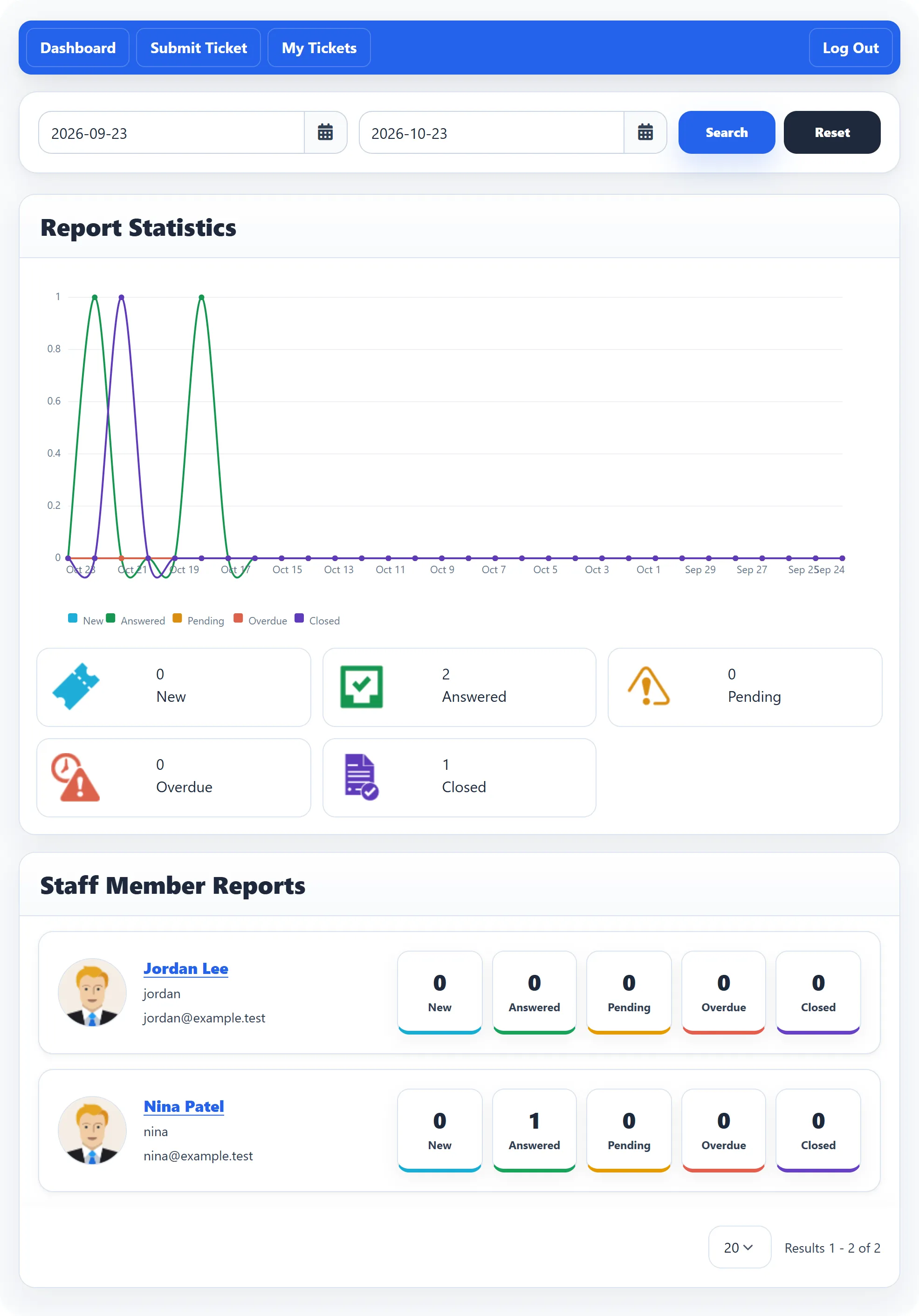
- At the top, pick a start and end date and click Search. Reset clears the dates.
- Report Statistics is a line chart of tickets per day: New, Answered, Pending, Overdue and Closed, followed by the totals for each.
- Staff Member Reports has a card for each staff member with the same five counts.
Click a staff member’s card to open Staff Report Details: the same chart for that person, and the list of their Tickets with Subject, Status, Priority and Created date.
Department Reports
Section titled “Department Reports”Department Reports (permission to view department reports) shows Tickets By Department: for each department, how many tickets are New, Answered, Pending, Overdue and Closed.
Feedback
Section titled “Feedback”Feedback (permission to view feedback) lists what customers said when they rated a closed ticket. See Rating the help you got for the customer’s side.
Under Latest Feedback, each entry shows the rating, the ticket’s subject, Department, Staff, Created date and Ticket ID, and the customer’s remarks and answers to any extra feedback questions.
Search by Subject or Ticket ID; the extra filters add the customer’s Username, the staff member and the department. Reset clears the search.
User Data
Section titled “User Data”The User Data card opens the same data page customers have, for your own account: export your data, or ask for it to be removed. See Your data.