
Exporting tickets
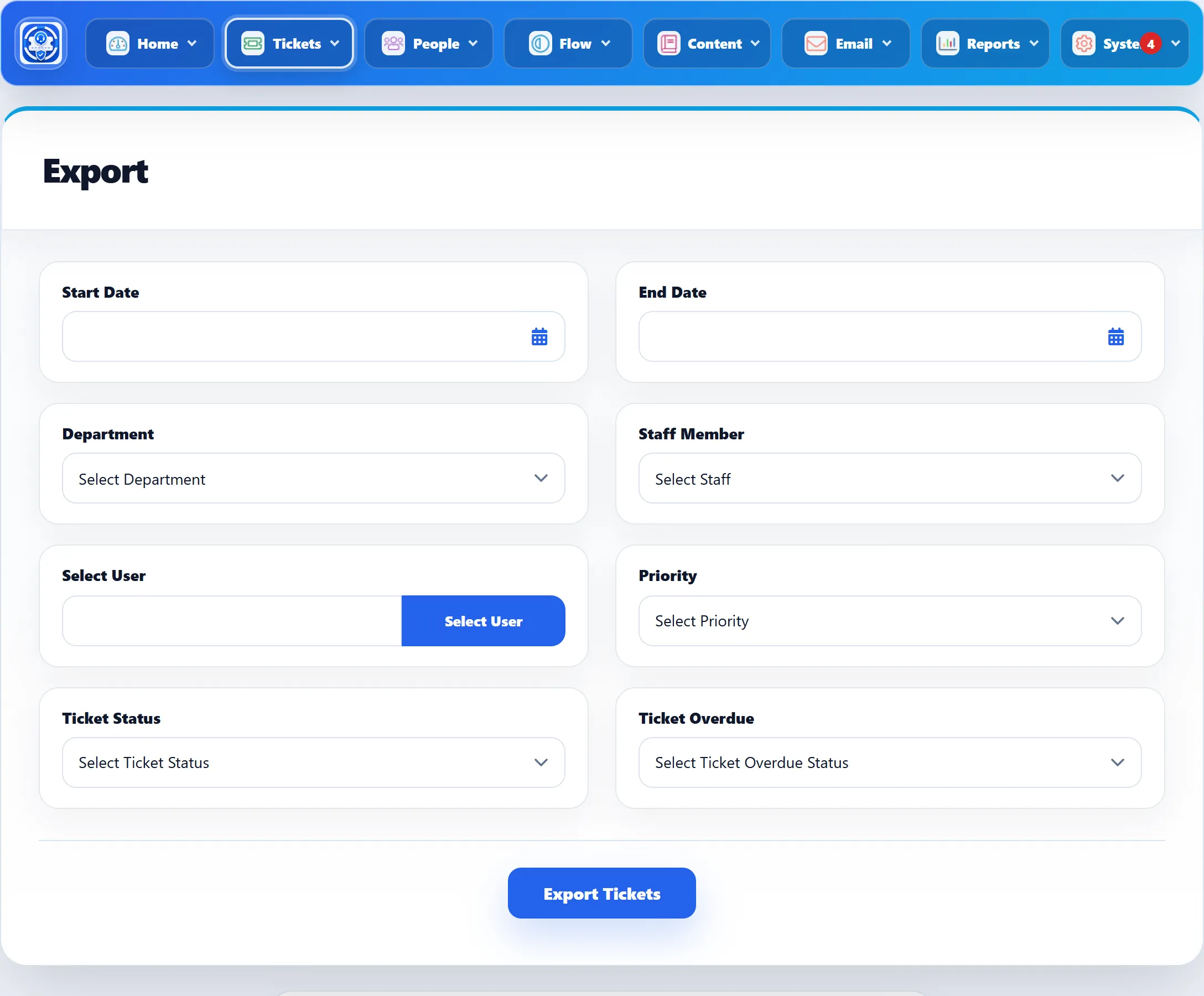
Tickets → Export Tickets downloads tickets as a file you can open in a spreadsheet program, for reporting or for keeping a copy outside the help desk.
Choosing the tickets
Section titled “Choosing the tickets”Every filter is optional. Leave them all empty to export every ticket.
| Filter | Exports tickets |
|---|---|
| Start Date | Created on or after this date. |
| End Date | Created before this date. Tickets created during the end date itself are not included, so pick the day after the last day you want. |
| Department | In this department. |
| Staff Member | Assigned to this staff member. |
| Select User | From this Joomla user. Select User opens a search by Username, Name and Email address. |
| Priority | With this priority. |
| Ticket Status | With this status: New, Pending, In Progress, Answered or Closed. Merged tickets can’t be picked on their own. |
| Ticket Overdue | Yes for overdue tickets only, No for the rest. |
- Set the filters you need.
- Click Export Tickets.
- Your browser downloads
tickets-data.xls.
If no ticket matches, the file holds only its headings.
What the file holds
Section titled “What the file holds”The file is plain text with its values separated by tabs, saved with an .xls
name. It starts with the headings “Tickets Data” and “Tickets”. Each ticket then
takes two lines: a line of column headings, then the ticket’s values.
| Columns | Hold |
|---|---|
| Subject, Message | The ticket’s subject and the customer’s original message. |
| Status, Overdue | The status, and “Overdue” when the flag is set on an open ticket. Merged tickets have an empty status. |
| Priority, Ticket ID, Department, Assigned To | As named. |
| Rating | The customer’s feedback rating, if any. |
| Created, Last Reply | Dates. |
| Requester Name, Requester Email, Requester Phone, Requester help Topic | The customer’s details and the help topic. |
| Custom fields | One column per custom ticket field. |
| Ticket Attachment | One column per attachment, with the file’s address. |
| Internal notes | For each note: Posted by, Note Title, Note Message, Posted Date, Note Attachment, User Time, System Time and Edit reason. |
| Replies | For each reply: Reply Date, Reply By, Message, a Reply Attachment column per file, and for staff replies User Time, System Time and Edit reason. |
Because the number of notes, replies and attachments differs from ticket to ticket, the columns after the custom fields don’t line up between tickets. Read each ticket against the heading line just above it.