
Watchers
A watcher is someone copied on a ticket: a colleague, the customer’s manager, or anyone else who should follow it. Watchers are emailed when your team replies, when the status changes and when the ticket is closed. They don’t need a Joomla account.
Adding a watcher
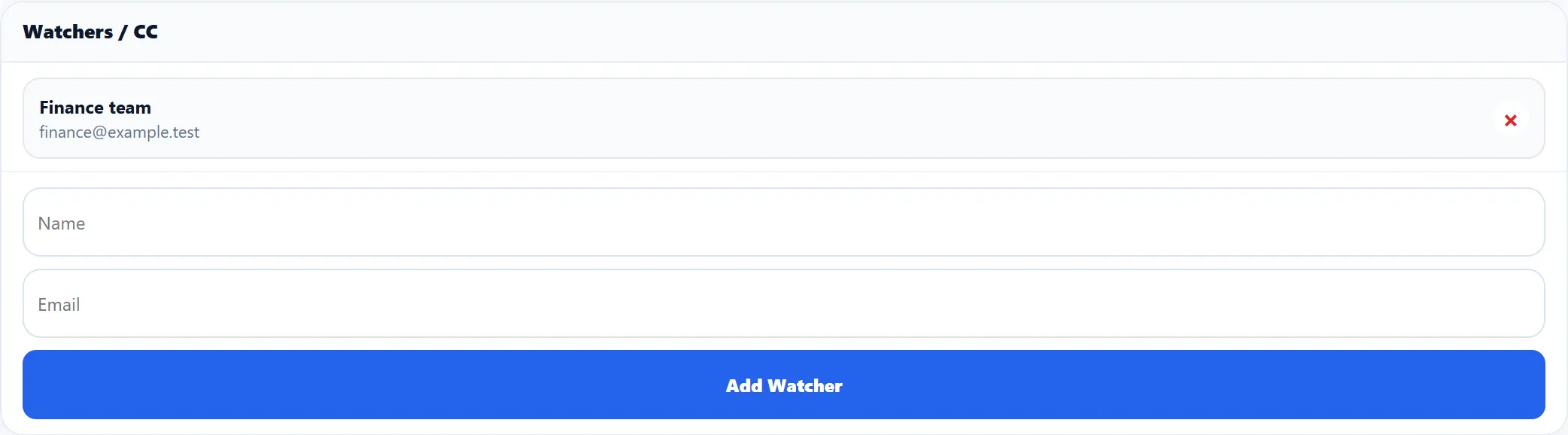
Section titled “Adding a watcher”The Watchers / CC card on the ticket screen lists the ticket’s watchers.
- Type the person’s Name (optional) and Email.
- Click Add Watcher.
Without a name, the email address is used as the name. The watcher is added and the ticket’s history records it.
A watcher is refused with a message when:
| Message | Why |
|---|---|
| “Please enter a valid watcher email.” | The address isn’t a valid email address. |
| “Watcher already exists on this ticket.” | That address is already watching. |
| “Ticket owner cannot be added as watcher.” | It is the customer’s own address: the customer is emailed anyway. |
Click × beside a watcher, and confirm, to remove them. They stop getting emails; the record is kept and shows as removed on the Watchers screen. Adding the same address again later turns it back on.
What watchers are sent
Section titled “What watchers are sent”| When | Email template |
|---|---|
| You or a staff member reply | Watcher: new reply, with a preview of the reply. Replies from the customer are not sent to watchers. |
| The status changes through a reply or the Status list on the ticket screen | Watcher: status changed, with the new status. |
| The ticket is closed | Watcher: ticket closed. |
Each email has a link to the ticket. The wording comes from these templates under Email → Email Templates; when a template is missing, a built-in message is sent instead. Every send is noted in the ticket’s history as “Watchers notified”.
Watcher emails need a sender address. If none is configured, nothing is sent and the problem is written to System → Error Logs.
Watchers screen
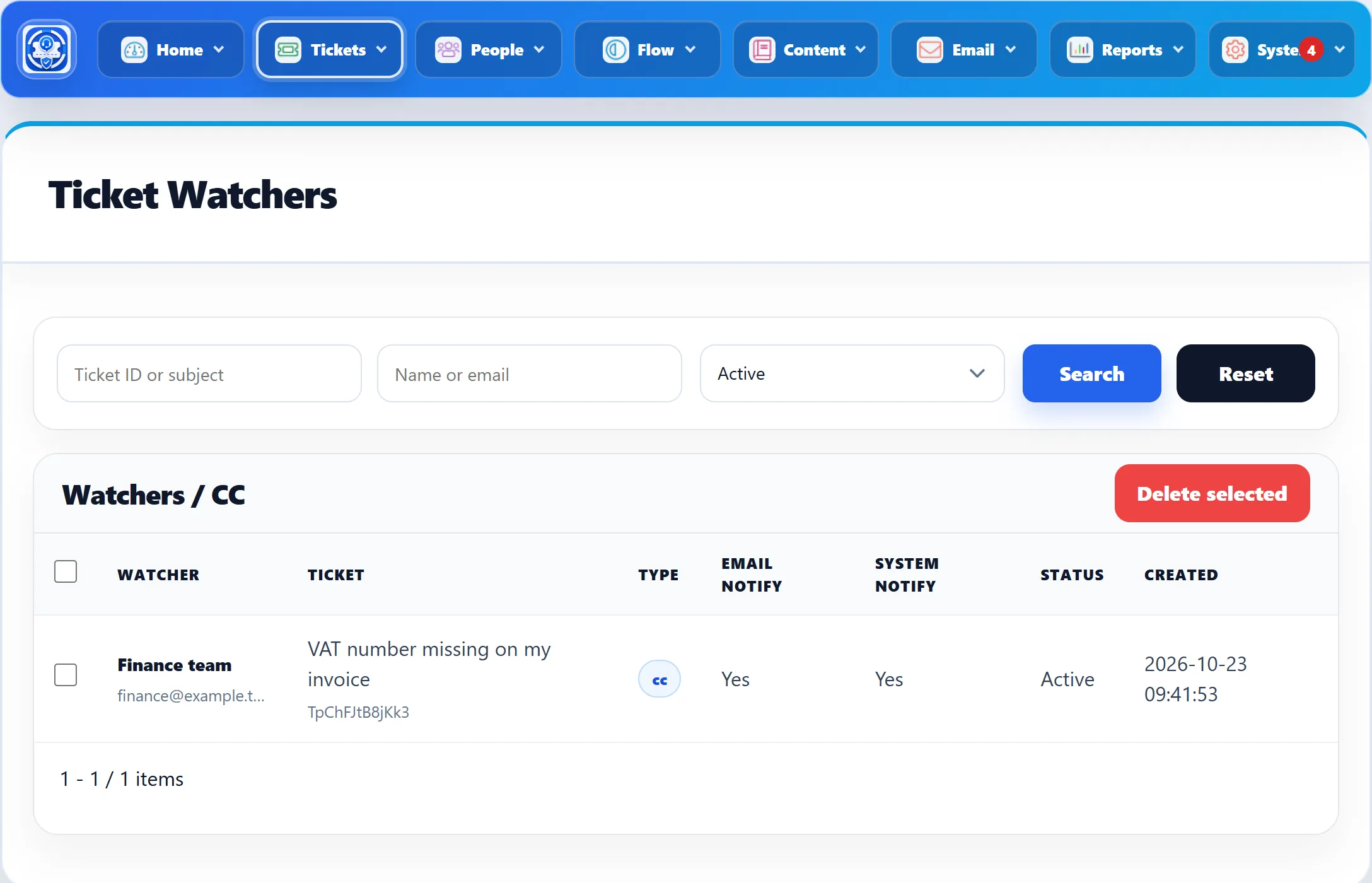
Section titled “Watchers screen”Tickets → Watchers lists the watchers on every ticket.
| Column | Shows |
|---|---|
| Watcher | The name and email address. |
| Ticket | The ticket’s subject and tracking ID. |
| Type | How the watcher was added; cc for watchers added on the ticket screen. |
| Email Notify, System Notify | Whether the watcher gets emails and notifications. |
| Status | Active, or Removed for watchers taken off a ticket. |
| Created | When the watcher was added. |
The filters above the list search by Ticket ID or subject and Name or email, and the status list shows Active watchers (the default), Removed ones or All. Click Search to apply or Reset to clear.
To delete watcher records for good, tick them, click Delete selected and confirm. Unlike removing a watcher on the ticket, this deletes the record.
Watchers and staff access
Section titled “Watchers and staff access”A staff member who is a watcher on a ticket can open it on the front end even if it is outside their departments and not assigned to them.