
Downloads
A download is a titled entry with a description and one or more files, such as a user manual, an installer or a form to fill in. Manage them under Content → Downloads.
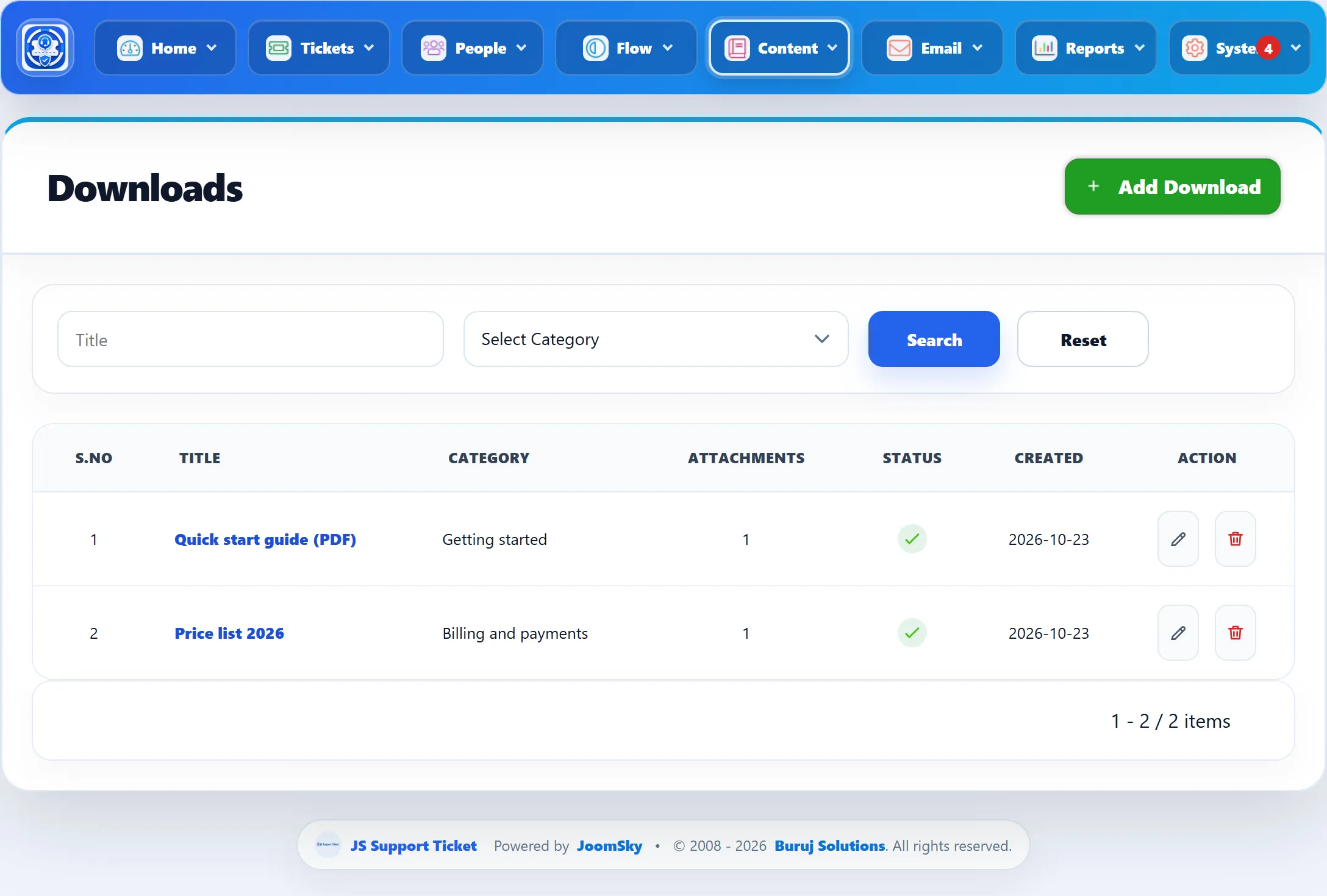
Above the list, Title searches download titles and the category menu shows one category. The columns are Title, Category, Attachments (how many files the download has), Status and Created.
Adding a download
Section titled “Adding a download”-
Go to Content → Add Download, or click Add Download on the list.
-
Pick a Category and type a Title.
-
Write a Description of what the files are and who they are for.
-
Under Attachments, choose a file. Click Add Files for each extra file.
-
Click Save Download.
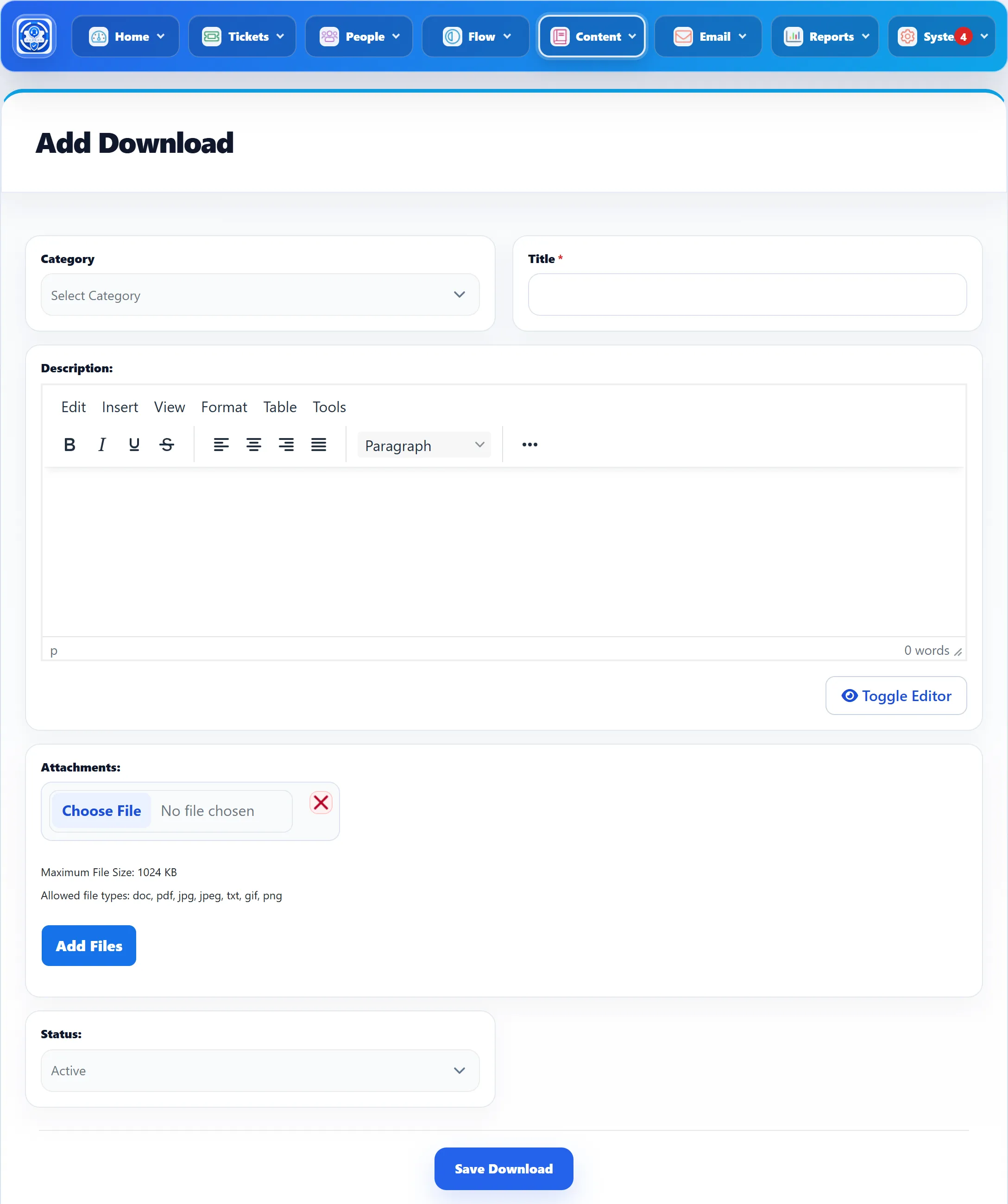
| Field | What it does | Default |
|---|---|---|
| Category | The category the download is listed under. Only active categories with Downloads ticked are offered. See Categories. | Select Category |
| Title | The download’s name. Required. | – |
| Description | Shown to customers above the files. | Empty |
| Attachments | The files. A new download needs at least one: saving without a file stops with “Attach at least one file to the download.” | – |
| Status | Active downloads are shown to customers; Disabled ones are hidden. | Active |
The toolbar has Save Download (stay on the form), Save & New and Save & Close.
File limits
Section titled “File limits”The number of file boxes is capped by Maximum Attachments, and each file must be within Maximum File Size (in KB) and have an allowed extension. These are the attachment settings in System → Settings → General Settings, and the form prints the size limit and allowed types under the file boxes.
Changing the files
Section titled “Changing the files”Open the download to see its files listed under Attachments, each with its size and a Delete link. Add more with the file boxes and save.
Deleting a download
Section titled “Deleting a download”Click the bin icon on the list and confirm. The download and its file records are removed.
Where customers see them
Section titled “Where customers see them”Customers open downloads from the Downloads link on their dashboard or a menu item and browse them by category. Opening a download shows its description and each file with a Download button, plus Download All, which gives every file in one zip. A download with no files left shows the customer no record. See Downloads in the guide for customers.
Staff whose role allows it can also add and edit downloads from the front end.