
Knowledge base
Knowledge base articles are self-help pages your customers can read before they open a ticket. You write them under Content → Knowledge Base.
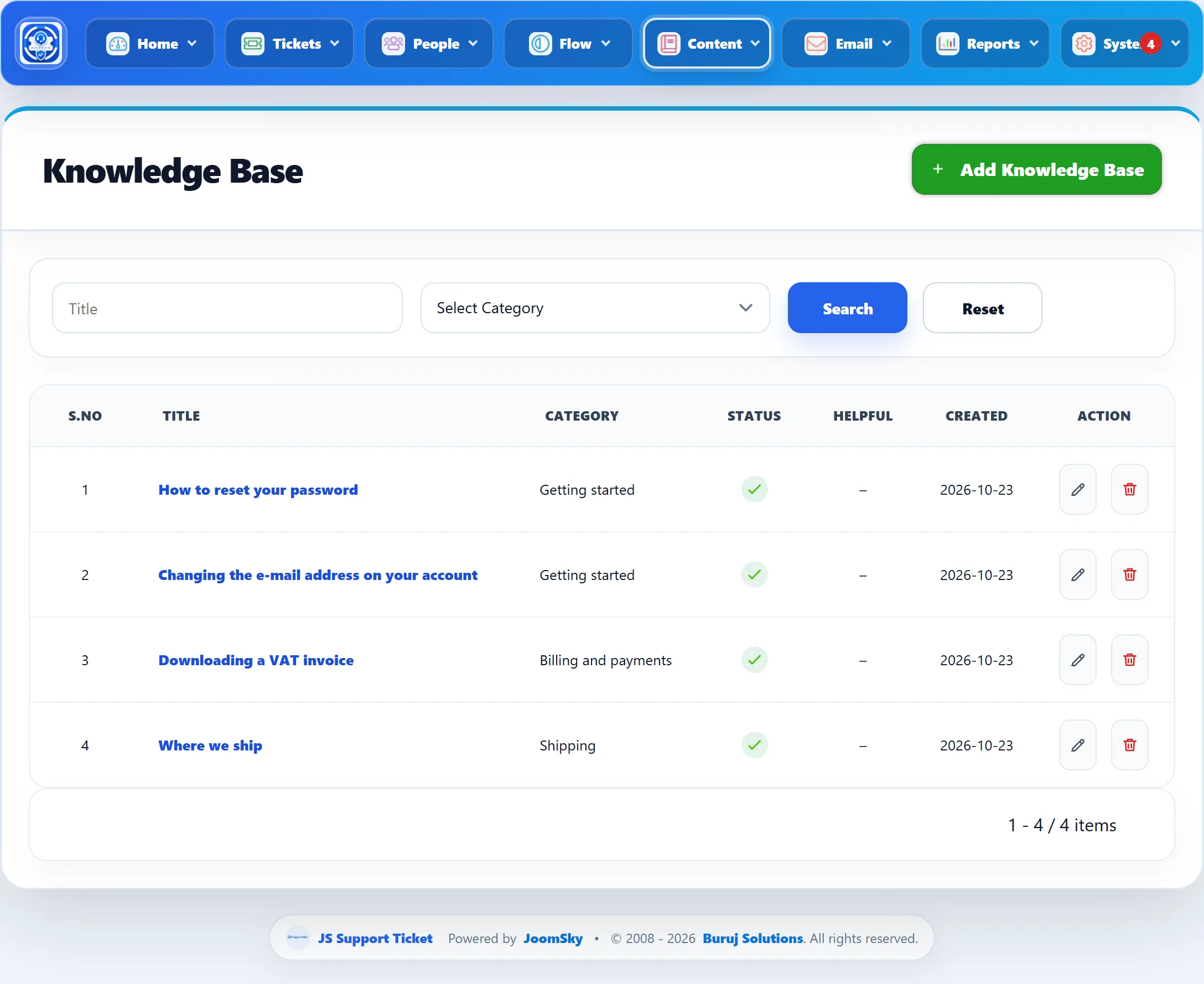
The list has a Title search and a category menu above it. Its columns:
| Column | What it shows |
|---|---|
| Title | The article’s subject. Click it to edit. |
| Category | The category it is filed under. |
| Status | A tick for active, a cross for disabled. |
| Helpful | The share of readers who answered “helpful”, with the number of ratings in brackets. A dash means nobody has rated it yet. |
| Created | When the article was added. |
Writing an article
Section titled “Writing an article”-
Go to Content → Add Article, or click Add Knowledge Base on the list.
-
Pick a Category, type the Subject and write the Content.
-
Add files under Attachments if the article needs them.
-
Click Save Knowledge base.
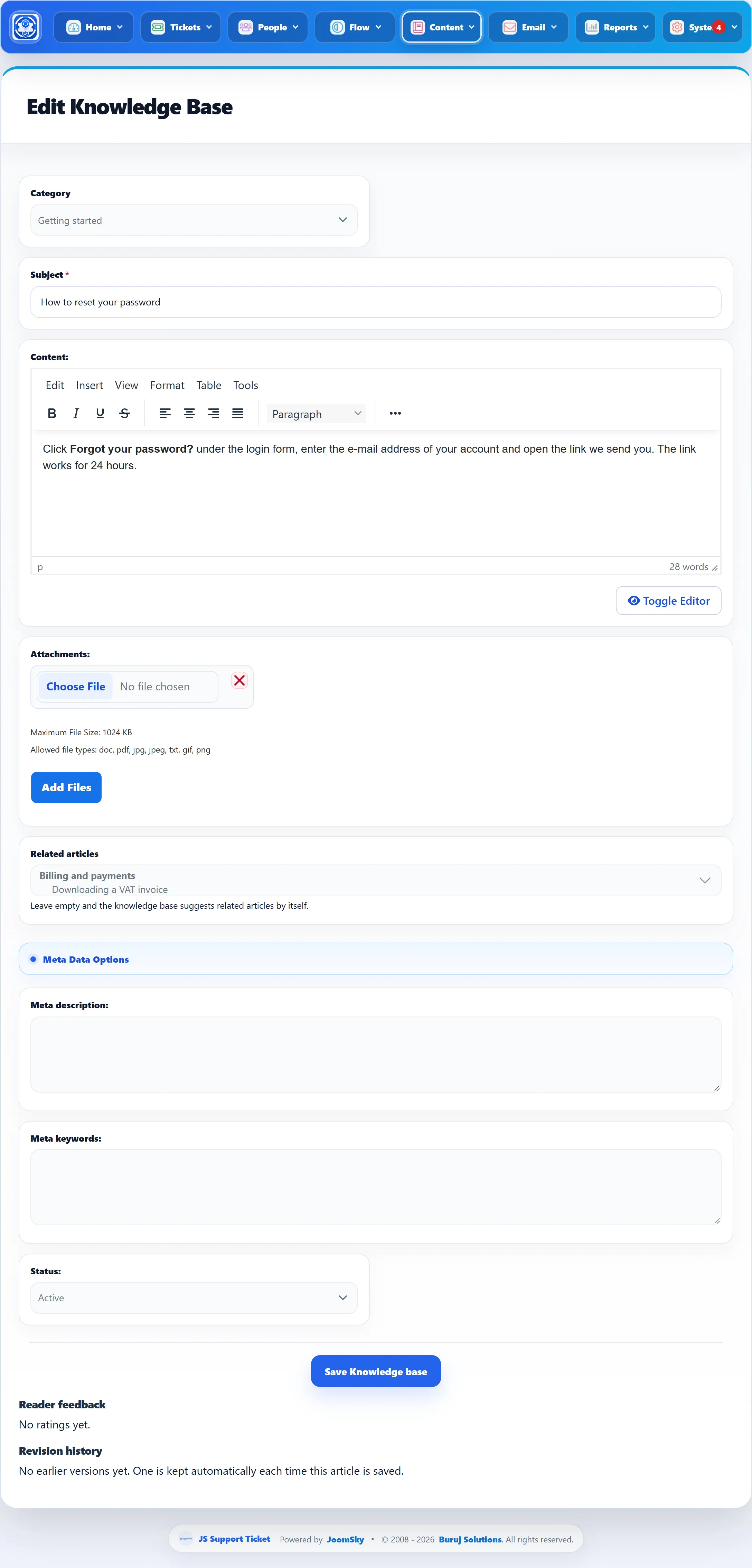
| Field | What it does |
|---|---|
| Category | Which category the article is filed under. Only active categories with Knowledge Base ticked are offered. See Categories. |
| Subject | The article’s title. Required. |
| Content | The article itself, in your Joomla editor. |
| Attachments | Files to offer with the article. See below. |
| Related articles | Other articles to link at the end of this one. See below. |
| Meta description | A short summary. It is shown under the article’s title when the article is suggested to a customer, and in other articles’ related-article lists. |
| Meta keywords | Stored with the article. |
| Status | Active articles are published. Disabled ones are hidden from customers, from suggestions and from related-article lists. A new article is Active. |
The toolbar offers Save Knowledge base (stay on the form), Save & New and Save & Close.
Attachments
Section titled “Attachments”Click Add Files to add another file box, up to the Maximum Attachments number in System → Settings → General Settings. The same settings decide the largest file (Maximum File Size, in KB) and the allowed file types; both are printed under the file boxes. An article that already has files lists them at the bottom of the section, each with a Delete link.
Related articles
Section titled “Related articles”Related articles lists every other active article, grouped by category. Hold Ctrl (or Cmd on a Mac) to pick several. The links work one way: linking “Refunds” from “Cancelling an order” doesn’t add a link back.
Leave it empty and the knowledge base finds related articles itself, by matching this article’s subject against other articles. Customers see up to five related articles: the ones you picked first, then the ones it found.
Reader feedback
Section titled “Reader feedback”Once an article has been saved, its edit form shows Reader feedback and Revision history under the form.
Customers can mark an article helpful or not helpful, with an optional comment. Each visit (Joomla session) counts once per article: rating again in the same session replaces the earlier rating. Reader feedback shows the result, for example “80% of 10 readers found this helpful”, the helpful and not-helpful counts, and the latest comments. Comments marked Not helpful are the ones to read when an article needs fixing.
Revision history
Section titled “Revision history”Every time you save an article, the version you are replacing is kept: its subject, content and meta fields, who edited it and when. Revision history lists the last 25.
Click Restore beside a version and confirm to put it back. The current version is kept as a revision first, so a restore can itself be undone. The category, status, attachments and related articles aren’t part of a revision and stay as they are.
Deleting an article
Section titled “Deleting an article”Click the bin icon on the list and confirm. The article goes with its attachments, revisions, ratings and related-article links, in both directions.
Where customers see it
Section titled “Where customers see it”Customers browse the knowledge base by category from the Knowledge Base link on their dashboard or a menu item, read articles, rate them and open attachments. The ticket form also suggests up to five matching articles while the customer types. See Knowledge base in the guide for customers.
Staff whose role allows it can add and edit articles from the front end.