Front-end menu links
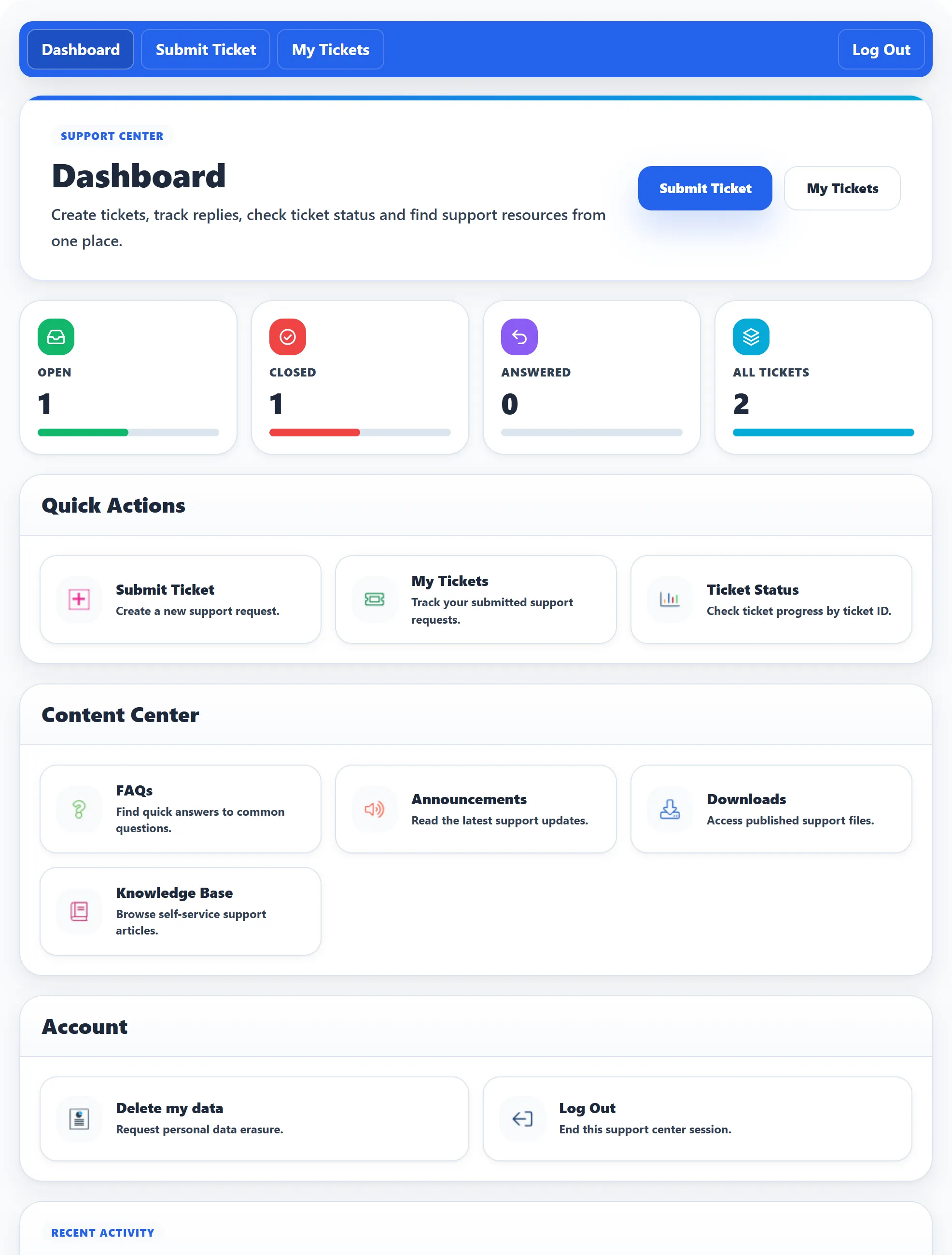
Two tabs of System → Settings decide what appears on the component’s front-end dashboard and in the bar at the top of its pages:
- Staff Menu Settings (Pro) for staff members.
- Visitor Menu Settings for everyone else: logged-in customers and visitors.
The dashboard is the page behind the Dashboard link (the User Control Panel menu item). Every setting is Yes (or Show) by default. Turning a link off only hides it; the page behind it still works for anyone allowed to open it.
Staff Menu Settings
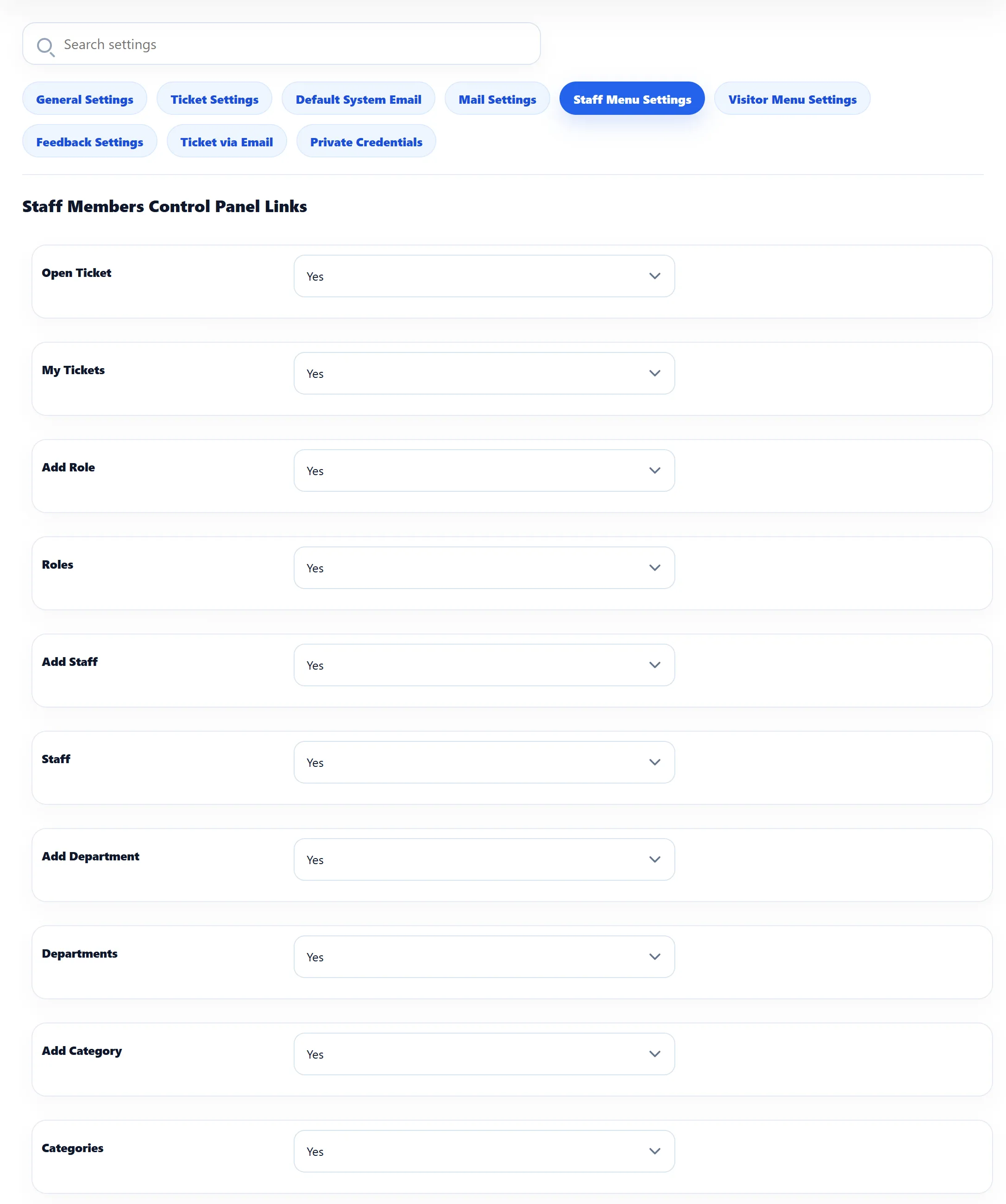
Section titled “Staff Menu Settings”Staff Members Control Panel Links
Section titled “Staff Members Control Panel Links”Each setting shows or hides one card on a staff member’s dashboard. A card also needs the matching permission in the staff member’s role: a staff member whose role can’t add departments never sees Add Department, whatever the setting.
| Setting | The card opens |
|---|---|
| Open Ticket | The form to create a ticket for a customer (the card reads Submit Ticket). |
| My Tickets | The staff ticket list. |
| Add Role / Roles | A new role, or the list of roles. |
| Add Staff / Staff | A new staff member, or the list of staff members. |
| Add Department / Departments | A new department, or the list of departments. |
| Add Category / Categories | A new category, or the list of categories. |
| Add Article / Knowledge Base | A new knowledge base article, or the list of articles. |
| Add Download / Downloads | A new download, or the list of downloads. |
| Add Announcement / Announcements | A new announcement, or the list of announcements. |
| Add FAQ / FAQs | A new FAQ, or the list of FAQs. |
| The internal mail inbox between staff members. | |
| My Profile | The staff member’s own profile. |
| Staff Reports / Department Reports | The front-end staff and department reports. |
| Feedback | The feedback customers left on closed tickets. |
| Erase Data | The User Data card, where a staff member can ask for their own data to be erased. |
The next three settings use Show and Hide and control parts of the dashboard rather than cards:
| Setting | Shows or hides |
|---|---|
| Show Ticket Total Count | The Open, Closed, Answered and All Tickets counters. |
| Show Ticket Statistics | The ticket chart. |
| Show Latest Tickets | The list of the latest tickets. |
Staff always see a Notifications card (with their unread count) and Log Out; those have no setting.
Staff Members Top Menu Links
Section titled “Staff Members Top Menu Links”| Setting | What it does |
|---|---|
| Home | Shows the Dashboard link in the top bar. |
| Tickets | Shows the Submit Ticket and My Tickets links in the top bar. |
| Knowledge Base, Announcements, Downloads, FAQs | Have no effect in 1.3.0: the top bar has no links for these pages. |
The top bar itself is turned on and off with Top Header under General Settings.
Visitor Menu Settings
Section titled “Visitor Menu Settings”These apply to customers who are logged in and to visitors who are not.
User Control Panel Links
Section titled “User Control Panel Links”| Setting | The card opens |
|---|---|
| Open Ticket | The ticket form (the card reads Submit Ticket). A visitor who isn’t logged in is sent to log in first, unless Visitors can create ticket is Yes. |
| My Tickets | The customer’s own tickets. |
| Check Ticket Status | The Ticket Status page, where anyone can look up a ticket by its ID and email address. |
| Downloads (Pro) | The downloads list. |
| Announcements (Pro) | The announcements list. |
| FAQs (Pro) | The FAQ list. |
| Knowledge Base (Pro) | The knowledge base. |
| Erase Data Requests | The Delete my data card, where a customer asks for their data to be erased. See GDPR / User Data. |
User Top Menu Links
Section titled “User Top Menu Links”| Setting | What it does |
|---|---|
| Home | Shows the Dashboard link in the top bar. |
| Tickets | Shows the Submit Ticket and My Tickets links in the top bar. |
| Knowledge Base, Announcements, Downloads, FAQs (Pro) | Have no effect in 1.3.0: the top bar has no links for these pages. |
The top bar always shows Log In or Log Out.