
Knowledge base
The knowledge base holds help articles written by the support team. Many questions are answered there already, so it is worth a look before you open a ticket. Open it from the Knowledge Base card on the help desk Dashboard, or from your site’s menu if it has a link.
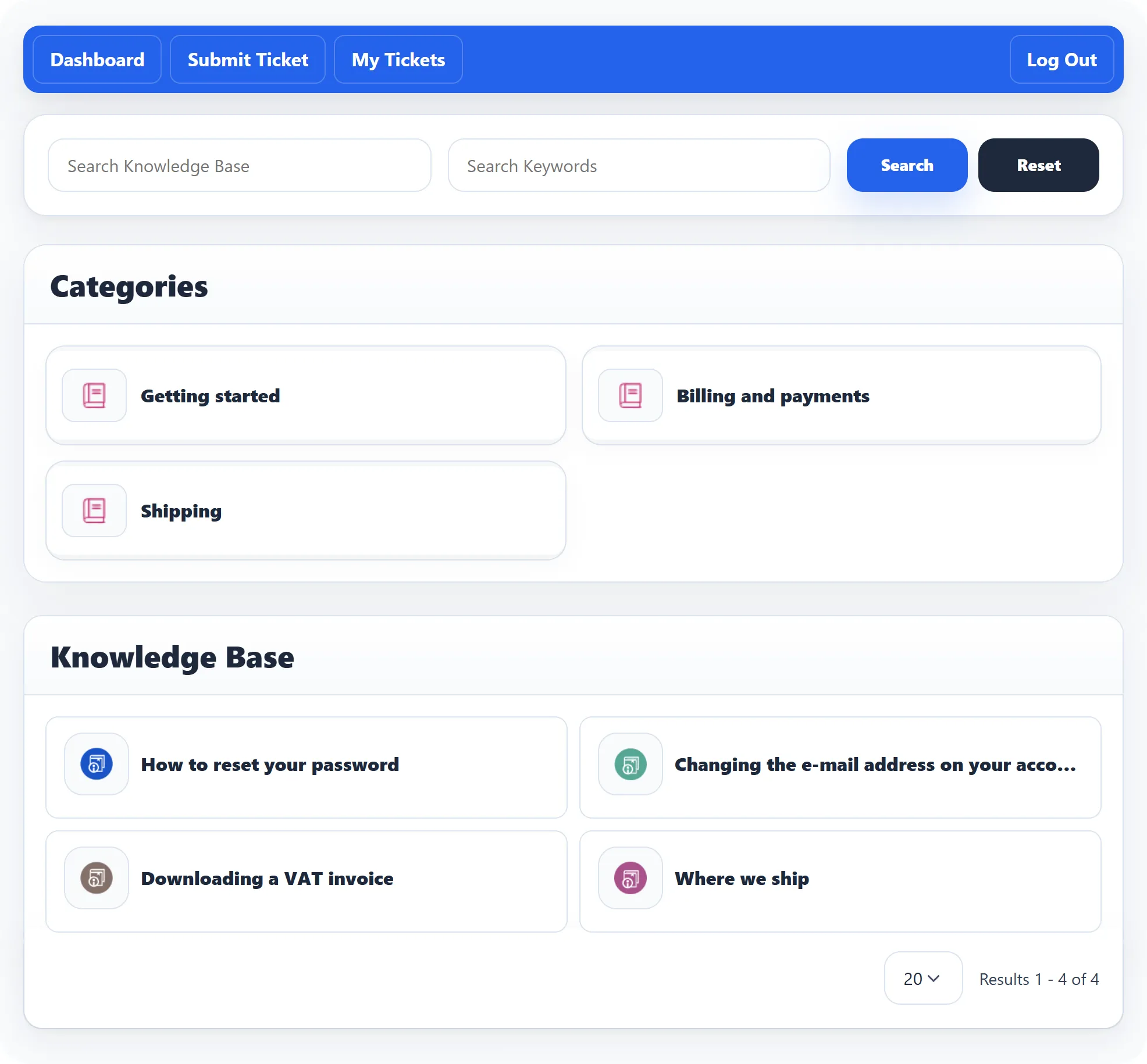
Find an article
Section titled “Find an article”- Search Knowledge Base looks for your words in the article titles and texts, and in the category names.
- Search Keywords looks in the keywords the support team gave each article and category.
Type in one or both and click Search. Reset clears the search and shows all articles again.
To browse instead, click a category under Categories. The category page lists its articles and, under Knowledge Base Subcategories, any smaller categories inside it.
The list shows a number of articles per page; use the page links and the Display box at the bottom to see more.
Read an article
Section titled “Read an article”Click an article’s title. The page shows the category it belongs to, then the article itself.
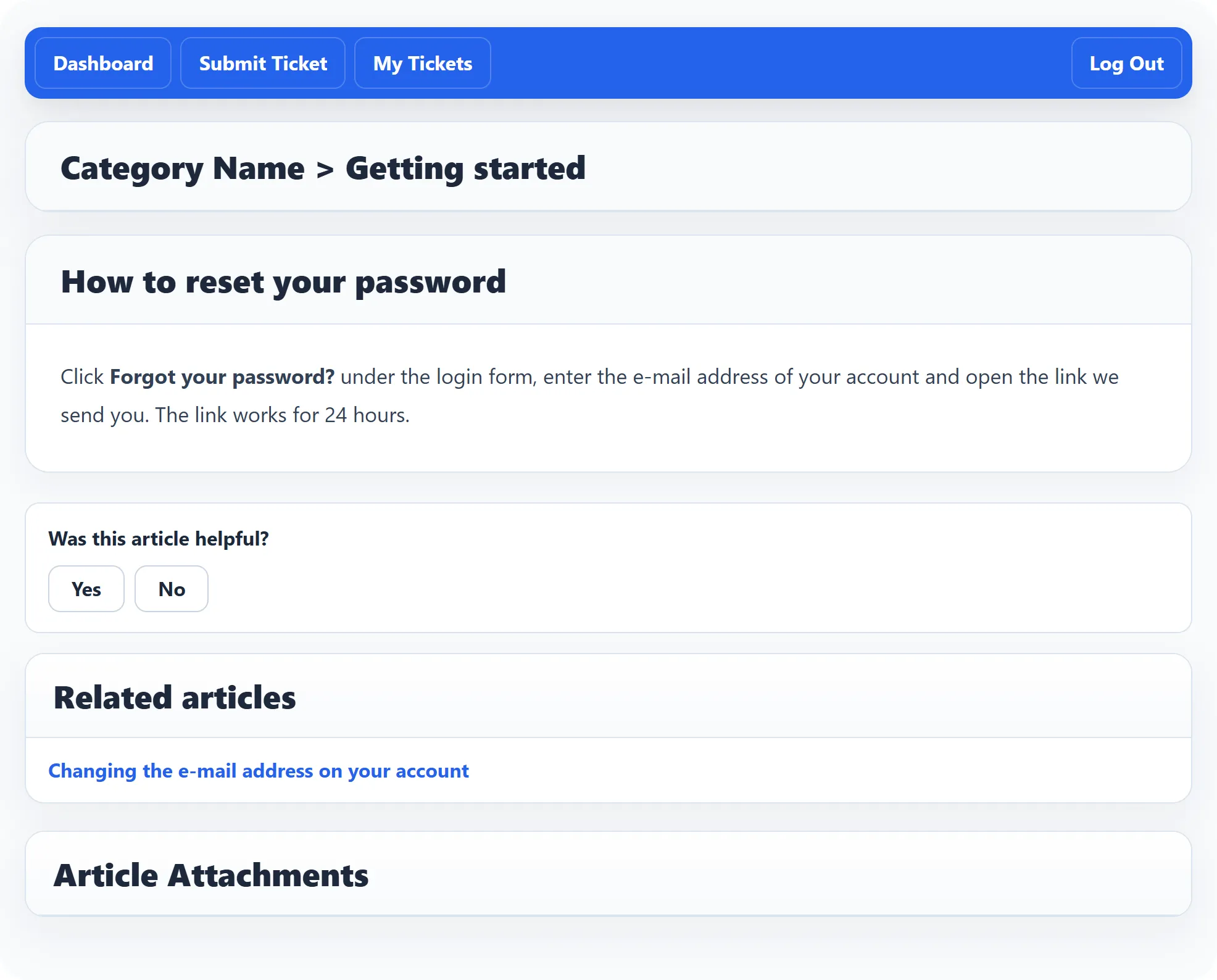
Below the article you may find:
- Was this article helpful? See below.
- Related articles: up to five other articles, chosen by the support team or found by the article’s title.
- Article Attachments: files that go with the article, each with a Download button.
Was this article helpful?
Section titled “Was this article helpful?”Click Yes or No. If you click No, a box asks What was missing?. Write a few words and click Send; this helps the support team improve the article. Either way you see Thanks for the feedback.
Once an article has been rated, a line such as “80.0% of 5 readers found this helpful” shows under the buttons.
Suggestions while you write a ticket
Section titled “Suggestions while you write a ticket”You don’t have to search first: when you type the subject of a new ticket, the form suggests matching articles. See Submitting a ticket.