
Staff Reports
Reports → Staff Reports shows how many tickets each staff member has, how customers rated them, and how much time they recorded. Click a staff member to see their tickets.
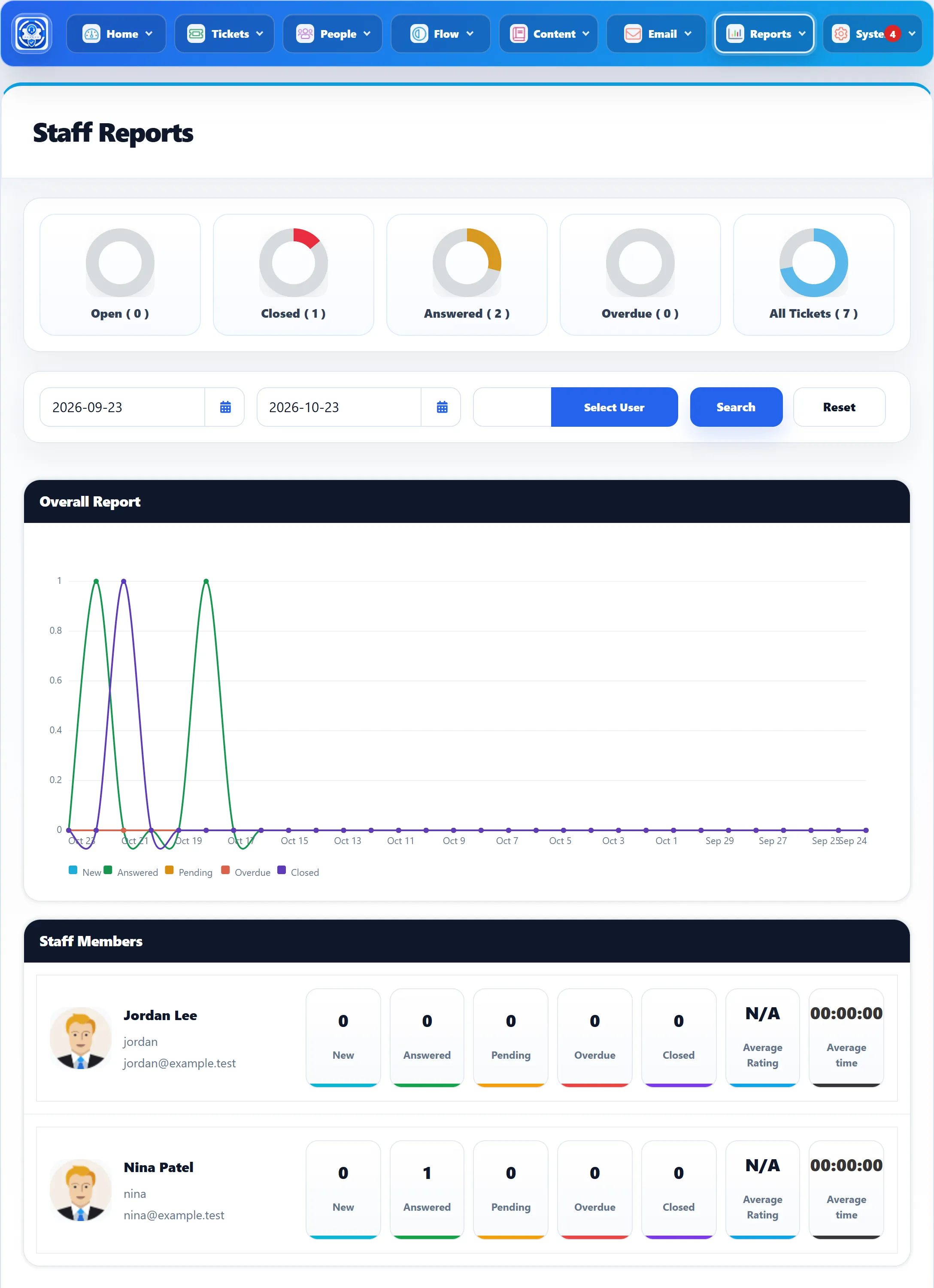
Filters
Section titled “Filters”The screen always covers a date range. It opens on the last month up to today.
- Pick a start and end date (they use the Date Format from General Settings), then click Search. If you swap them, the report puts them in order.
- Select User opens a search box. Find a staff member by name, username or email and click them to show only their figures.
- Reset clears the user and goes back to the last month.
A ticket is in the range if it was created in it.
What it shows
Section titled “What it shows”Rings. Open, Closed, Answered, Overdue and All Tickets for the range (for the chosen staff member only, if you picked one). Each ring is that group’s share of All Tickets. Here Open counts new tickets that nobody has replied to and that are not overdue. The counts in brackets hide when Show count on my tickets is No.
Overall Report. A line per group (New, Answered, Pending, Overdue, Closed) across the days of the range. Each point counts the tickets created that day that are in that group now.
Staff Members. One row per staff member, with their photo, name, username and email, then:
| Box | What it counts |
|---|---|
| New, Answered, Pending, Overdue, Closed | Tickets assigned to this staff member, created in the range, in each group. See how tickets are counted. |
| Average Rating | The average feedback rating, out of 5, on tickets assigned to them and created in the range. N/A when there is no feedback. |
| Average time | The time they recorded on tickets, as hours:minutes:seconds per ticket. It covers everything they have ever recorded, not just the range. A ! beside it means at least one entry claims more time than the ticket was actually open in front of them. |
Time is recorded by staff on the front end, with the timer on a ticket’s reply and note forms. Administrators don’t record time, so a desk run only from the administrator shows 00:00:00.
Staff Detail Report
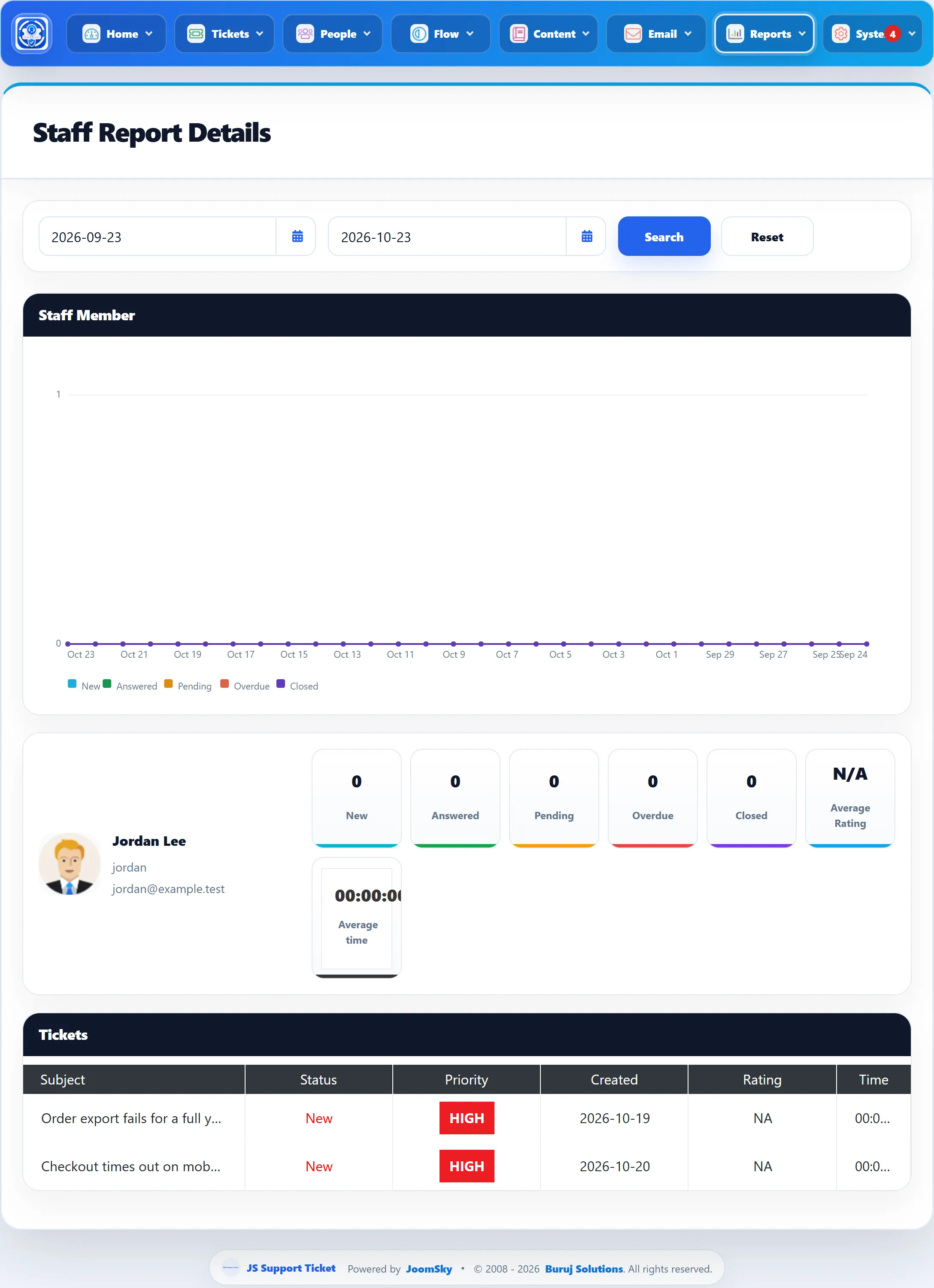
Section titled “Staff Detail Report”Click a row to open Staff Detail Report for that staff member, with the same date range. It has the same date filter, line chart and boxes, followed by a Tickets list:
| Column | Shows |
|---|---|
| Subject | Links to the ticket. A * marks a ticket that is not assigned to this staff member but on which they recorded time. |
| Status | New, Pending, In Progress, Answered, Closed or Merged. |
| Priority | In the priority’s colour. |
| Created | In your date format. |
| Rating | The customer’s feedback, out of 5, or NA. |
| Time | The time this staff member recorded on that ticket. |
Staff Time Report
Section titled “Staff Time Report”On the detail report, click the Average time box. Staff Time Report draws a line of the minutes the staff member recorded on each day of a range (the last month by default). Change the dates and click Search.