
Signing in with Microsoft or Google
Microsoft 365 and Gmail no longer accept a password for reading most mailboxes over IMAP. For those, a ticket-via-email mailbox can sign in with Microsoft or Google instead: you approve access once, and the help desk then reads the mailbox without a password.
This is only for reading ticket mailboxes. The addresses the help desk sends from are set up separately, under System email addresses.
1. Register an app with the provider
Section titled “1. Register an app with the provider”In Microsoft Entra (for Microsoft 365 and Outlook) or the Google Cloud Console (for Gmail), register an app for your help desk. You need:
-
The redirect address. The mailbox form shows it under step 2 of the sign-in instructions, with a Copy button. It is your site’s address followed by
administrator/components/com_jssupportticket/oauth-callback.php. Add it to the app exactly as shown: both providers compare it character by character. -
The permissions the help desk asks for:
Provider Permissions (scopes) Microsoft offline_access,https://outlook.office.com/IMAP.AccessAsUser.All,https://outlook.office.com/SMTP.SendGoogle https://mail.google.com/offline_access(Microsoft) and offline access (Google, which the help desk asks for itself) let it keep reading the mailbox after you close the browser. -
The app’s client ID and a client secret.
2. Connect the mailbox
Section titled “2. Connect the mailbox”-
Open the mailbox under Tickets → Email Tickets, or add a new one. Set Provider to Microsoft 365 / Outlook or Gmail and enter the Mailbox email address.
-
Set Sign-in method to Sign in with Microsoft 365 or Google. The password field is replaced by the sign-in fields.
-
Fill them in (see the table below).
-
Click Save and connect account. The mailbox is saved and you are sent to Microsoft or Google.
-
Sign in as the mailbox and approve the access the app asks for.
-
You come back to the mailbox form with “Mailbox connected. Tickets will now be read from it.” The status line at the top of the sign-in section now reads “Connected. Tickets are read from this mailbox without a password.”
-
Click Check Mailbox Connection to test it.
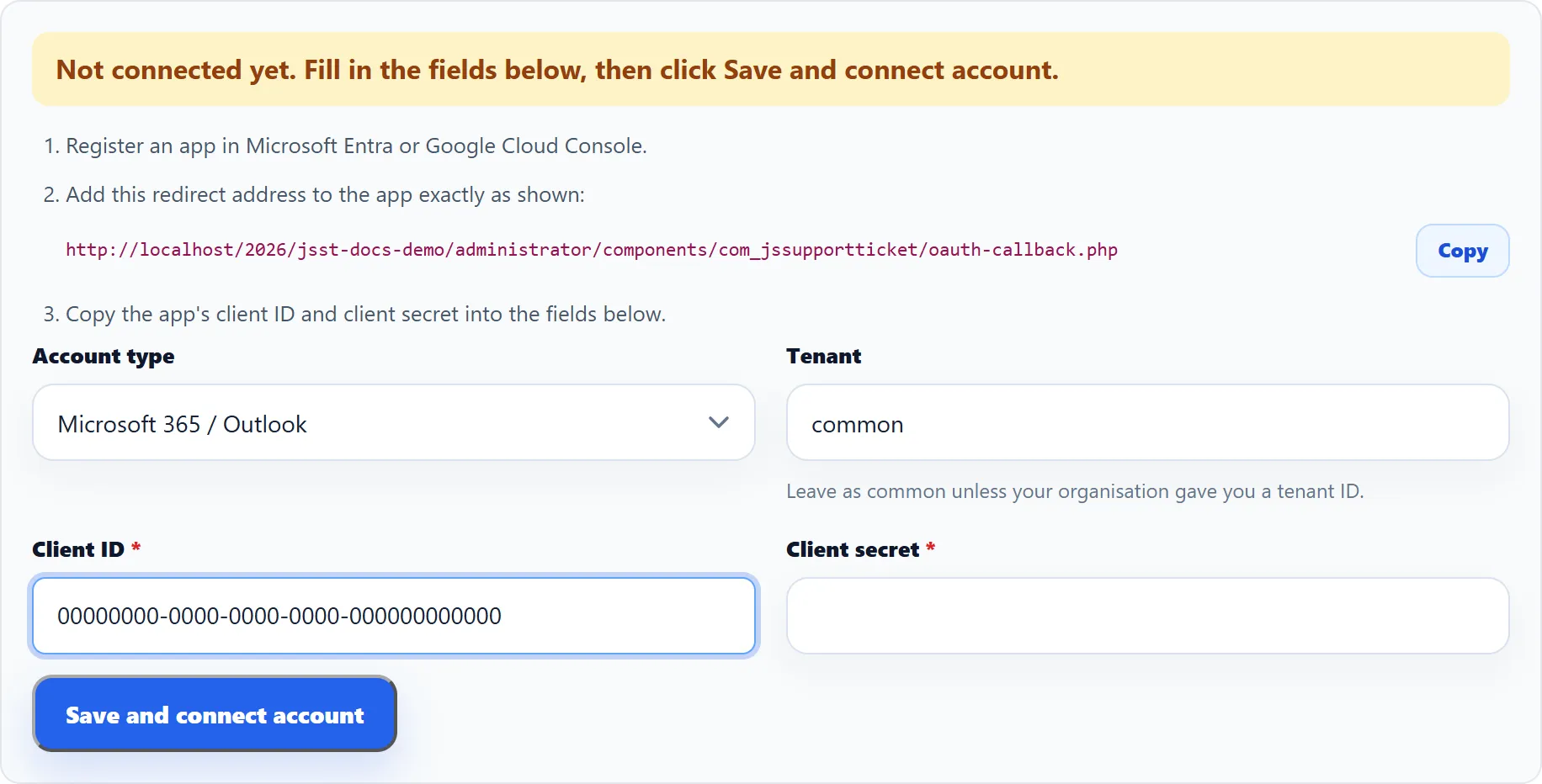
| Field | What it does | Default |
|---|---|---|
| Account type | Microsoft 365 / Outlook or Gmail: whose sign-in to use. | Matches the Provider (Gmail for Gmail, otherwise Microsoft) |
| Tenant | Microsoft only. Leave it as common unless your organisation gave you a tenant ID, for example because it only allows sign-in to its own apps. |
common |
| Client ID | The app’s client ID. Required. | – |
| Client secret | The app’s client secret. Required the first time; afterwards leave it empty to keep the saved one (“Saved secret will be kept”). It is stored encrypted. | – |
Do the whole sign-in in one go, in the browser you are logged in to the administrator with: the provider’s answer is checked against your session.
After connecting
Section titled “After connecting”The help desk keeps the mailbox connected by itself: whenever it reads the mailbox and the current access token has less than five minutes left, it gets a new one, and it keeps any new refresh token the provider issues.
Changing the Account type, Client ID, Tenant or Mailbox email address of a connected mailbox disconnects it, because the old approval belongs to the old details. The button then reads Save and connect account again; click it to reconnect. On a connected mailbox it reads Save and reconnect account, for when you want to approve access again.
When it goes wrong
Section titled “When it goes wrong”| Message | What it means |
|---|---|
| “Save and connect the account first, then test the connection.” | Check Mailbox Connection was clicked before the mailbox was connected. |
| “The sign-in request expired or did not match. Please try again.” | The answer from the provider didn’t match your session, for example because you took too long or logged out in between. Click the connect button again. |
| “The provider refused access:” followed by the provider’s reason | You declined, or the app isn’t set up as the provider expects. The usual causes are a redirect address that doesn’t match exactly and missing permissions. |
| “The provider did not allow offline access, so the mailbox could not be connected.” | The app doesn’t allow offline access. Check its permissions and try again. |
If the provider later stops honouring the approval (the secret expired, or someone revoked access), the mailbox isn’t read, and System → System Errors records “Ticket via email: could not obtain an OAuth access token for” the mailbox. Create a new client secret if needed, enter it, and click Save and reconnect account.