
SLA rules
An SLA rule promises how quickly tickets are answered and solved: for example, “High priority Support tickets get a first response within 1 hour and are solved within 8 working hours”. When a ticket is raised, the best matching rule gives it a First response due and a Resolution due time. The help desk then watches the ticket, notifies someone when a target is missed, and can hand the ticket to another agent.
Open Flow → SLA Rules. Only Joomla Super Users can manage SLA rules.
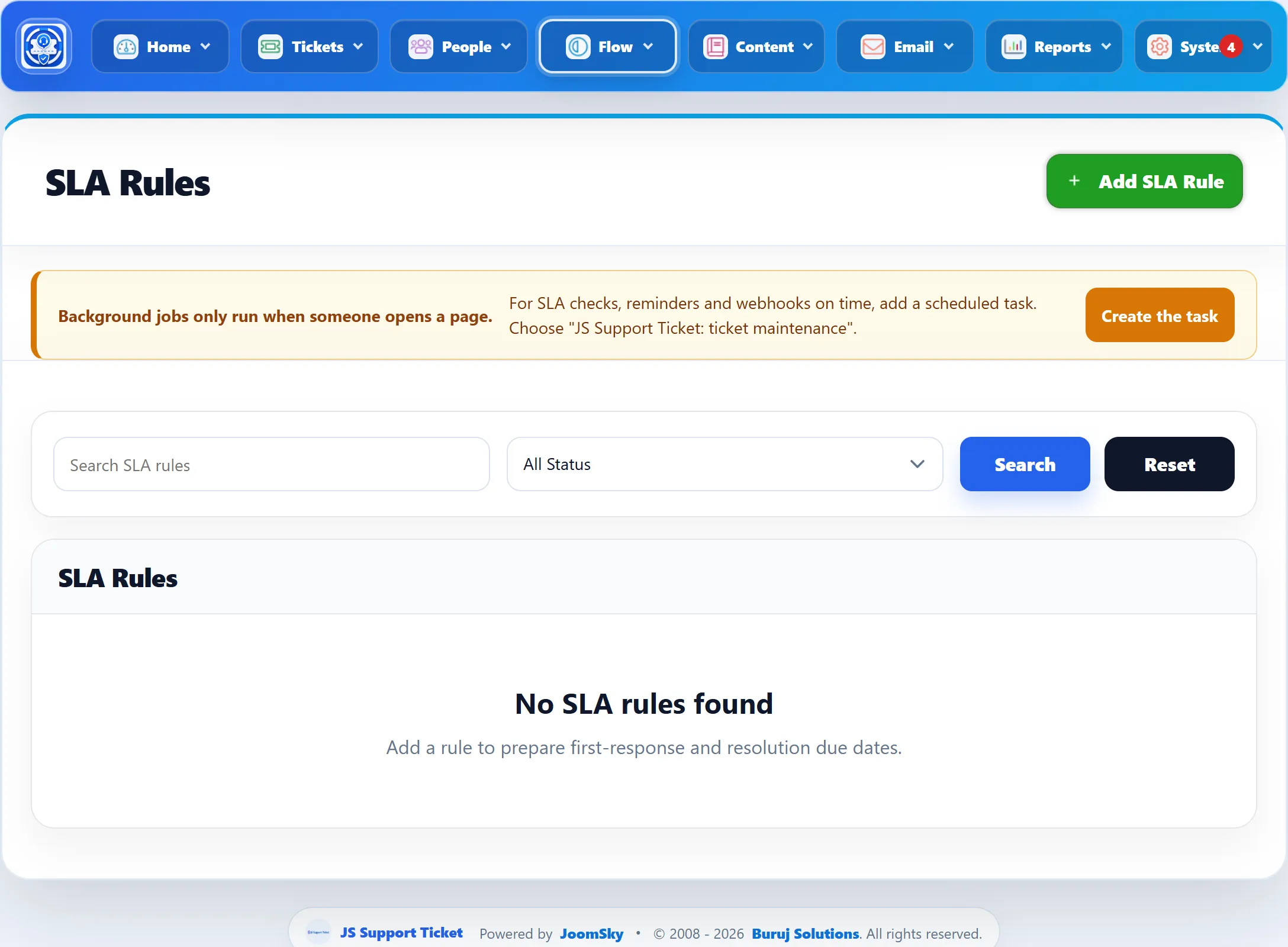
| Column | What it shows |
|---|---|
| Title | Click it to edit the rule. |
| Department, Priority | What the rule applies to, or Any. |
| First Response, Resolution | The targets in minutes, or a dash. |
| Status | Active or Disabled. |
| Ordering | Its position. Use the arrows to move it (only on the unfiltered list). |
Tick rules and click Delete selected to remove them.
Adding a rule
Section titled “Adding a rule”-
Click Add SLA Rule.
-
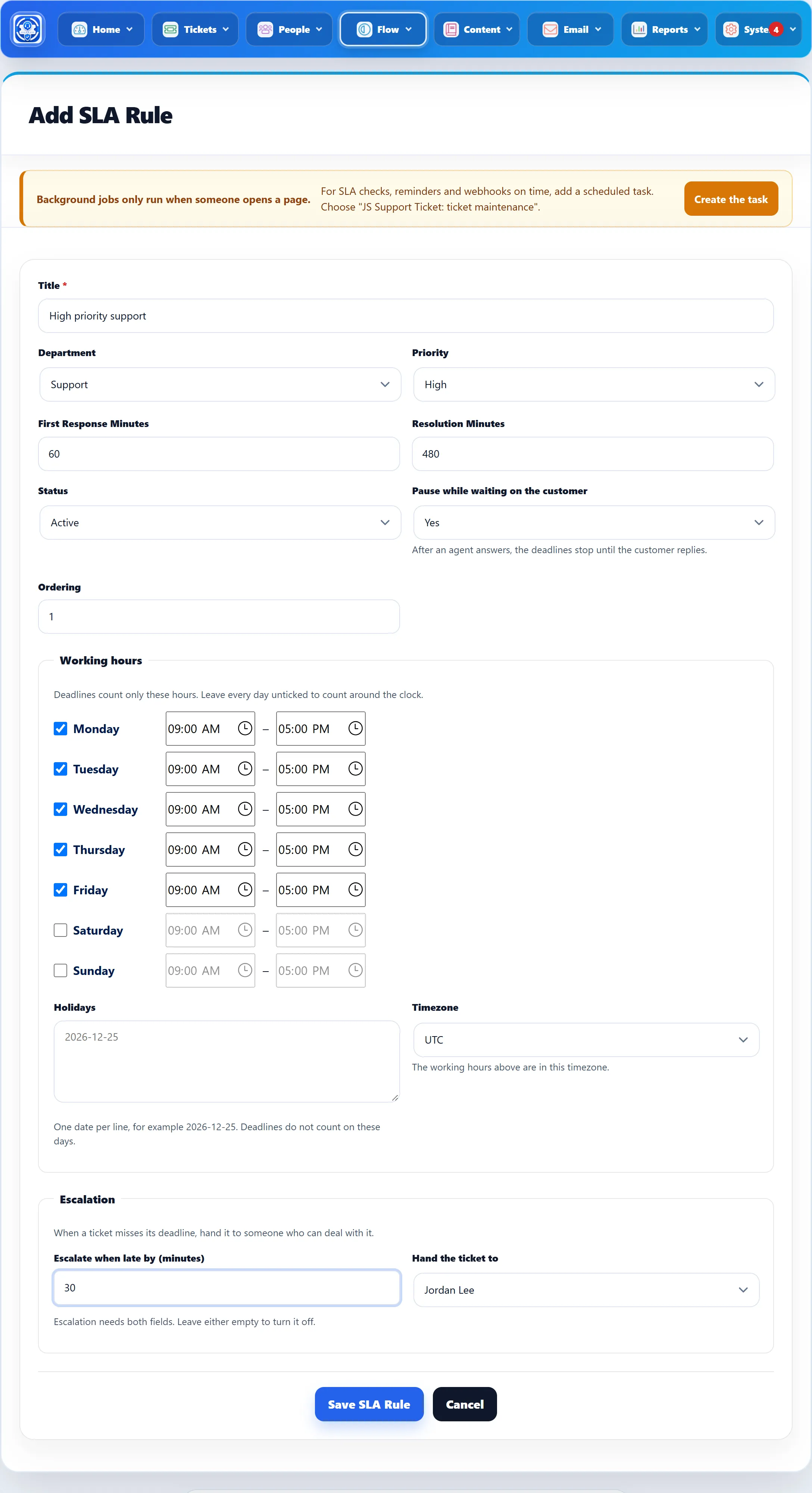
Enter a Title and choose the Department and Priority it covers.
-
Enter the targets in minutes, set the working hours, and, if you want, escalation.
-
Click Save SLA Rule.
| Field | What it does | Default |
|---|---|---|
| Title | Your name for the rule. Required. | |
| Department | The department it covers, or Any Department. | Any Department |
| Priority | The priority it covers, or Any Priority. | Any Priority |
| First Response Minutes | Time allowed for the first staff reply. Leave empty for no first-response target. | |
| Resolution Minutes | Time allowed until the ticket is closed. Leave empty for no resolution target. | |
| Status | Active or Disabled. Only active rules are given to new tickets. | Active |
| Pause while waiting on the customer | Yes stops the clock after an agent answers, until the customer replies. | Yes |
| Ordering | Breaks ties between equally good matches: lower first. | After the last rule |
Working hours
Section titled “Working hours”| Field | What it does | Default on a new rule |
|---|---|---|
| Days and times | Tick the days you work and set the start and end time for each. Targets only count time inside these hours. Leave every day unticked to count round the clock. | Monday to Friday, 09:00 to 17:00 |
| Holidays | One date per line, for example 2026-12-25. Targets do not count on these days. Ignored when no day is ticked. |
|
| Timezone | The timezone the working hours are in. | Your site’s time zone from Joomla’s Global Configuration |
A ticket raised at 16:30 on a Friday under a one-hour target, with Monday-to-Friday 9-to-5 hours, is due at 09:30 on Monday.
Escalation
Section titled “Escalation”| Field | What it does |
|---|---|
| Escalate when late by (minutes) | How long after the ticket’s target has passed before it is escalated. |
| Hand the ticket to | The staff member the ticket is reassigned to, or Do not escalate. |
Escalation needs both fields; leave either empty to turn it off.
Which rule a ticket gets
Section titled “Which rule a ticket gets”When a ticket is created, the help desk looks at the active rules that cover its department (or any department) and its priority (or any priority). A rule naming the ticket’s department beats one for any department; then a rule naming its priority beats one for any priority; then the lower Ordering wins.
The due times are worked out from when the ticket was created, at that moment. Changing a rule later, or the ticket’s department or priority, does not move existing due times. To recalculate one ticket, use the SLA box on its page.
On the ticket
Section titled “On the ticket”The ticket page in the administrator has an SLA box showing the Rule, First response due, Resolution due and Breach (Yes or No).
- Apply gives a matching rule to a ticket that has none, for example a ticket raised before you created the rule.
- Recalculate picks the best matching rule again, for the ticket’s current department and priority, and works out the due times afresh.
- No match means no active rule covers the ticket. Create one for its department and priority, or use Any Department / Any Priority.
How the clock runs
Section titled “How the clock runs”- The first staff reply records the first response. Internal notes don’t count.
- With Pause while waiting on the customer on, a staff reply that answers the ticket stops the clock; the customer’s next reply starts it again. The time spent waiting is added on to the targets.
- Closed and merged tickets are not checked.
Breaches and escalation
Section titled “Breaches and escalation”The help desk’s background job checks open tickets against their targets. When a ticket misses the first-response target (no staff reply yet) or the resolution target, it is marked as breached, once:
- the assigned agent gets an SLA target missed notification, or, if nobody is assigned, it appears on System → Notifications in the administrator;
- the breach is written to the ticket’s history;
- webhooks subscribed to “A ticket missed an SLA target” are called (see Integrations).
If the rule has escalation, the ticket is reassigned to the chosen staff member once it is late by the set number of minutes, counted from the first-response due time (or the resolution due time when there is no first-response target). They get a Ticket escalated to you notification.
The background job runs when someone opens a page, at most once every 30 minutes, unless you set up a Joomla scheduled task. For checks on time, create the task JS Support Ticket: ticket maintenance or JS Support Ticket: check SLA targets under System → Manage → Scheduled Tasks. The notice at the top of this screen has a Create the task button for it.