
Ticket via email
With ticket via email, customers can write to an address such as
[email protected]. The help desk reads that mailbox over IMAP: a new
message becomes a new ticket, and an answer to one of the help desk’s emails
is added to its ticket as a reply.
The mailboxes are listed under Tickets → Email Tickets.
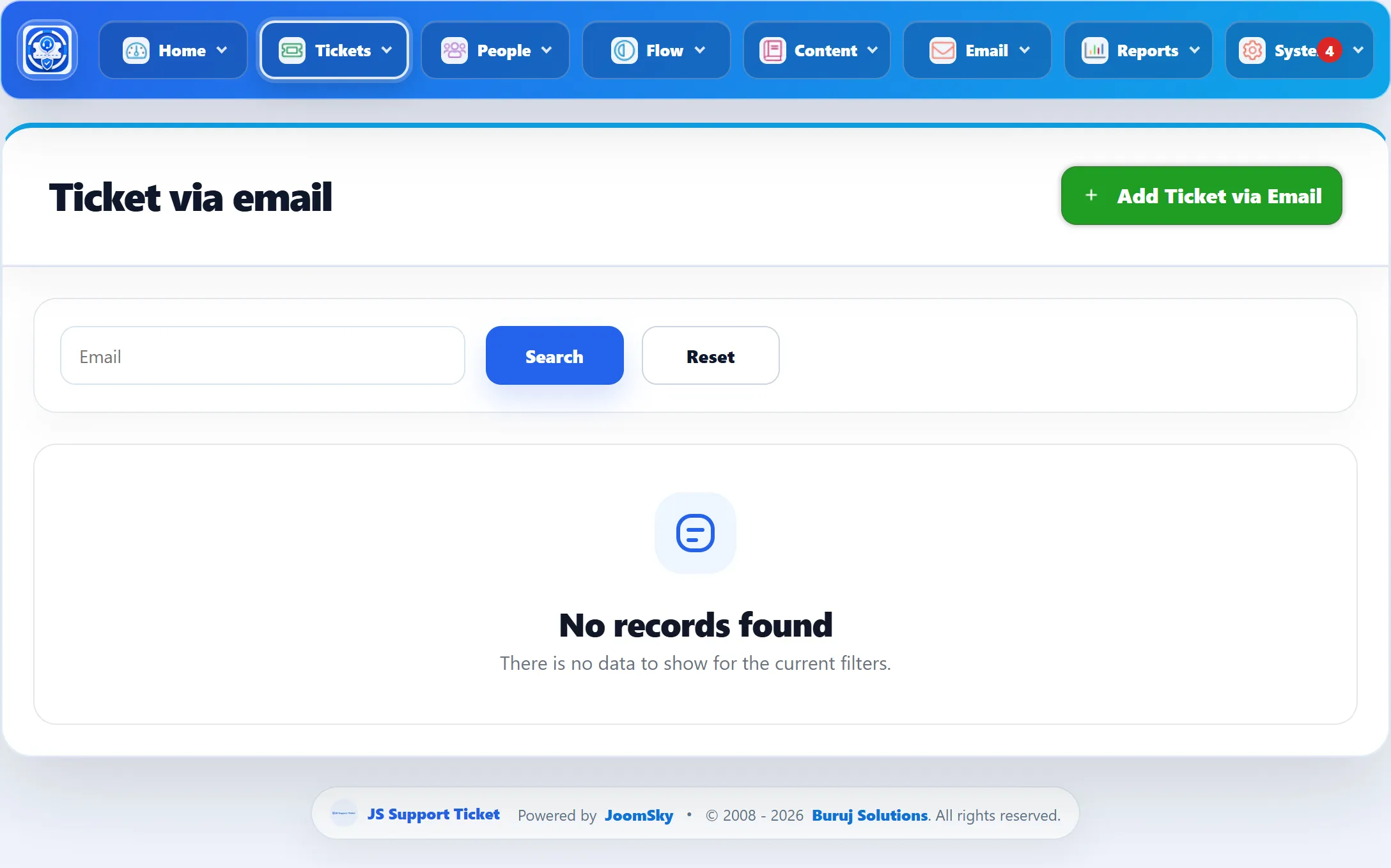
The list shows each mailbox’s Email address, whether it imports attachments (Attachment), its provider (Host Type) and what it reads (Ticket Type). You can add more than one mailbox.
Before you start
Section titled “Before you start”- Use a mailbox that only the help desk reads. Messages are marked as read once they have been turned into tickets, so a mailbox people also read by hand gets confusing quickly.
- The address can’t be the Default admin email, a department’s Outgoing Email, or a staff member’s address. Saving one of those fails with “This address is already used as the admin email, a department email or an agent email.”
- IMAP must be switched on for the mailbox. Many providers want an app password rather than the account password; Microsoft 365 and Gmail mailboxes usually need Sign in with Microsoft 365 or Google instead.
Adding a mailbox
Section titled “Adding a mailbox”-
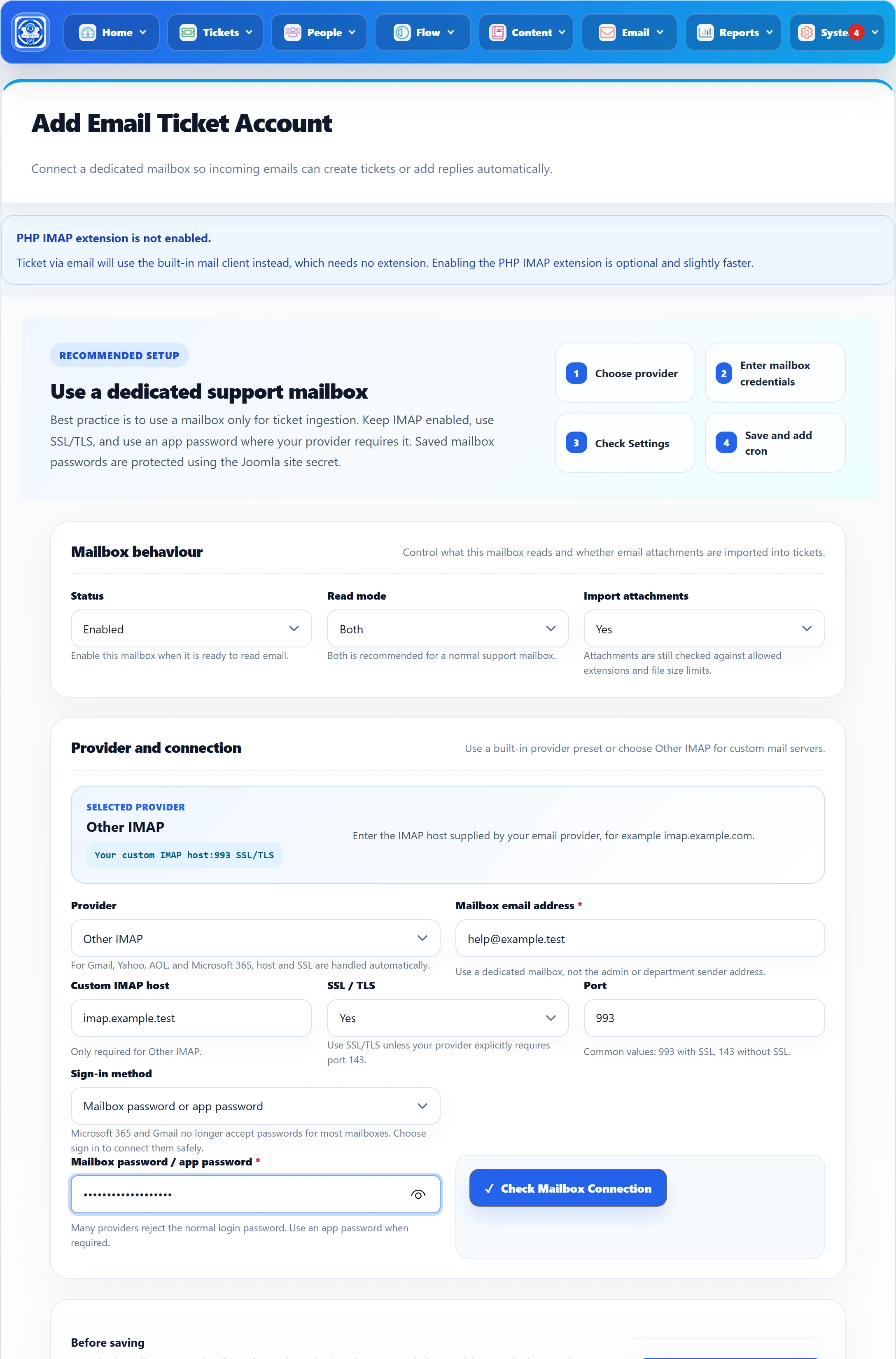
Go to Tickets → Email Tickets and click Add Ticket via Email.
-
Under Mailbox behaviour, set Status, Read mode and Import attachments.
-
Under Provider and connection, choose the Provider and type the Mailbox email address.
-
Choose the Sign-in method and enter the password, or the app’s details for signing in with Microsoft or Google.
-
Click Check Mailbox Connection and wait for the result. It can take up to 30 seconds.
-
Click Save Ticket Via Email.
-
Schedule the mailbox to be read. See Reading the mailbox.
Mailbox behaviour
Section titled “Mailbox behaviour”| Field | What it does | Default |
|---|---|---|
| Status | Enabled mailboxes are read; Disabled ones are skipped. Check Mailbox Connection only works while it is Enabled. | Enabled |
| Read mode | Only New Tickets turns new messages into tickets and ignores replies. Only Replies adds replies to existing tickets and ignores new messages. Both does both. | Both |
| Import attachments | Yes adds the message’s attachments to the ticket or reply. They still have to pass the attachment settings (allowed file extensions and maximum file size, System → Settings → General Settings); a file that doesn’t is left out without a message. | Yes |
Provider and connection
Section titled “Provider and connection”| Field | What it does | Default |
|---|---|---|
| Provider | Gmail, Yahoo, Aol, Microsoft 365 / Outlook or Other IMAP. For the first four the server, port 993 and SSL/TLS are set for you; the Selected provider box shows them, with a note about that provider. | Microsoft 365 / Outlook |
| Mailbox email address | The mailbox’s address, which is also its IMAP user name. Required. | – |
| Custom IMAP host | Only for Other IMAP: your mail server, for example imap.example.com. |
– |
| SSL / TLS | Only for Other IMAP. Leave it on Yes unless your provider requires port 143 without encryption. | Yes |
| Port | Only for Other IMAP. Usually 993 with SSL, 143 without. | 993 |
| Sign-in method | Mailbox password or app password, or Sign in with Microsoft 365 or Google. See Signing in with Microsoft or Google. | Mailbox password or app password |
| Mailbox password / app password | The password. When you edit a saved mailbox, leave it empty to keep the saved one. Saved passwords are encrypted with your Joomla site’s secret. | – |
Check Mailbox Connection logs in with what is on the form, without saving, and reports either “Mailbox connection successful.” or what went wrong.
If PHP’s IMAP extension isn’t installed, the form says so. That is not a problem: the help desk then uses its own built-in mail client.
Reading the mailbox
Section titled “Reading the mailbox”The mailbox is read in the background, by any of these:
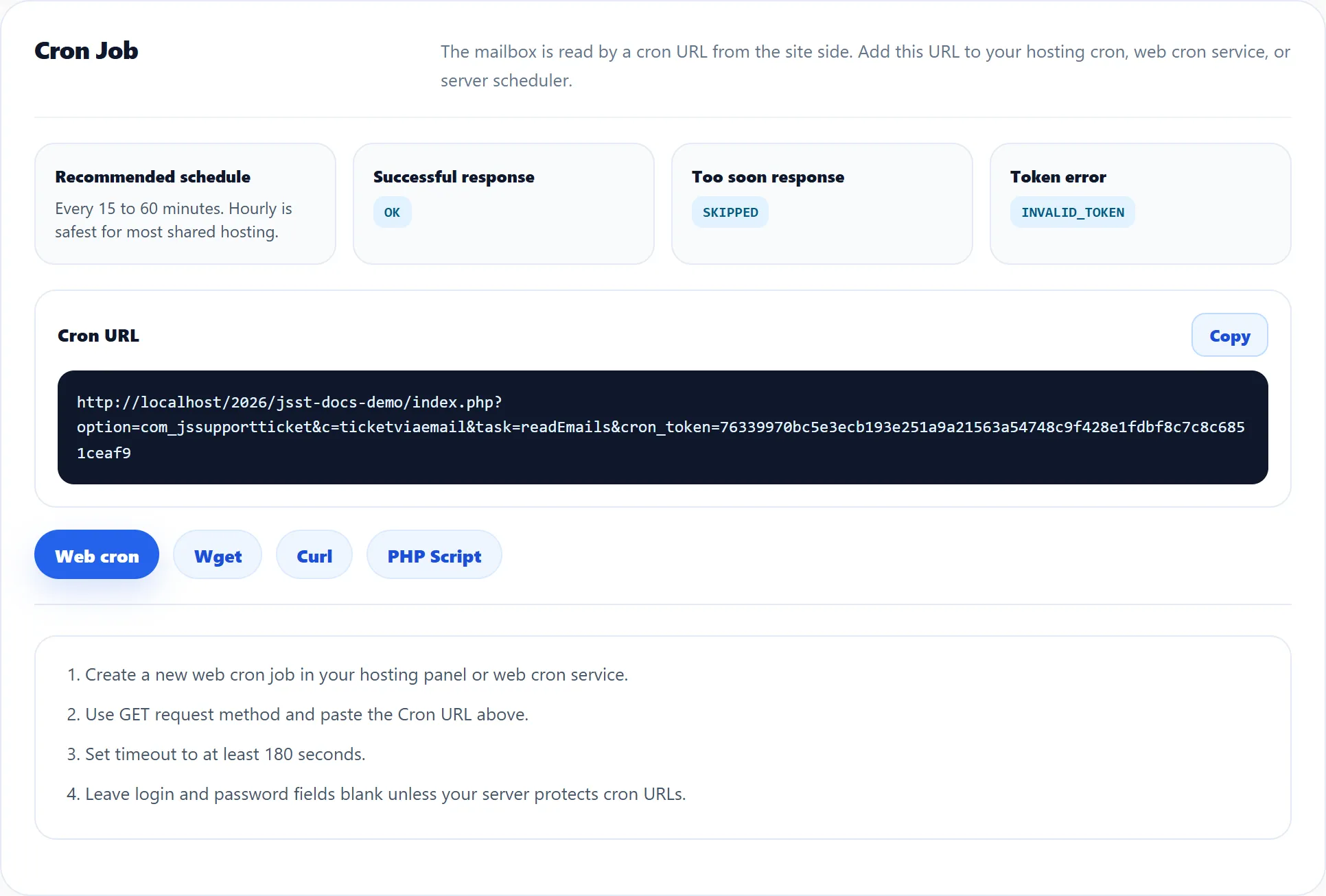
- The cron URL. The Cron Job section at the bottom of the form shows
a Cron URL with a secret token, and ready-made Web cron, Wget,
Curl and PHP Script versions, each with Copy. Call it from your
hosting’s cron or a web cron service with a timeout of at least 180 seconds.
It answers
OKwhen it read the mailboxes,SKIPPEDwhen it ran too soon, andINVALID_TOKENwhen the token is wrong. However often you call it, the mailboxes are read at most once an hour (3600 seconds after the last read). - Joomla’s task scheduler. The task JS Support Ticket: collect email under System → Scheduled Tasks reads every enabled mailbox each time it runs.
- Page loads. While Run Background Tasks On Page Load is Yes (System → Settings → General Settings), a visit to any JS Support Ticket page reads the mailboxes, at most every 30 minutes.
What happens to each message
Section titled “What happens to each message”Each run looks only at unread messages in the mailbox’s inbox, newest first.
Ignored and marked read:
- Out-of-office replies, mailing-list mail and other automatic messages. They are logged in Email Logs as skipped.
- A message the help desk has already processed (the same Message-ID).
- Delivery failure reports. These are recorded against the address that bounced; see Addresses that bounce.
A reply is recognised by the email headers that link it to an email the
help desk sent about a ticket. Failing that, the ticket ID in square brackets
in the subject, such as [ABC123XYZ], or the hidden ticket marker in the
quoted text of a help desk email, is used. The message is added to that ticket
as a reply. If it comes from a staff member’s address it is recorded as that
staff member’s reply.
- A reply to a locked ticket is refused, unless it comes from a staff member.
- A reply to a closed ticket is refused when replying to closed tickets is switched off; the customer then gets the User Reply On Closed Ticket email.
Anything else is a new ticket:
- The sender’s address and name become the ticket’s email and name. If a Joomla user has that address, the ticket is theirs.
- The email subject becomes the ticket subject (“No Subject” if empty), and the message, with any scripts removed, becomes the ticket’s message.
- It goes to your default department with the default priority, and gets no help topic.
- The usual new-ticket notifications are sent.
A message is marked read once its ticket or reply has been created. A message that couldn’t be used, for example a new message when Read mode is Only Replies, or one from a banned address, stays unread and is looked at again on the next run.
To stop a flood, a new message is skipped (and left unread) when its sender already has more than three tickets from the last five minutes, or when more than 25 tickets in all were created in the last five minutes.
The Ticket via Email settings tab
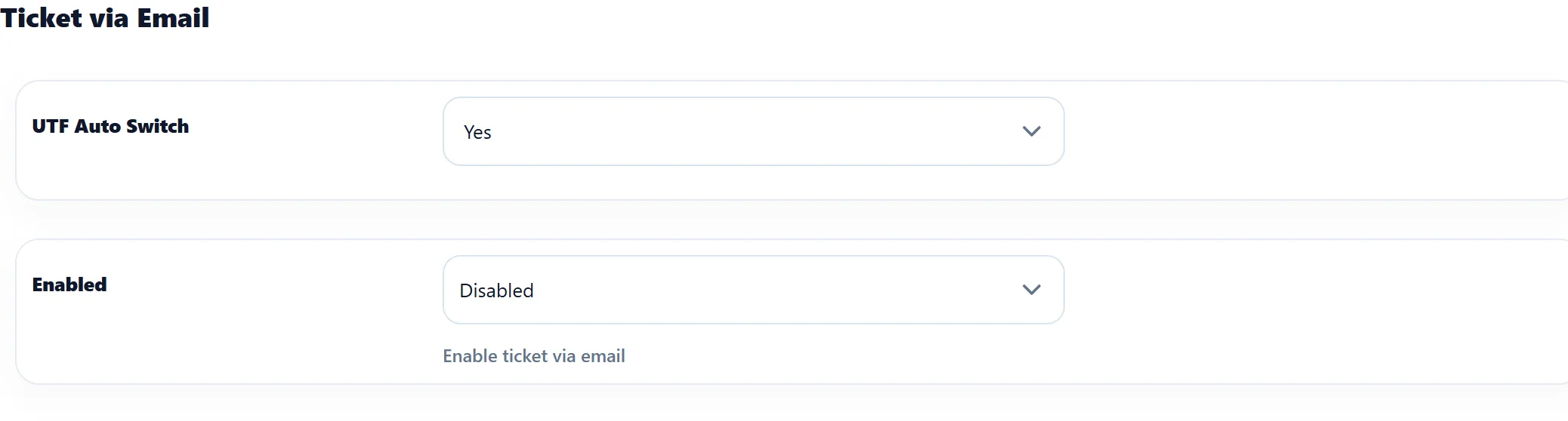
Section titled “The Ticket via Email settings tab”System → Settings → Ticket via Email has two settings.
| Setting | What it does | Default |
|---|---|---|
| UTF Auto Switch | Yes decodes encoded sender names (for example names with accents) on replies that arrive by email. | Yes |
| Enabled | “Enable ticket via email”. In 1.3.0 nothing reads this setting: each mailbox’s own Status decides whether it is read. | Disabled |
Changing or removing a mailbox
Section titled “Changing or removing a mailbox”Click its address on the list to edit it. To remove it, click the bin icon and confirm. A mailbox that has already created tickets can’t be deleted; set its Status to Disabled instead.
While a mailbox is enabled, the help desk’s ticket emails carry its address as the reply-to address, so customers’ answers come back to it. See System email addresses.