
Errors and logs
Three screens under System record what happened behind the scenes. When something doesn’t work, look here first.
| Screen | Records |
|---|---|
| System Errors | Errors the component recorded, in the classic list. |
| Error Logs (Pro) | The same errors and some more, with severity, filters and read status. |
| Activity Logs (Pro) | Who did what to which ticket. |
Passwords, tokens, keys, cookies and similar values are replaced with
[redacted] before an error is stored, so the logs are safe to share with
support.
System Errors
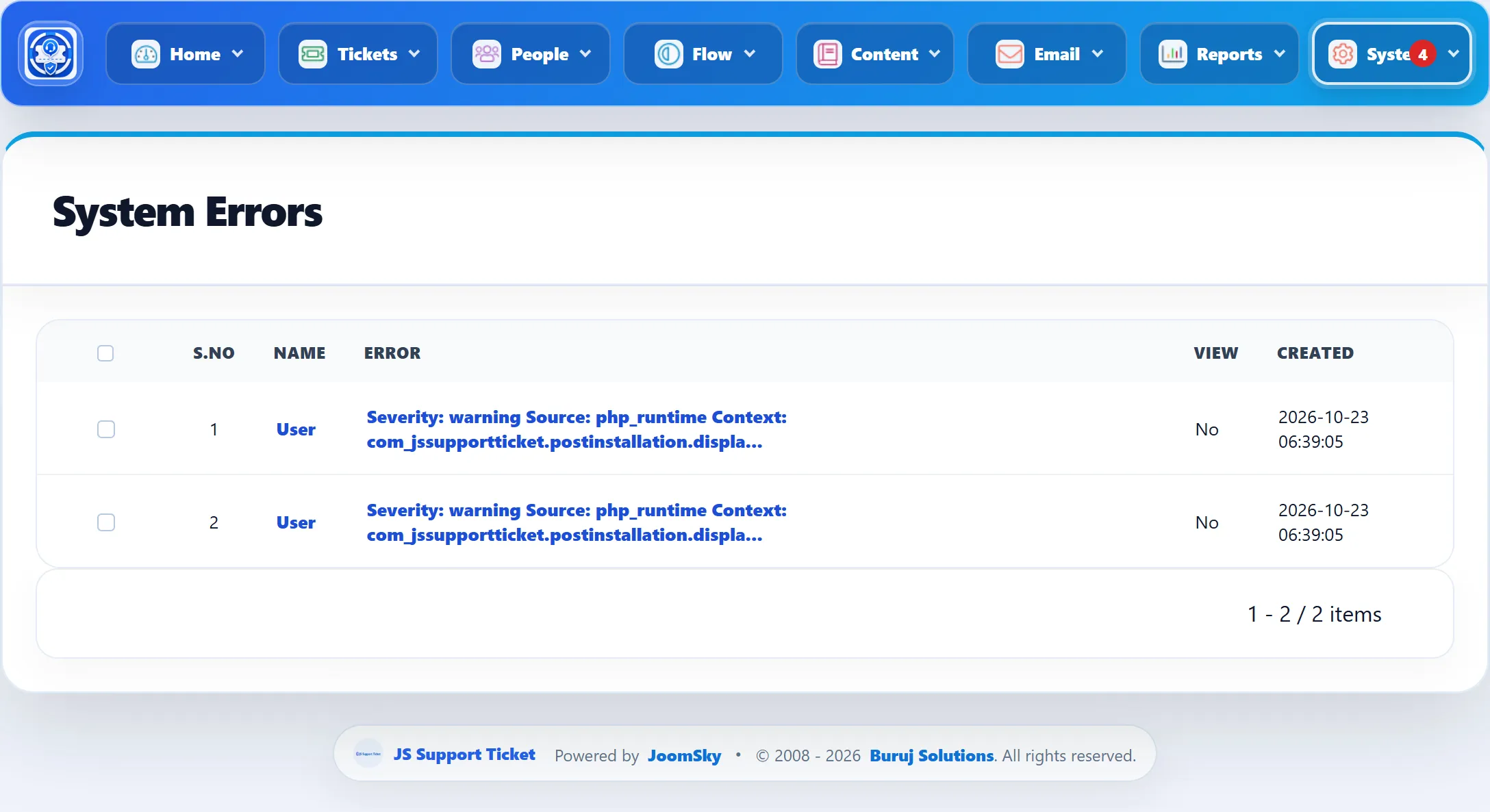
Section titled “System Errors”System → System Errors lists the errors the component has caught: a record that could not be saved, a background job that failed for one ticket, a captcha plugin that could not be loaded, and so on.
| Column | Shows |
|---|---|
| Name | The staff member whose request hit the error, or User for anyone else (customers, visitors, the administrator and background jobs). |
| Error | The start of the error. Unread errors are in bold. |
| View | Whether someone has opened it. |
| Created | When it happened. |
Click a name or an error to open Error Detail: who it came from, the date, whether it has been viewed, and the Technical Detail (severity, where it happened, the message, the file and line, and a summary of the request). Opening an error marks it as viewed. Back to System Errors returns to the list.
To clear the list, tick rows and click Delete selected in the toolbar, or click Delete all. Both ask first (“This cannot be undone. …”), and deleted errors are gone for good.
Error Logs
Section titled “Error Logs”System → Error Logs shows every error from System Errors and the errors some features record directly, with more detail and better tools.
- Filter with Search error, context or source, a severity (Debug, Info, Warning, Error or Critical; All Severities shows every one) and All, Unread or Read. Click Search; Reset clears the filters.
- Each row shows the Severity, the Message with its technical detail, the Context (which part of the help desk it came from), the Ticket involved if any, whether it is Read, and Created.
- Mark as read marks the ticked rows as read. With nothing ticked it marks every error as read.
- Delete selected deletes the ticked rows, after asking.
Deleting here does not delete the matching entry in System Errors, and the other way round.
Activity Logs
Section titled “Activity Logs”System → Activity Logs answers “who changed what”: every recorded event on a ticket, newest first.
| Column | Shows |
|---|---|
| Event | What happened, for example a status change or an assignment, with details underneath. |
| Ticket | The ticket’s subject (a link to it) and its ID. |
| Actor | Who did it, by name or email, or System for background jobs. |
| Source | Which part of the help desk recorded it, such as assignment, status or sla. |
| Visibility | Who the event is meant to be visible to. |
| Created | When it happened. |
Narrow the list with Ticket ID or subject and Event (part of a word is
enough) and Source (type the source exactly as it appears in the list, for
example sla), then click Search. Reset clears the filters. The activity log can’t be edited or
deleted from this screen.