
Your first ticket
This walkthrough follows one ticket through the help desk. You need the help desk on a menu, at least one department, and a Joomla user account to play the customer. Use a second browser, or a private window, so you can be the customer and the administrator at the same time.
1. The customer submits a ticket
Section titled “1. The customer submits a ticket”-
On your site, log in as the customer and open the help desk. Click Submit Ticket.
-
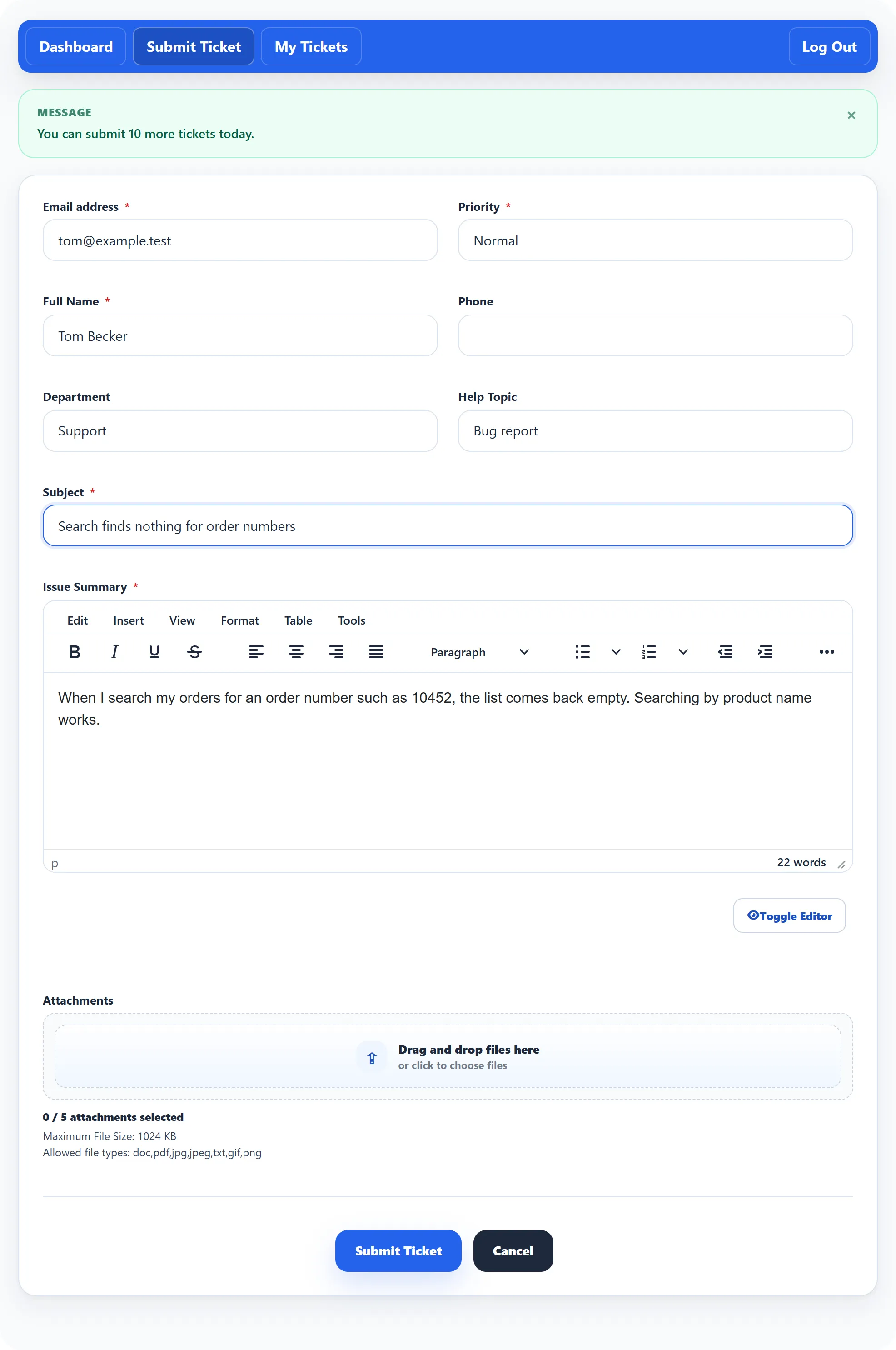
Fill in the form. Email address and Full Name are filled in from the customer’s account. Fields marked with a red * are required.
- Department: pick the team the question is for. Help Topic then lists that department’s help topics.
- Priority: how urgent it is. It starts on the default priority.
- Subject and Issue Summary: the question itself.
- Attachments: drag files onto the box, or click it to choose them. Under the box you can see how many files you may add, the largest file size and the allowed file types.
-
Click Submit Ticket.
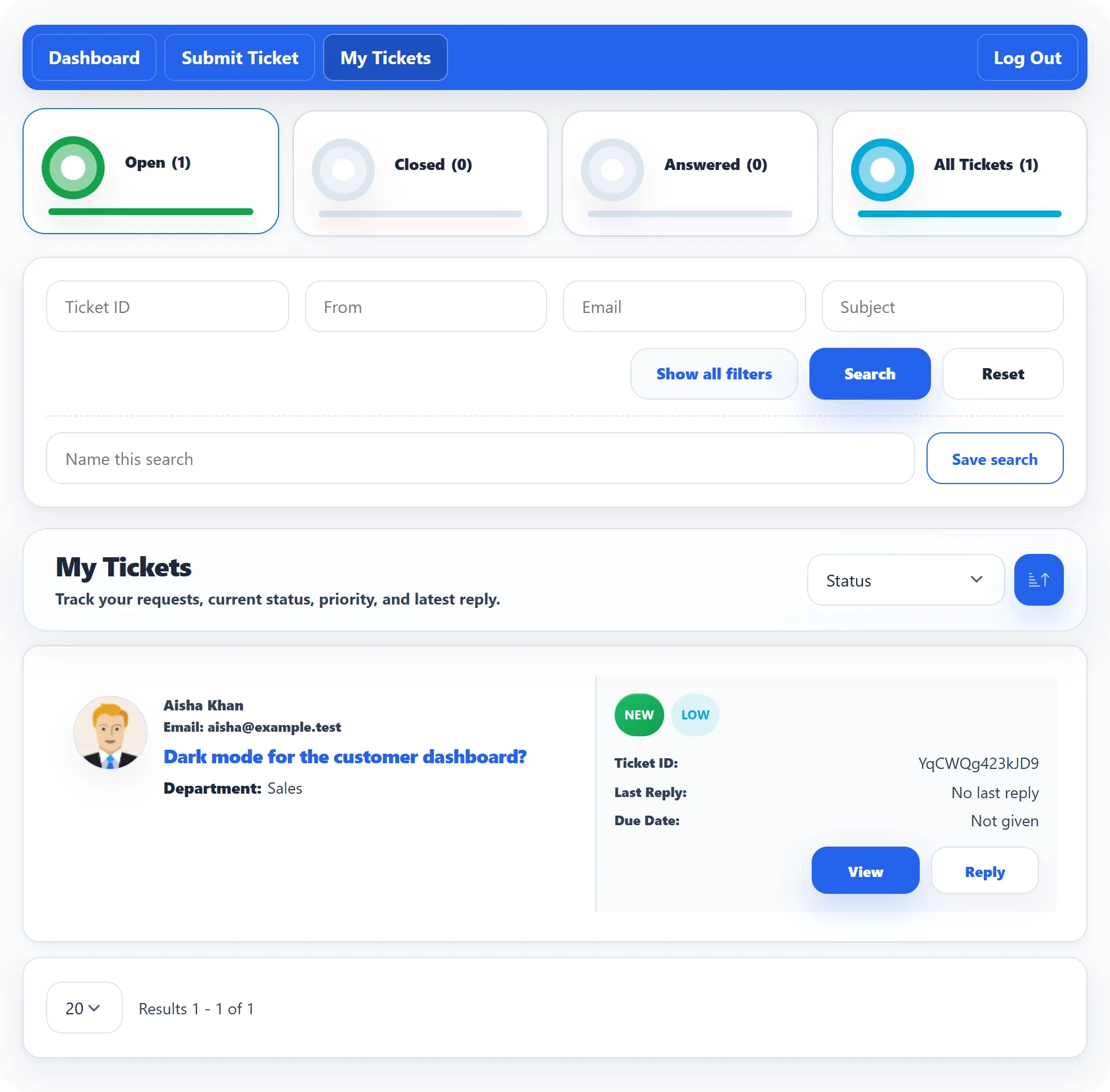
The customer is taken to My Tickets with the message “Ticket has been created”. The new ticket’s status is New. The help desk also e-mails the customer and you about it. Which e-mails are sent, and to whom, is set under System → Settings on the Mail Settings tab; their wording is under Email → Email Templates.
Fields on the form, and which of them are required, are set under Tickets → Ticket Fields.
2. You answer it
Section titled “2. You answer it”-
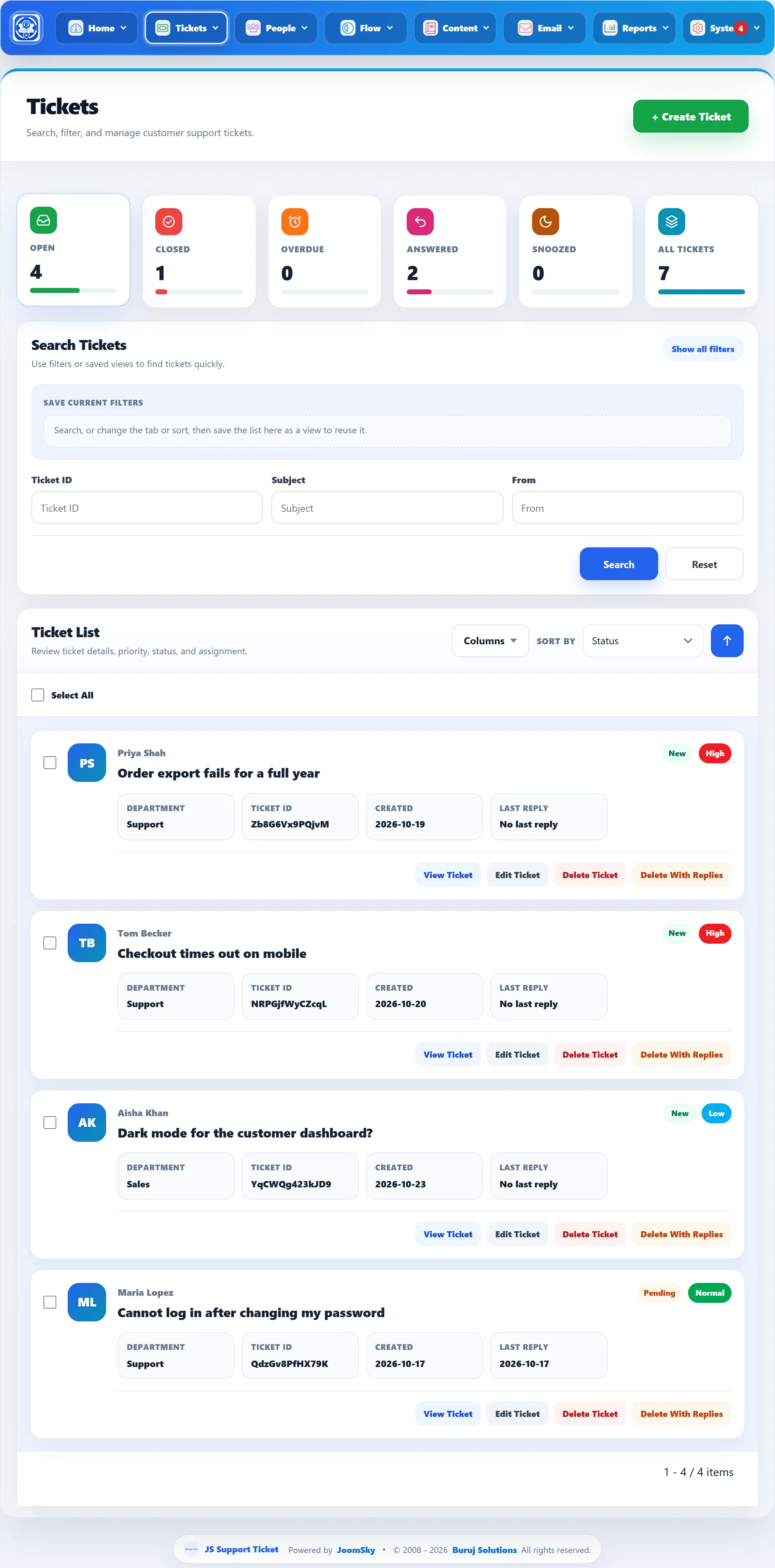
In Joomla’s administrator, go to Components → JS Support Ticket. The new ticket is in Needs Attention on the Control Panel, and in the list under Tickets → All Tickets.
-
Click the ticket’s subject to open it. The customer’s message is under Ticket Thread.
-
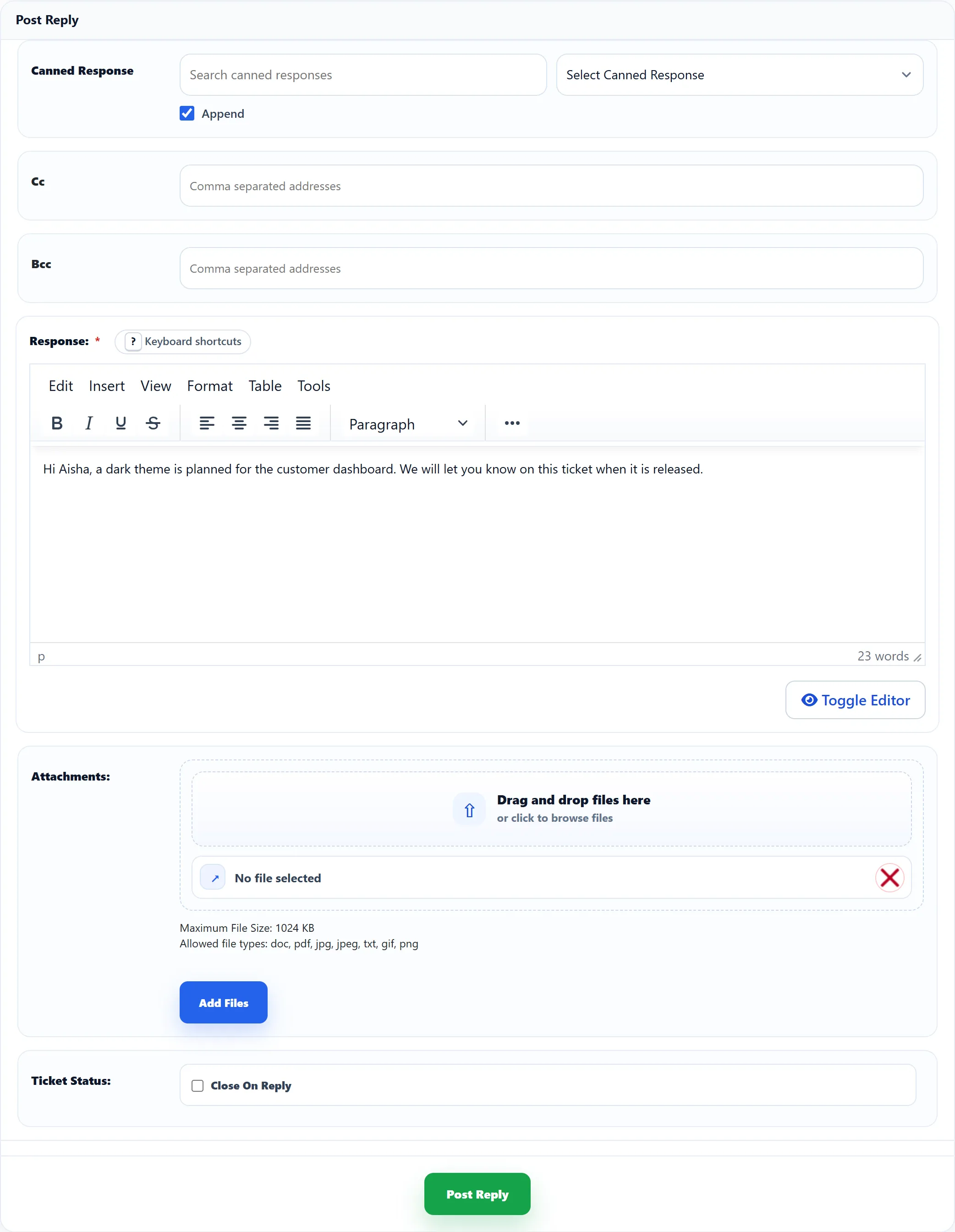
Scroll to Post Reply and type your answer in Response.
- Canned Response inserts a saved reply. Type in the search box or pick one from the list. With Append ticked it is added to what you have written; untick it to replace your text.
- Cc and Bcc copy the reply to other addresses, separated by commas.
- Attachments adds files to the reply.
- Tick Close On Reply to close the ticket as you send the answer.
-
Click Post Reply.
Your reply is added to the thread and the ticket’s status becomes Answered. The customer is e-mailed about the reply, unless that e-mail is switched off on the Mail Settings tab.
3. The customer reads the reply
Section titled “3. The customer reads the reply”-
Back on the site as the customer, open My Tickets. The ticket now shows Answered.
-
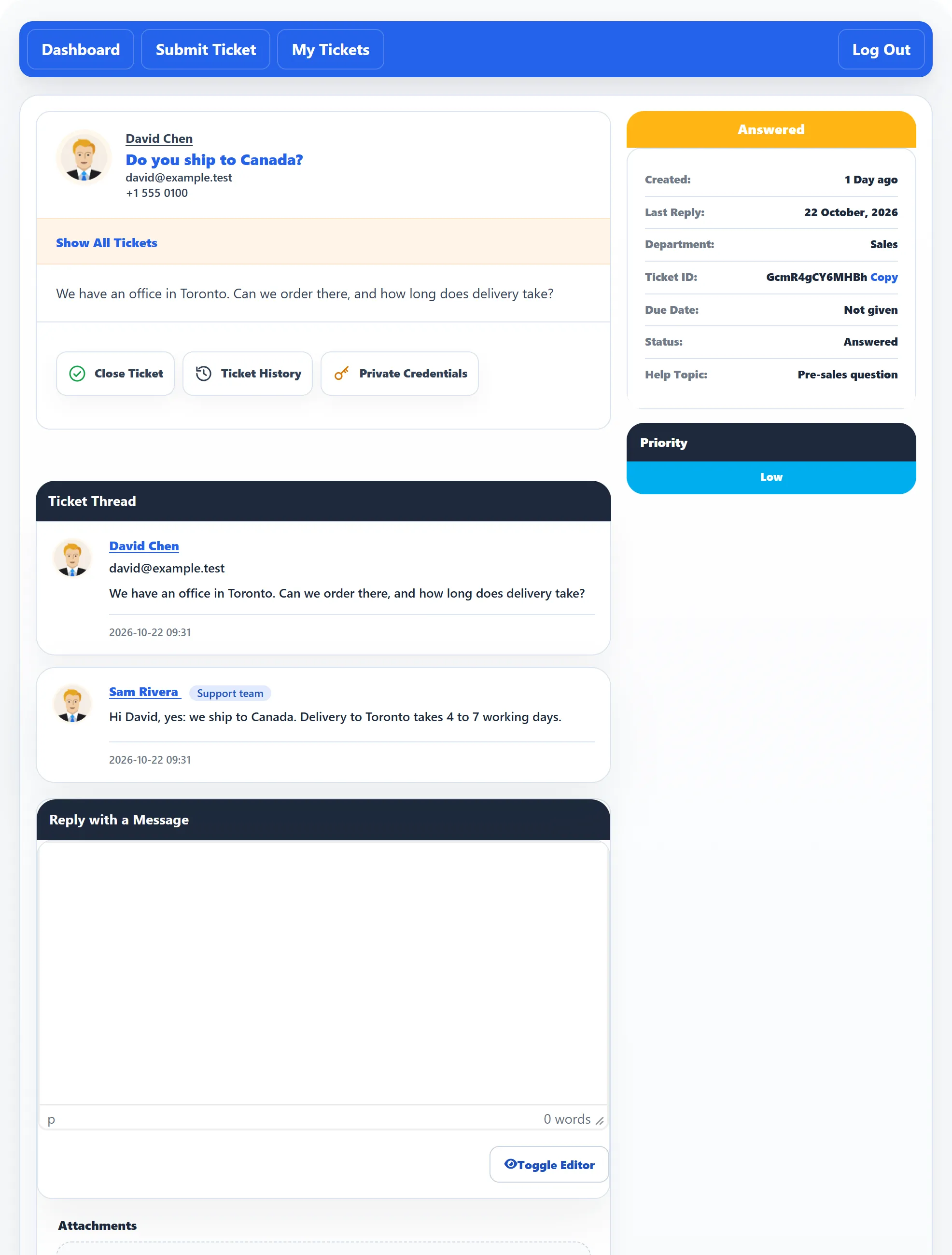
Click View to open it. Your answer is in the Ticket Thread under the customer’s message, marked Support team.
-
To answer back, the customer writes in Reply with a Message and clicks Post Reply. The ticket becomes Pending: it is waiting for you again, and shows under Pending on the Control Panel.
-
When the question is settled, either side can click Close Ticket.
If neither side closes it, the help desk closes an answered ticket by itself once the customer has not replied for the number of days in Ticket auto close (see Setup wizard).