
Setup wizard
Joomla opens the wizard as soon as the install finishes. It asks for the settings most sites change first. Everything it sets can be changed later under System → Settings, so you can skip it: the × at the top right closes it and goes to the Control Panel.
To open it again, go to
administrator/index.php?option=com_jssupportticket&c=postinstallation&layout=stepone.
The steps are listed down the left: General Settings, Ticket Setting, Feedback Setting and Complete. You can click any step to jump to it.
-
Fill in a step and click Next. The step’s values are saved and the next step opens. Back returns to the previous step without saving the one you are on.
-
On the last step, click Finish to go to the Control Panel.
Each field shows the value currently saved. The defaults below are the values a new Pro install starts with.
Step 1: General Configurations
Section titled “Step 1: General Configurations”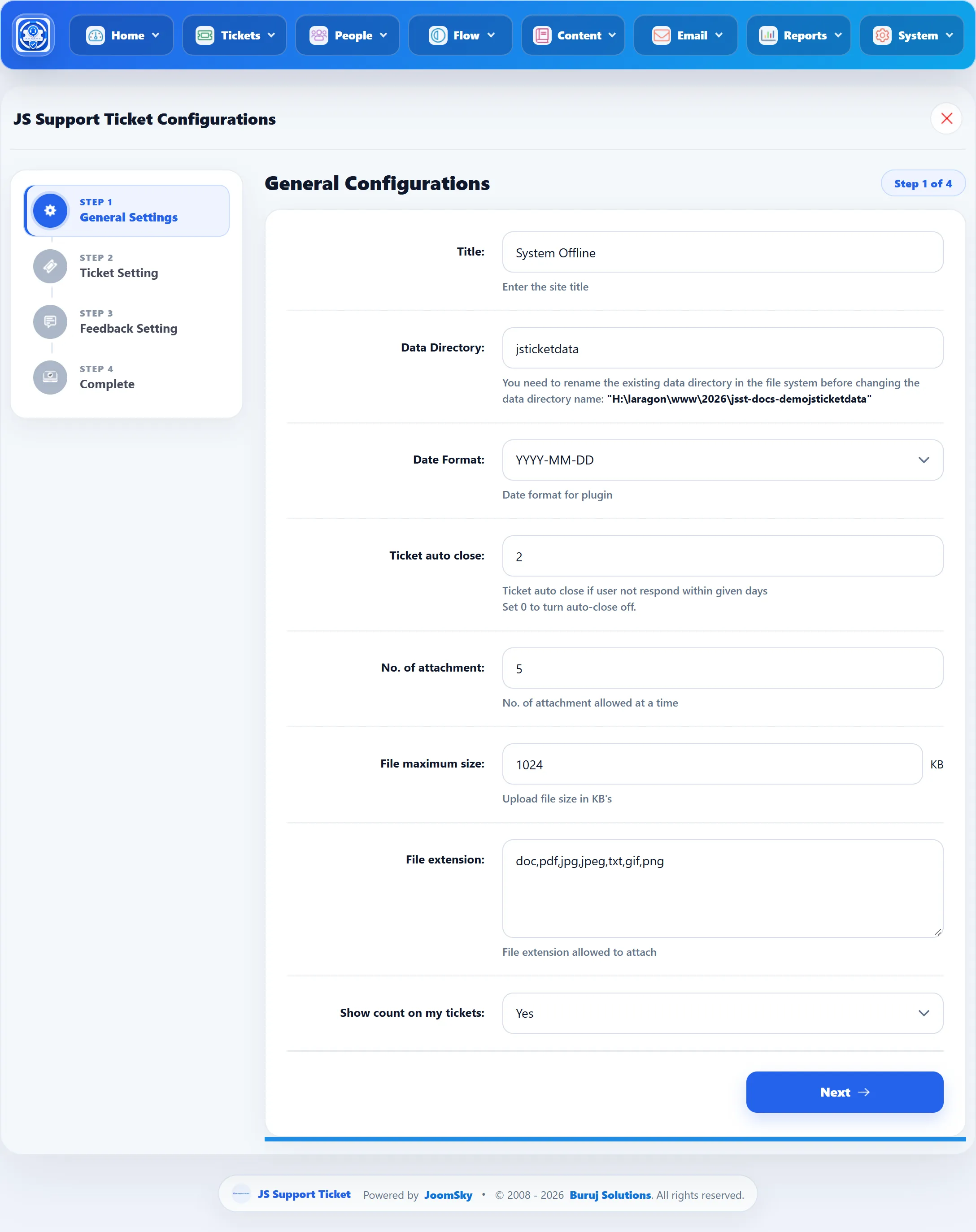
| Field | What it does | Default |
|---|---|---|
| Title | The help desk’s name. It is the sender name on the help desk’s e-mails when an address has no name of its own, and it heads the message customers see while the help desk is offline. | “System Offline” on a new Pro install, so replace it with your help desk’s name. |
| Data Directory | The folder in your Joomla site’s root that holds ticket attachments. If you change it, rename the existing folder on the server first, as the hint says. | jsticketdata |
| Date Format | How dates are shown: DD-MM-YYYY, MM-DD-YYYY or YYYY-MM-DD. | YYYY-MM-DD |
| Ticket auto close | Closes an answered ticket automatically when the customer has not replied for this many days. Whole days only; 0 turns auto-close off. | 2 |
| No. of attachment | How many files can be attached at once. | 5 |
| File maximum size | The largest file allowed, in KB. 1024 KB is 1 MB. | 1024 |
| File extension | The file types customers and staff may attach, separated by commas. | doc,pdf,jpg,jpeg,txt,gif,png |
| Show count on my tickets | Shows the number of tickets on the counters. No shows a dash in place of each number, on the administrator’s Control Panel as well. | Yes |
Step 2: Ticket Configurations
Section titled “Step 2: Ticket Configurations”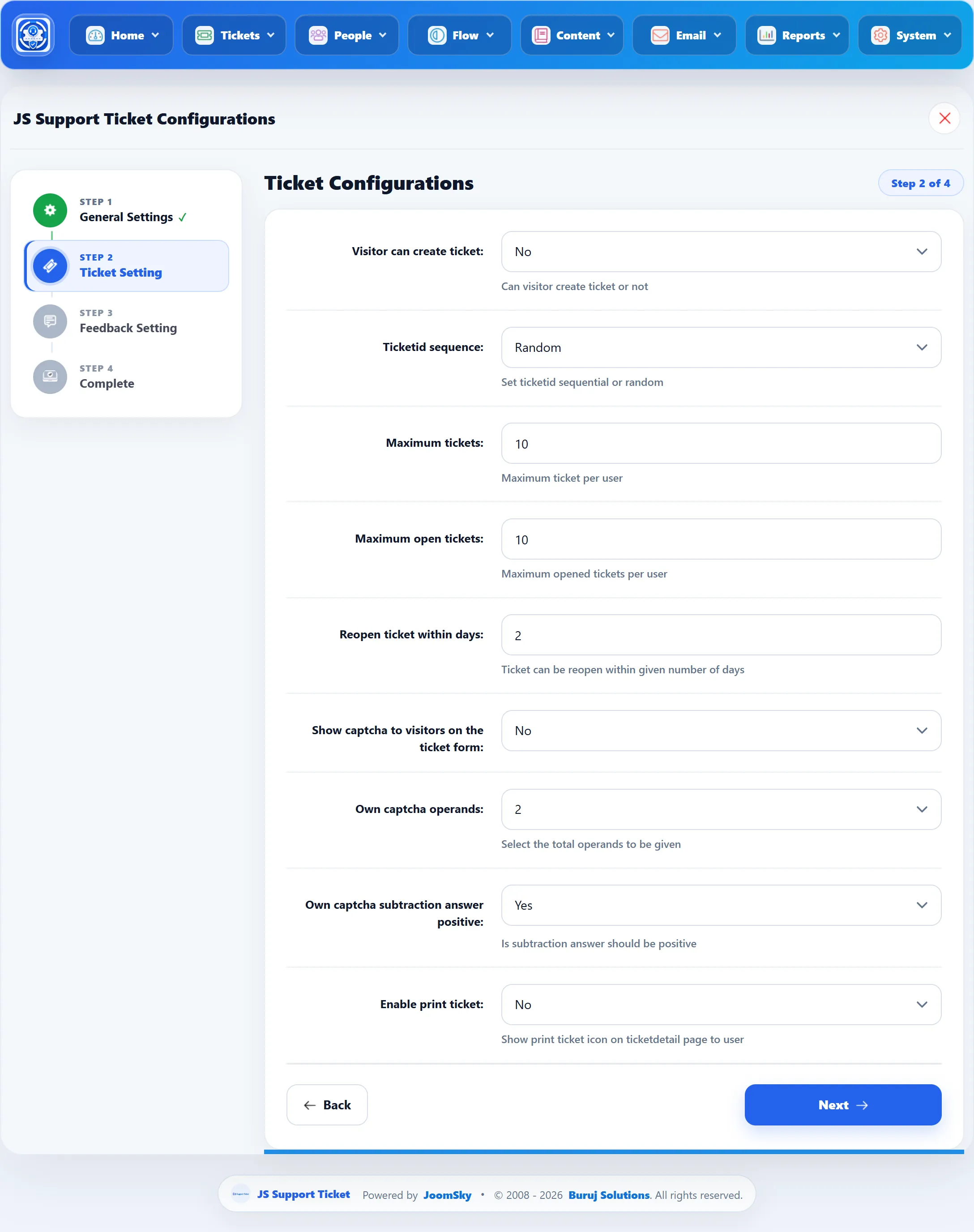
| Field | What it does | Default |
|---|---|---|
| Visitor can create ticket | Yes lets people who are not logged in submit tickets. No sends them to log in first. | No |
| Ticketid sequence | The format of the Ticket ID customers see: Random (a string of letters) or Sequential. | Random |
| Maximum tickets | How many tickets one customer can submit in a period: a day, month, year or ever, chosen under System → Settings. The ticket form tells the customer how many they have left. When the limit is reached, the form refuses with “Limit exceeds maximum tickets”. | 10 |
| Maximum open tickets | How many tickets one customer can have that are not closed. Above it the form refuses with “Limit exceeds maximum open tickets”. | 10 |
| Reopen ticket within days | A closed ticket can be reopened until this many days after its last reply. | 2 |
| Show captcha to visitors on the ticket form | Adds a CAPTCHA to the ticket form for visitors who are not logged in. | No |
| Own captcha operands | For the help desk’s own sum CAPTCHA: how many numbers the sum has, 2 or 3. | 2 |
| Own captcha subtraction answer positive | For the help desk’s own CAPTCHA: Yes makes sure a subtraction never has a negative answer. | Yes |
| Enable print ticket | Shows a print button to customers on their ticket’s page. | No |
The two ticket limits apply to new tickets from everyone except the administrator. A logged-in user’s tickets are counted by their account, a visitor’s by their e-mail address.
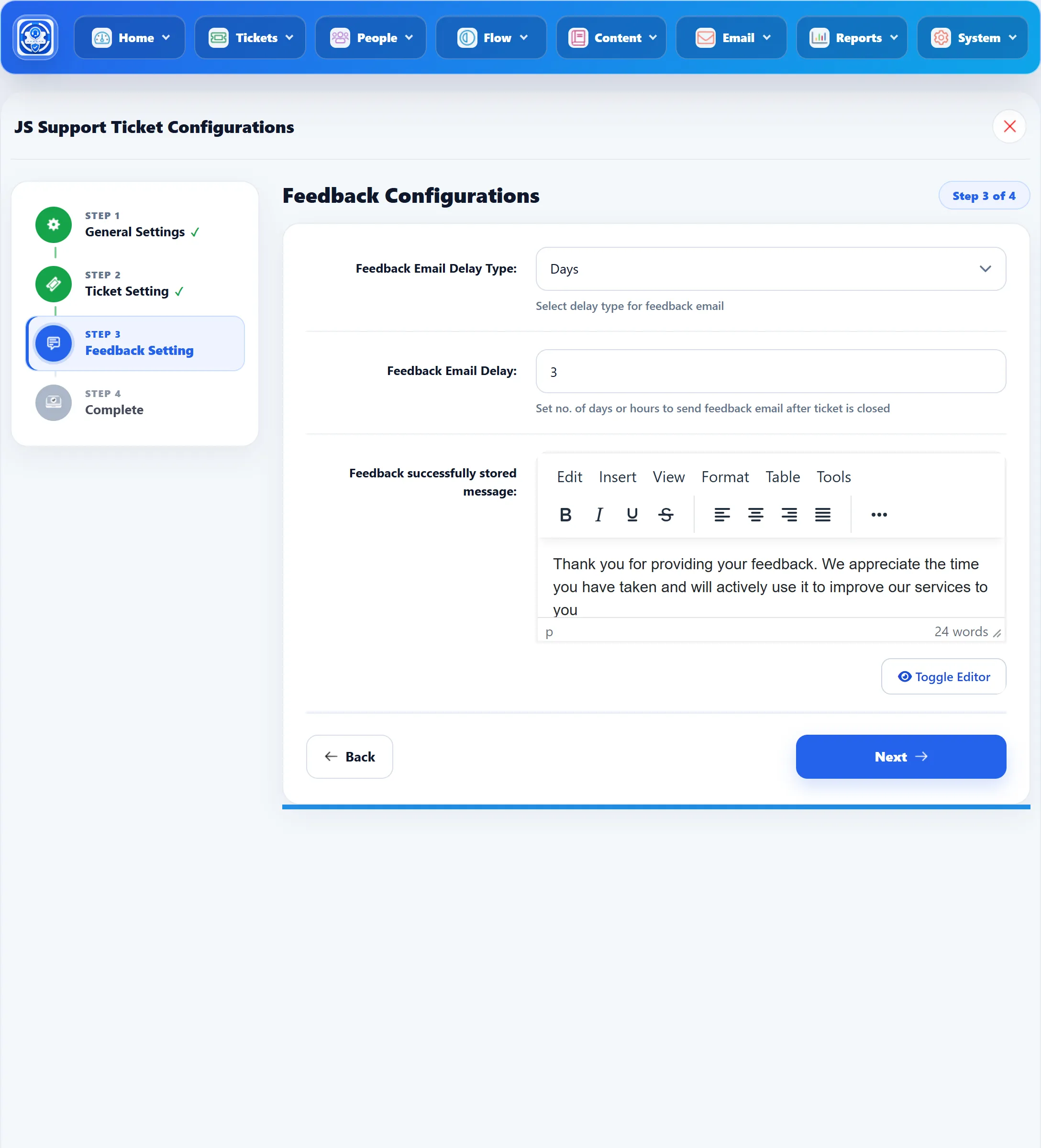
Step 3: Feedback Configurations
Section titled “Step 3: Feedback Configurations”After a ticket is closed, the help desk can e-mail the customer asking for feedback. This step sets when.
| Field | What it does | Default |
|---|---|---|
| Feedback Email Delay Type | Whether the delay below is counted in Days or Hours. | Days |
| Feedback Email Delay | How long after a ticket is closed the feedback e-mail is sent. | 3 |
| Feedback successfully stored message | The thank-you message a customer sees after sending feedback. | “Thank you for providing your feedback. We appreciate the time you have taken and will actively use it to improve our services to you” |
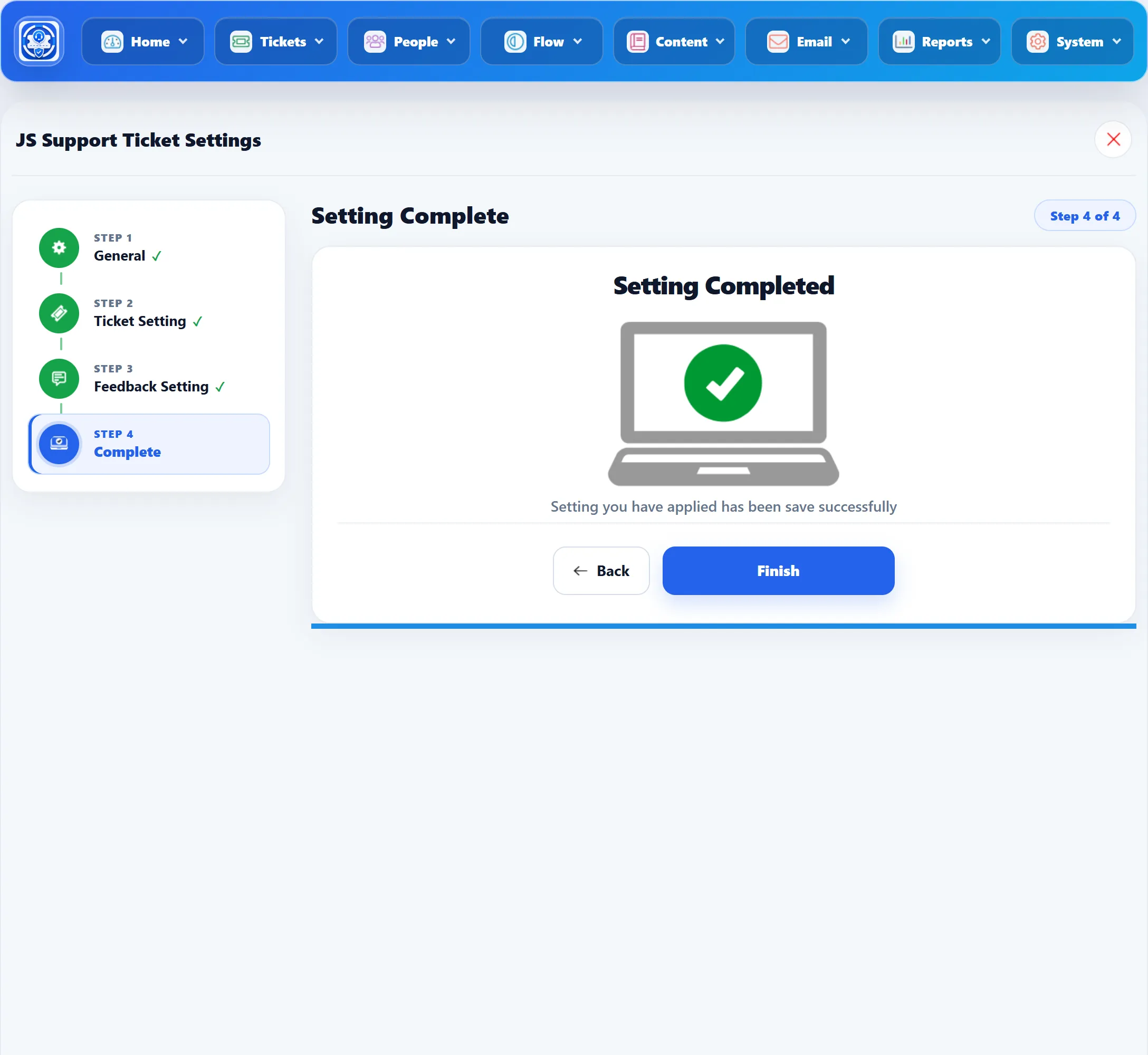
Step 4: Setting Complete
Section titled “Step 4: Setting Complete”The last step confirms the settings were saved. Click Finish to go to the Control Panel.
What to do next
Section titled “What to do next”The wizard does not create departments, help topics or staff. Before you open the help desk to customers:
- Rename or add departments under People → Departments.
- Add help topics under Flow → Help Topics. The ticket form only offers the help topics of the department the customer picks.
- Check the e-mail address the help desk sends from under Email → System Emails.
- Add your staff under People → Staff Members (Pro).
- Put the help desk on your site.