
Submitting a ticket
A ticket is a support request. You write it once, and you and the support team then reply to each other on the same ticket until the problem is solved.
Open a ticket
Section titled “Open a ticket”-
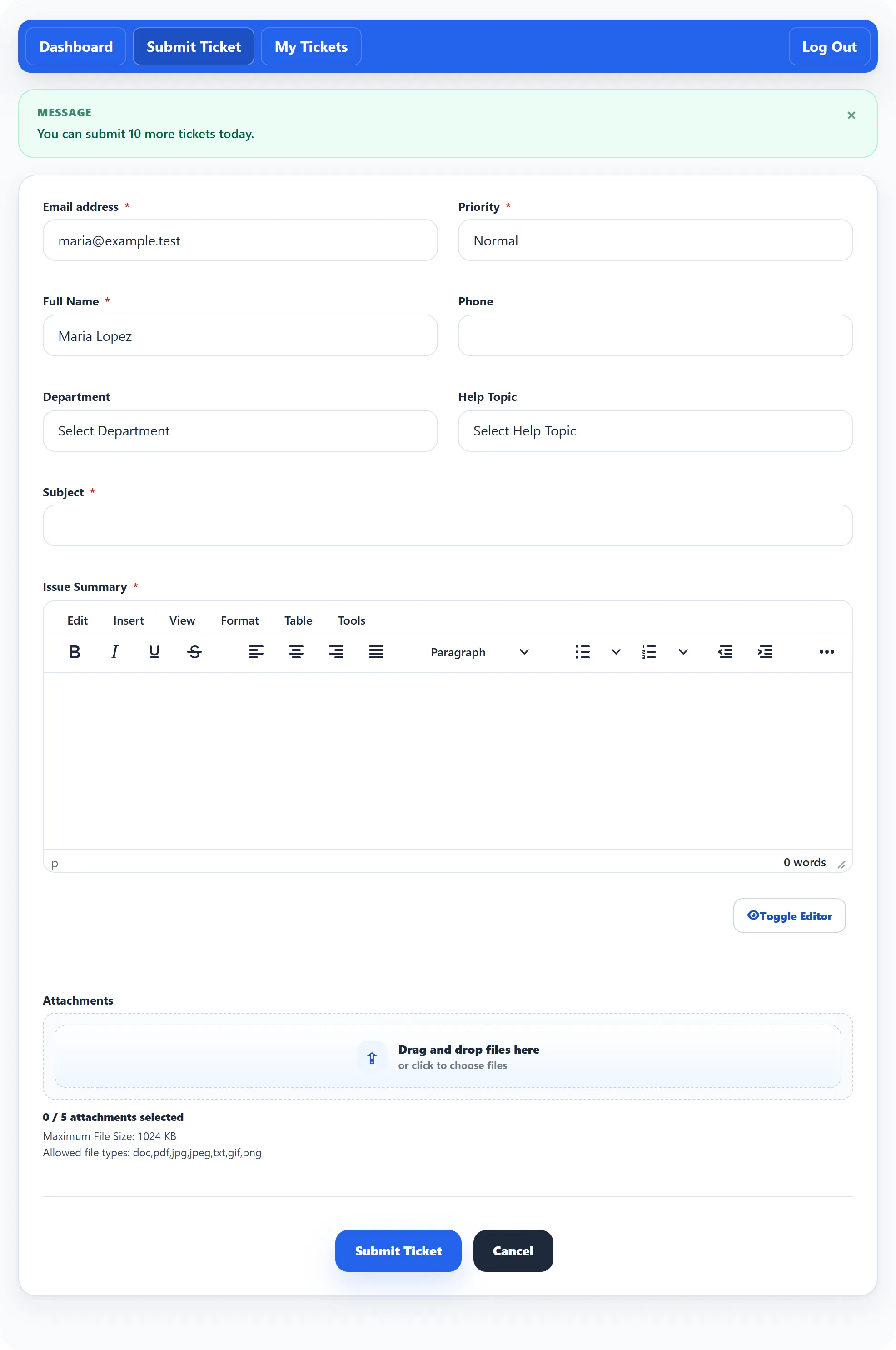
Log in, then click Submit Ticket in the bar at the top of the help desk.
-
Fill in the form. The fields marked with a red star are required.
-
Click Submit Ticket.
You are taken to My tickets, where the new ticket now appears with the message Ticket has been created, and you get an e-mail confirming it with your ticket ID.
If you are not logged in, the form is replaced by You are not logged in and a Log In button, unless the help desk also takes tickets from visitors. See Tickets without an account.
The fields
Section titled “The fields”| Field | What to enter |
|---|---|
| Email address | Filled in from your account. You can’t change it here: tickets you open while logged in are always under your own address. |
| Full Name | Filled in from your account. |
| Priority | How urgent the problem is. |
| Phone | A number the team can call, if they need one. |
| Department | The team that should handle your ticket, such as Support or Billing. |
| Help Topic | What the ticket is about. The list depends on the department, so choose the department first. |
| Subject | A short summary, for example “Cannot log in after changing my password”. |
| Issue Summary | The full description. Say what you did, what you expected and what happened instead. |
| Attachments | Screenshots or documents. See below. |
The support team decides which fields appear and which are required, and may add questions of their own. Their answers are saved with the ticket.
Attachments
Section titled “Attachments”Drag files onto the box, or click it to choose them. Under the box you can see how many files are selected and how many are allowed, the largest file size in KB, and the file types you may attach. A file that is too big or of the wrong type is refused as you pick it.
Article suggestions (Pro)
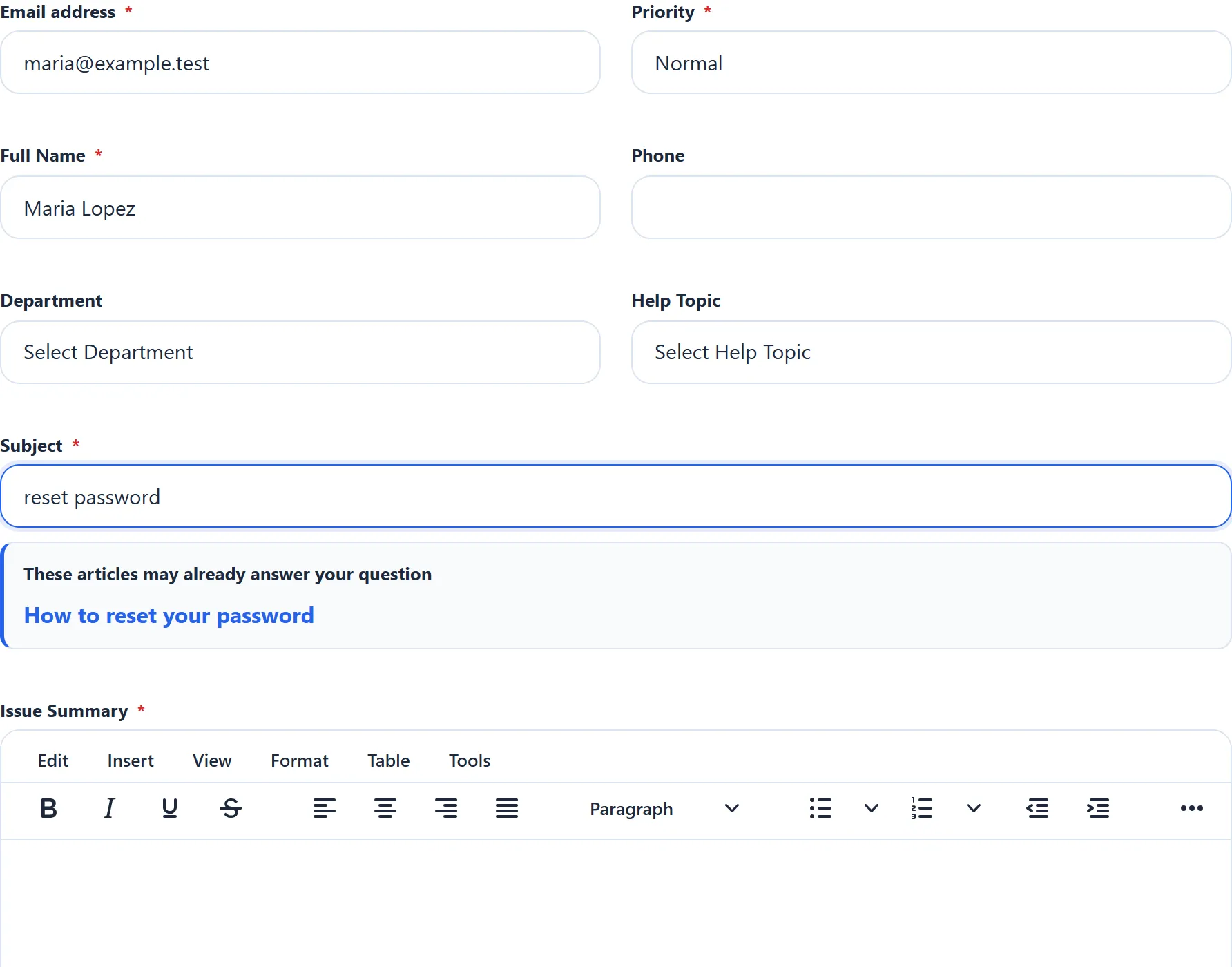
Section titled “Article suggestions (Pro)”As you type the subject, the form looks for knowledge base articles that match it. If it finds some, they appear under the subject as These articles may already answer your question. Each opens in a new tab, so you don’t lose what you have typed.
Message at the top of the form
Section titled “Message at the top of the form”The support team can show a message above the form, for example the hours they work. You may also see how many more tickets you can open, such as You can submit 8 more tickets today.
When a ticket is refused
Section titled “When a ticket is refused”If a ticket can’t be created, you are brought back to the form and a message at the top says why:
| Message | Why |
|---|---|
| Limit exceeds maximum tickets | You have opened as many tickets as allowed for now (for example, per day). Try again later or reply on an existing ticket. |
| Limit exceeds maximum open tickets | You have too many tickets that are not closed yet. Close the ones that are solved. See Replying, closing and reopening. |
| Duplicate Ticket not allowed. | You sent a ticket with the same subject a few seconds ago. The first one went through, so check My tickets. |
| Banned email cannot create ticket | Your e-mail address can’t be used to open tickets. Contact the site owner another way. |
If a ticket is created but one of the files was too large or of the wrong type, the ticket is kept without that file and a warning says so. Add the file later in a reply rather than opening the ticket again.