
Linking, deferring and reminders
Three tools in the ticket screen’s side panel, under Status, help you keep track of tickets you can’t finish now.
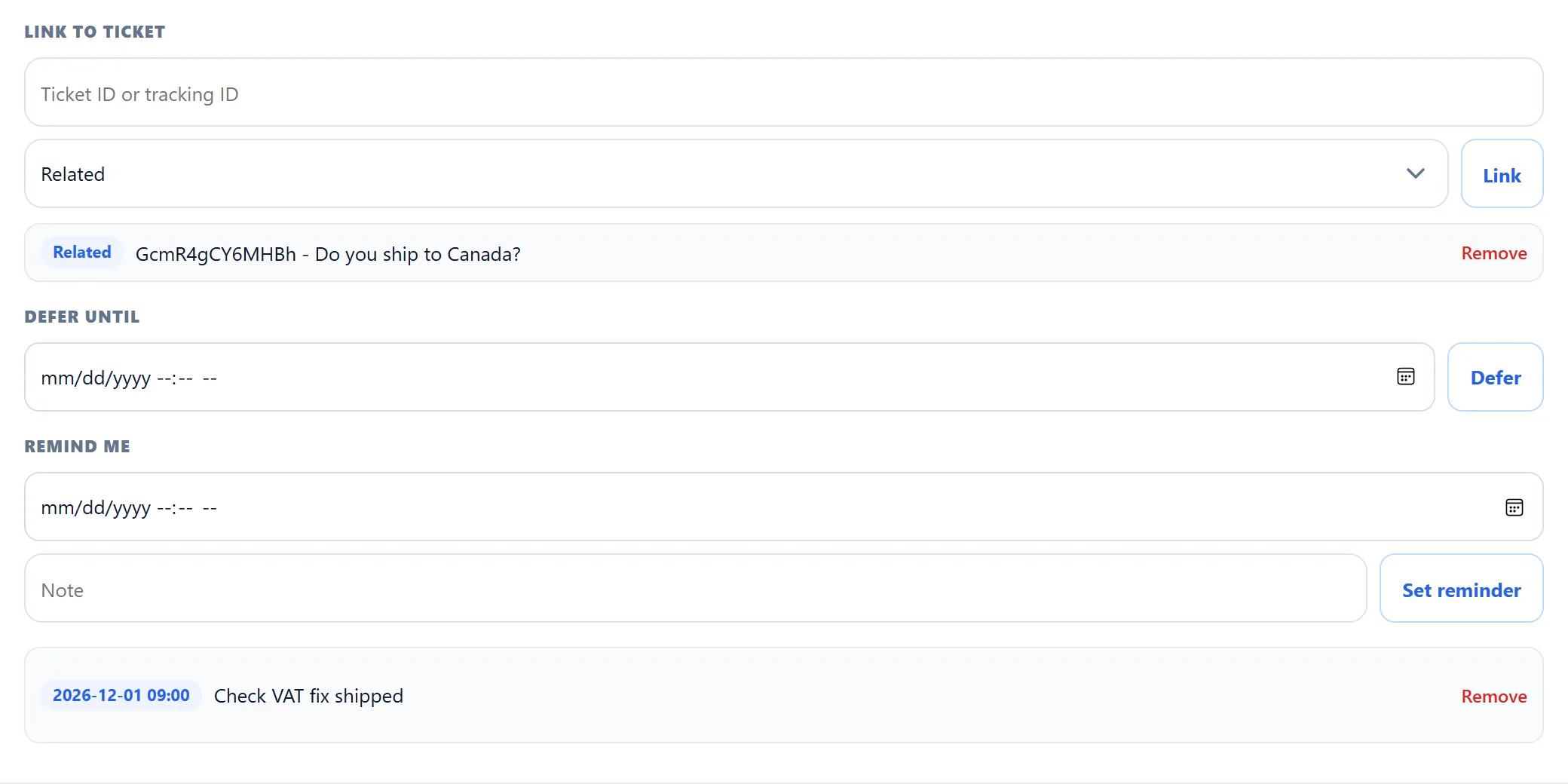
Link to ticket
Section titled “Link to ticket”Link two tickets when they are about the same problem or one waits on the other.
- In Link to ticket, type the other ticket’s tracking ID (the Ticket ID customers see) or its number from the page address.
- Pick the kind of link: Related, Duplicate of or Blocked by.
- Click Link.
Both tickets list the link, each from its own side:
| You choose on this ticket | This ticket shows | The other ticket shows |
|---|---|---|
| Related | Related | Related |
| Duplicate of | Duplicate of | Duplicated by |
| Blocked by | Blocked by | Blocks |
Click the other ticket’s ID and subject to open it, or Remove to delete the link from both tickets. Two tickets have only one link between them: linking them again with a different kind replaces the old link. Linking, and removing a link, is recorded in both tickets’ history.
“Tickets have not been linked” means the ticket you typed was not found, or it is the ticket you are on.
Defer until
Section titled “Defer until”Deferring takes a ticket off the Open list until a date and time, so it doesn’t look like it needs an answer now.
- Pick a date and time in Defer until. It is in your own time zone and must be in the future.
- Click Defer.
While deferred, the ticket shows “Deferred until” with the date at the top of the side panel, and it is listed under the Snoozed card instead of Open. Deferring does not change the status, so the ticket still appears under Overdue or Answered if it belongs there. Remove deferral brings it back to the Open list at once.
When the time comes, the ticket goes back to the Open list by itself.
Remind me
Section titled “Remind me”A reminder puts a notification on the Notifications page (System → Notifications) at the time you choose.
- Pick a date and time in Remind me, in your own time zone.
- Write a Note to yourself if you like. The notification shows it, or “Reminder for ticket” and the ticket’s ID when it is empty.
- Click Set reminder.
Reminders that have not fired yet are listed under the form with their date and note, and Remove cancels one. A reminder set by a staff member goes to that staff member. One set by an administrator who is not a staff member is not addressed to anyone and shows on the Notifications page, which administrators see in full. On the ticket screen, administrators see every pending reminder on the ticket; staff members see their own.