
Putting the help desk on your site
Customers and staff use the help desk on your website. To give them a way in, add Joomla menu items that point to the help desk’s pages. The help desk’s own links keep the menu item they were opened from, so the page stays in your menu’s place on the site.
Adding a menu item
Section titled “Adding a menu item”-
Go to Menus and open the menu the link should appear in, for example Main Menu. Click New.
-
Next to Menu Item Type, click Select, then open JS Support Ticket in the list.
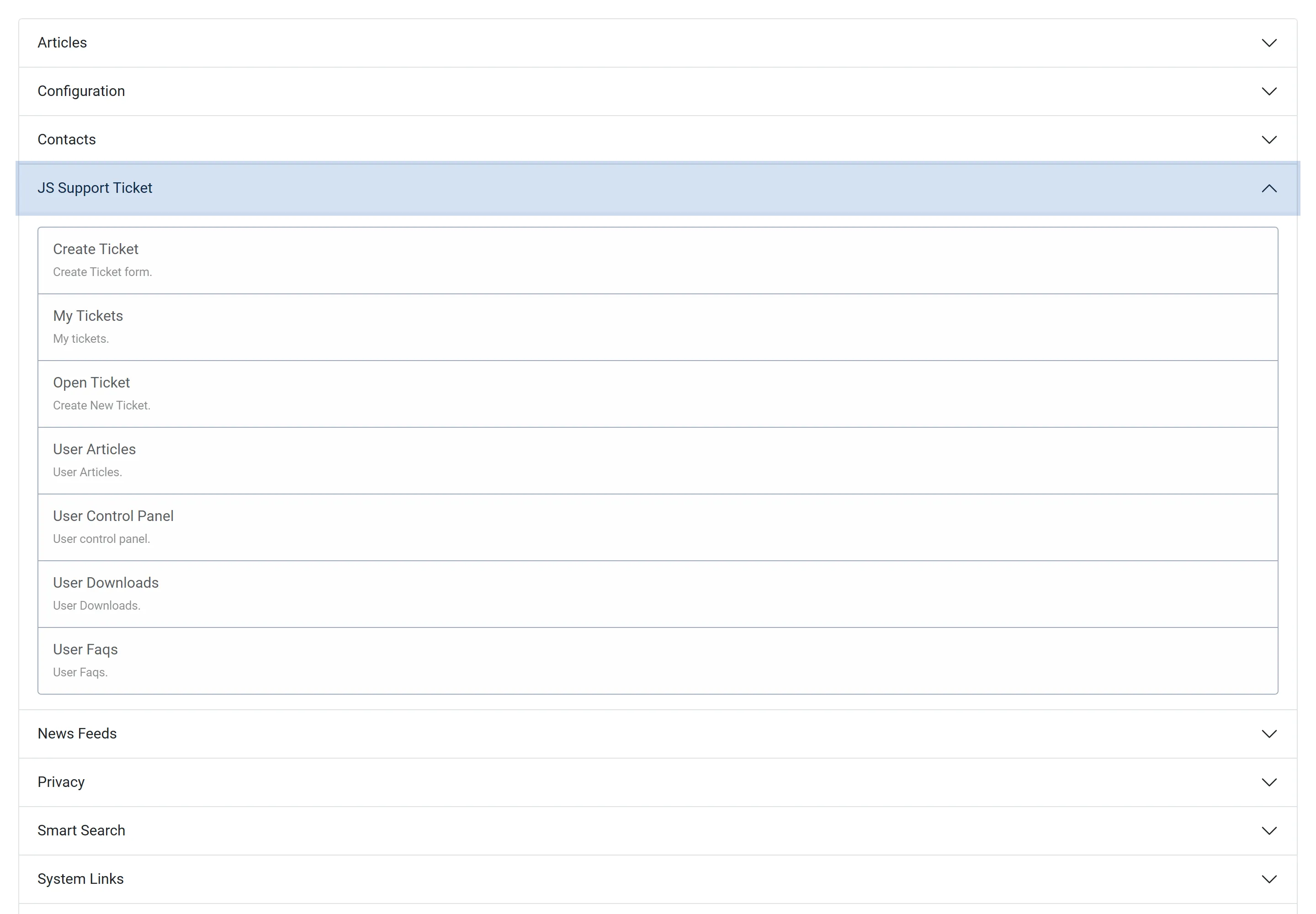
-
Pick a page type (see the table below). Give the item a Menu Title, for example “Help Desk”, and click Save & Close.
Most sites need one item for the User Control Panel (the help desk’s dashboard). Every other page can be reached from it. Add more items if you want direct links in your menu, for example to the ticket form.
The page types
Section titled “The page types”| Menu item type | The page | Who can use it |
|---|---|---|
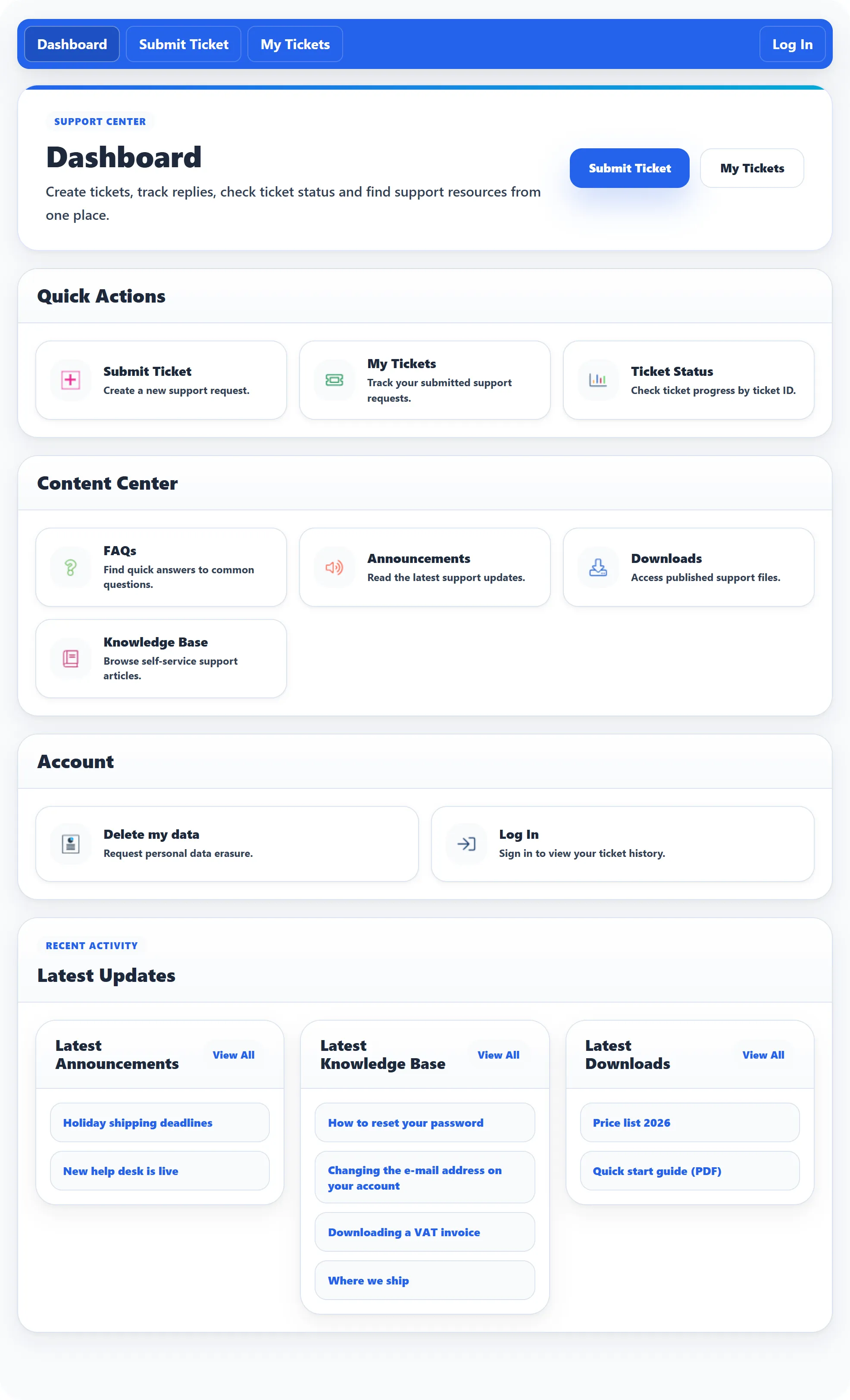
| User Control Panel | The help desk’s dashboard. Customers see links to submit a ticket, their tickets, ticket status and the content pages. Staff see their staff dashboard. | Everyone. Visitors see a Log In link. |
| Create Ticket | The ticket form. | Logged-in users. Visitors too if Visitor can create ticket is Yes. |
| My Tickets | The customer’s own tickets, with counts of open, closed and answered tickets, search and filters. | Logged-in users. |
| User Articles | The knowledge base (Pro). | Everyone. |
| User Faqs | The FAQs (Pro). | Everyone. |
| User Downloads | The downloads (Pro). | Everyone. |
| Open Ticket | Despite its name, the form where a logged-in user asks for their data to be erased. Its description in the list reads “Create New Ticket.” | Logged-in users. |
There is no menu item type for announcements or for the ticket status page; both are linked from the dashboard.
What customers see
Section titled “What customers see”The dashboard groups its links into Quick Actions (Submit Ticket, My Tickets, Ticket Status), Content Center (FAQs, Announcements, Downloads, Knowledge Base) and Account (Delete my data and Log In or Log Out). Below them, Latest Updates lists the newest announcements and knowledge base articles.
A bar across the top of every help desk page links to Dashboard, Submit Ticket and My Tickets, with Log In or Log Out on the right.
Which of these links appear is set under System → Settings, on the Visitor Menu Settings tab. The staff dashboard’s links are on the Staff Menu Settings tab.
Logging in
Section titled “Logging in”Customers log in with an ordinary Joomla user account. The help desk’s Log In links go to Joomla’s own login page and bring the customer back afterwards. If you want customers to create their own accounts, allow it in Users → Manage → Options → Allow User Registration.
When a visitor opens a page that needs a login, such as My Tickets, they see “You are not logged in” with a Log In button.
Visitors
Section titled “Visitors”By default, only logged-in users can submit tickets. A visitor who clicks Submit Ticket on the dashboard is sent to log in and then back to the form.
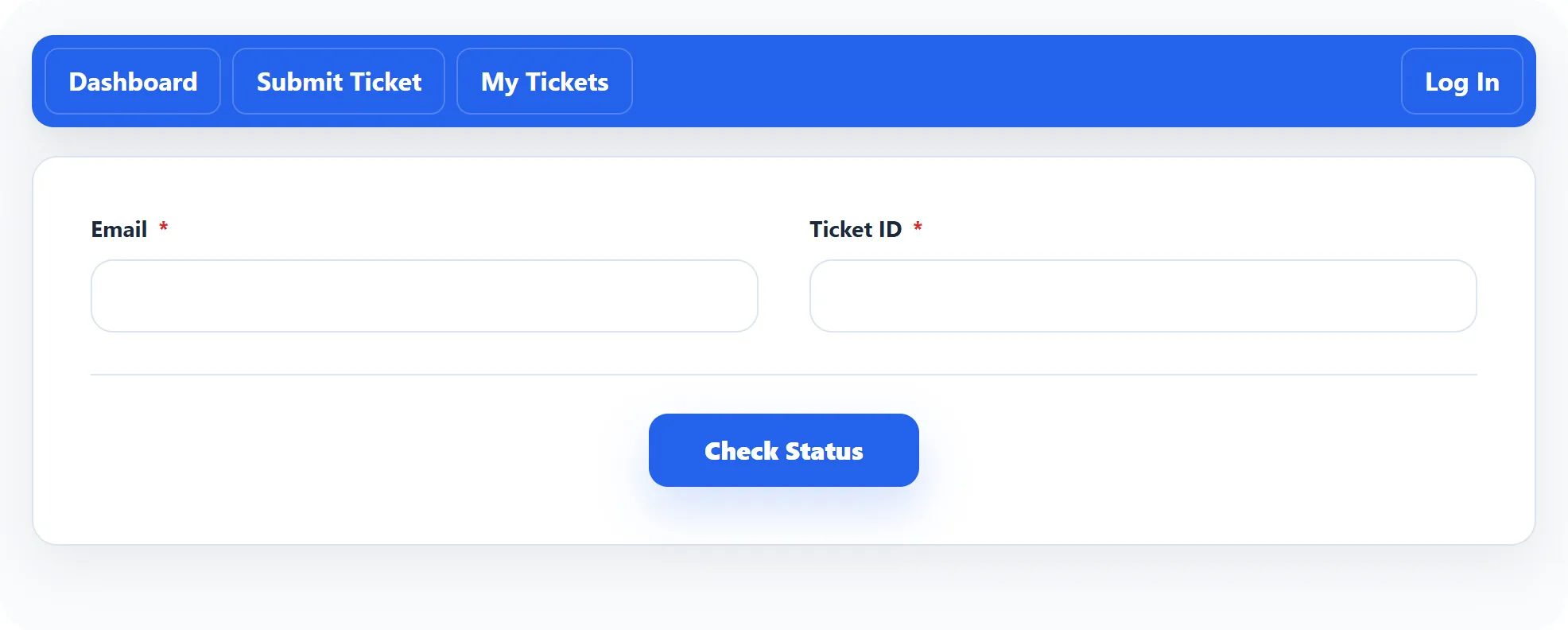
To let visitors submit tickets without an account, set Visitor can create ticket to Yes (in the setup wizard or under System → Settings). This is a Pro feature. A visitor’s ticket is tied to the e-mail address they enter. To come back to it, they use Ticket Status on the dashboard, enter their Email and Ticket ID, and click Check Status.
What staff see
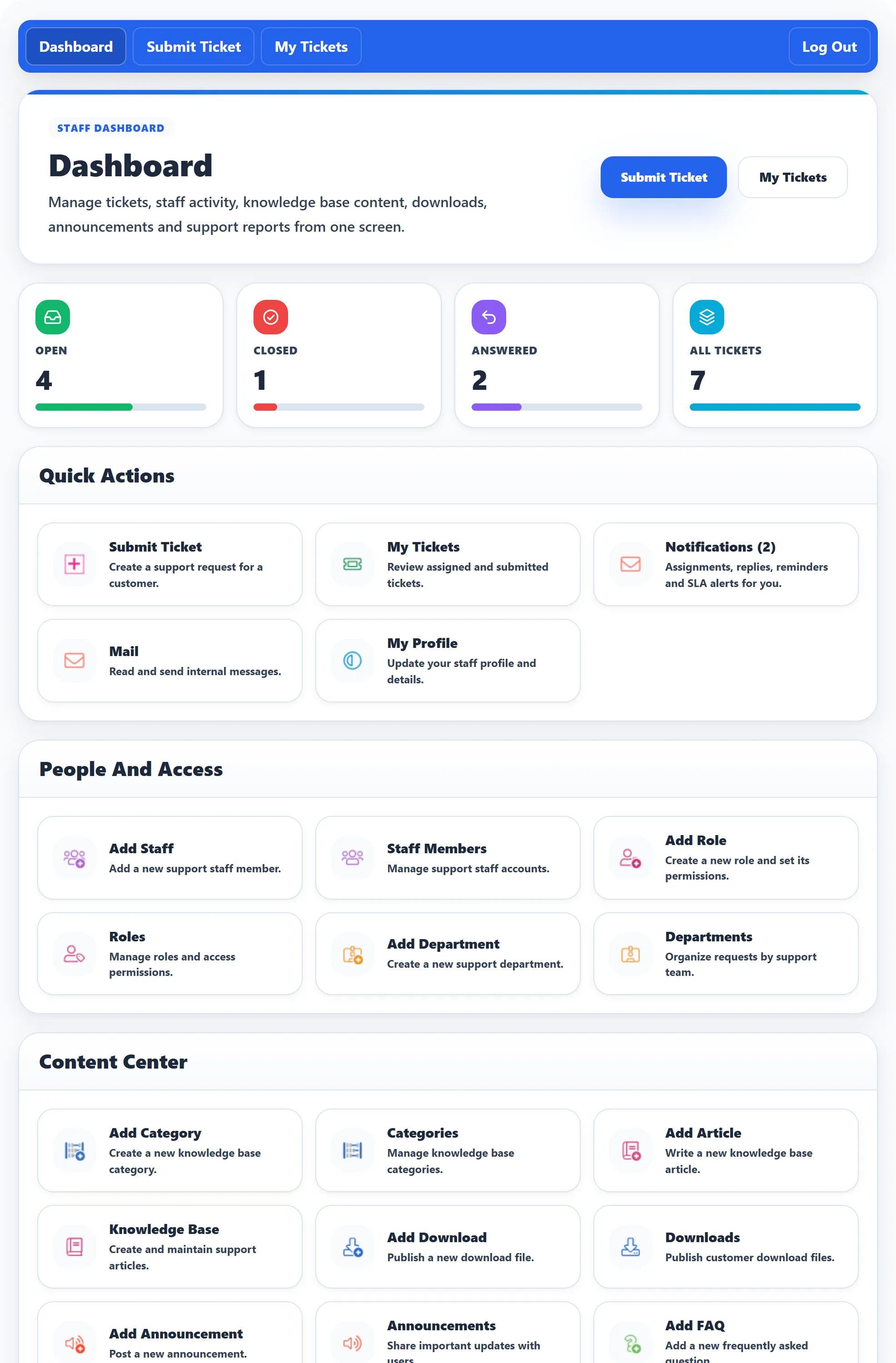
Section titled “What staff see”Staff members use the same User Control Panel page. When a Joomla user who is a staff member logs in and opens it, they see the staff dashboard: Submit Ticket (for a customer), My Tickets (the tickets they work), Notifications, Mail, My Profile, and, depending on their role’s permissions, staff, roles, departments, the content areas and reports. You do not need separate menu items for staff.
A staff member whose staff account is disabled sees “Your account has been disabled. Please contact the administrator.” on the staff pages.
While the help desk is offline
Section titled “While the help desk is offline”If Offline is set to Yes under System → Settings, the help desk pages on your site show the help desk’s Title and the offline message instead. You can still work tickets in the administrator.