
The ticket list
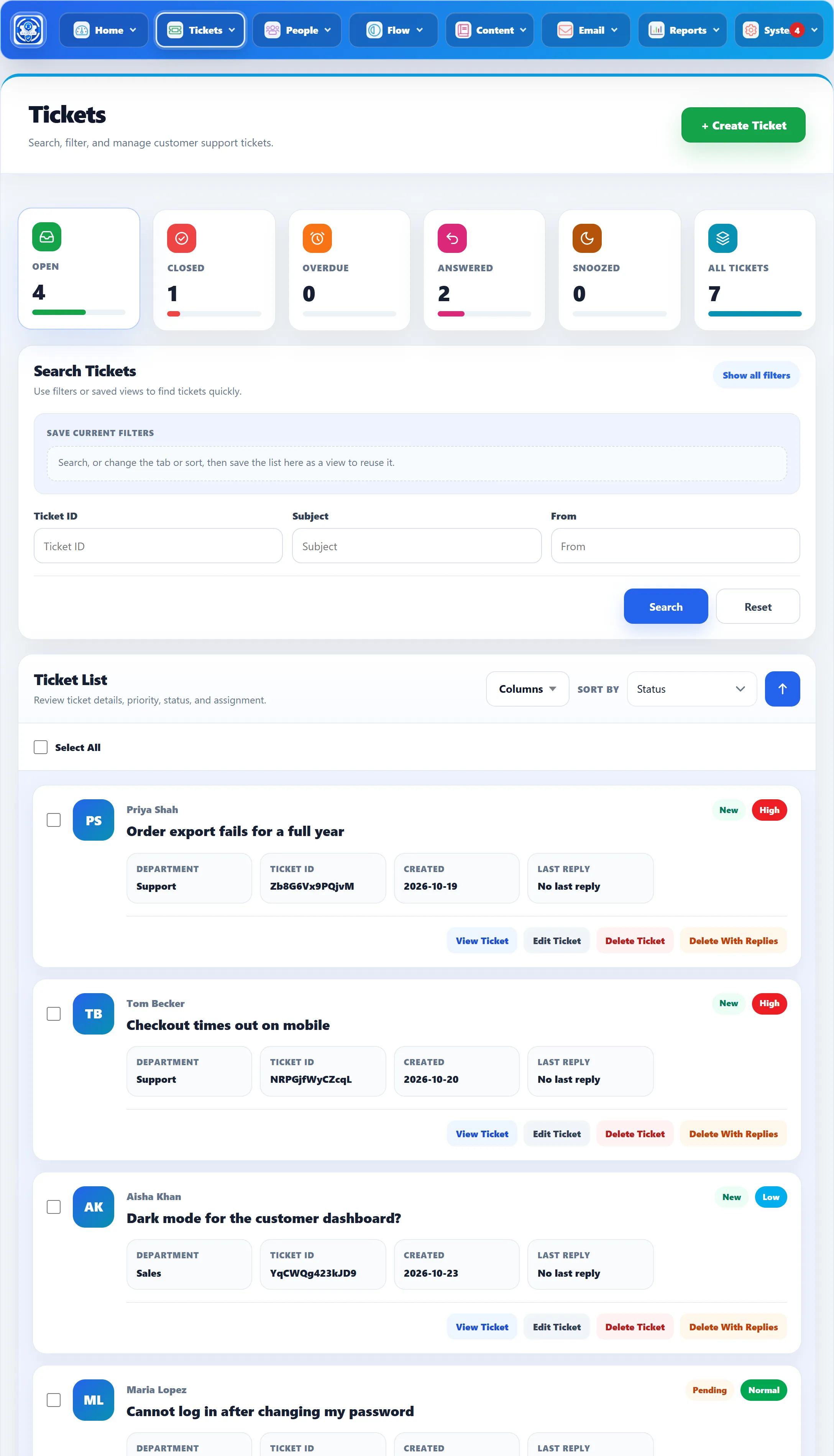
Tickets → All Tickets lists every ticket in the help desk. Click a ticket’s subject, or View Ticket, to open it (see Working a ticket). + Create Ticket at the top opens a new ticket for a customer (see Creating a ticket).
Status cards
Section titled “Status cards”The cards across the top switch between lists. The list opens on Open.
| Card | Shows |
|---|---|
| Open | Tickets waiting for your team: not closed or merged, not answered, and not deferred to a later date. |
| Closed | Closed and merged tickets. |
| Overdue | Tickets flagged overdue that are not closed or merged. |
| Answered | Tickets your team has answered and that now wait for the customer. |
| Snoozed | Tickets deferred to a date that has not come yet. See Linking, deferring and reminders. |
| All Tickets | Every ticket. |
The numbers on the cards count the whole help desk, not your search. They are shown only while Show count on my tickets is set to Yes under System → Settings → General Settings; otherwise each card shows a dash.
Searching
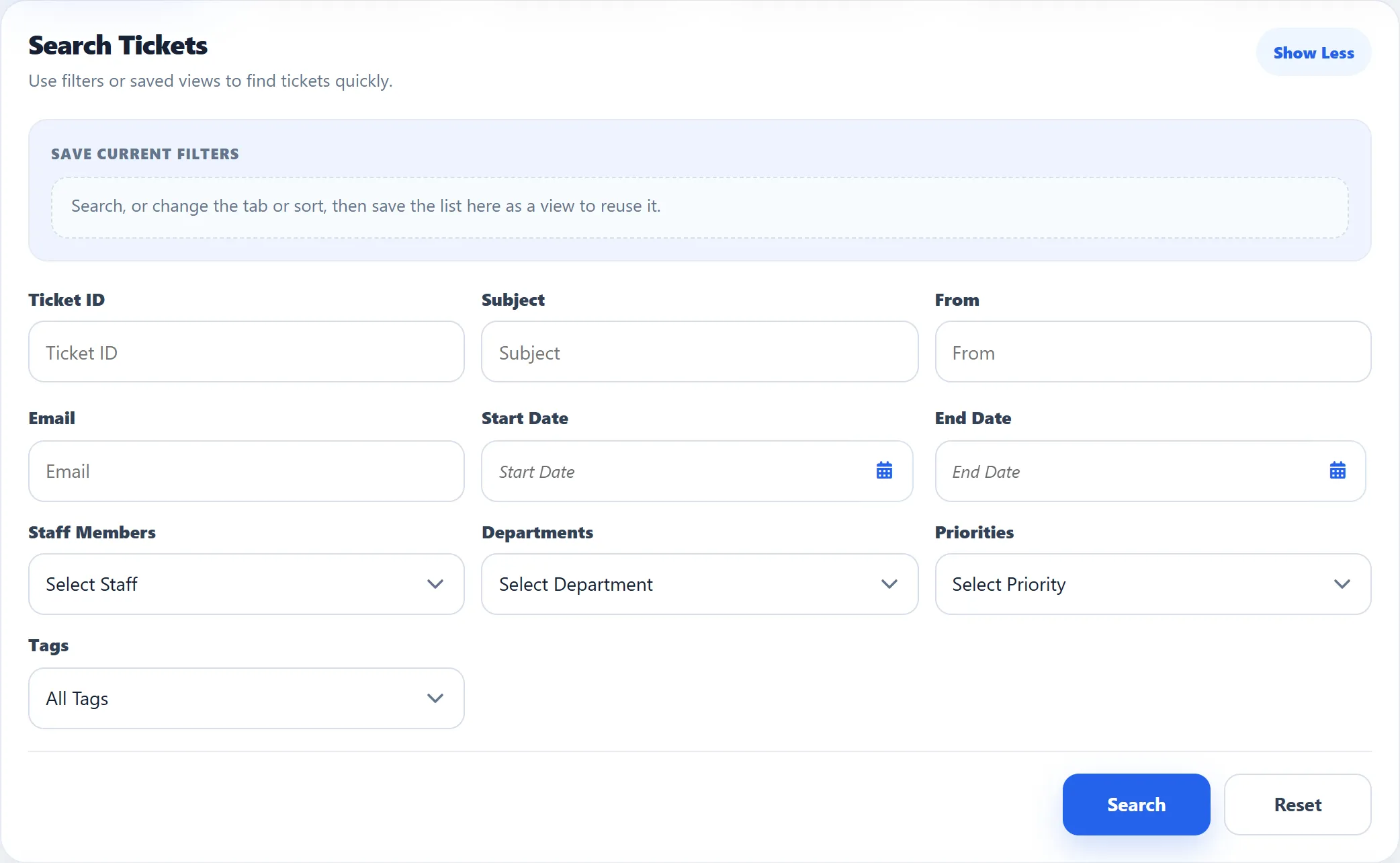
Section titled “Searching”Search Tickets has three boxes, and Show all filters opens the rest.
| Filter | What it matches |
|---|---|
| Ticket ID | The ticket’s tracking ID, or any part of it. |
| Subject | Words in the subject, the customer’s message and every reply. |
| From | Part of the customer’s name. |
| Part of the customer’s email address. | |
| Start Date, End Date | The date the ticket was created. |
| Staff Members (Pro) | The staff member the ticket is assigned to. |
| Departments | The ticket’s department. |
| Priorities | The ticket’s priority. |
| Tags | Tickets carrying one tag. See Tags. |
| Organisation (Pro) | The customer’s organisation. Shown once at least one organisation exists. |
| Custom fields | Every published custom ticket field with User Search set to Yes. See Ticket fields. |
Click Search to apply, or Reset to clear every filter. When a filter inside Show all filters is in use, the panel stays open after the search so you can see what is narrowing the list.
Some parts of each row are shortcuts: click the customer’s name to list that customer’s tickets by email address, or click the department or organisation box to filter by it.
Sorting
Section titled “Sorting”Sort By orders the list by Subject, Priority, Ticket ID, Answered, Status or Created. The arrow button beside it swaps between ascending and descending. Until you choose, the list is sorted by status in the direction set by Default Ticket listing ordering under System → Settings → Ticket Settings.
What each row shows
Section titled “What each row shows”Each ticket shows the customer’s name, the subject, and these parts:
| Part | Shows |
|---|---|
| Avatar | The assigned staff member’s photo, or the customer’s initials. |
| Status and priority | Ticket via Email, Locked and Overdue badges when they apply, then the status and the priority in its colour. |
| Department, Organisation, Ticket ID, Created, Last Reply | As named. Last Reply reads “No last reply” until someone replies. |
| SLA due (Pro) | The next SLA deadline still to meet, with “Breached” or “Paused, awaiting customer” after it. “No SLA” when no rule applies. |
| Assign To | The assigned staff member. Shown only when the Assign To field has Show on listing set to Yes in Ticket fields. |
| Tags | The ticket’s tags in their colours. |
| Custom Fields | Custom fields with Show on listing set to Yes. |
Under each row: View Ticket, Edit Ticket, Delete Ticket and Delete With Replies.
Choosing columns (Pro)
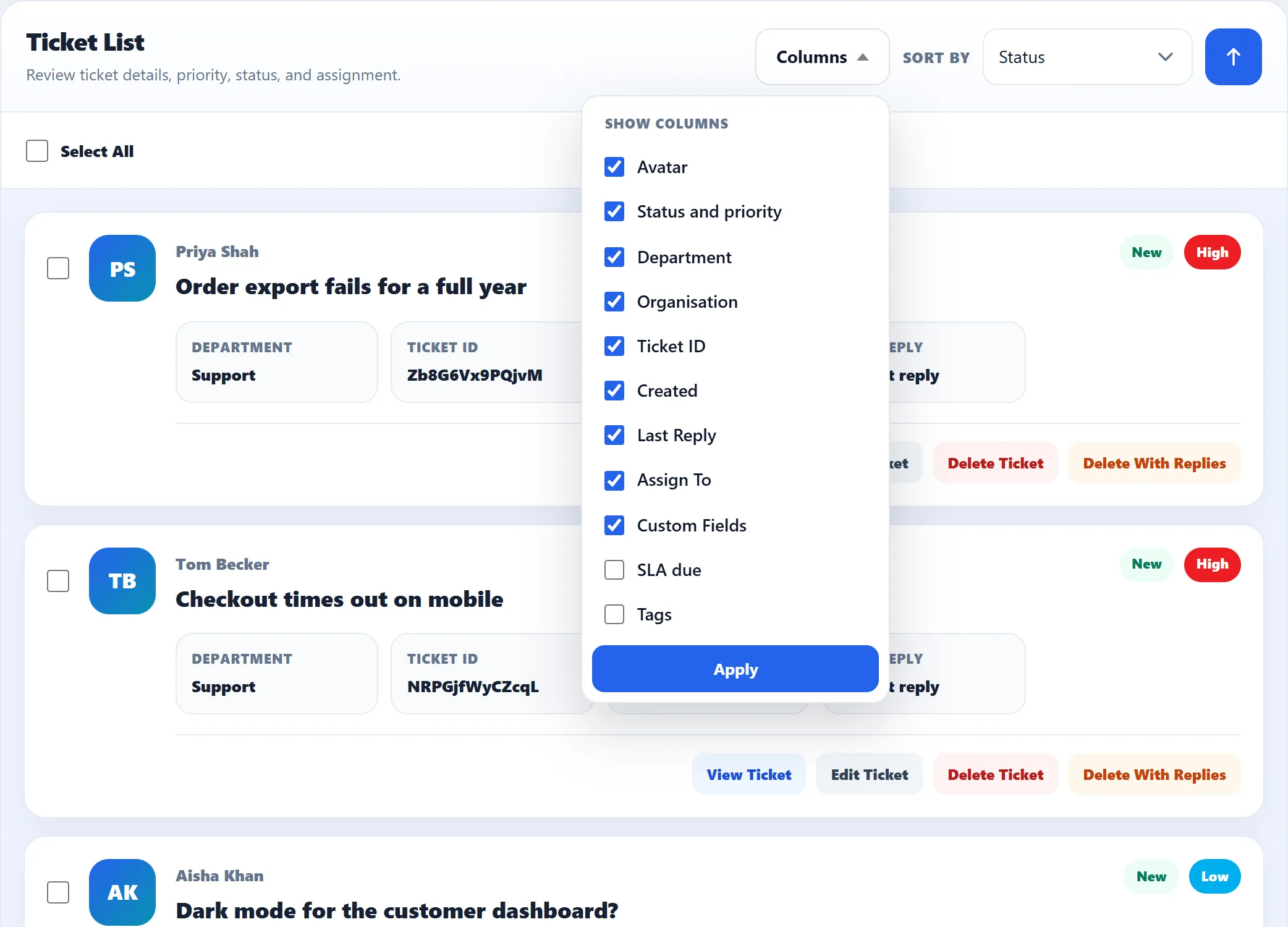
Section titled “Choosing columns (Pro)”Columns lists the parts above as tick boxes. Untick what you don’t need and click Apply. SLA due and Tags are off until you turn them on; the rest are on. Your choice lasts for your Joomla session. A saved view stores its columns too, so applying one, or opening the list with your default view, puts its columns back.
Bulk actions
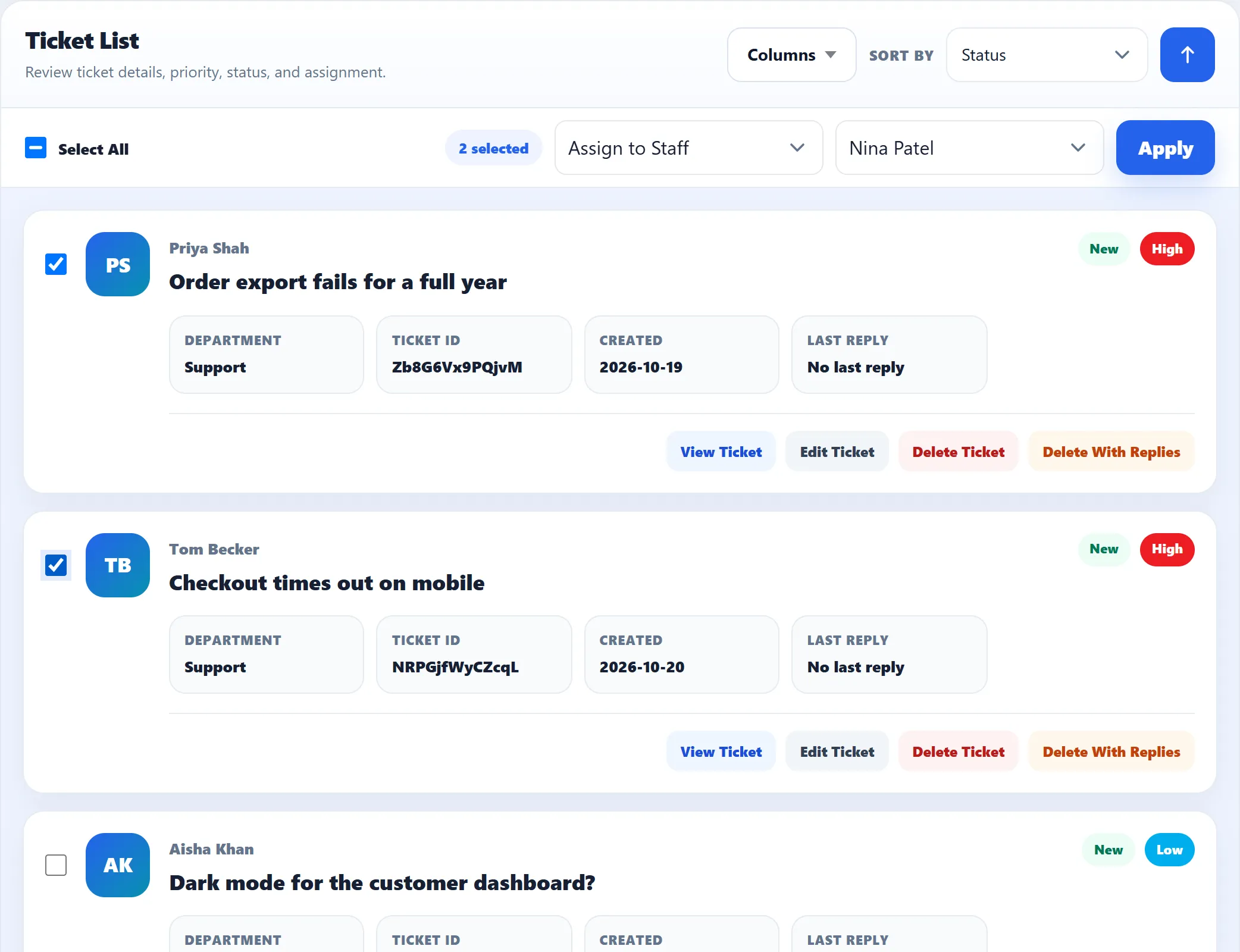
Section titled “Bulk actions”Tick the box beside each ticket, or Select All. A bar shows how many are selected and a Choose an action menu:
| Action | What it does to each ticket |
|---|---|
| Close | Closes it, exactly as Close Ticket does on the ticket screen. |
| Reopen | Reopens it if it is closed: status New, waiting on your team. There is no time limit. Tickets that are not closed are skipped. |
| Assign to Staff (Pro) | Assigns it to the staff member you pick. |
| Change Priority | Sets the priority you pick. Tickets already at that priority are left alone. |
| Move to department | Transfers it to the department you pick. |
| Add Tag | Adds the tag you pick. |
Pick the staff member, priority, department or tag in the second menu, then click Apply. Each ticket goes through the same steps as the single-ticket action, so history lines and emails are the same as doing it by hand. Assigning and moving also save an internal note reading “Changed as part of a bulk action”. The message afterwards says how many tickets were updated and how many could not be.
Deleting tickets
Section titled “Deleting tickets”Both delete links ask you to confirm first. Neither sends an email.
- Delete Ticket only deletes a ticket that has no replies. It removes the ticket and its attachments. A ticket with replies stays, and you see “This ticket is in use and cannot be deleted.”
- Delete With Replies removes the ticket together with its replies, internal notes and attachments. This cannot be undone.
Saved views
Section titled “Saved views”Below the search heading you can save the current search, tab, sort and columns as a view and apply it again later. See Saved views.