
Knowledge base search module
JS Support Ticket Knowledge Base Search puts a search box for your knowledge base on any page of the site. A customer who finds the answer there doesn’t need to open a ticket.
The box searches exactly as the search on the knowledge base page does, and shows the results on that page.
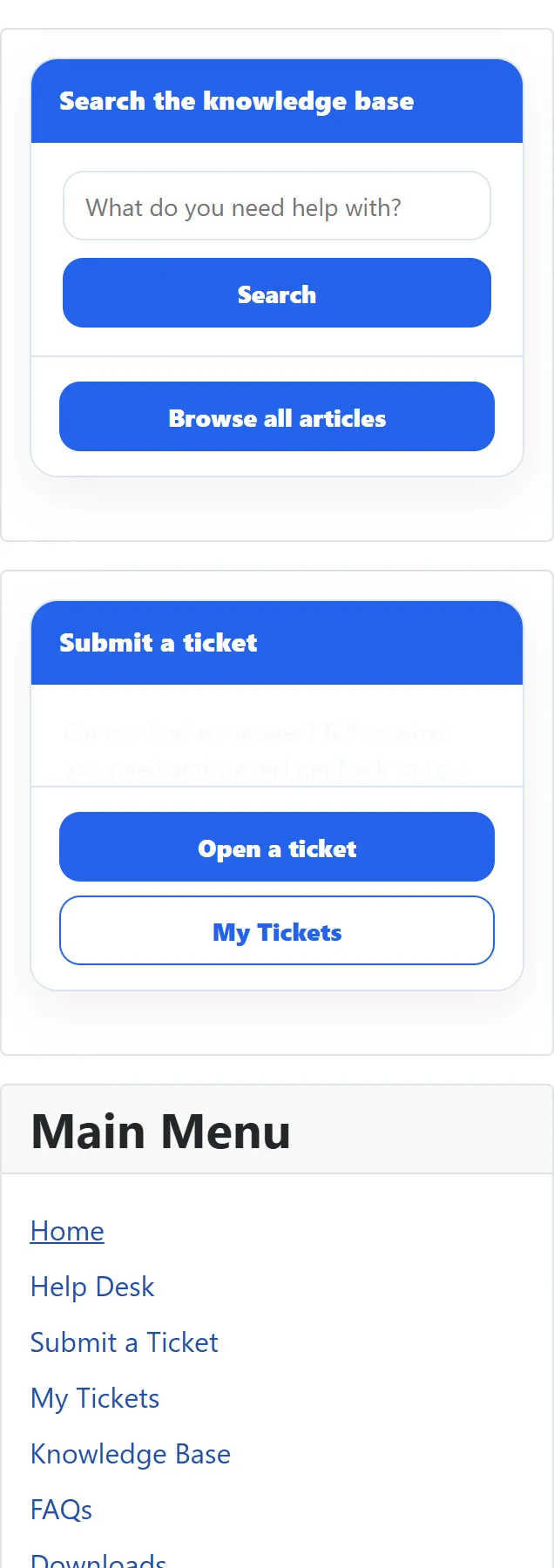
Putting it on your site
Section titled “Putting it on your site”The component adds one copy of this module when it is installed, unpublished and with no position.
-
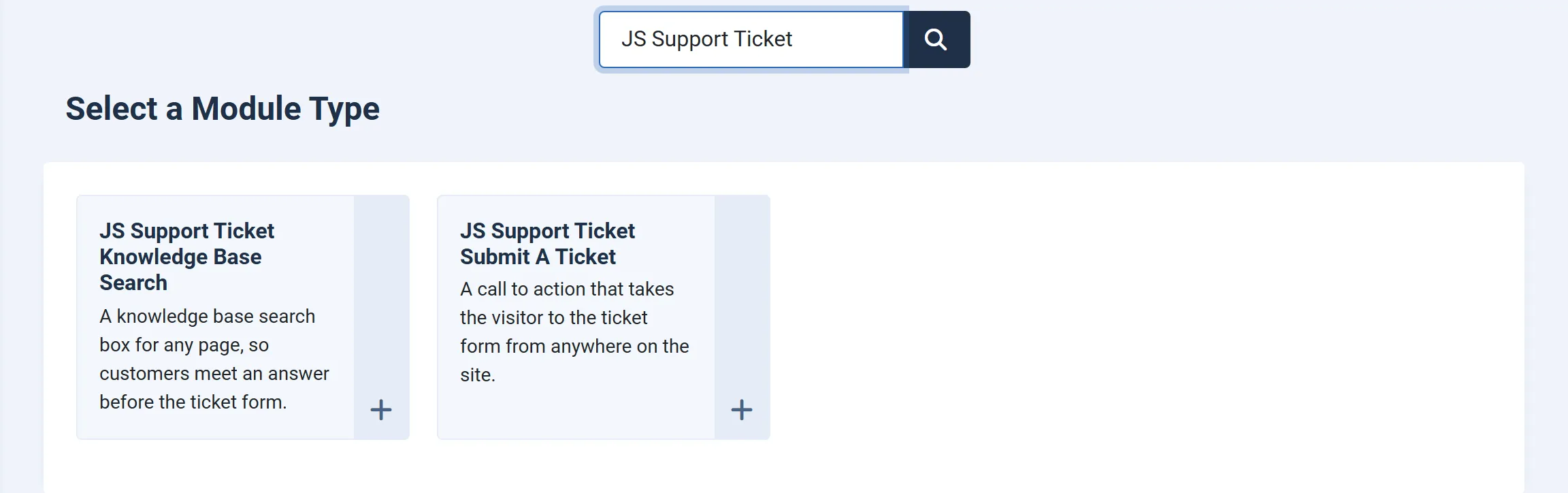
Go to Content → Site Modules and open JS Support Ticket Knowledge Base Search. (To make another copy, click New and choose JS Support Ticket Knowledge Base Search from the module types.)
-
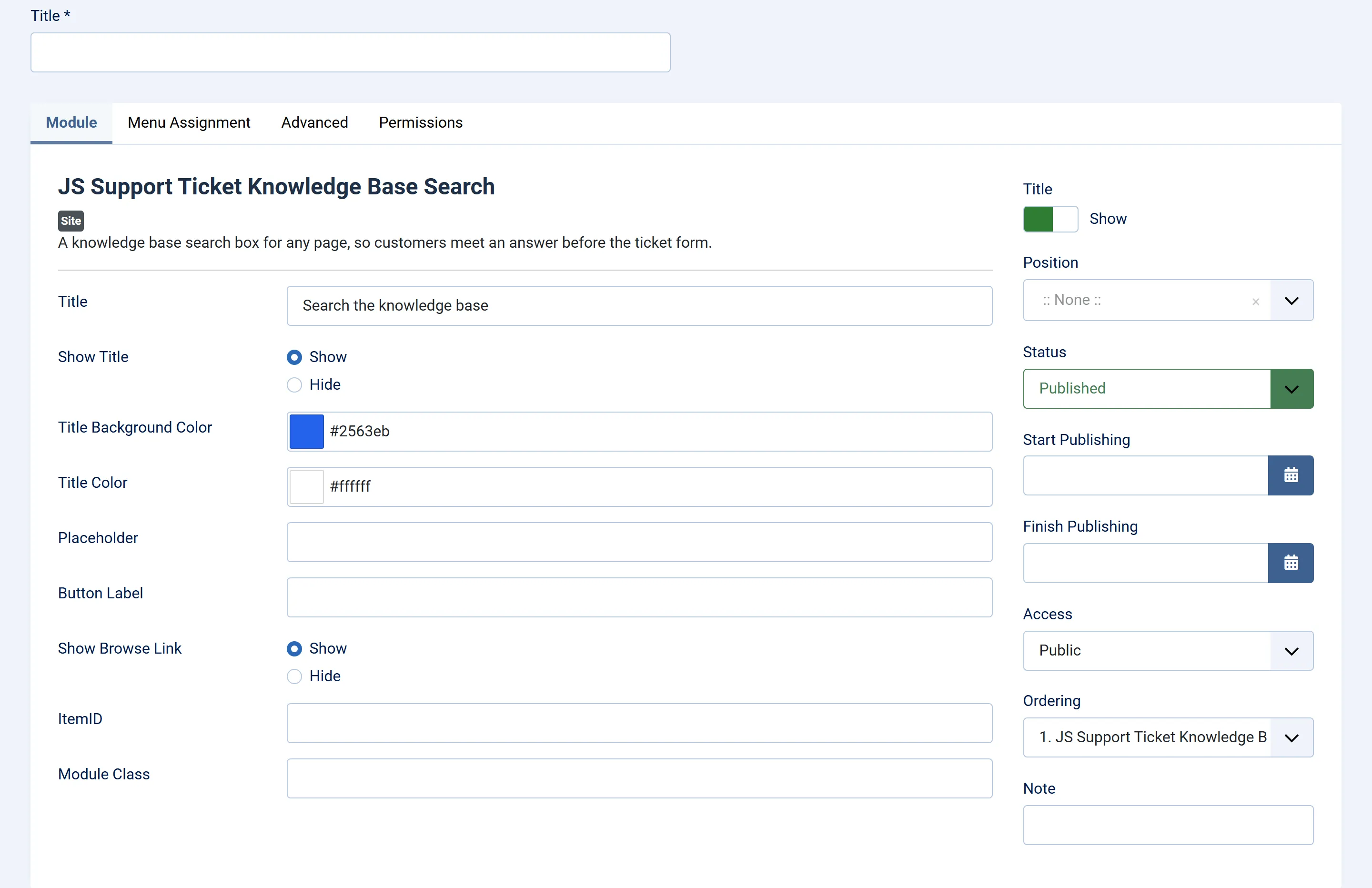
On the Module tab, fill in the settings below.
-
Choose a Position, set Status to Published, and on the Menu Assignment tab choose the pages it should appear on.
-
Click Save & Close.
Settings
Section titled “Settings”| Setting | Default | What it does |
|---|---|---|
| Title | Search the knowledge base | The text in the card’s title bar. It is also the search box’s label for screen readers. |
| Show Title | Show | Shows or hides the card’s title bar. |
| Title Background Color | #2563EB | The colour of the title bar. |
| Title Color | #FFFFFF | The colour of the title text. |
| Placeholder | (empty) | The hint inside the empty search box. Left empty, it reads “What do you need help with?” |
| Button Label | (empty) | The button text. Left empty, it reads “Search”. |
| Show Browse Link | Show | Adds a Browse all articles link under the box, to the knowledge base page. |
| ItemID | (empty) | The ID of the menu item the search and the link should use. See below. |
| Module Class Suffix | (empty) | Joomla’s usual extra CSS class for the card. |
The two colour settings take a hex colour such as #2563EB or #fff. Anything
else is ignored and the default is used.
ItemID
Section titled “ItemID”The search opens the knowledge base page inside a Joomla menu item, which decides the page’s template, modules and address. Enter the ID of the menu item that holds your knowledge base or help desk (you’ll find it in the ID column under Menus). Left empty, the search uses whatever menu item the visitor is on at the time.
What a search finds
Section titled “What a search finds”The words typed are sent to the knowledge base page, which lists:
- the active articles that match them, in the title or the article text, and
- the knowledge base categories whose name contains them.
Disabled articles are never shown. The words stay in the knowledge base page’s own search box, so the customer can change them and search again there.
How it looks
Section titled “How it looks”The card uses the same look as the help desk itself. Apart from the title bar, which has its own colour settings, it takes its colours from System → Themes in the component.
For results in the site’s own search box as well, see Smart Search.