
Customer feedback
Some time after a ticket is closed, the help desk e-mails the customer a link to rate how it went. The customer picks a rating from Very poor to Excellent and can add remarks. You read the results under Flow → Feedback, and the totals appear under Reports → Satisfaction Reports (see Satisfaction Report).
How it works
Section titled “How it works”- A ticket is closed.
- Once the delay you set has passed, the help desk’s background job sends the customer the Feedback Email To User e-mail, with a link to the feedback form. Each ticket gets one feedback e-mail.
- The customer follows the link, rates the ticket, and clicks Save Feedback. They then see your thank-you message.
- A ticket can be rated once. Following the link again says feedback has already been given.
The link identifies the ticket and the customer’s e-mail address, so the customer doesn’t need to log in.
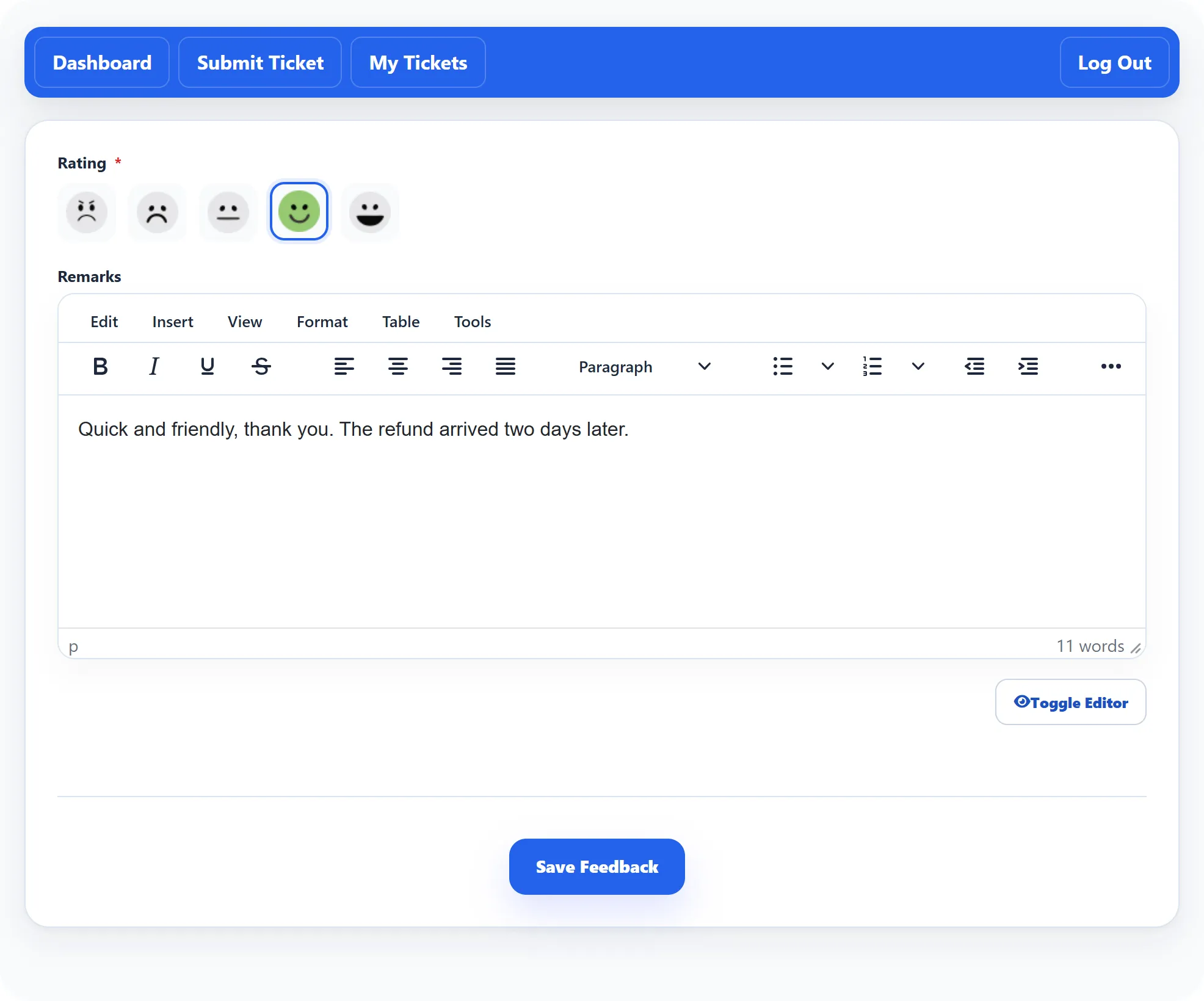
The form has two fields:
| Field | What the customer does |
|---|---|
| Rating | Picks one of five faces: Very poor, Poor, Average, Good, Excellent. Required. |
| Remarks | Writes a comment, if they want to. |
Any fields you add under Flow → Feedback Fields appear on the form too, and their answers are shown with the feedback.
Settings
Section titled “Settings”The timing and the thank-you message are on the Feedback Settings tab of System → Settings; see Feedback Settings.
| Setting | Default | What it does |
|---|---|---|
| Feedback Email Delay Type | Days | Whether the delay counts Days or Hours. |
| Feedback Email Delay | 3 | How many days or hours after the ticket is closed the e-mail is sent. |
| Feedback successfully stored message | “Thank you for providing your feedback…” | What the customer sees after saving their feedback. |
Two more settings are elsewhere on System → Settings:
- Feedback Email To User (on the Mail Settings tab): Disabled stops the feedback e-mails. Closed tickets are still marked as handled, so turning it back on later does not send e-mails for them.
- Feedback under Staff Menu Settings: shows or hides the Feedback link on the staff dashboard on the front end.
The e-mail’s wording is under Email → Email Templates → Feedback Email To User.
When the e-mail goes out
Section titled “When the e-mail goes out”The background job runs when someone opens a page of your site, at most once every 30 minutes, or on a schedule if you set up the Joomla scheduled task JS Support Ticket: ticket maintenance (System → Manage → Scheduled Tasks). With the delay in days, a ticket closed on Monday with a delay of 3 is e-mailed on the first run on Friday: the delay counts whole days, and the day it ends must have passed.
Reading feedback
Section titled “Reading feedback”Open Flow → Feedback.
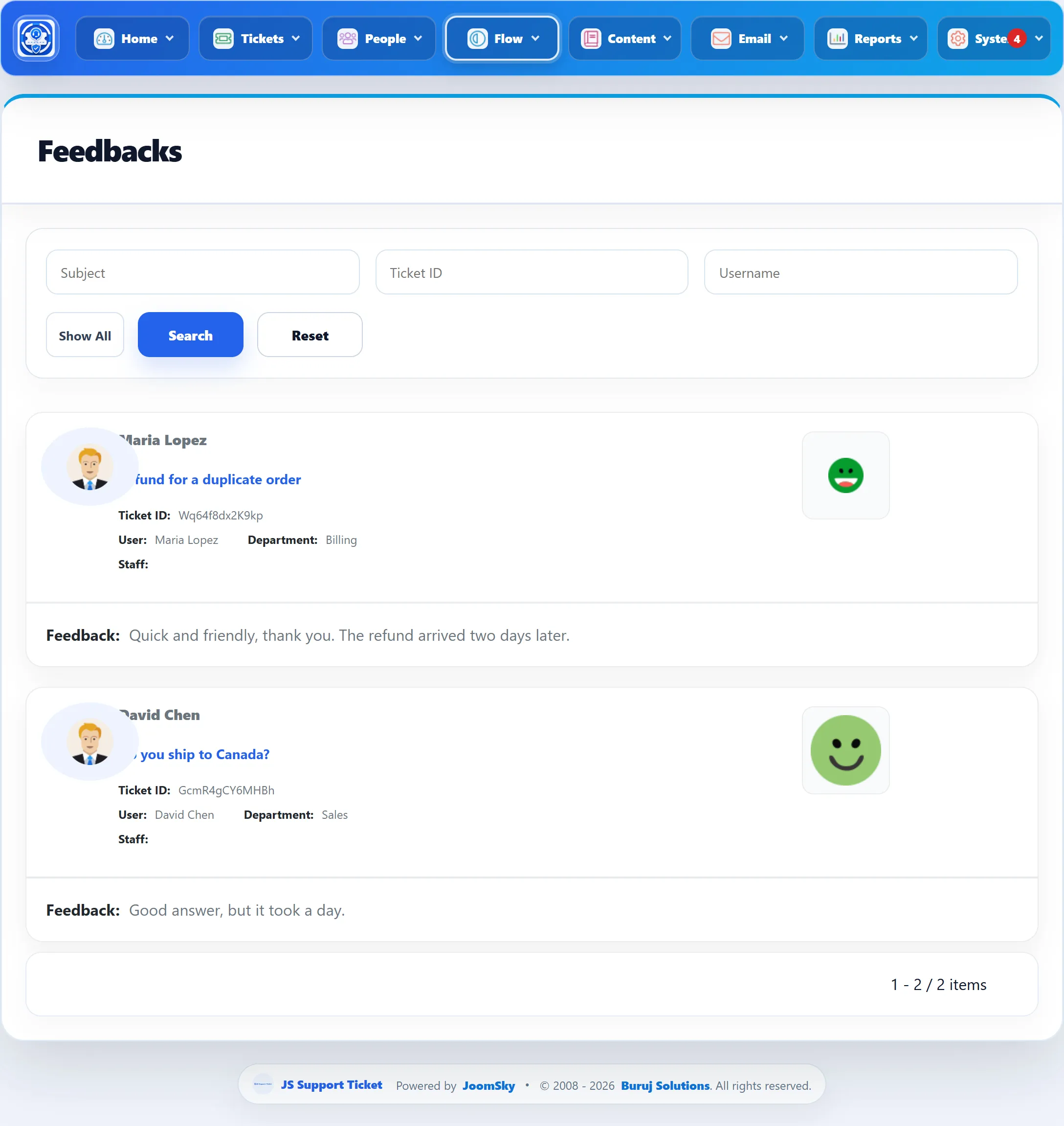
Each entry shows the ticket’s subject and ID, the customer, the department, the staff member who had the ticket, any extra field answers, the remarks, and the rating as a face.
Search by Subject, Ticket ID or Username. Show All adds a department and a staff member filter.
Staff members can open the same list from the front end, but only Joomla Super Users can see it in 1.3.0; see the permissions reference.