
Working from the front end
Support staff don’t need access to Joomla’s administrator. When a staff member logs in on your site, the help desk pages change: My Tickets becomes the staff ticket list, the ticket page gets the staff tools, and the dashboard shows the screens their role allows.
Who counts as staff
Section titled “Who counts as staff”A staff member is a Joomla user with a staff record in the help desk. To make someone staff:
- Give them a Joomla user account, if they don’t have one (Users → Manage).
- Add them as a staff member under People → Staff Members in the component, or from the front end if you have that permission (see Staff, roles and departments). You pick the Joomla user, set their name and contact details, and give them a Role.
The role decides what they can do: which screens they can open, which buttons they see on a ticket, and which departments’ tickets they can work. Staff can also have permissions set one by one. See People.
They then log in with their normal Joomla username and password, using your site’s login form or the Log In link in the help desk’s top bar.
The staff dashboard
Section titled “The staff dashboard”Open the help desk’s home page, for example the Help Desk menu item. A staff member sees Staff Dashboard above the heading. The first two cards they can use under Quick Actions also appear as buttons beside it.
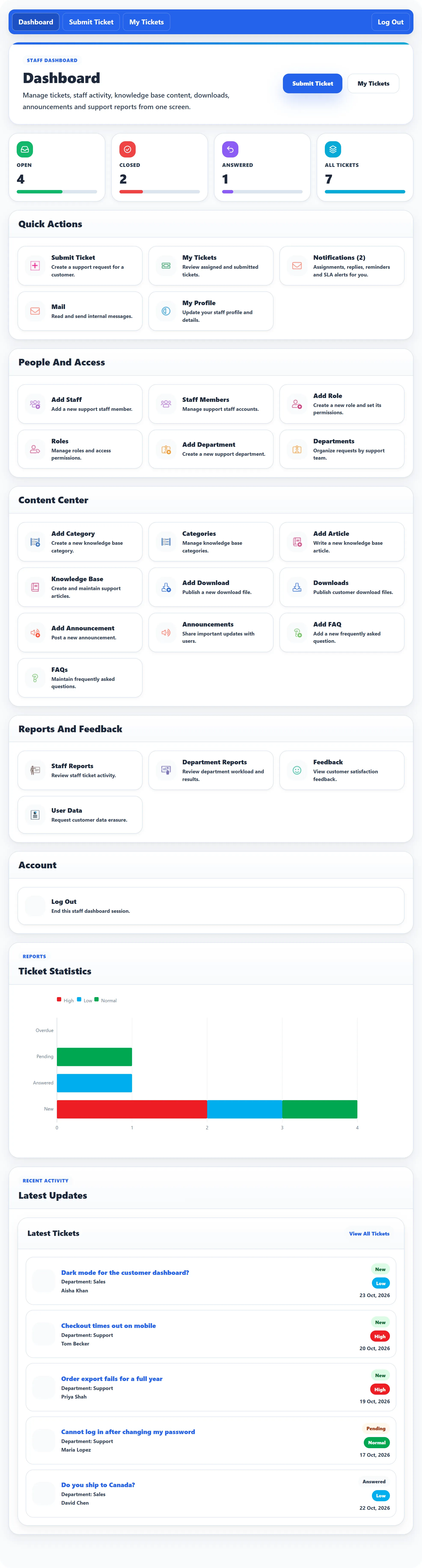
Below are the ticket counters (Open, Closed, Answered, All Tickets), then cards grouped in sections. A card only shows when the setting for it is on and the staff member has the permission the screen needs. A card they can’t use is left out rather than leading to Access Denied.
| Section | Cards | Needs permission to |
|---|---|---|
| Quick Actions | Submit Ticket | add tickets |
| My Tickets | (always shown when switched on) | |
| Notifications | (always shown) | |
| use the mail system | ||
| My Profile | (always shown when switched on) | |
| People And Access | Add Staff, Staff Members | add staff / view staff |
| Add Role, Roles | add roles / view roles | |
| Add Department, Departments | add departments / view departments | |
| Content Center | Add Category, Categories | add / view categories |
| Add Article, Knowledge Base | add / view knowledge base articles | |
| Add Download, Downloads | add / view downloads | |
| Add Announcement, Announcements | add / view announcements | |
| Add FAQ, FAQs | add / view FAQs | |
| Reports And Feedback | Staff Reports | view staff reports |
| Department Reports | view department reports | |
| Feedback | view feedback | |
| User Data | (always shown when switched on) | |
| Account | Log Out |
Notifications shows how many unread notifications there are, for example Notifications (2). See Notifications and mail.
Further down, Ticket Statistics is a bar chart of tickets by status and priority, and Latest Tickets lists recent tickets the staff member can see, with View All Tickets leading to the full list.
The top bar
Section titled “The top bar”The blue bar at the top of every help desk page has Dashboard, Submit Ticket and My Tickets for staff too, plus Log Out. For a staff member, My Tickets opens the staff ticket list. See The ticket list.
What staff can do from here
Section titled “What staff can do from here”| Page | Covers |
|---|---|
| The ticket list | Finding tickets, saved views, bulk actions, opening a ticket for a customer |
| Working a ticket | Replying, internal notes, assigning, transferring and every action on the ticket page |
| Notifications and mail | Alerts about your tickets, and messages between staff |
| Managing content | Knowledge base, FAQs, downloads and announcements |
| Staff, roles and departments | Adding staff, changing roles and departments |
| Reports and feedback | Staff and department reports, customer feedback |
| Your profile | Your name, phone, signature and photo |