
Internal mail
Internal mail lets staff members send each other short private messages inside the help desk, for example to hand over a customer or ask a colleague to look at a ticket. Customers never see it.
It is under Email → Mail Inbox and Email → Compose Message. Staff can also use their mailbox on the front end, if their role allows it.
Only staff have a mailbox
Section titled “Only staff have a mailbox”Messages go from one staff member to another. To use internal mail in the administrator, your own Joomla account must also be a staff member (People → Staff Members). If it isn’t, the screens show “To use this feature you must be a staff member” and nothing can be sent.
Sending a message
Section titled “Sending a message”-
Go to Email → Compose Message, or click Compose on the inbox.
-
Under To, choose the staff member. Every active staff member except you is listed.
-
Type the Subject and the Message.
-
Click Send.
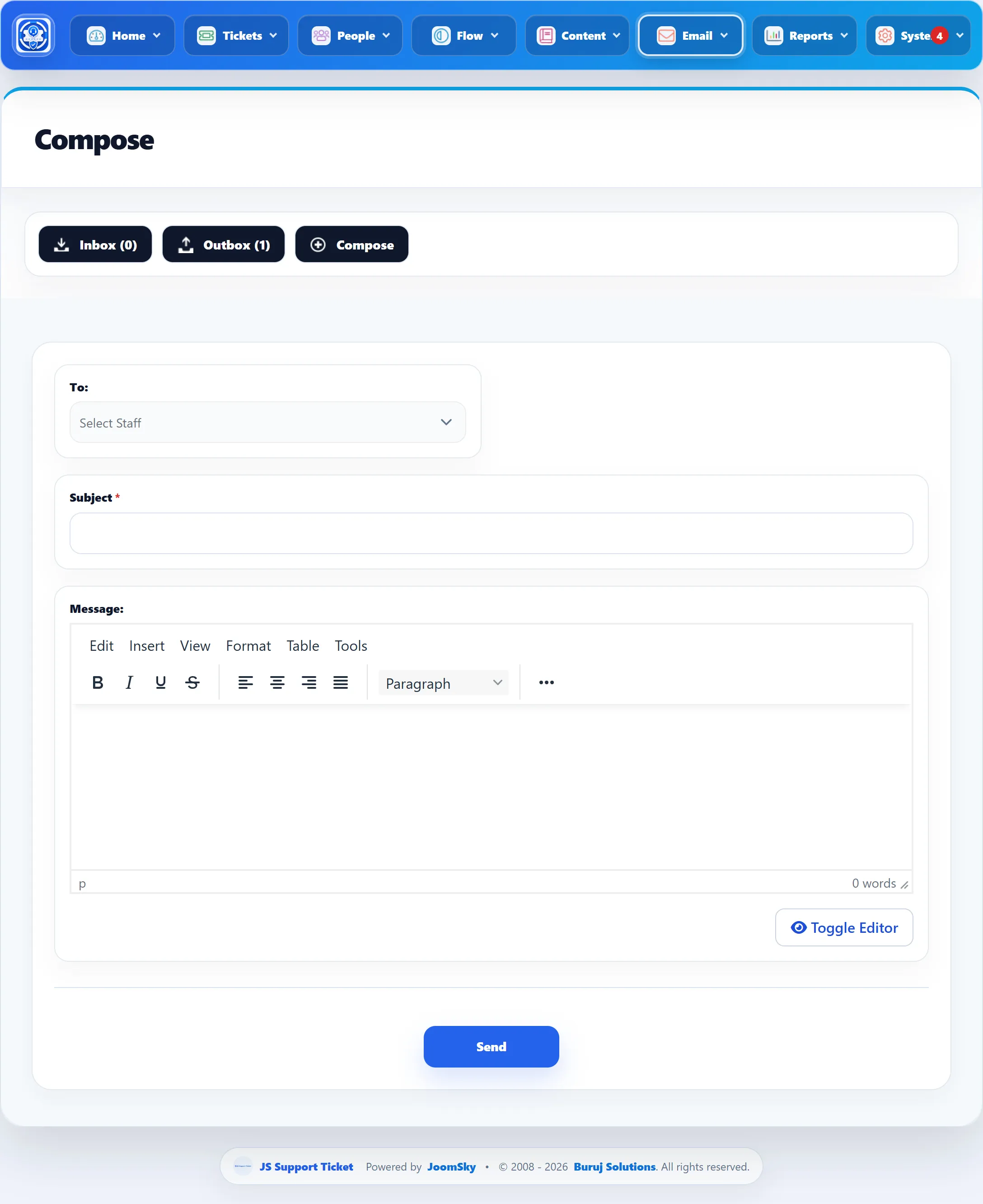
Sending a message doesn’t email the recipient. They see it the next time they open their inbox, where it is shown in bold until they read it.
Inbox and outbox
Section titled “Inbox and outbox”Inbox lists messages sent to you, with Subject, From and Created; Outbox lists the ones you sent, with To instead of From. The Inbox, Outbox and Compose buttons switch between them, and the inbox button shows how many unread messages you have (or the total, when everything is read).
Above each list you can search by Subject and pick a start and end date. The inbox also has a read-state menu (Select type: read or unread).
On the inbox, tick messages and use Mark as read or Mark as unread in the toolbar to change their state.
Reading and replying
Section titled “Reading and replying”Click a subject to open the message. It shows who it is from, the message, and any Replies under it, each with who posted it. Type in the reply box at the bottom and click Send to answer. The reply is added to the same conversation, and shows as unread for the other person.