
Assigning, transferring and priority
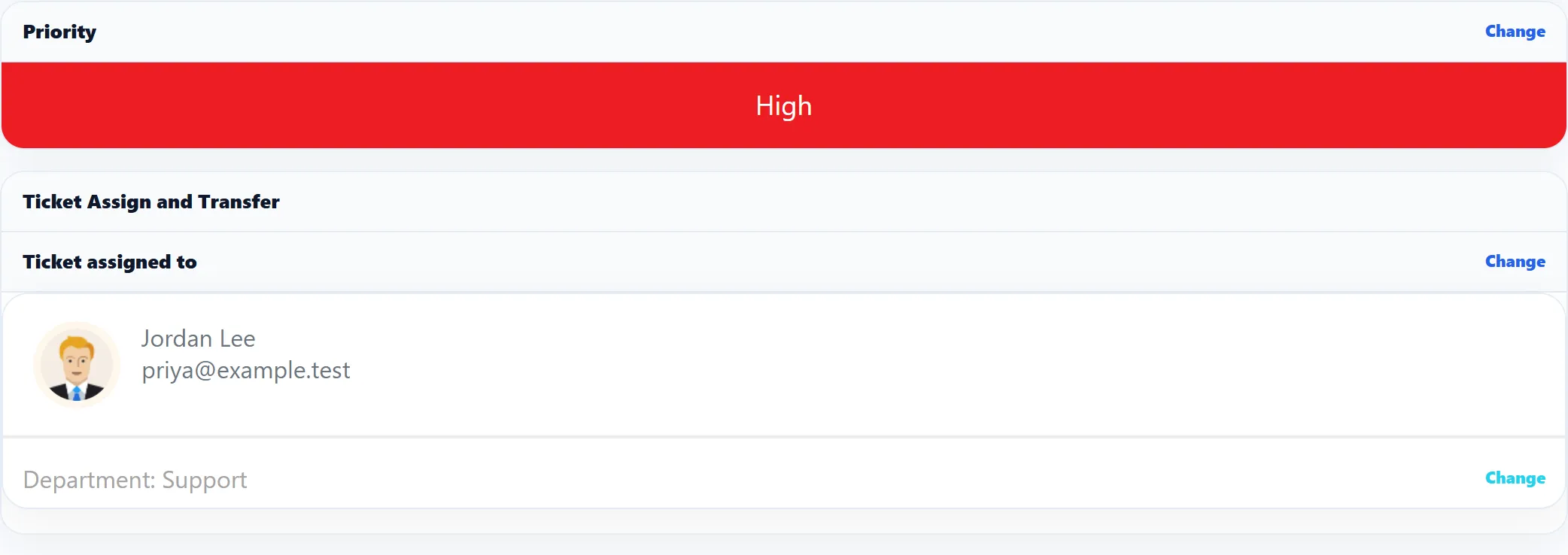
The Priority and Ticket Assign and Transfer cards in the ticket screen’s side panel decide who works on a ticket and how urgent it is. To change many tickets at once, use the bulk actions on the ticket list.
Changing the priority
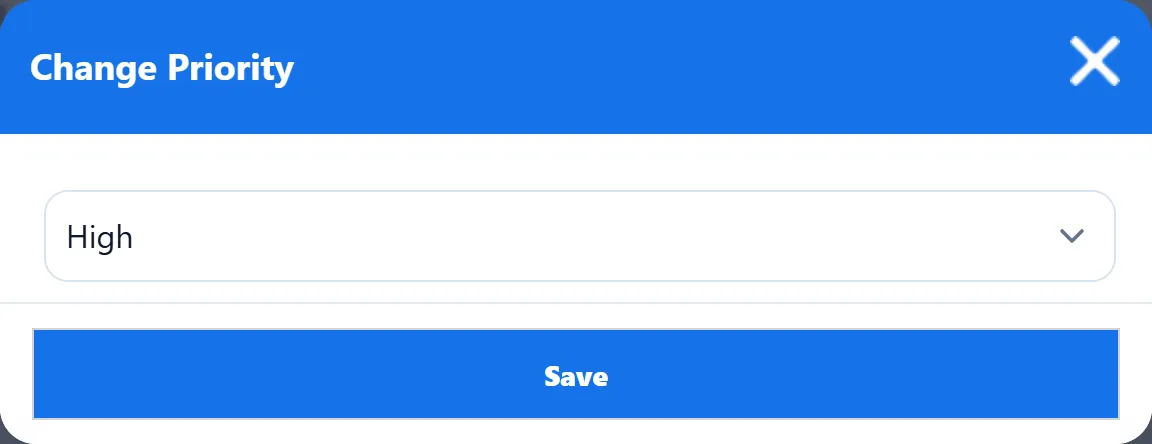
Section titled “Changing the priority”- Click Change on the Priority card.
- Pick the priority in Change Priority. Every priority is offered, including those not shown to customers.
- Click Save.
The history records the old and new priority, and the Ticket Change Priority email goes out as switched on under System → Settings → Mail Settings. Choosing the priority the ticket already has changes nothing and sends nothing.
Assigning to a staff member (Pro)
Section titled “Assigning to a staff member (Pro)”Ticket assigned to shows who has the ticket; it reads Not assigned to staff while no one does.
- Click Change beside the staff member.
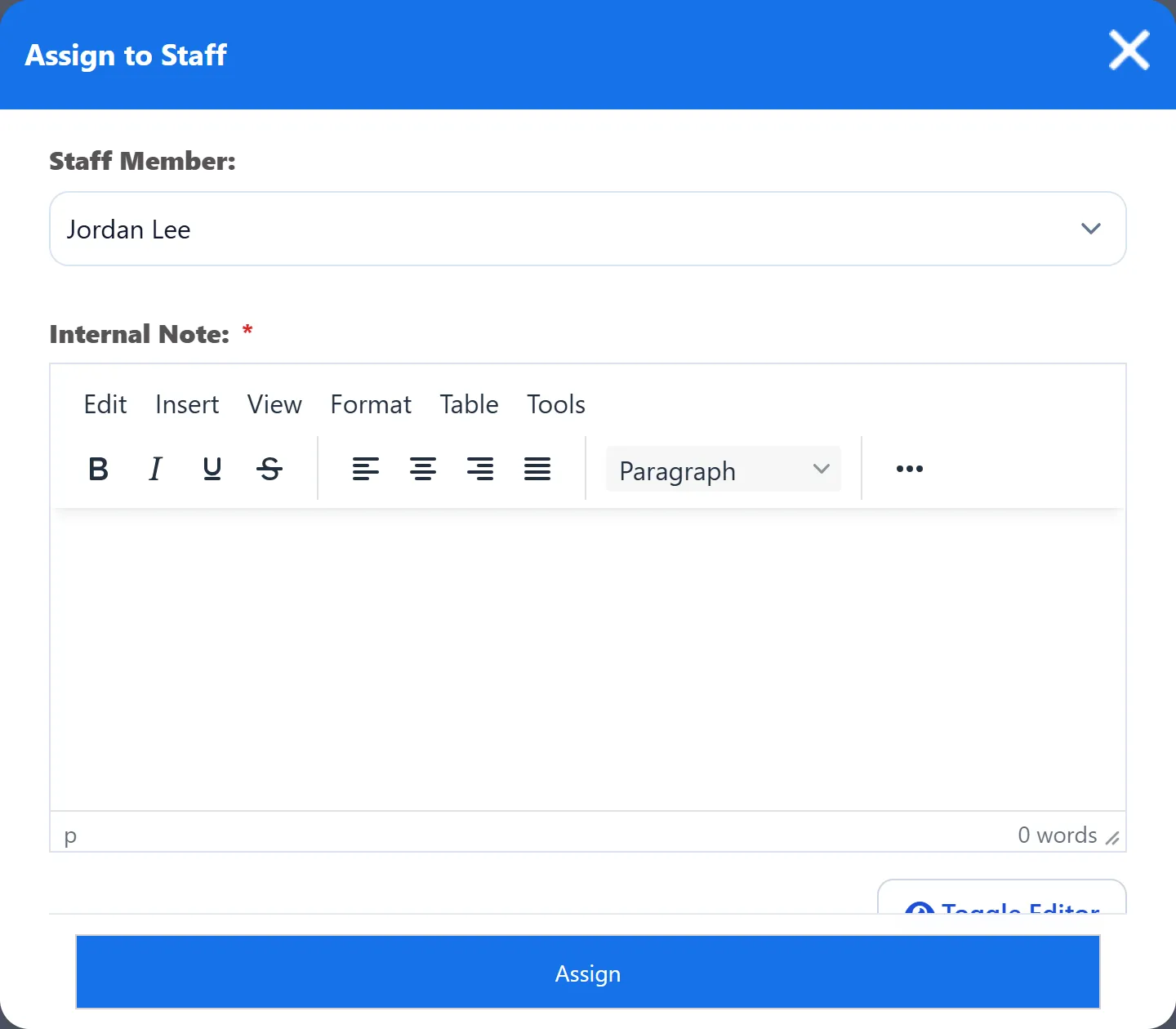
- Pick the Staff Member.
- Write an Internal Note explaining the handover. It is required.
- Click Assign.
The ticket moves to that staff member, and your note is saved as an internal note. The history records who had it before and who has it now. The staff member gets a “Ticket assigned to you” notification on their Notifications page (not when you assign a ticket to yourself), and the Ticket reassign email goes out as switched on in Mail Settings.
New tickets may already arrive assigned: the component gives a new ticket an owner when an assignment rule matches it, and automation rules can assign too.
Assign To Me
Section titled “Assign To Me”If your Joomla account is also a staff member, the reply form shows Assign To Me while the ticket has no one assigned. It is ticked by default, so replying takes the ticket.
Transferring to another department (Pro)
Section titled “Transferring to another department (Pro)”- Click Change beside Department on the Ticket Assign and Transfer card.
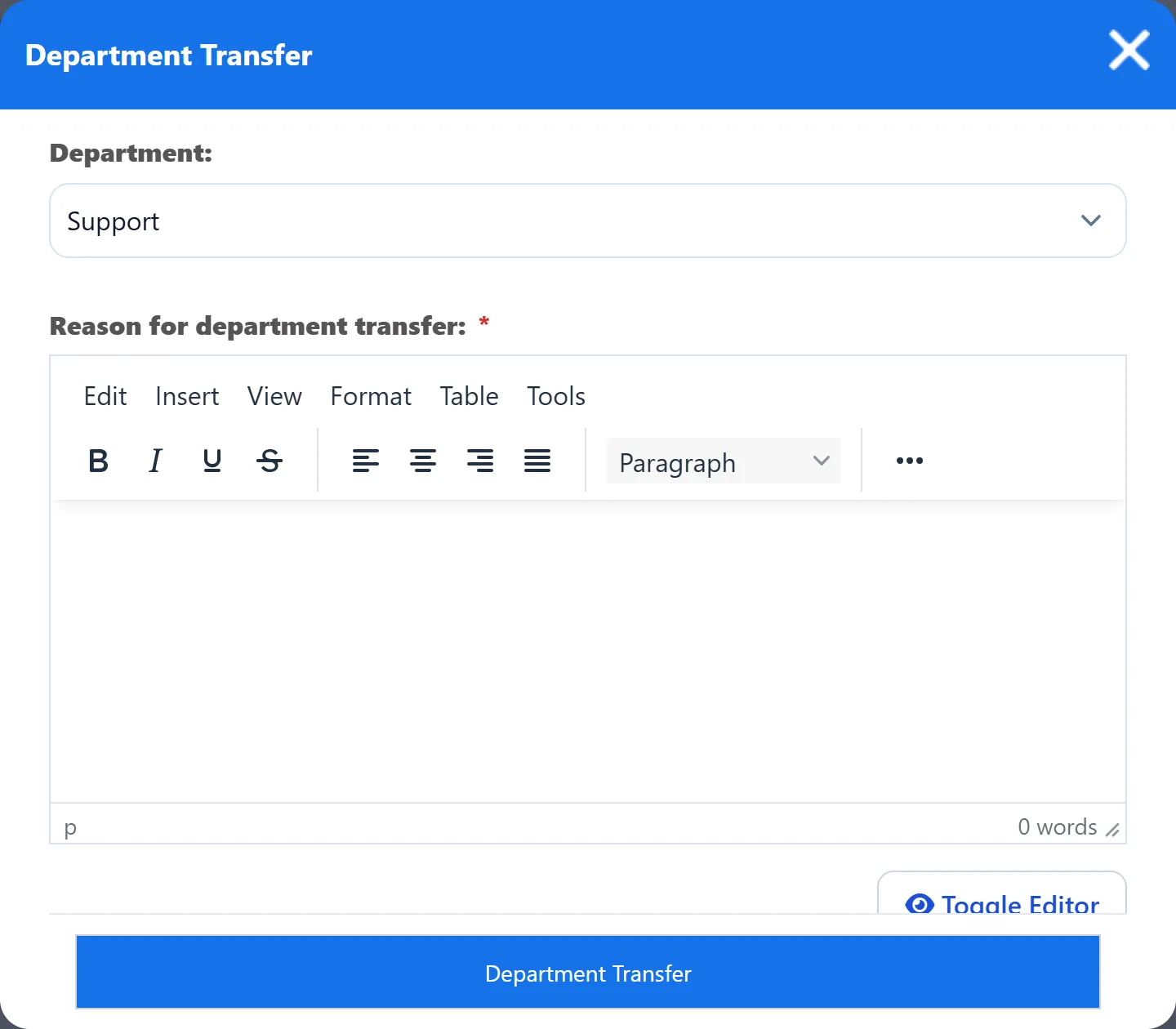
- Pick the new Department. Any active department can be chosen.
- Write the Reason for department transfer. It is required.
- Click Department Transfer.
The reason is saved as an internal note, the history records the old and new department, and the Ticket Department Transfer email goes out as switched on in Mail Settings. The assigned staff member stays the same.
Due date
Section titled “Due date”There is no due date control on the ticket screen. Set it with Edit Ticket, in the Due Date field of the ticket form. The ticket screen shows it under the ticket’s details.
Once the due date has passed, the component’s background tasks mark the ticket overdue unless it has been answered, closed or merged. See Statuses and flags.
If you edit an overdue ticket and move its due date into the future, the overdue flag is cleared when you save. Changing an overdue ticket’s due date to another date that has already passed is refused with “Due Date Error Is Not Valid”.