
Internal notes and time
Internal notes are messages on a ticket that only your team sees. The customer never sees them, and posting one sends no email.
Reading notes
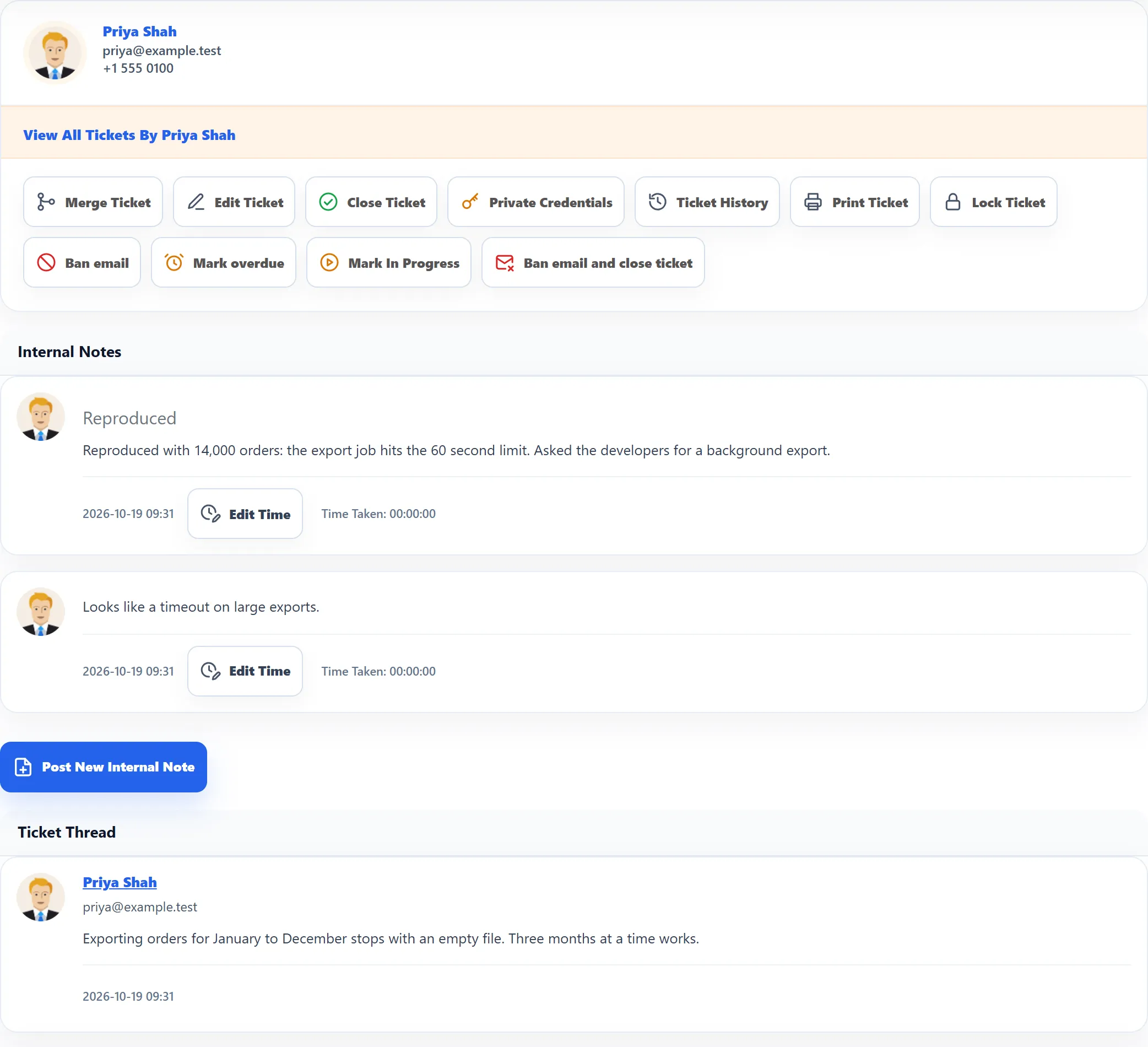
Section titled “Reading notes”Internal Notes is the first section under the customer’s details on the ticket screen, newest note first. Each note shows the staff member who wrote it, the note’s title, the text, an attached file with Download, the date and time, and Time Taken.
Notes added by an administrator whose Joomla account is not a staff member show no name.
Adding a note
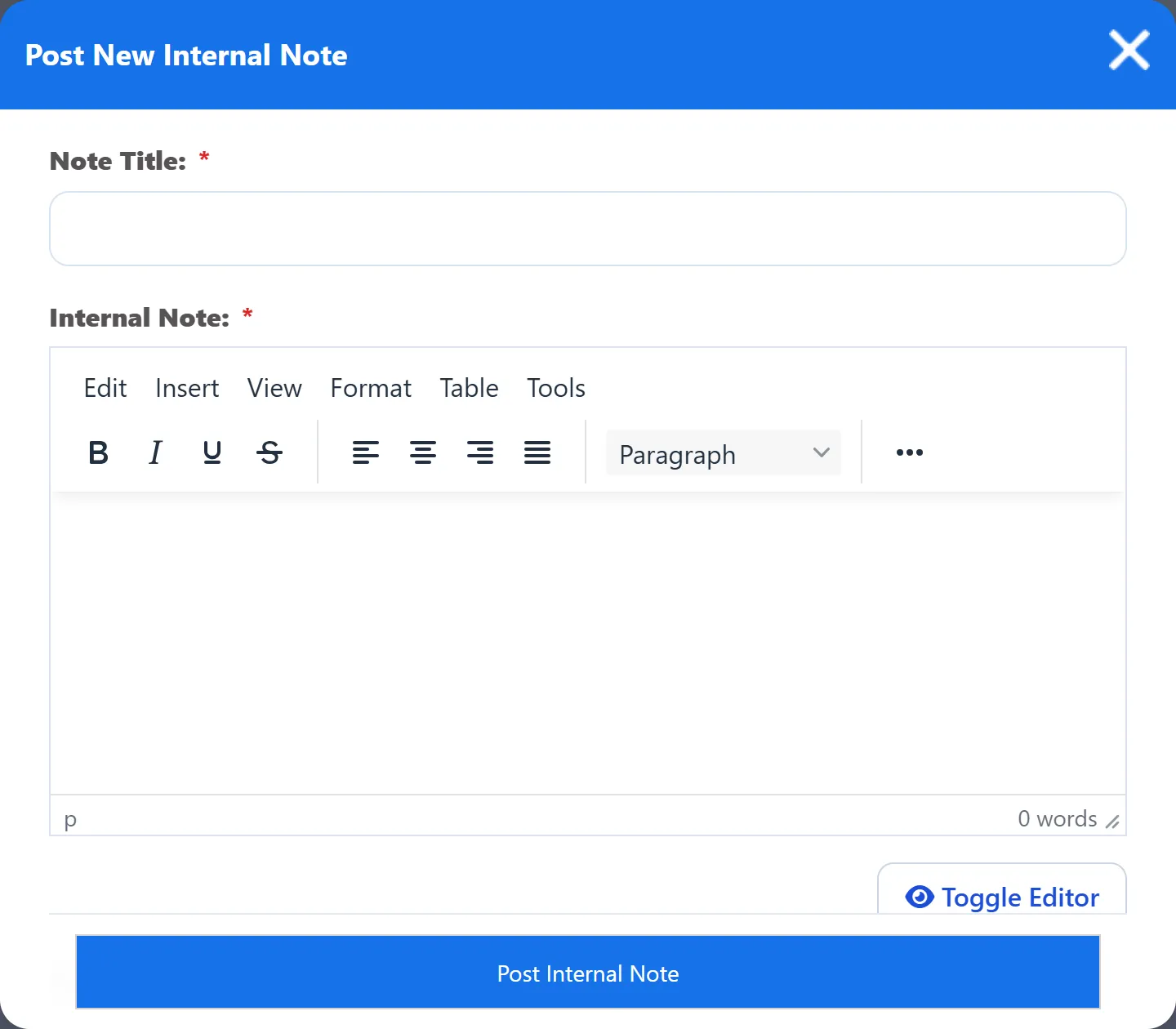
Section titled “Adding a note”- Click Post New Internal Note under the notes.
- Fill in Note Title and Internal Note. Both are required.
- If you like, attach one file under Attachment. The size and type limits are the same as for replies.
- Click Post Internal Note.
The note is added and the history records it.
Ticket Status: Close On Reply in the same window also closes the ticket. Closing this way only sets the status to Closed and records the closing time: unlike Close Ticket, it sends no Ticket close email, records no resolution time and leaves the private credentials in place.
Notes written for you
Section titled “Notes written for you”Some actions save a note on the ticket automatically:
| Action | The note holds |
|---|---|
| Assigning to a staff member | The internal note you wrote in the Assign to Staff window. |
| Department transfer | The Reason for department transfer. |
| Bulk assign or move | “Changed as part of a bulk action”. |
| The ticket form | Whatever you enter in Internal Note Title and Internal Note when creating or editing a ticket. |
Time tracking
Section titled “Time tracking”Staff members working on the front end log the time they spend on each reply and internal note. As the administrator you see that time on the ticket screen and can correct it. Replies and notes you post from the administrator have no time logged.
Time Taken under a staff member’s reply or note shows the logged time as hours, minutes and seconds.
Correcting logged time
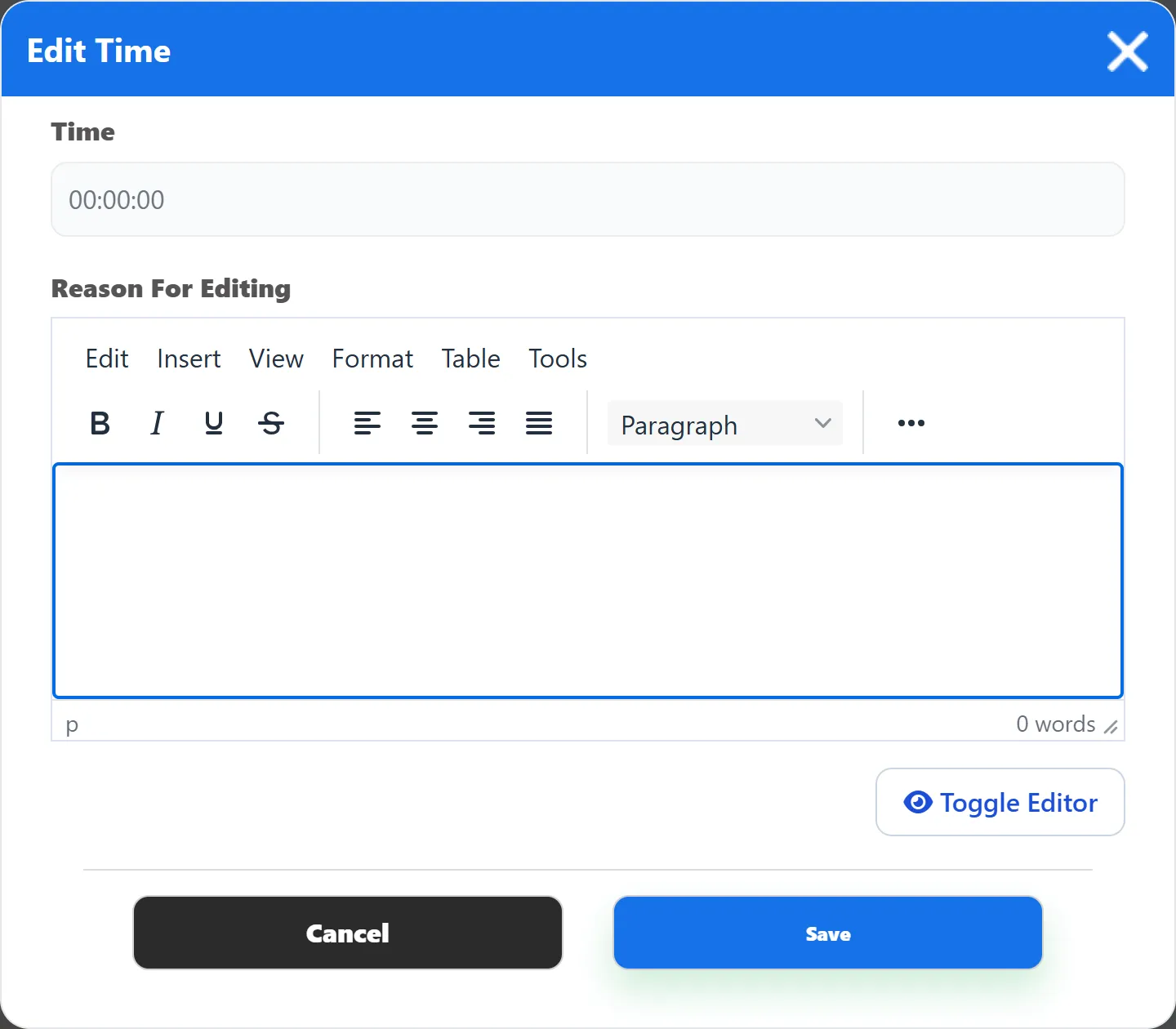
Section titled “Correcting logged time”- Click Edit Time under the reply or note.
- Enter the Time as hours:minutes:seconds, for example
00:25:00. - Explain the change in Reason For Editing.
- Click Save.
When a staff member logs more time than the ticket was actually open in their browser, the entry is marked as a conflict. Edit Time then also shows System Time, the time the component measured, and Resolve conflict. Choose Yes to clear the conflict when you save.
The logged time and reasons appear in the ticket export and in Reports → Staff Reports.
Editing a staff reply
Section titled “Editing a staff reply”Edit Reply under a staff member’s reply opens its text in an editor. Change it and click Save. The edit is not emailed to anyone and is not recorded in the ticket’s history.