
Your help desk dashboard
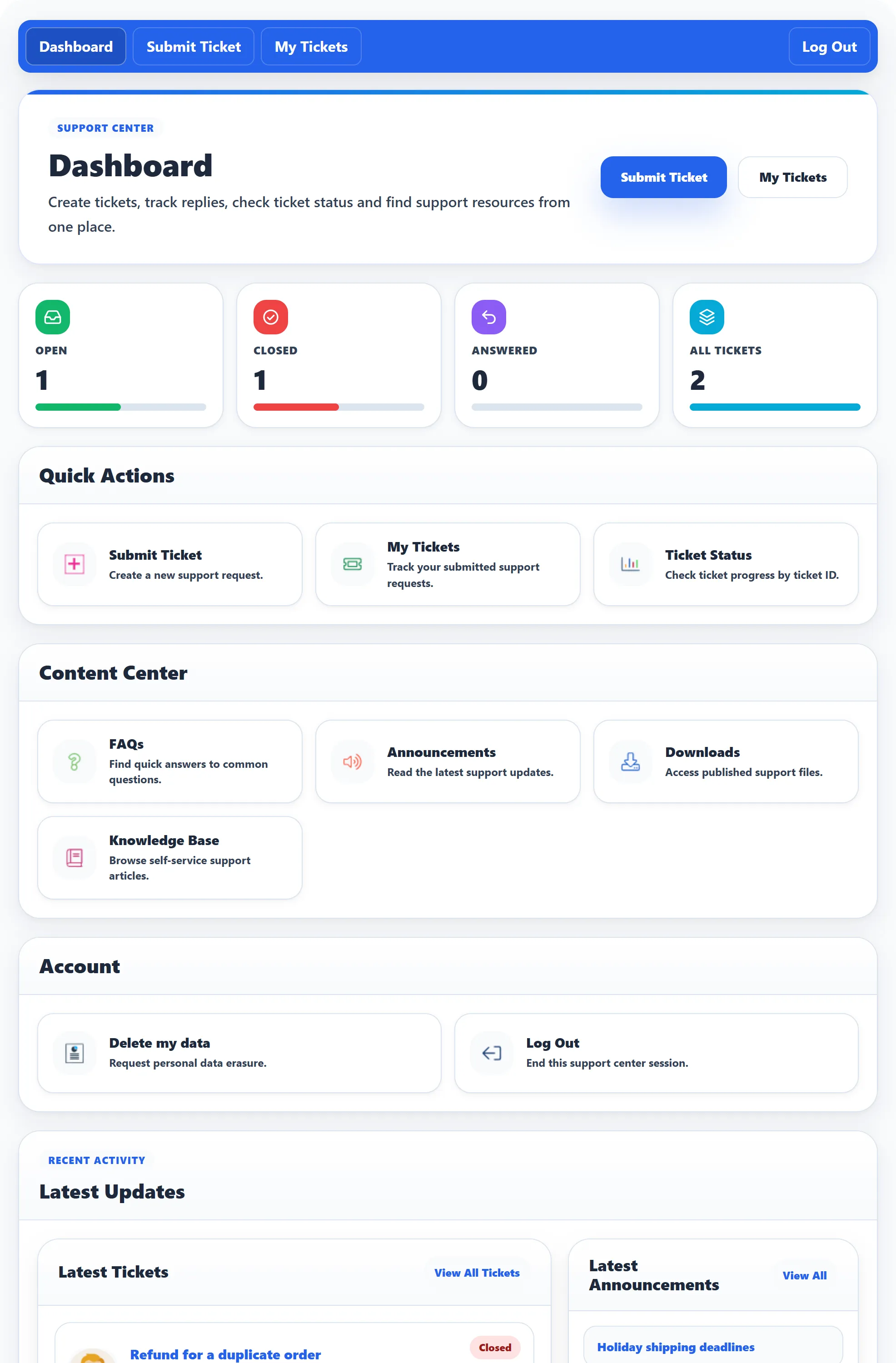
The Dashboard is the help desk’s home page. From here you can open a new ticket, follow the ones you already have, and look for answers yourself before you ask.
The bar across the top
Section titled “The bar across the top”Every help desk page starts with the same blue bar:
| Link | Where it goes |
|---|---|
| Dashboard | Back to this page. |
| Submit Ticket | The form for a new ticket. See Submitting a ticket. |
| My Tickets | Your tickets. See My tickets. |
| Log In / Log Out | On the right. Log In opens the site’s login page and brings you back here afterwards. |
Your ticket counters
Section titled “Your ticket counters”Once you are logged in, four boxes count your tickets: Open, Closed, Answered and All Tickets. Click any of them to go to My tickets.
Quick Actions
Section titled “Quick Actions”| Card | What it does |
|---|---|
| Submit Ticket | Opens the form for a new ticket. If you are not logged in and the help desk only takes tickets from members, it sends you to the login page first. |
| My Tickets | Lists your tickets. |
| Ticket Status | Look up a ticket by its ticket ID and your e-mail address. Useful if you opened a ticket without an account. See Tickets without an account. |
The first two quick actions also appear as buttons at the top of the page.
Content Center
Section titled “Content Center”| Card | What it does |
|---|---|
| FAQs | Short answers to common questions. |
| Announcements | News from the support team. |
| Downloads | Files the support team has published, such as manuals. |
| Knowledge Base | Help articles you can search. |
See Knowledge base and FAQs, downloads and announcements.
Account
Section titled “Account”Delete my data lets you download a copy of your data or ask for it to be removed. See Your data. The second card is Log In or Log Out.
Latest Updates
Section titled “Latest Updates”At the bottom, Latest Tickets shows your most recent tickets with their status, priority, department and date. Click a subject to open the ticket, or View All Tickets to see the whole list. If you are not logged in, this panel is left out.
Beside it (Pro) are the newest announcements, knowledge base articles and downloads, when there are any. View All opens the full list.