
Tags
Tags are labels you put on tickets, for example Billing, Bug or VIP. A ticket can carry any number of them. They show in the ticket list in their colours, and you can filter the list by one.
Creating tags
Section titled “Creating tags”Tags are managed under Flow → Tags.
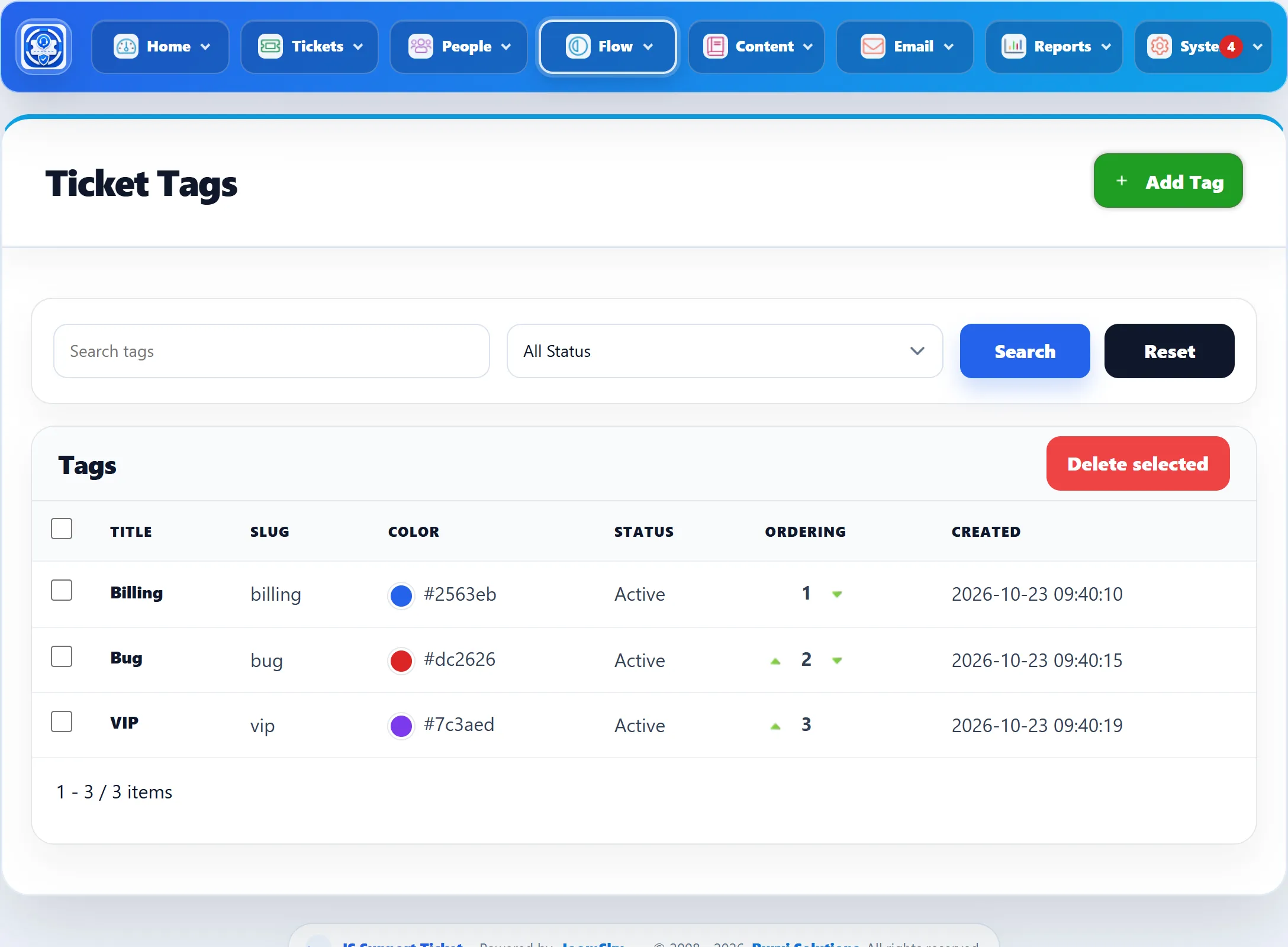
- Click Add Tag.
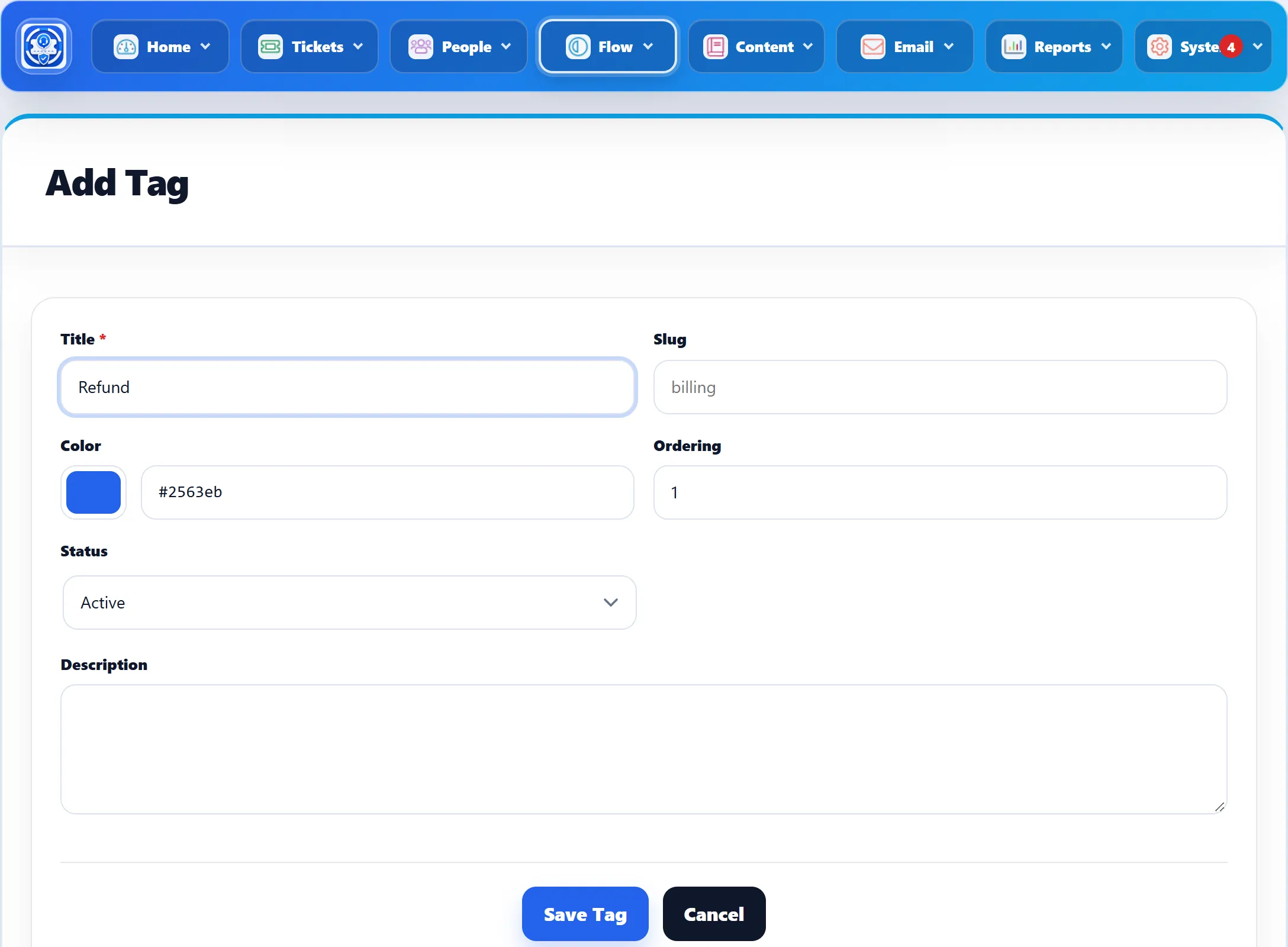
- Fill in the form and click Save Tag.
| Field | What it does |
|---|---|
| Title | The tag’s name, shown on tickets. Required. |
| Slug | A short code for the tag, made of lowercase letters, numbers and hyphens. Left empty, it is made from the title. Two tags can’t share a slug: “A tag with this slug already exists. Change the title or slug.” |
| Color | Pick a colour, or type it as a hex code such as #2563eb (the default). |
| Ordering | The tag’s position in lists. A new tag goes after the existing ones. |
| Status | Active or Disabled. Disabled tags can’t be added to tickets and are left out of the filters. |
| Description | A note for your team, shown under the title in the list. |
On the list, click a title to edit the tag, and use the arrows in Ordering to move a tag up or down. The arrows only show when no search or status filter is applied. Search tags finds tags by title, slug or description.
To delete tags, tick them, click Delete selected and confirm. Deleting a tag also removes it from every ticket. This cannot be undone.
Tagging a ticket
Section titled “Tagging a ticket”The Tags card on the ticket screen lists the ticket’s tags.
- Pick a tag in Select tag.
- Click Add.
Click × on a tag, and confirm, to take it off the ticket. Adding and removing tags is recorded in the ticket’s history.

To tag many tickets at once, tick them on the ticket list and use the Add Tag bulk action.
Using tags
Section titled “Using tags”- Tags under Show all filters on the ticket list shows only tickets with that tag. A saved view keeps the tag filter.
- The Tags column on the ticket list shows each ticket’s tags in their colours. It is off until you turn it on under Columns (Pro).