
Scheduled tasks
A help desk has work to do when nobody is looking: closing answered tickets nobody replied to, marking tickets overdue, checking SLA deadlines, sending reminders, collecting e-mail. The Task - JS Support Ticket plugin hands this work to Joomla’s task scheduler, so it runs on a schedule you set.
Without a scheduled task
Section titled “Without a scheduled task”Out of the box, the work runs inside a page request: when someone opens a help desk page (on the site or in the administrator) and the last run was more than 30 minutes ago, that person’s page waits while the work is done. This is the Run Background Tasks On Page Load setting in System → Settings → General Settings, and it is Yes by default.
That works, but nothing happens on a quiet site, and a slow mail server makes a customer wait. Until a ticket maintenance task is set up and enabled, the SLA Rules, Notifications and Integrations screens show a notice: “Background jobs only run when someone opens a page.” (or, with the setting on No, “Background jobs are not running.”). Its Create the task button takes you to the screen below.
The four task types
Section titled “The four task types”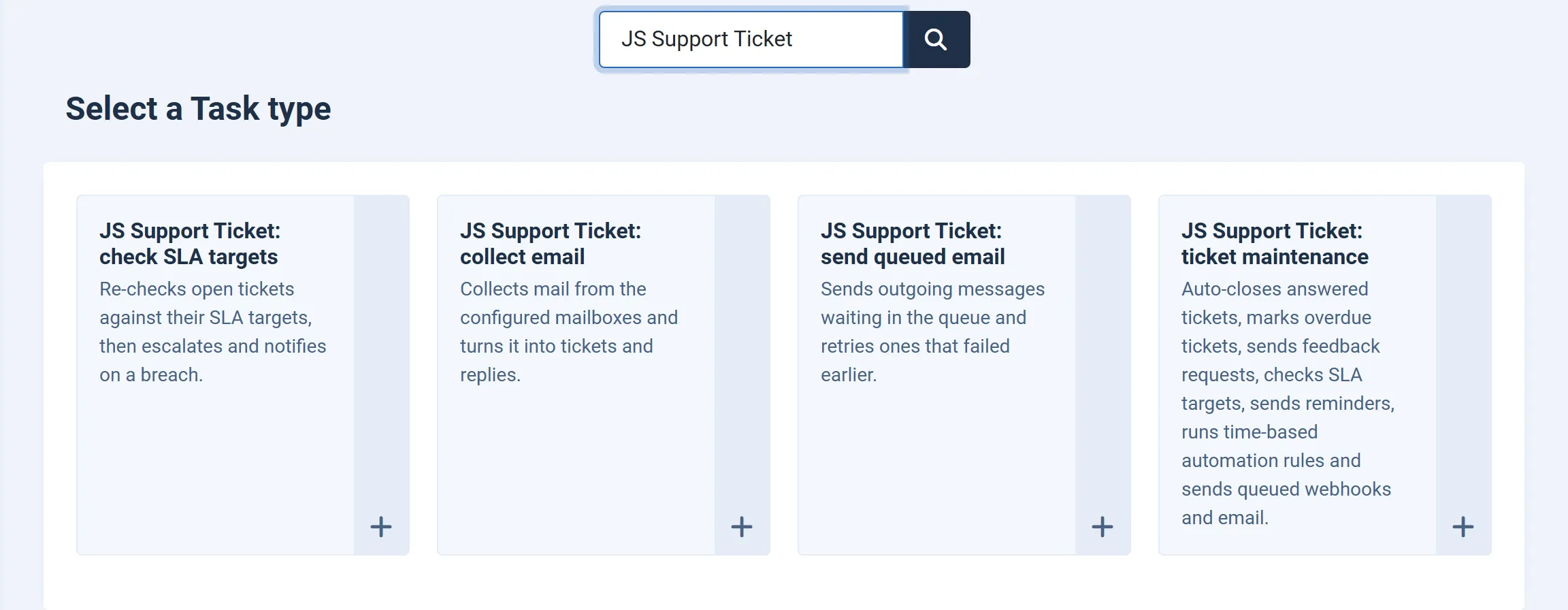
| Task type | What it does | Edition |
|---|---|---|
| JS Support Ticket: ticket maintenance | Everything the page-load run does except collecting e-mail. See below. | Pro |
| JS Support Ticket: collect email | Reads new mail from every active mailbox under Tickets → Email Tickets and turns it into tickets and replies. | Pro |
| JS Support Ticket: send queued email | Sends up to 100 waiting messages from the outgoing mail queue, and retries ones that failed earlier. | Free and Pro |
| JS Support Ticket: check SLA targets | Re-checks up to 200 open tickets against their SLA targets, then escalates and notifies on a breach. | Pro |
Ticket maintenance
Section titled “Ticket maintenance”One run does all of this:
- Auto-close. Closes answered tickets whose last reply is older than the number of days in Auto-Close Tickets (System → Settings → General Settings). Set to 0, nothing is closed.
- Overdue. Marks tickets overdue when their due date has passed, or when they have waited longer than the overdue time of their priority.
- Feedback e-mail. Asks for feedback on tickets that were closed longer ago than the feedback e-mail delay in the component’s settings. Each ticket is asked once.
- SLA targets. The same check as the check SLA targets task.
- Reminders. Sends reminders that have come due and brings deferred tickets back into the queue.
- Time-based automation rules. Runs automation rules about elapsed time, such as “unanswered for two days”.
- Webhooks. Delivers queued webhook calls.
- Outgoing mail. Sends up to 50 messages from the mail queue.
Send queued email
Section titled “Send queued email”Under System → Settings → General Settings, Outgoing Mail Delivery decides when mail goes out:
- Send immediately sends each message during the request that caused it. A message that fails is queued and retried.
- Send from the queue queues every message, and only a scheduled run sends it. With this choice, schedule this task (or ticket maintenance), or no mail goes out.
A failed message is tried again after about 1, 2, 4, 8 and then 16 minutes. When it runs out of attempts it is marked failed and left in the queue table, so the message and its last error can still be seen. A message left half-sent for more than 30 minutes, because a run was cut off, goes back into the queue.
In the Free edition this is the only task type, and it also sends the reminders that are due.
Creating a task
Section titled “Creating a task”-
Go to System → Scheduled Tasks and click New. (Or click Create the task on the notice.)
-
Choose a task type, for example JS Support Ticket: ticket maintenance.
-
Give the task a Title and set how often it runs under Execution Rule.
-
Click Save & Close.
-
Repeat for any other task types you want.
-
Once ticket maintenance (and collect email, if you take tickets by e-mail) is scheduled, go to System → Settings → General Settings and set Run Background Tasks On Page Load to No, so this work no longer delays your visitors.
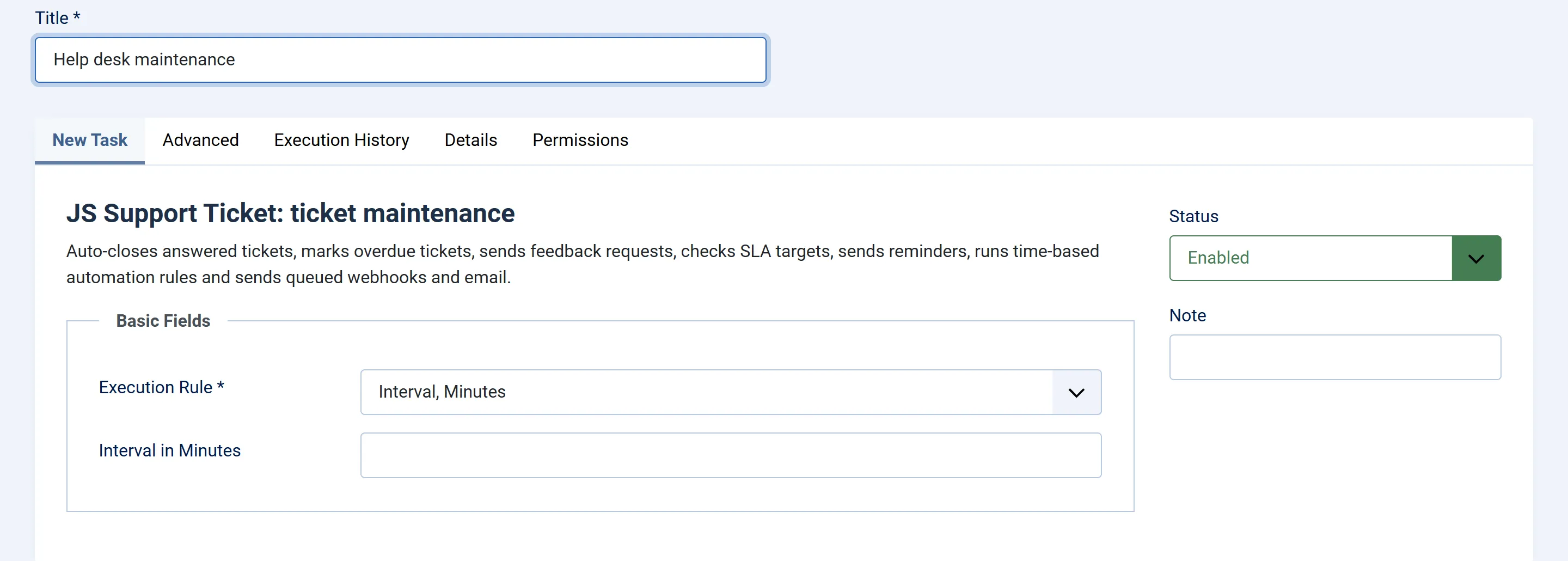
Joomla itself decides how scheduled tasks are triggered: on site visits, by a web cron or by the server’s cron. That is set under System → Scheduled Tasks → Options.
How often to run them
Section titled “How often to run them”The code doesn’t set a schedule; these are suggestions.
| Task type | Suggested | Why |
|---|---|---|
| ticket maintenance | Every 15 minutes | The page-load run does this at most once every 30 minutes. More often keeps reminders, SLA checks and webhooks on time. |
| collect email | Every 5 to 15 minutes | Each run reads all new mail, so this is how long a customer’s e-mail can wait before it becomes a ticket. |
| send queued email | Every 1 to 5 minutes, if Outgoing Mail Delivery is Send from the queue | Retries start after a minute. With Send immediately only failed messages wait here, and ticket maintenance also sends them. |
| check SLA targets | Only if you need it more often than ticket maintenance runs | Ticket maintenance already includes this check. |
Queued mail is claimed one message at a time, so two runs that overlap never send the same message twice. Once your tasks are scheduled, setting Run Background Tasks On Page Load to No keeps page loads from doing the same work alongside them.
Every run also repairs the database
Section titled “Every run also repairs the database”Before its routine, each task checks whether the last update of the component finished. If it stopped part way, the task completes it, including table rebuilds that are too slow for a normal page request. Nothing happens when the database is already up to date.
Checking that it works
Section titled “Checking that it works”Each run writes a line to Joomla’s task log, for example “JS Support Ticket: ticket maintenance finished.” or “JS Support Ticket: mail queue processed - 3 attempted, 3 sent, 0 retrying, 0 given up, 0 released.” A run that fails is logged as “JS Support Ticket task failed:” followed by the reason.