
Submit a ticket module
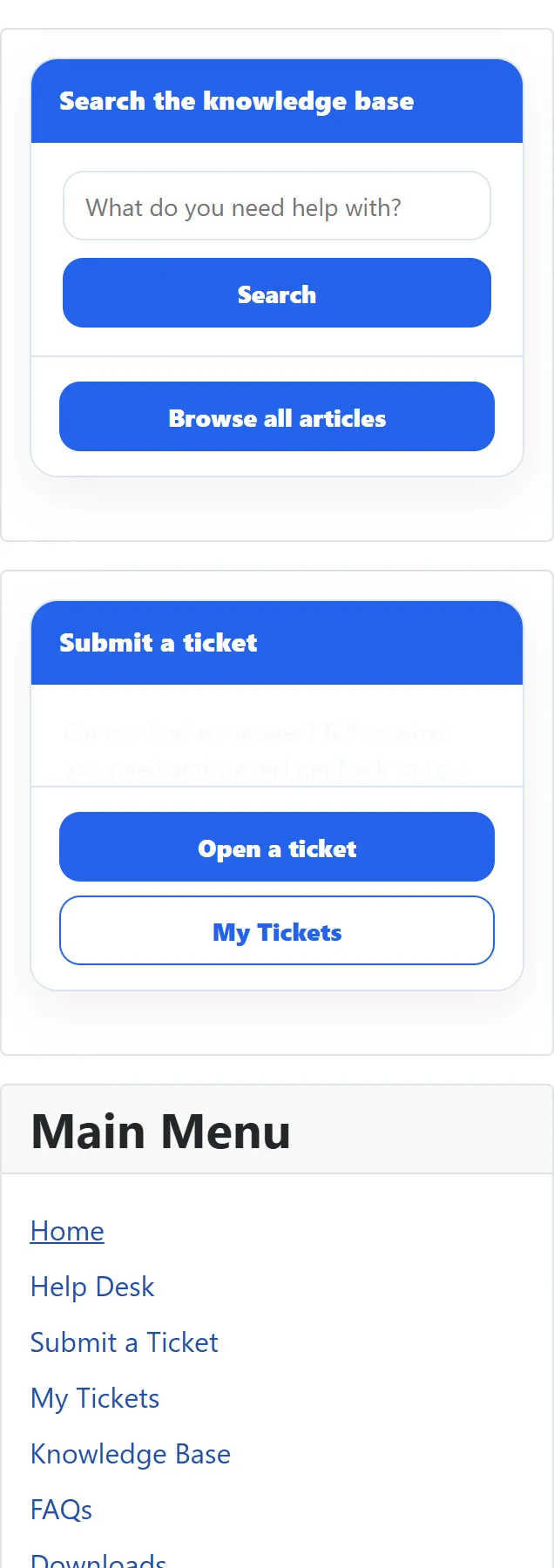
JS Support Ticket Submit A Ticket is a small card for a sidebar or any other module position. It shows a title, a line of text and a button that opens the ticket form. Logged-in customers also get a link to their own tickets.
The card links to the form; it doesn’t contain it. The real form has departments, help topics, custom fields, attachments and a captcha, so the customer fills it in on the help desk page as usual.
Putting it on your site
Section titled “Putting it on your site”The component adds one copy of this module when it is installed, unpublished and with no position.
-
Go to Content → Site Modules and open JS Support Ticket Submit A Ticket. (To make another copy, click New and choose JS Support Ticket Submit A Ticket from the module types.)
-
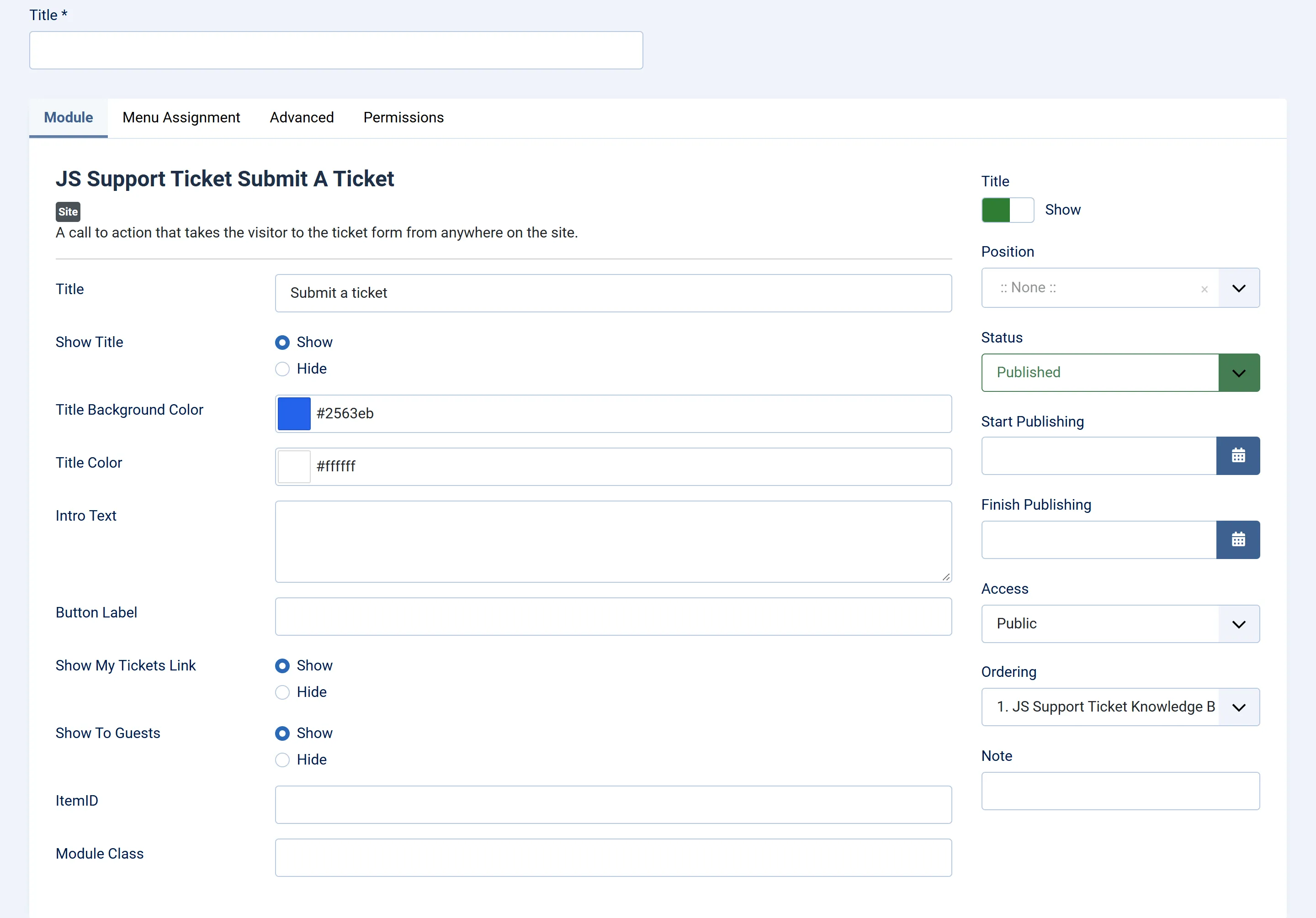
On the Module tab, fill in the settings below.
-
Choose a Position, set Status to Published, and on the Menu Assignment tab choose the pages it should appear on.
-
Click Save & Close.
Settings
Section titled “Settings”| Setting | Default | What it does |
|---|---|---|
| Title | Submit a ticket | The text in the card’s title bar. |
| Show Title | Show | Shows or hides the card’s title bar. |
| Title Background Color | #2563EB | The colour of the title bar. |
| Title Color | #FFFFFF | The colour of the title text. |
| Intro Text | (empty) | The line above the button. Left empty, it reads “Cannot find an answer? Tell us what you need and we will get back to you.” |
| Button Label | (empty) | The button text. Left empty, it reads “Open a ticket”. |
| Show My Tickets Link | Show | Adds a My Tickets link next to the button. It only appears to people who are logged in, because a guest’s tickets are reached through the link in their e-mail, not through a list. |
| Show To Guests (Pro) | Show | Hide removes the whole card for visitors who aren’t logged in. Use it if your help desk doesn’t take tickets from guests, so they aren’t sent to a login screen. |
| ItemID | (empty) | The ID of the menu item the links should use. See below. |
| Module Class Suffix | (empty) | Joomla’s usual extra CSS class for the card. |
The two colour settings take a hex colour such as #2563EB or #fff. Anything
else is ignored and the default is used.
ItemID
Section titled “ItemID”Links from the card open the help desk inside a Joomla menu item, which decides the page’s template, modules and address. Enter the ID of the menu item that holds your help desk (you’ll find it in the ID column under Menus). Left empty, the links use whatever menu item the visitor is on at the time.
In the Free edition
Section titled “In the Free edition”The Free edition has the same module without Show To Guests: it never shows the card to visitors who aren’t logged in, because the Free edition doesn’t take tickets from guests.
How it looks
Section titled “How it looks”The card uses the same look as the help desk itself. Apart from the title bar, which has its own colour settings, it takes its colours from System → Themes in the component, so changing your theme there changes the card too.