
Help topics
A help topic is a subject within a department, such as “Invoices and VAT” or “Refunds” under Billing. On the ticket form, the Help Topic list shows the topics of the department the customer picked, so it changes when the department changes.
Help topics also give you something to route on: automation rules can test a ticket’s help topic.
Open Flow → Help Topics.
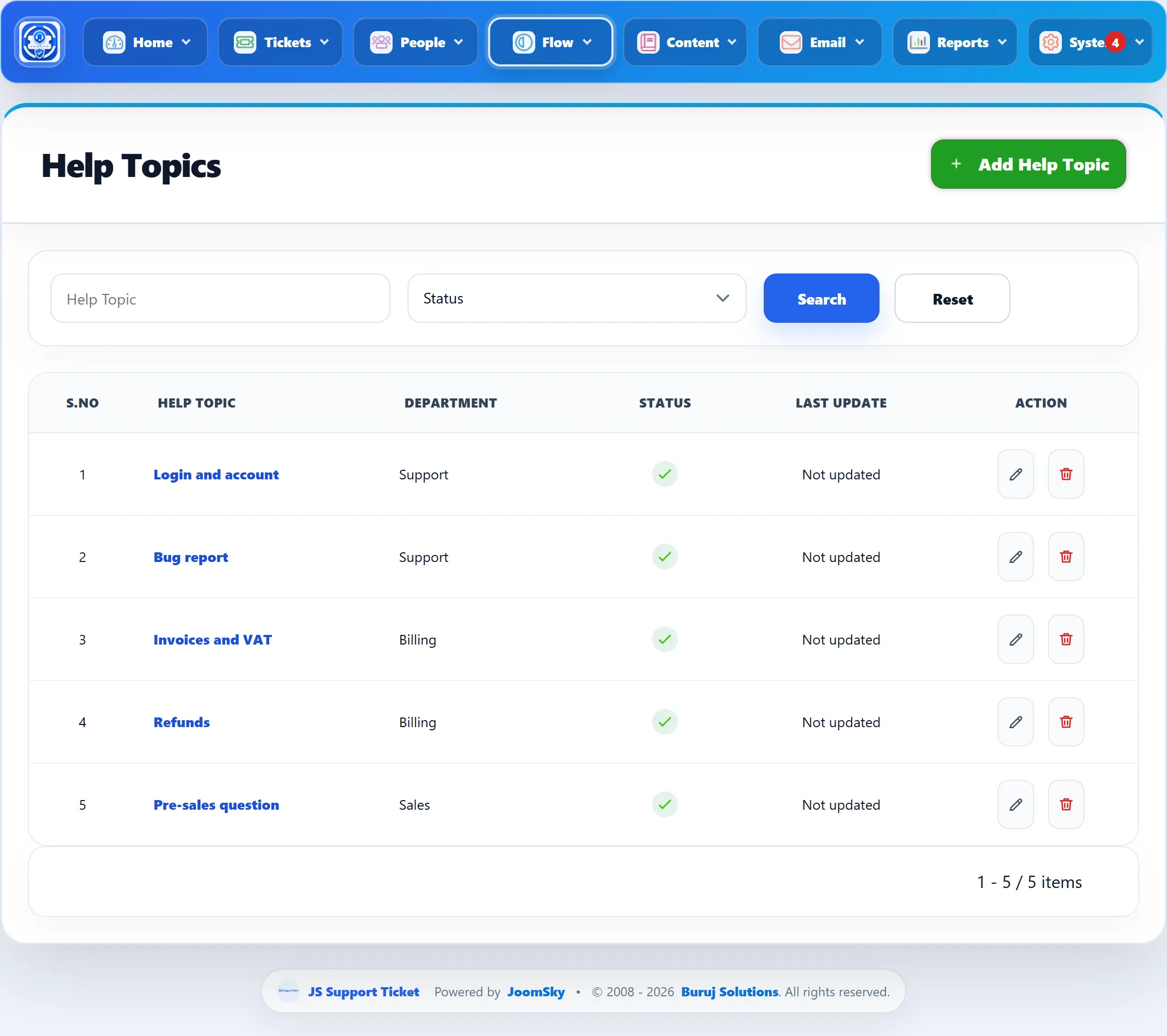
| Column | What it shows |
|---|---|
| Help Topic | Click it to edit the topic. |
| Department | The department the topic belongs to. |
| Status | A tick when the topic is active. |
| Last Update | When it was last saved, or Not updated. |
Search by name, or pick Active or Disabled from the status list, and click Search.
Adding a help topic
Section titled “Adding a help topic”-
Click Add Help Topic.
-
Enter the Help Topic name and choose its Department.
-
Leave Status on Active to offer it on the ticket form now.
-
Click Save Help Topic.
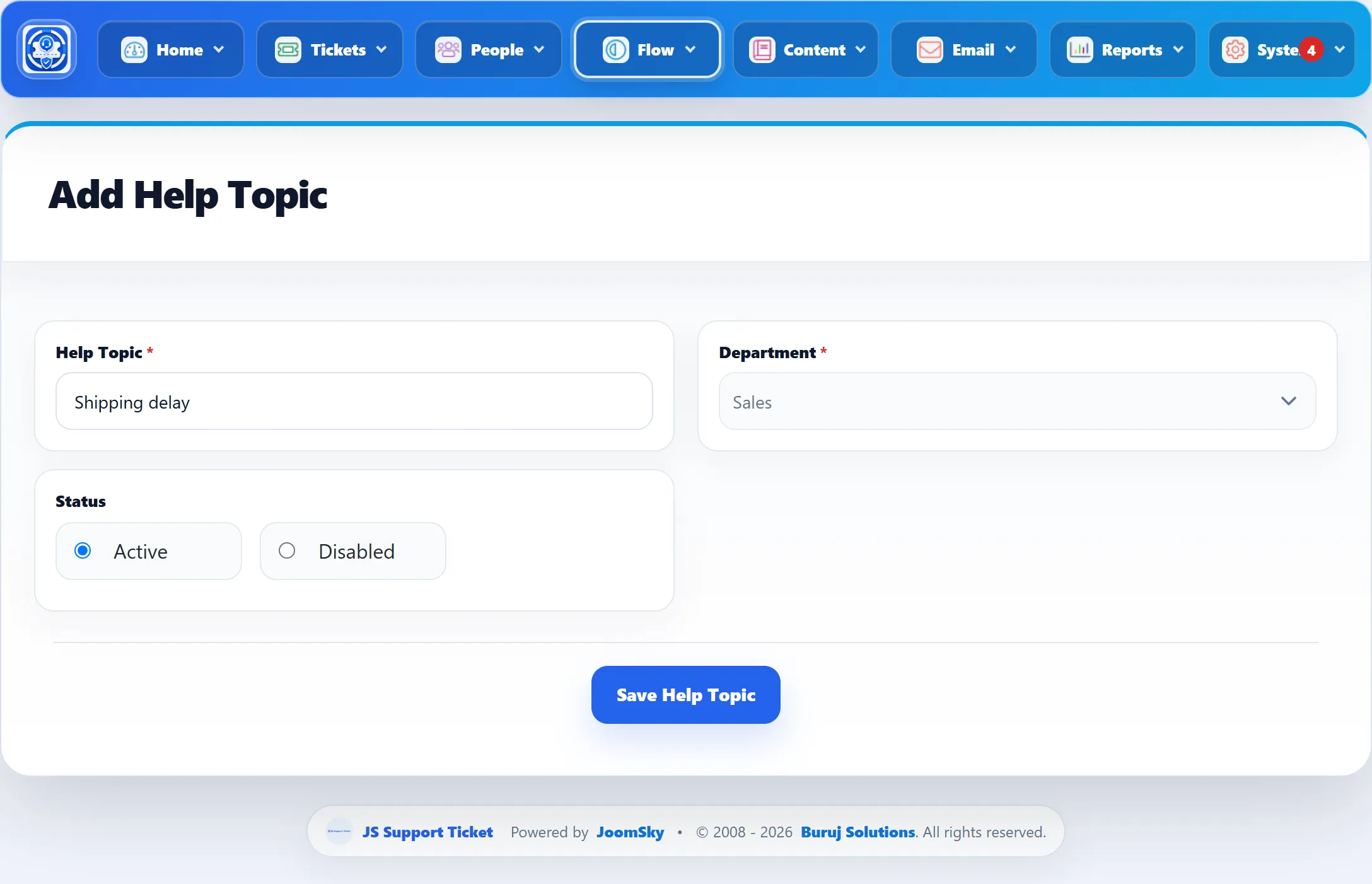
| Field | What it does | Default |
|---|---|---|
| Help Topic | The name customers see. Required. | |
| Department | The department the topic is listed under. Required. | |
| Status | Active topics are offered on the ticket form; Disabled ones are not. | Active |
Whether the Help Topic field shows on the ticket form at all, and whether it is required, is set with the other ticket form fields under Tickets → Ticket Fields; see Ticket fields.
Deleting a help topic
Section titled “Deleting a help topic”Click the delete button in the list. A topic that any ticket uses cannot be deleted; you see “This help topic is in use and cannot be deleted.” Set it to Disabled to stop offering it.