
Managing content
Staff with the right permissions can keep the help desk’s content up to date without the administrator. The cards are in the Content Center section of the staff dashboard. Each kind of content has a list (Categories, Knowledge Base, FAQs, Downloads, Announcements) and an Add … form. Your role needs a separate permission to view, add, edit and delete each kind.
What you publish here is what customers see. See Knowledge base and FAQs, downloads and announcements.
The lists
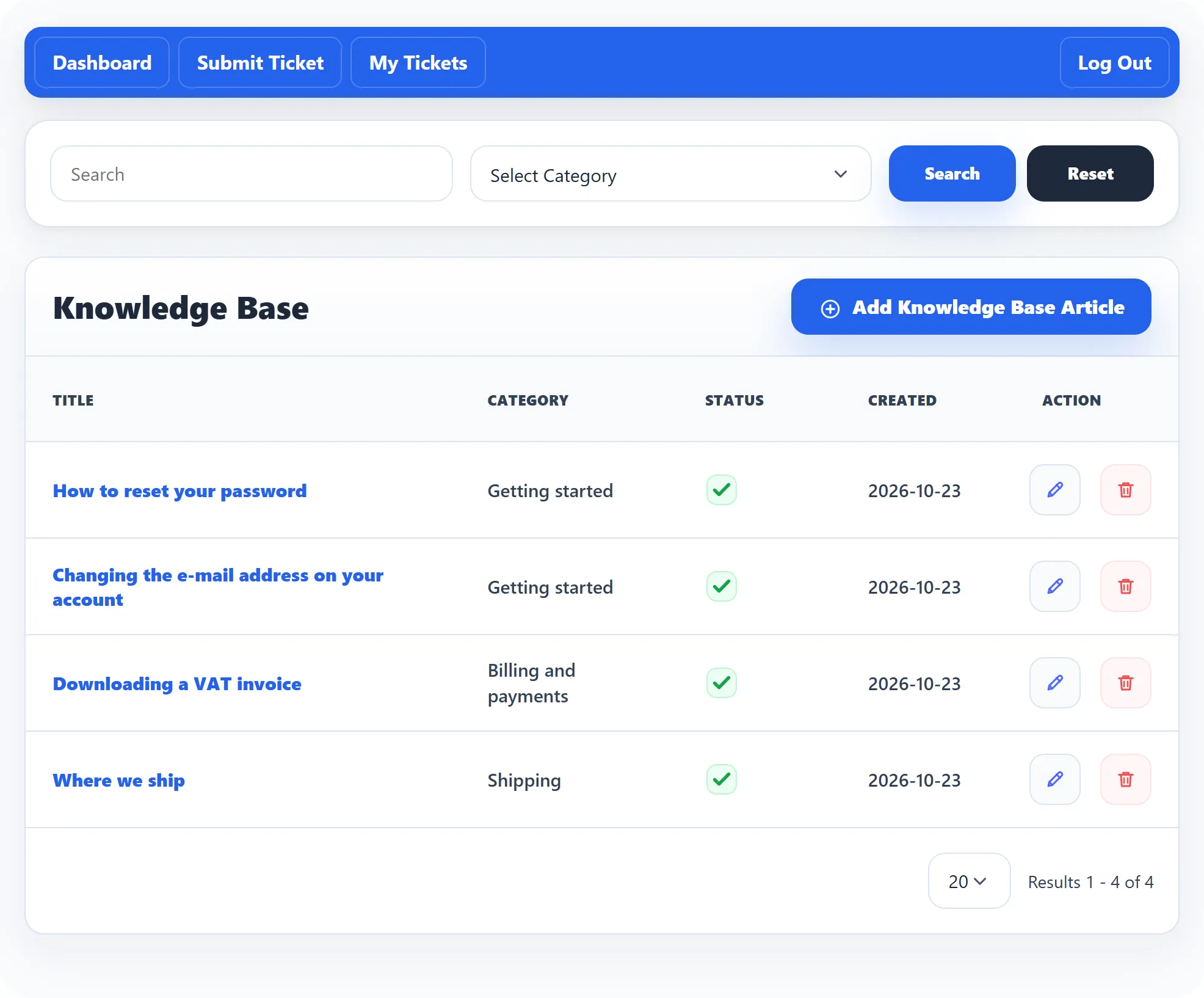
Section titled “The lists”Every list works the same way: a search box at the top with Search and Reset, then one row per item with its Title, Category, Created date and Status. Click a title, or the edit button in the row, to change the item (permission to edit); Delete removes it after you confirm (permission to delete). Display at the bottom sets how many rows show per page.
Categories
Section titled “Categories”One set of categories is shared by the knowledge base, FAQs, downloads and announcements. Open Categories, then Add Category.
| Field | What it does |
|---|---|
| Category Name | The name customers see. |
| Parent Category | Put this category inside another one. Customers see it as a subcategory. |
| Category Applies To | Tick where the category is used: Knowledge Base, Downloads, Announcement, FAQs. Tick at least one. |
| Logo | An image shown with the category. Upload Category Logo to choose a file; the size and type limits are shown under it. |
| Meta description, Meta keywords | Keywords are what customers’ Search Keywords box looks in. |
| Status | Active to show the category, Disabled to hide it. |
Click Save Category.
Knowledge base articles
Section titled “Knowledge base articles”Open Knowledge Base, then Add Knowledge Base Article.
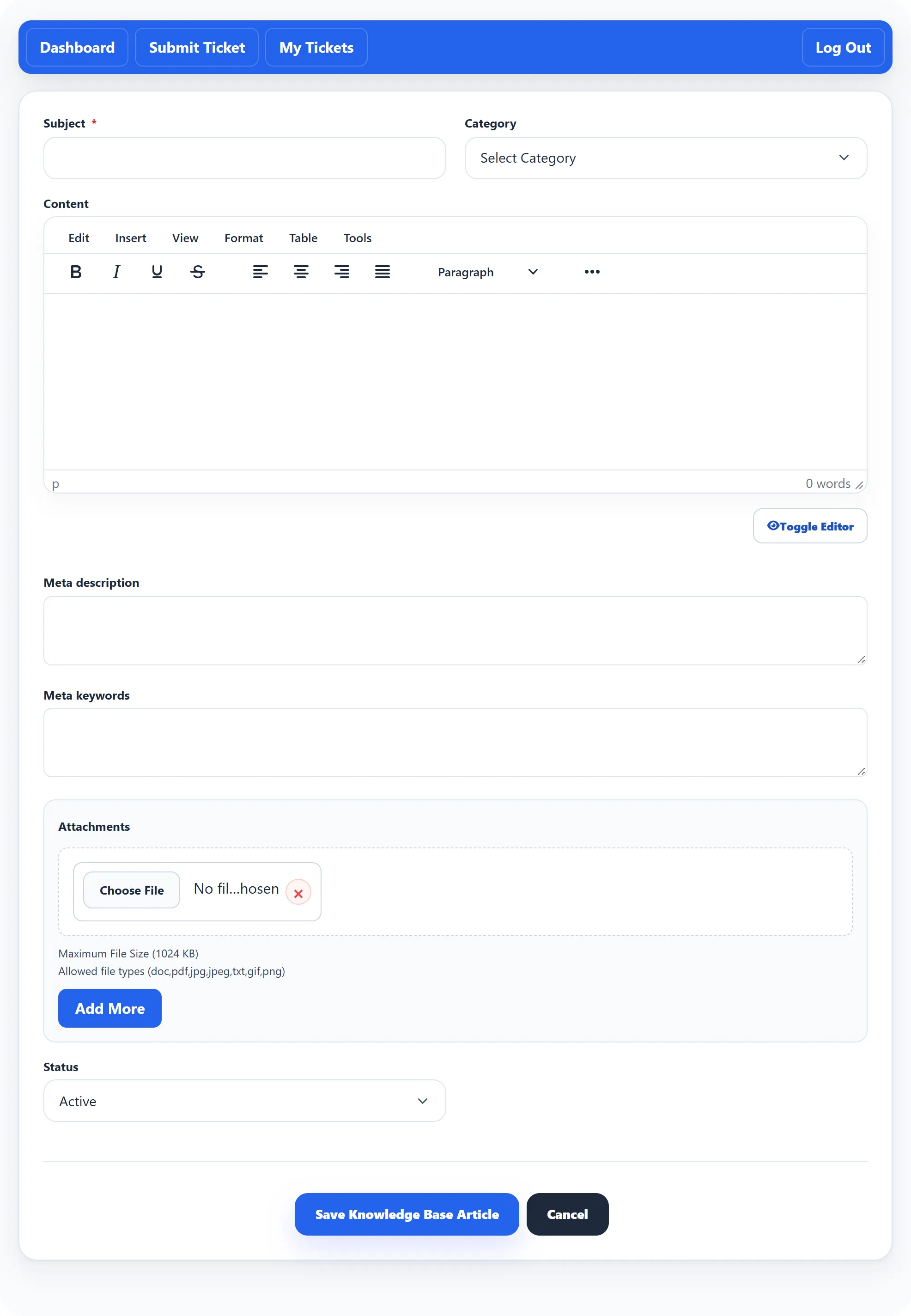
| Field | What it does |
|---|---|
| Category | Where the article is filed. |
| Subject | The article’s title. |
| Content | The article itself. |
| Attachments | Files offered under the article. Add More adds another file. |
| Meta description, Meta keywords | Keywords help customers find the article with Search Keywords. |
| Status | Active publishes the article; Disabled hides it from customers. |
Click Save Knowledge Base Article.
To keep an article from customers, set its Status to Disabled.
Revision history
Section titled “Revision history”Each time an article is saved, the previous version is kept. When you edit an article, Revision history lists the earlier versions. Restore brings one back; the current version is kept too, so a restore can be undone.
Open FAQs, then Add FAQ. Fill in the Subject (the question), the Category, the Description (the answer) and the Status, and click Save FAQ.
Downloads
Section titled “Downloads”Open Downloads, then Add Download.
-
Enter a Title, choose a Category and write a Description.
-
Under Attachments, choose a file. Add More adds another row. A download needs at least one file: without one you see Attach at least one file to the download.
-
Set the Status and click Save Download.
The list shows how many Files each download has.
Announcements
Section titled “Announcements”Open Announcements, then Add Announcement. Fill in the Title, Category, Description and Status, and click Save Announcement.