
Replying, closing and reopening
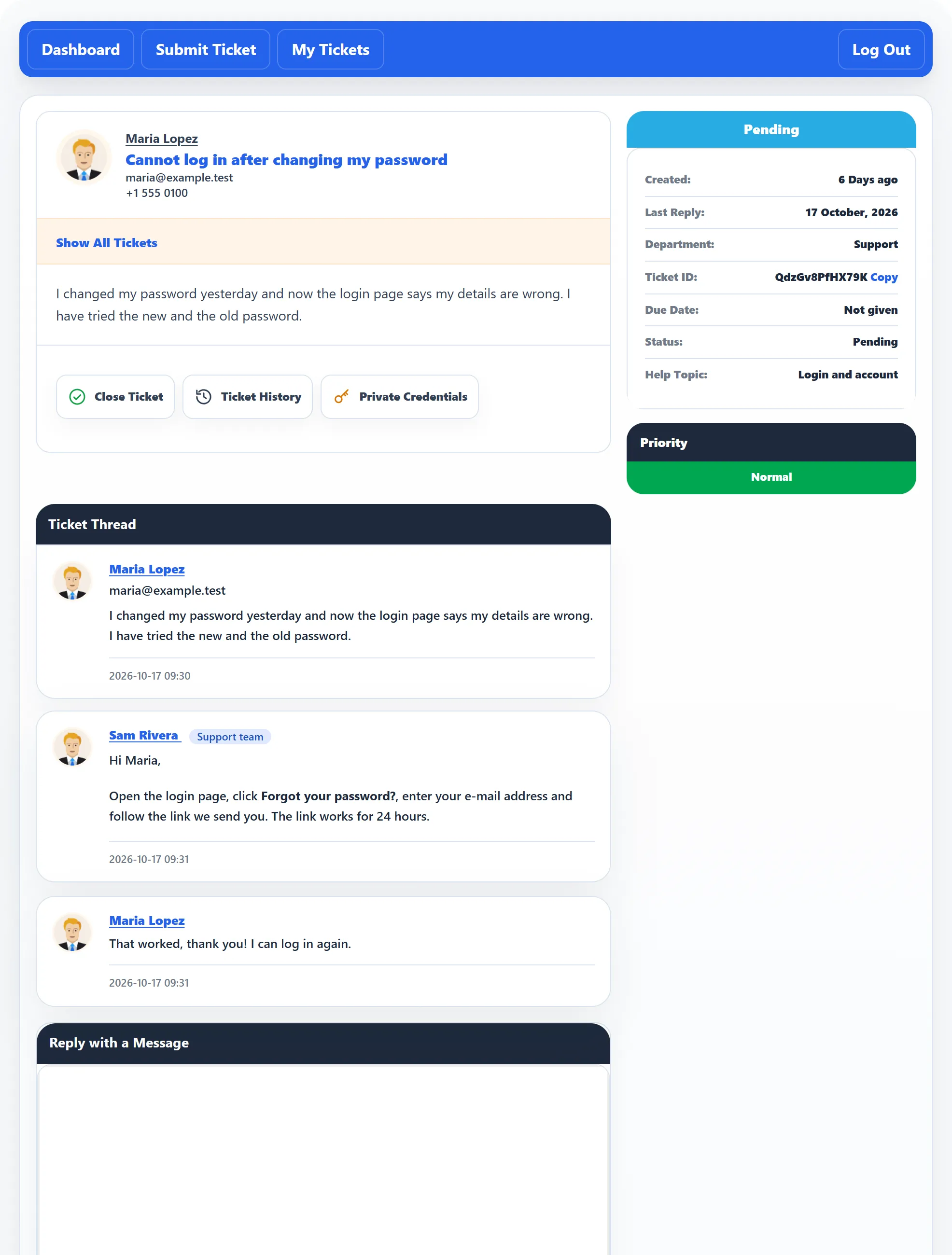
Open a ticket from My tickets by clicking its subject or View. Your first message is at the top, the conversation (Ticket Thread) runs down the middle and the reply box is at the bottom. The ticket’s details are on the right.
The ticket’s details
Section titled “The ticket’s details”The coloured bar at the top right shows the status: New, Pending, In Progress, Answered or Closed. It says Locked if the support team has locked the ticket, and Overdue if the ticket is late.
Under it you see when the ticket was created, the last reply, the department, the Ticket ID (click Copy to copy it), the due date, the status and the help topic, then the priority. Once someone in the team has taken the ticket, Ticket assigned to shows who. Your support team may hide some of these.
Replies from the support team carry a Support team label. Files attached to a message are listed under it with their size and a Download link.
-
Write your message in Reply with a Message.
-
To add files, drag them onto the Attachments box or click it. The limits on number, size and file type are shown under the box.
-
Click Post Reply.
The page reloads with your reply at the end of the thread and the message Reply has been posted. The ticket’s status changes to Pending, which tells the support team it is their turn.
An empty reply is refused. Attachments only appears if your support team allows files on replies.
The reply box is not shown on a closed ticket, or on a ticket the support team has locked. To add something to a closed ticket, reopen it first.
Close a ticket
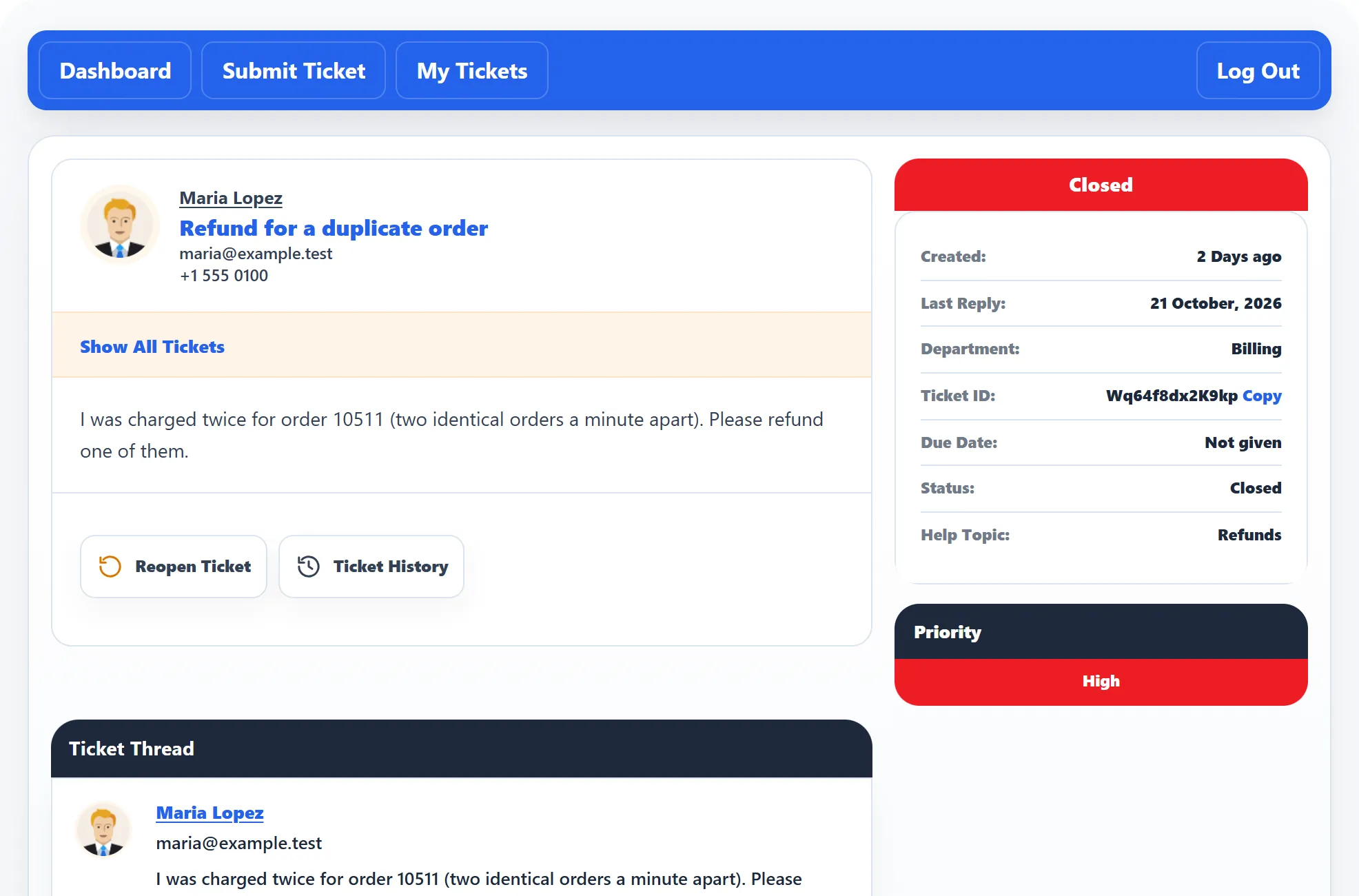
Section titled “Close a ticket”When your problem is solved, click Close Ticket under your first message. The status becomes Closed and the ticket moves to the Closed list in My tickets.
Closing also deletes any private credentials saved on the ticket (see below).
Reopen a ticket
Section titled “Reopen a ticket”On a closed ticket the button reads Reopen Ticket. Click it to open the ticket again; its status goes back to New and the reply box returns.
You can only reopen a ticket for a limited number of days after its last reply. After that, you see Ticket reopen time limit end. Open a new ticket instead and mention the old ticket ID.
Ticket History
Section titled “Ticket History”Ticket History opens a window listing what has happened to the ticket, with the Date, Time and a line of text for each event (Message Logs), for example when it was created, replied to, closed or reopened.
Print Ticket (Pro)
Section titled “Print Ticket (Pro)”If your support team allows it, a Print Ticket button opens a printable copy of the ticket in a new tab.
Private Credentials (Pro)
Section titled “Private Credentials (Pro)”Sometimes the support team needs a login to fix a problem, for example the username and password of an account on your website. Don’t put these in a reply. Use Private Credentials instead: the button is shown on tickets that are not closed.
-
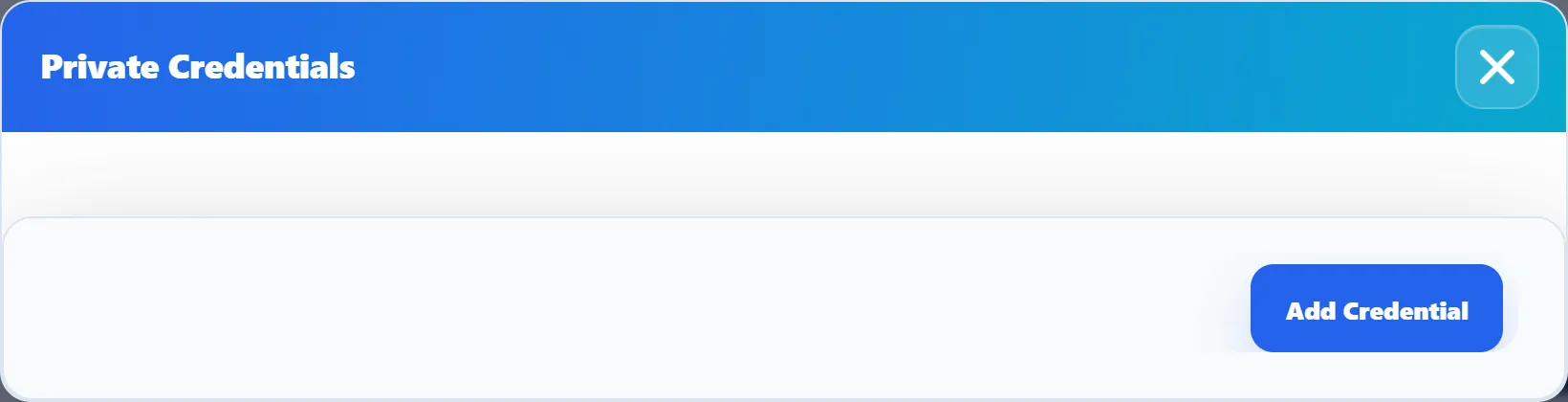
Click Private Credentials.
-
Click Add Credential.
-
Fill in Credential Type (what the login is for), Username, Password and, if needed, Additional Info, then click Save.
Saved credentials are listed in the same window, where you can Edit or Delete them. They are stored encrypted, are not part of the ticket thread, and are deleted automatically when the ticket is closed.
Rating the help you got (Pro)
Section titled “Rating the help you got (Pro)”Some time after a ticket is closed, you may get an e-mail asking for feedback, with a link to a short form:
- Rating: click one of five ratings, from Very poor to Excellent. A rating is required.
- Remarks: anything you want to add.
Click Save Feedback. You can give feedback once per ticket; opening the link again shows You have already given the feedback for this ticket.