
Email templates
Each email the help desk sends is built from a template that you can reword. Open Email → Email Templates.
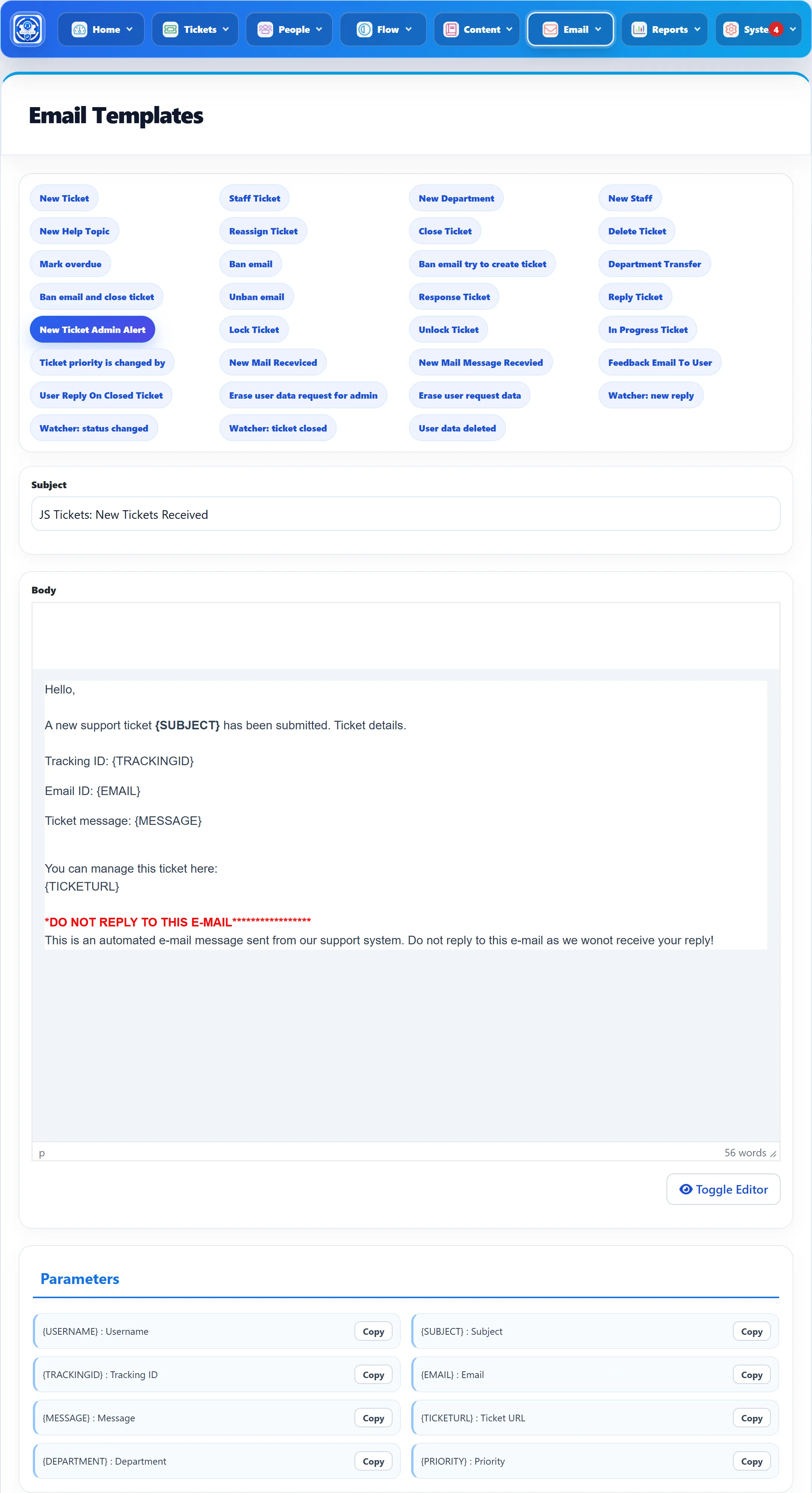
Editing a template
Section titled “Editing a template”-
Click the template’s button at the top of the screen. The selected one is highlighted.
-
Change the Subject and the Body. The body is HTML, written in your Joomla editor.
-
Put in placeholders where you want ticket details. Parameters, under the editor, lists the ones offered for this template; Copy beside each copies it, braces included, ready to paste.
-
Click Save Email Template in the toolbar.
Placeholders are written in capitals inside braces, such as {TRACKINGID},
and are replaced when the email is sent. A placeholder the template doesn’t
support is sent as it is, braces and all.
Links in emails
Section titled “Links in emails”{TICKETURL}becomes a “Ticket Detail” link to the ticket. The administrator’s copy opens the ticket in the administrator; everyone else gets the ticket on the front end. In the customer’s New Ticket email the link carries the ticket’s tracking ID and email address, so it opens the ticket without logging in.{FEEDBACKURL}(in Close Ticket) becomes a “Click here to give us feedback” link to the feedback form.- In Feedback Email To User,
{LINK}and{/LINK}go around the words you want to turn into the link to the feedback form, and{TRACKING_ID}is itself a link to the ticket.
Custom fields
Section titled “Custom fields”Templates marked “+ fields” below also accept your ticket form’s custom fields,
as { + the field’s name + }. The Parameters list shows each one with
its title. File-upload fields aren’t offered.
The templates
Section titled “The templates”The button names are as the screen shows them. The placeholders are the ones the email actually fills in, which in a few cases differ from the Parameters list; those are marked.
| Template | Sent to, and when | Placeholders |
|---|---|---|
| New Ticket | The customer, when their ticket is created. | {USERNAME} {SUBJECT} {TRACKINGID} {HELP_TOPIC} {EMAIL} {MESSAGE} {DEPARTMENT} {PRIORITY} {TICKETURL}¹ + fields |
| Staff Ticket (Pro) | Staff, about a new ticket. {USERNAME} is the staff member’s name. |
{USERNAME} {SUBJECT} {TRACKINGID} {HELP_TOPIC} {EMAIL} {MESSAGE} {TICKETURL} {DEPARTMENT} {PRIORITY} + fields |
| New Ticket Admin Alert | The administrator, and a department with Receive Email on, about a new ticket. | {USERNAME} {SUBJECT} {TRACKINGID} {HELP_TOPIC}¹ {EMAIL} {MESSAGE} {TICKETURL} {DEPARTMENT} {PRIORITY} + fields |
| Reassign Ticket (Pro) | A ticket is assigned to another staff member. | {SUBJECT} {TRACKINGID} {STAFF_MEMBER_NAME} {TICKETURL} {DEPARTMENT} {PRIORITY} + fields |
| Close Ticket | A ticket is closed. | {USERNAME}¹ {SUBJECT} {TRACKINGID} {EMAIL}¹ {MESSAGE}¹ {TICKETURL} {FEEDBACKURL} (customer only) {DEPARTMENT} {PRIORITY} + fields |
| Delete Ticket | A ticket is deleted. | {SUBJECT} {TRACKINGID} |
| Mark overdue (Pro) | A ticket is marked overdue. | {SUBJECT} {TRACKINGID} {TICKETURL} {DEPARTMENT} {PRIORITY} + fields |
| Ban email (Pro) | An address is banned. | {EMAIL_ADDRESS} |
| Department Transfer (Pro) | A ticket moves to another department. {DEPARTMENT_TITLE} is the new department. |
{SUBJECT} {TRACKINGID} {DEPARTMENT_TITLE} {PRIORITY} + fields |
| Unban email (Pro) | An address is unbanned from a ticket. | {EMAIL_ADDRESS} |
| Response Ticket | Staff or the administrator replied. | {USERNAME} {SUBJECT} {TRACKINGID} {EMAIL} {MESSAGE} {TICKETURL} {DEPARTMENT} {PRIORITY} + fields |
| Reply Ticket | The customer replied. | {USERNAME} {SUBJECT} {TRACKINGID} {EMAIL} {MESSAGE} {TICKETURL} {DEPARTMENT} {PRIORITY} + fields |
| Lock Ticket | A ticket is locked. | {USERNAME} {SUBJECT} {TRACKINGID} {EMAIL} {TICKETURL} {DEPARTMENT} {PRIORITY} + fields |
| Unlock Ticket | A ticket is unlocked. | Same as Lock Ticket. |
| In Progress Ticket | A ticket is marked in progress. | {SUBJECT} {TRACKINGID} {TICKETURL} {DEPARTMENT} {PRIORITY} + fields |
| Ticket priority is changed by | A ticket’s priority changes. {PRIORITY_TITLE} is the new priority. |
{SUBJECT} {TRACKINGID} {PRIORITY_TITLE} {TICKETURL} {DEPARTMENT} + fields |
| Feedback Email To User (Pro) | The customer, asking for feedback on a closed ticket. | {USER_NAME} {TICKET_SUBJECT} {TRACKING_ID} {CLOSE_DATE} {LINK}…{/LINK}¹ {DEPARTMENT} {PRIORITY} + fields |
| User Reply On Closed Ticket (Pro) | The customer, when their reply to a closed ticket is refused. | {SUBJECT}² {DEPARTMENT} {PRIORITY} + fields |
| Erase user data request for admin | The administrator, when a customer asks for their data to be erased. | {USERNAME} {SITETITLE}¹ {CURRENT_YEAR}¹ |
| Erase user request data | The customer, confirming their erase request. | {USERNAME} {SITETITLE}¹ {CURRENT_YEAR}¹ |
| User data deleted | The customer, once their data is erased. | {USERNAME}¹ {SITETITLE}¹ {CURRENT_YEAR}¹ |
| Watcher: new reply (Pro) | Watchers, when a reply is posted. | {WATCHER_NAME} {ACTOR_NAME} {SUBJECT} {TRACKINGID} {MESSAGE} {STATUS} {EMAIL} {TICKETURL} (the screen lists no parameters for the watcher templates) |
| Watcher: status changed (Pro) | Watchers, when the status changes. {STATUS} is the new status. |
Same as Watcher: new reply. |
| Watcher: ticket closed (Pro) | Watchers, when the ticket is closed. | Same as Watcher: new reply. |
¹ Works, but isn’t in the screen’s Parameters list.
² The Parameters list offers {TICKET_SUBJECT}, which isn’t filled in. Use
{SUBJECT}.
Which of these emails are sent at all, and to whom, is set in Notifications.
Templates that aren’t sent
Section titled “Templates that aren’t sent”These buttons open templates that nothing in 1.3.0 sends, so editing them has no effect: New Department, New Staff (Pro), New Help Topic (Pro), Ban email try to create ticket (Pro), Ban email and close ticket (Pro; banning and closing a ticket sends Ban email and Close Ticket instead), New Mail Receviced and New Mail Message Recevied.