
Notifications and mail
Notifications
Section titled “Notifications”The help desk keeps a list of things that need your attention. Open it with the Notifications card or button on the staff dashboard. When you have unread notifications, the card shows how many, for example Notifications (2).
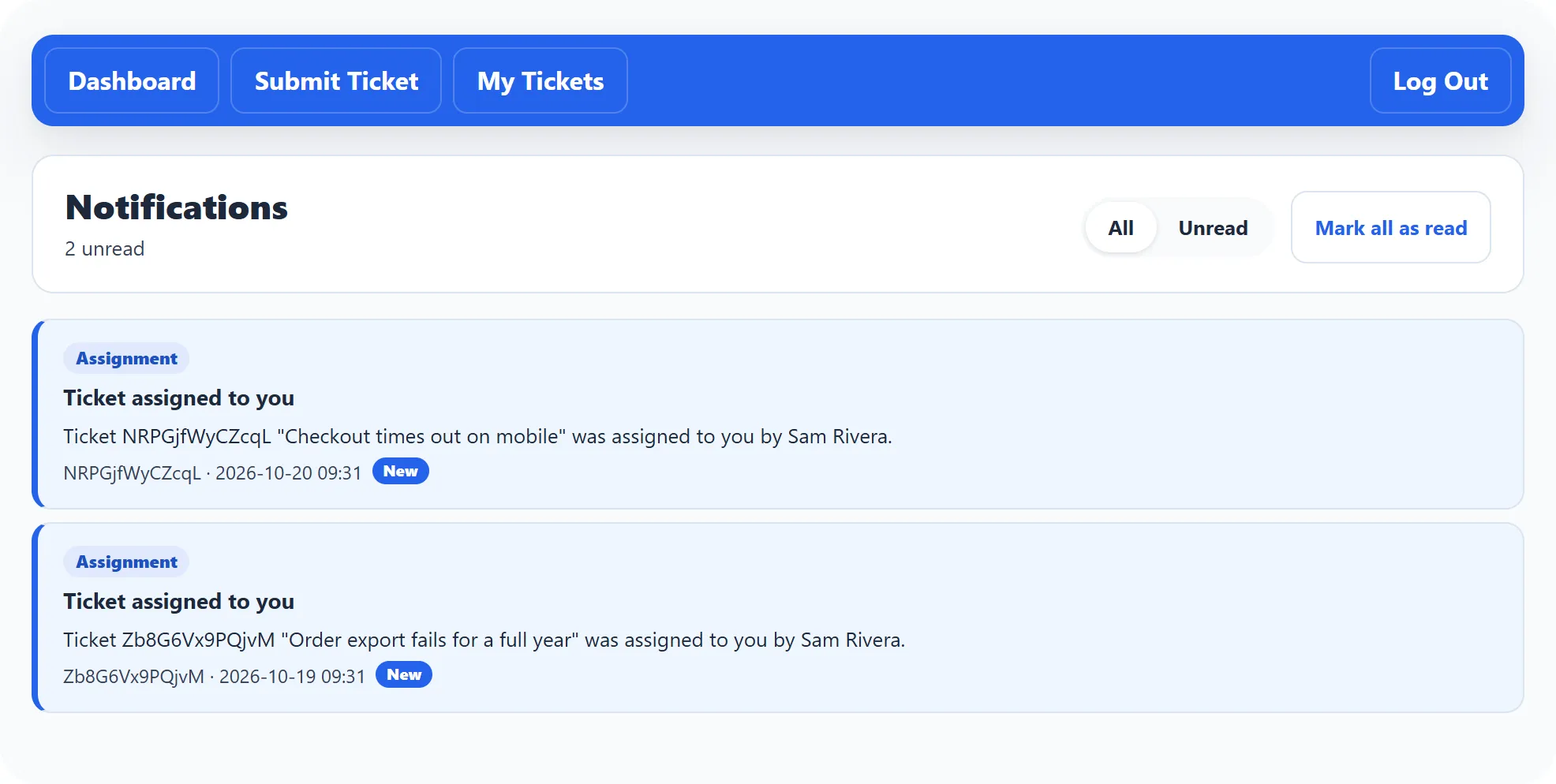
You are notified when a ticket is assigned to you, a customer replies, a reminder you set is due, or an SLA alert fires. Each notification has a label for its kind:
| Label | When |
|---|---|
| Assignment | A ticket was assigned to you. |
| Customer replied | A customer replied on one of your tickets. |
| Reminder | A reminder you set with Remind me on a ticket is due. See Working a ticket. |
| SLA breached | A ticket missed its service-level target. |
| Escalation | A ticket was escalated. |
| Automation Rule | An automation rule notified you. |
Unread notifications carry a New badge. Click a notification to open its ticket; this also marks it as read. All and Unread switch the list, and Mark all as read clears every badge at once.
Mail is an internal message system between staff members. Messages stay inside the help desk; they are not e-mails. Open it with the Mail card on the dashboard. You need the permission to use the mail system.
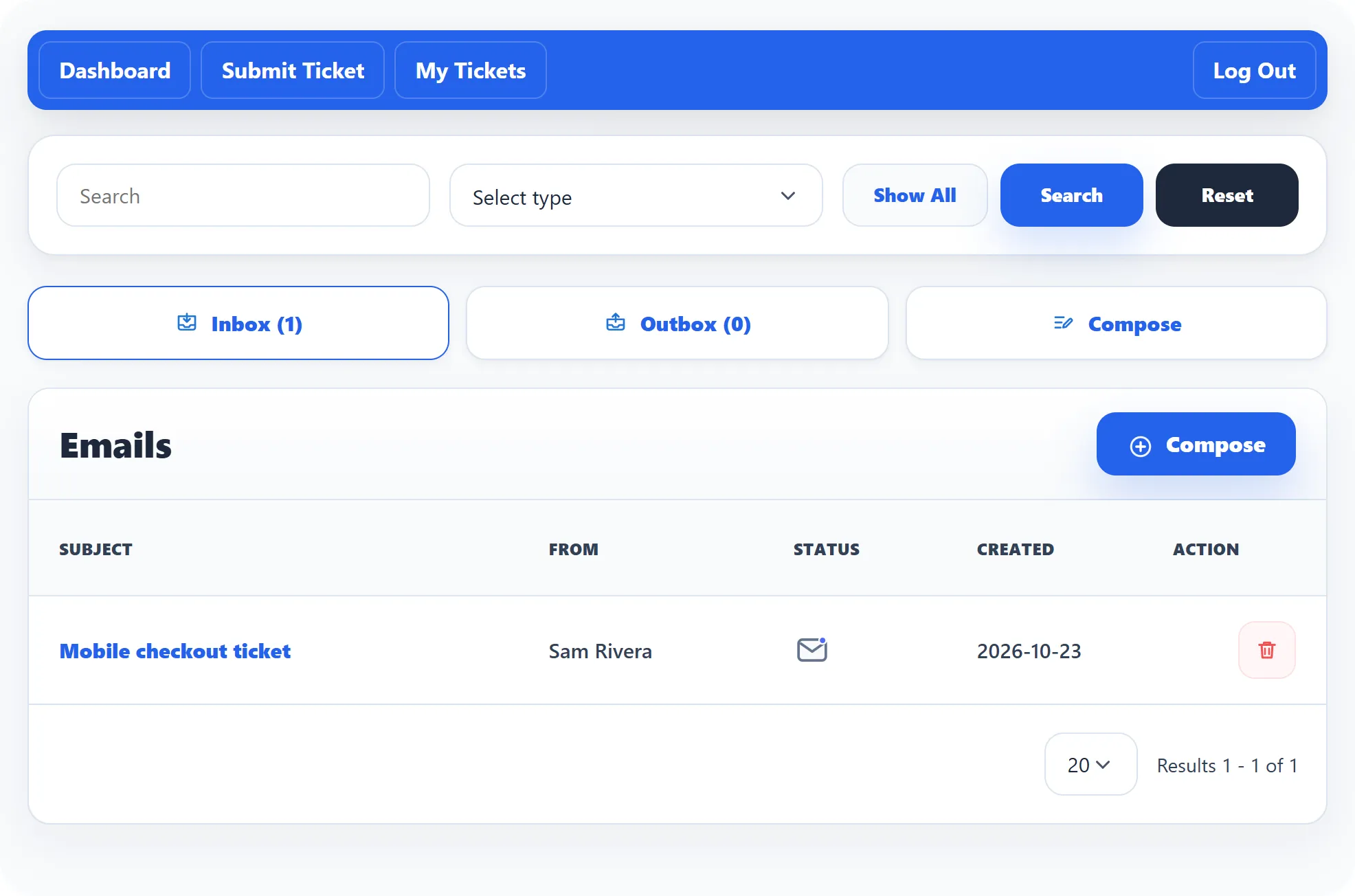
Every mail page has the same three links at the top: Inbox and Outbox, each with the number of messages, and Compose.
Send a message
Section titled “Send a message”-
Click Compose.
-
Under To, pick the staff member.
-
Enter a Subject and the Message.
-
Click Send.
The message appears in your Outbox and in the other person’s Inbox.
Read and reply
Section titled “Read and reply”Click a message’s subject to open it. The page shows the Subject, the original message under Messages, and earlier answers under Replies. To answer, write in Enter a message and click Send.
Inbox and Outbox
Section titled “Inbox and Outbox”The Inbox lists messages sent to you with From, Subject, Created and Status (Read or Unread). Search by Subject, by Select type (read or unread) and by Start Date and End Date. Under Action, a message can be marked read or unread, or deleted.
The Outbox lists messages you sent, with To instead of From.