
Automation rules
An automation rule acts on a ticket without anyone touching it: “anything mentioning a refund goes to Billing”, “tickets from this customer start at High”, “tell the team about anything unanswered for two days”. Each rule has a moment it runs, conditions that pick the tickets, and actions to take on them.
Open Flow → Automation Rules. Only Joomla Super Users can manage rules.
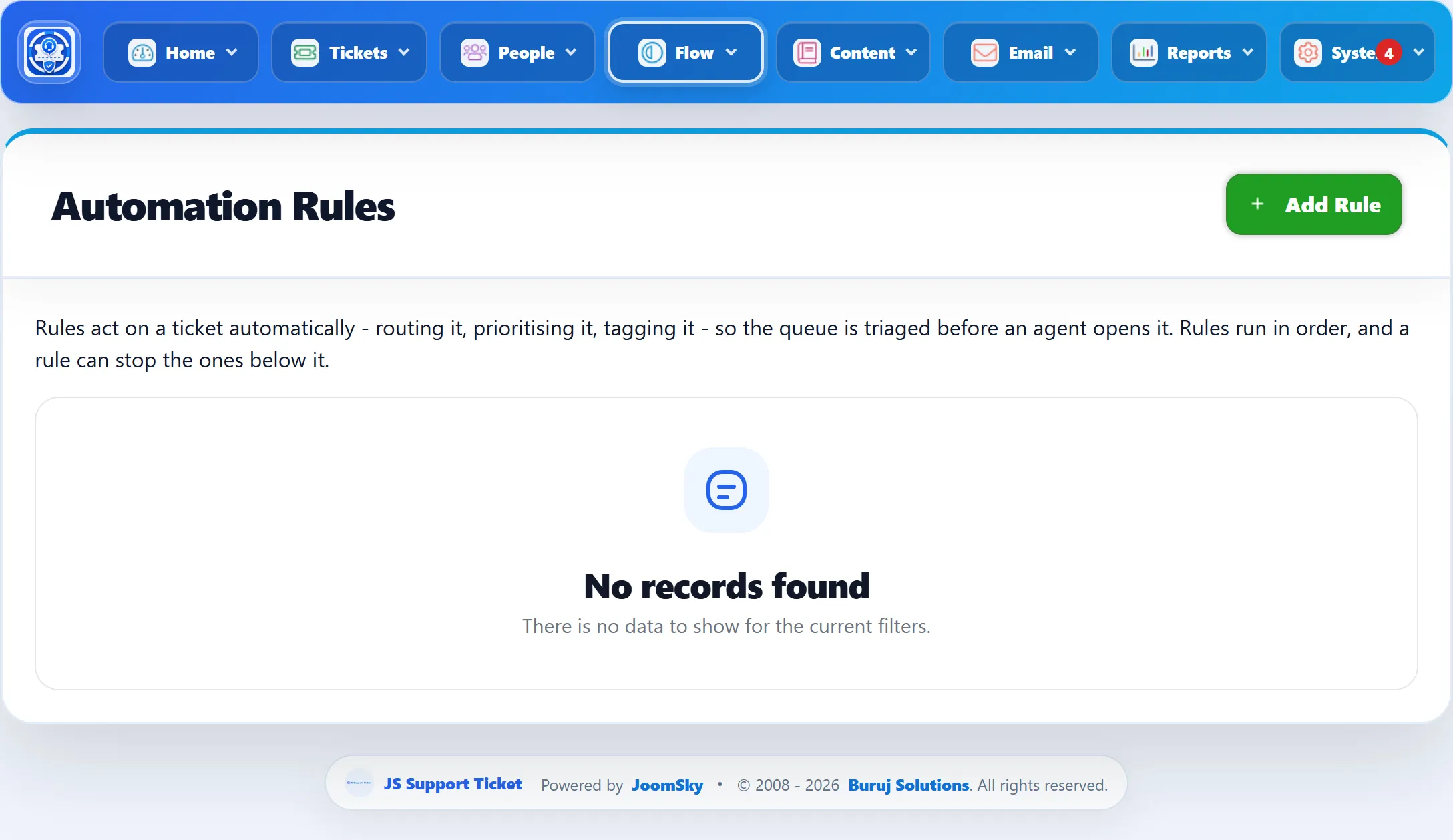
| Column | What it shows |
|---|---|
| Order | The order rules are tried in. Use the arrows to move a rule. |
| Name | Click it to edit the rule. |
| Runs | When the rule is checked. |
| Match | All or Any of the conditions. |
| Stops others | Whether a match stops the rules after it. |
| Times run | How many times the rule has acted on a ticket. |
| Published | Whether the rule is active. |
Adding a rule
Section titled “Adding a rule”-
Click Add Rule.
-
Enter a Rule name and choose when it Runs.
-
Choose Match: All conditions must be true or Any condition may be true.
-
Set the first condition. Click Add condition for more.
-
Set the first action. Click Add action for more.
-
Click Save Rule.
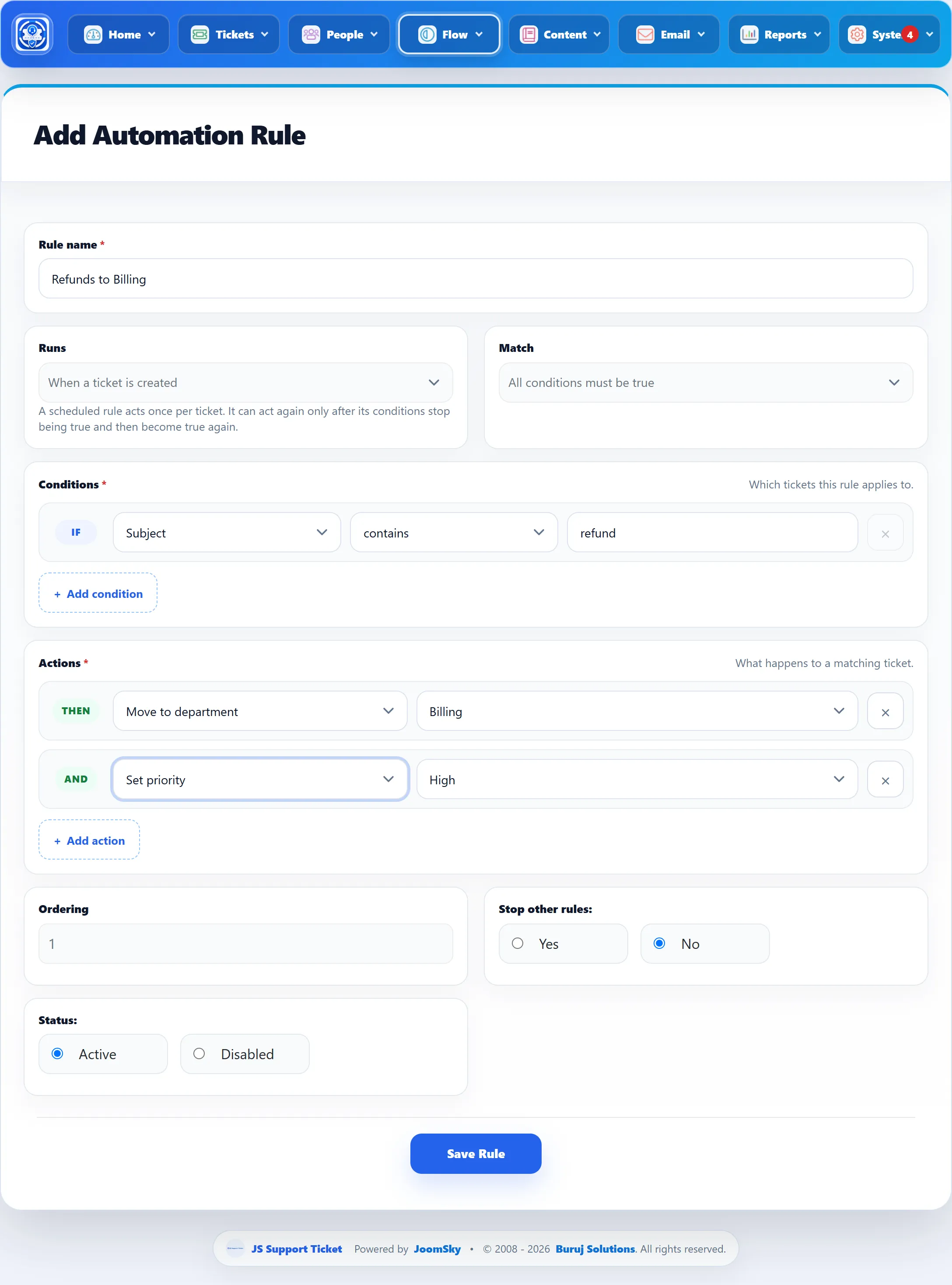
| Field | What it does | Default |
|---|---|---|
| Rule name | Your name for the rule. Required. | |
| Runs | When the rule is checked. See below. | When a ticket is created |
| Match | All conditions must be true, or Any condition may be true. | All |
| Conditions | Which tickets the rule applies to. At least one is needed: a rule with no conditions never matches anything. | |
| Actions | What happens to a matching ticket, in order from top to bottom. | |
| Ordering | The rule’s position. Lower numbers run first. | After the last rule |
| Stop other rules | Yes stops the rules after this one when this one matches. | No |
| Status | Active or Disabled. | Active |
When rules run
Section titled “When rules run”| Runs | Checked |
|---|---|
| When a ticket is created | Right after a new ticket is saved, whether a customer or staff member raised it or it arrived by e-mail. |
| When a ticket is replied to | After each reply, from the customer or the team. |
| When the status changes | After a ticket’s built-in status changes. |
| On a schedule, by ticket age | By the help desk’s background job, on every open ticket. |
Rules for an event run in Ordering order. Each rule sees what the rules before it changed.
A scheduled rule acts once per ticket. It can act on that ticket again only after its conditions stop being true and then become true again. Saving a scheduled rule resets this, so it judges every ticket afresh. Closed and merged tickets are skipped.
The background job runs when someone opens a page of your site, at most once every 30 minutes, or on a schedule if you set up the Joomla scheduled task JS Support Ticket: ticket maintenance. A notice at the top of some screens offers Create the task when it is missing.
Conditions
Section titled “Conditions”Each condition is a field, a test and a value. Text tests ignore upper and lower case.
| Field | Tests offered | Value |
|---|---|---|
| Subject, Message, Customer email, Customer name | contains, does not contain, is, starts with, ends with | Text |
| Department, Priority, Help Topic, Status | is, is not | Picked from a list |
| Hours since created, Hours since last reply, Hours since last change | is more than, is less than | A number of hours |
Hours since last reply counts from the ticket’s creation when nobody has replied yet. The hour fields are what make a scheduled rule useful, for example “Hours since last reply is more than 48”.
Actions
Section titled “Actions”| Action | Does |
|---|---|
| Set priority | Changes the ticket’s priority. |
| Move to department | Moves the ticket to the department you pick. |
| Assign to agent | Assigns the ticket to the staff member you pick. |
| Add Tag | Adds a tag to the ticket. |
| Set status | Sets the built-in status: New, Pending, In Progress, Answered or Closed. |
| Notify agent | Sends an in-app notification to the staff member you pick, or to All agents in the ticket’s department. |
Changes made by a rule are recorded in the ticket’s history, with the rule’s name. Set status only changes the status: it does not send the e-mails or start the follow-ups that closing or answering a ticket by hand does, and it does not trigger rules that run When the status changes.
All agents in the ticket’s department reaches every active staff member with access to the department, plus the agent the ticket is assigned to. Staff marked away are left out unless the ticket is assigned to them. If an earlier action in the same rule moved or assigned the ticket, the new department and agent are used.
Deleting a rule
Section titled “Deleting a rule”Click the delete button in the list. Changes the rule already made to tickets stay.