
Staff members
A staff member is a Joomla user who works tickets. Customers and staff use the same Joomla accounts: what makes someone staff is a record on this screen. Each staff member has a role, a list of departments they work in, and their own set of permissions.
Open People → Staff Members.
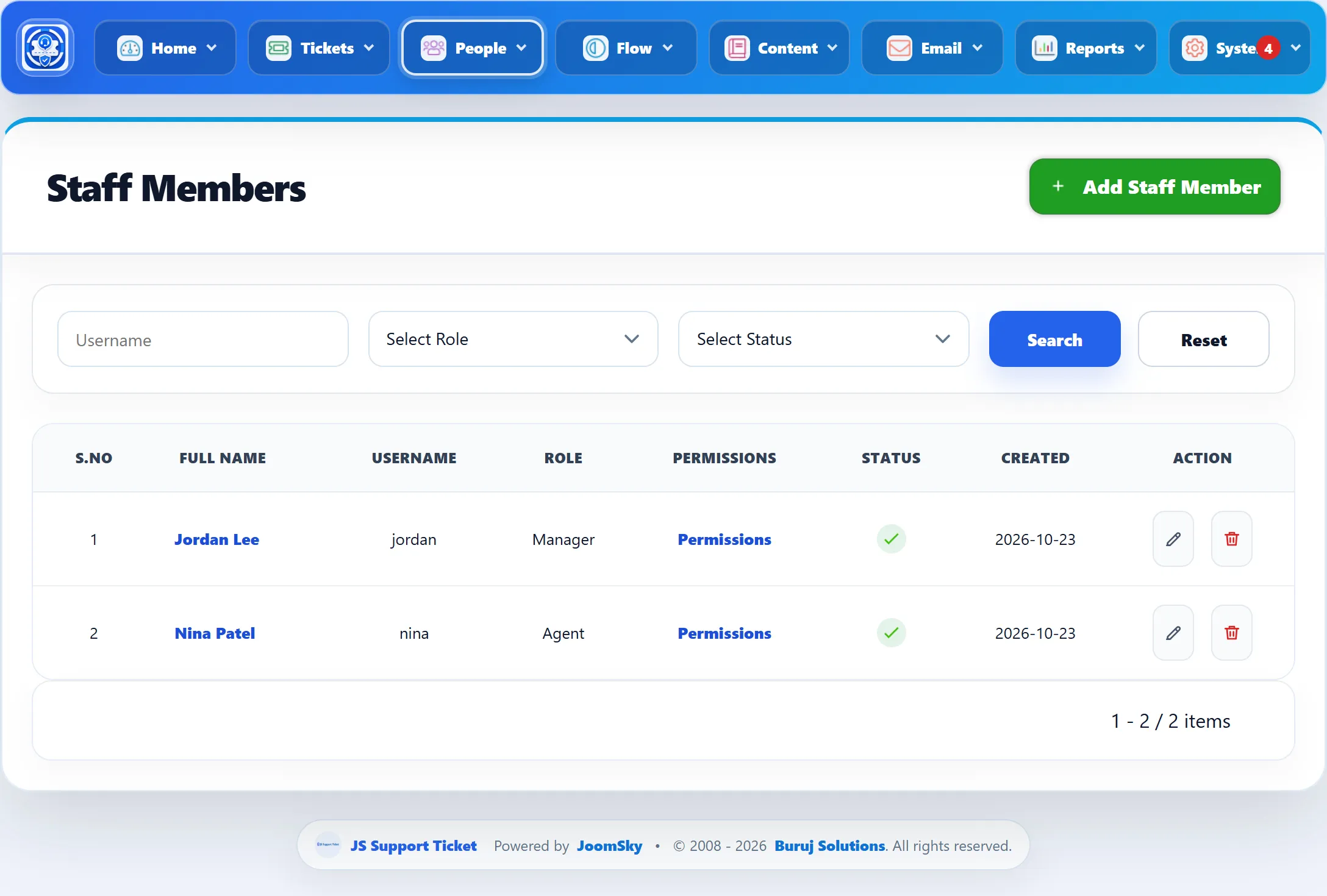
| Column | What it shows |
|---|---|
| Full Name | Click it to edit the staff member. An Away badge appears when they are marked out of office. |
| Username | Their Joomla username. |
| Role | The role they were given. |
| Permissions | Opens a read-only summary of their departments and permissions. See Checking what someone can do. |
| Status | A green tick for Active, a cross for Disabled. |
Narrow the list by username, role or status, then click Search.
Adding a staff member
Section titled “Adding a staff member”The Joomla user must exist first. Create it under Users → Manage if needed.
-
Click Add Staff Member.
-
Click Select User. A window opens where you can search Joomla users by username, name or e-mail address. Click a username to pick it.
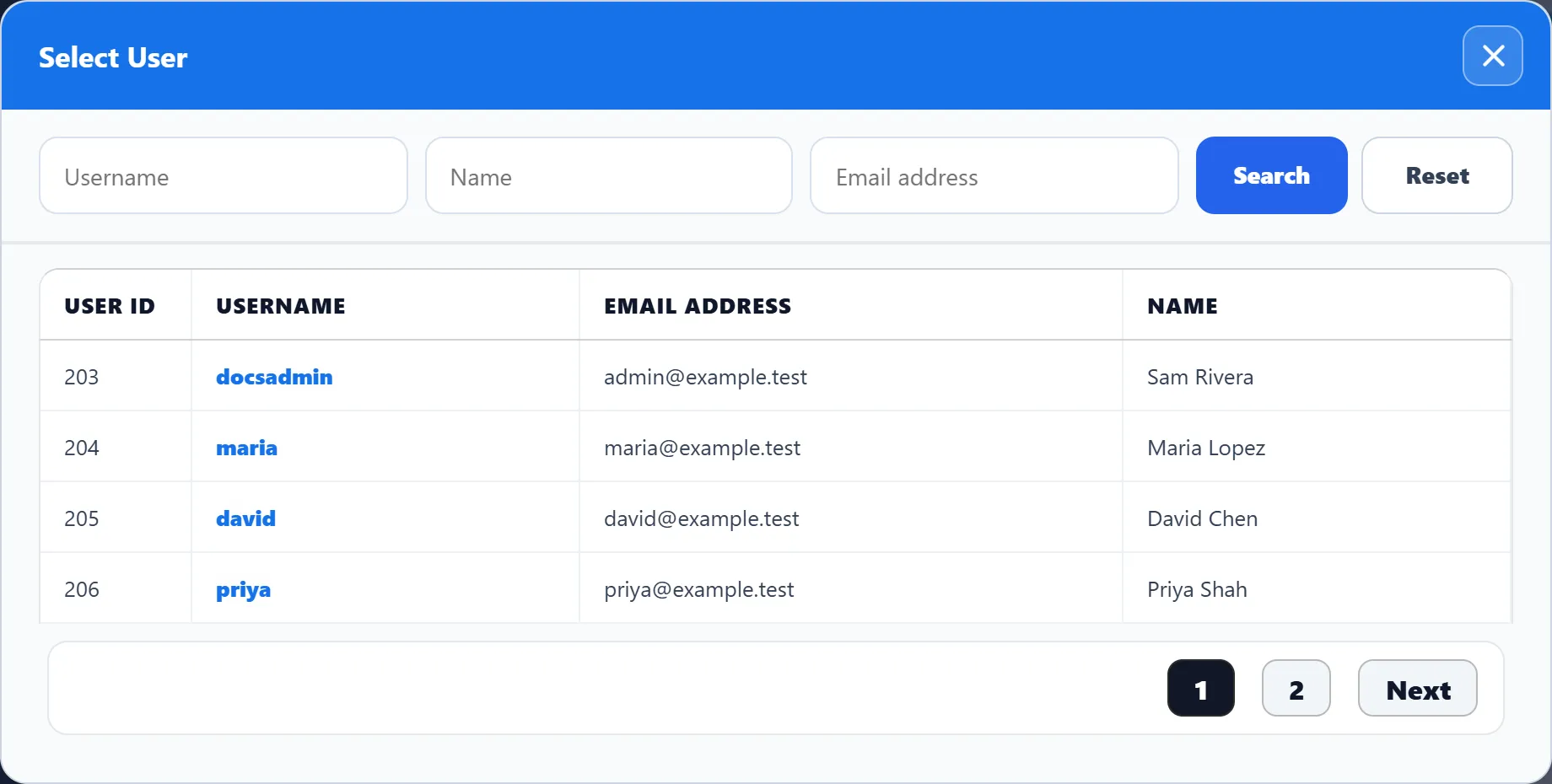
The username, first name, last name and e-mail address are filled in from the Joomla account. You can change the name and address afterwards.
-
Choose a Role. The permission editor appears below the form, ticked with that role’s departments and permissions.
-
Adjust the departments and permissions for this person if they need more or less than the role gives. See The permission editor.
-
Click Save Staff Member.
A Joomla user can be a staff member only once. Saving a second record for the same user fails.
The form
Section titled “The form”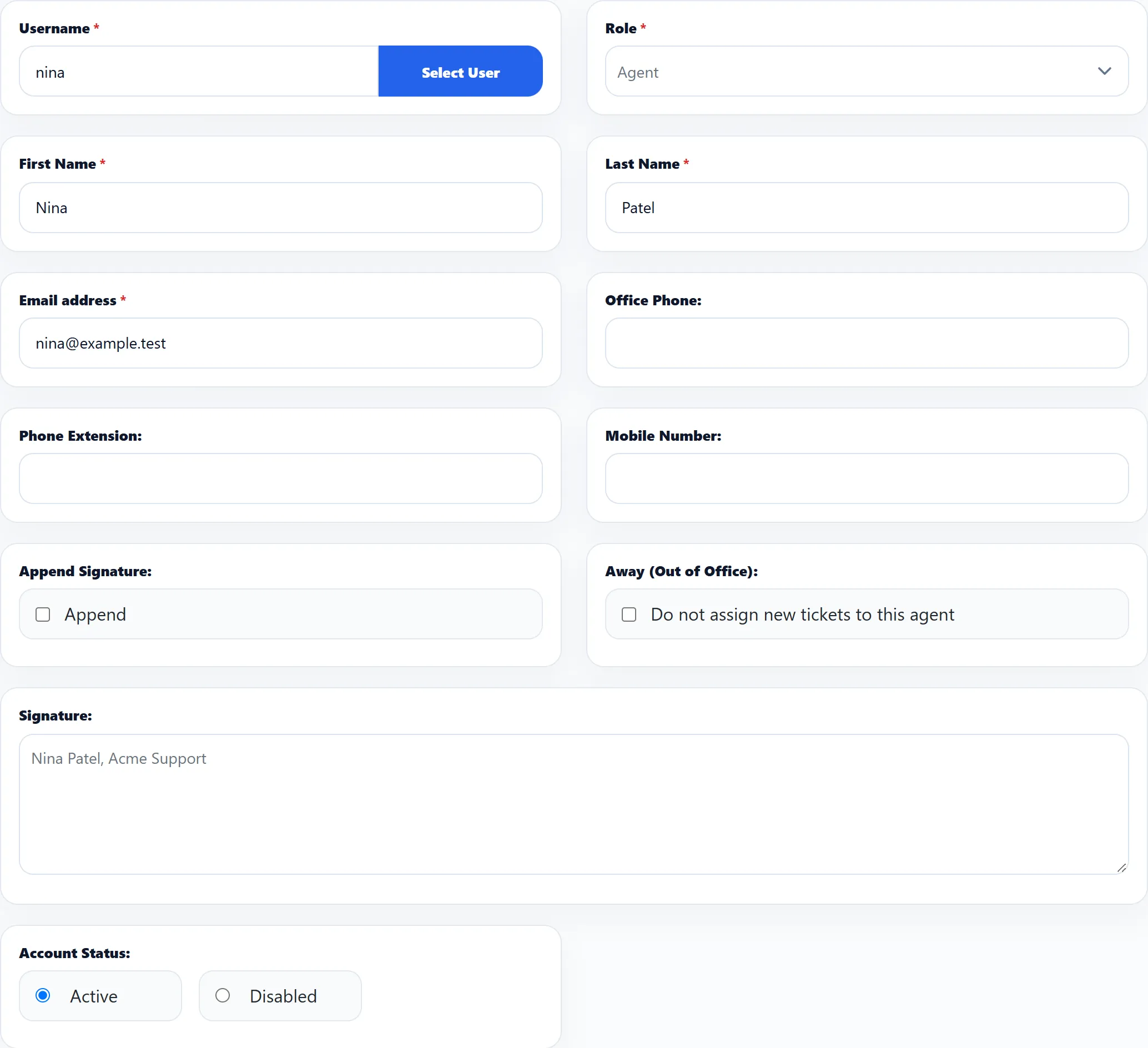
| Field | What it does |
|---|---|
| Username | The Joomla account. Use Select User to pick it. Required. |
| Role | The role whose departments and permissions are loaded into the editor. Required. |
| First Name, Last Name | The name shown to customers and other staff. Required. |
| Email address | The staff member’s address for help desk e-mail. Required. |
| Office Phone, Phone Extension, Mobile Number | Contact details for your records. The extension takes up to 6 characters. |
| Append Signature | Saved with the record. In 1.3.0 nothing reads it: the signature is chosen on each reply instead (see below). |
| Away (Out of Office) | Do not assign new tickets to this agent. See Away. |
| Signature | Plain text added to the end of a reply when the person replying chooses Own signature. |
| Account Status | Active (the default) or Disabled. Automatic assignment only picks active staff. |
Signatures
Section titled “Signatures”The reply box on a ticket has three choices: Own signature (the default), Department signature and None. Own signature adds the signature from the replying staff member’s record; Department signature adds the department’s signature.
Do not assign new tickets to this agent marks the person as away. The list shows an Away badge next to their name, and the help desk leaves them out when it picks an agent by itself: automatic assignment skips them, and an automation rule that notifies All agents in the ticket’s department does not notify them. You can still assign tickets to them by hand. Untick the box when they are back.
The permission editor
Section titled “The permission editor”The editor appears when you choose a role on a new staff member, and on every saved staff member. It has a Department Section listing every department, then one section per area of the product, with the permissions as tick boxes. Select / Deselect All ticks or clears a whole section.
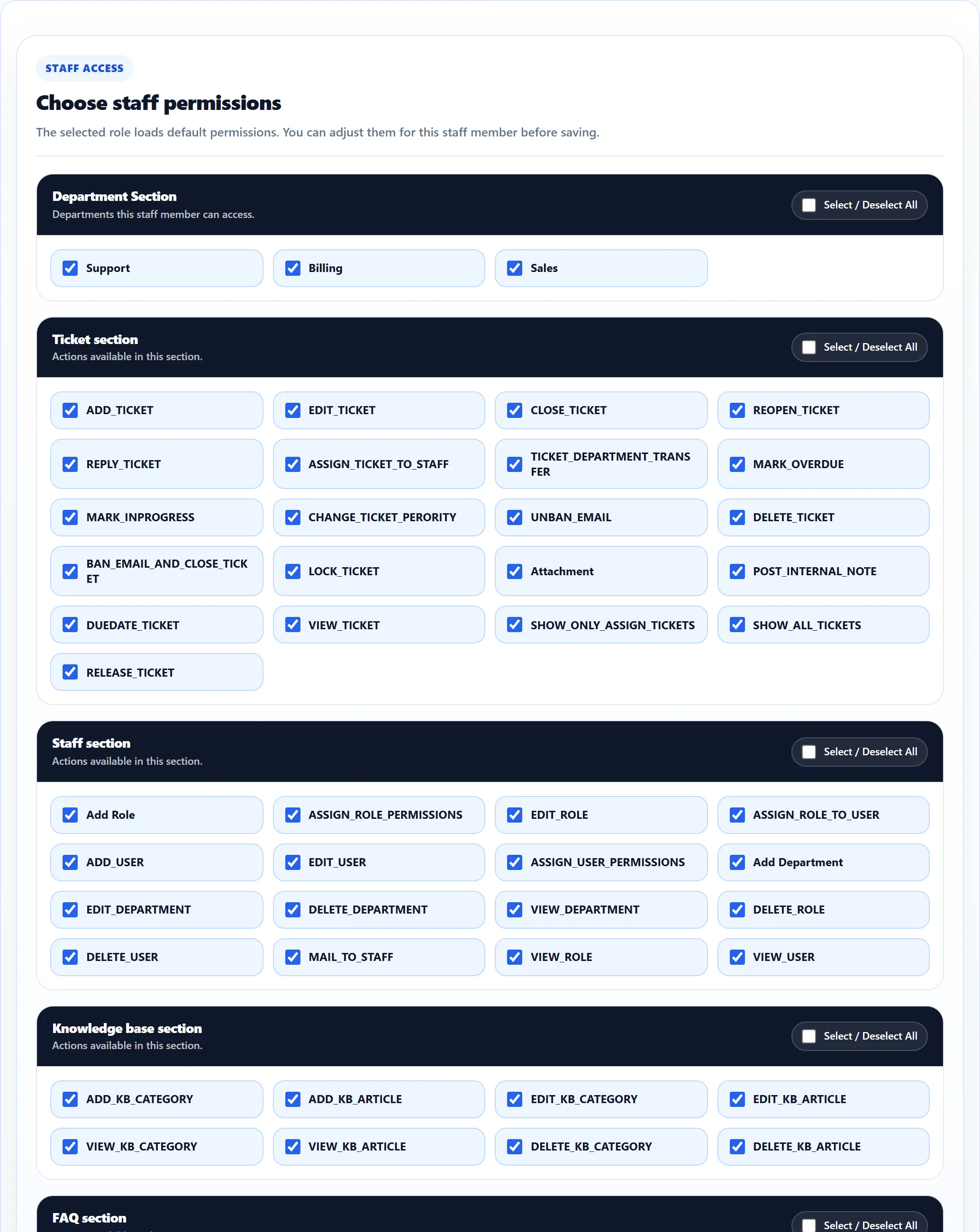
- Departments decide which tickets the person sees. Without the permission to see all tickets, a staff member sees tickets in their ticked departments, tickets assigned to them, and tickets they watch. Departments also limit the department lists they choose from and the canned responses they are offered.
- Permissions decide what they may do. Most permissions show on screen as
raw names such as
ADD_TICKET; the permissions reference explains each one.
The ticks are saved with the staff member, not looked up from the role each time. Changing a role later does not change people already given it. If you choose a different role while editing someone, the editor is replaced with that role’s ticks.
Checking what someone can do
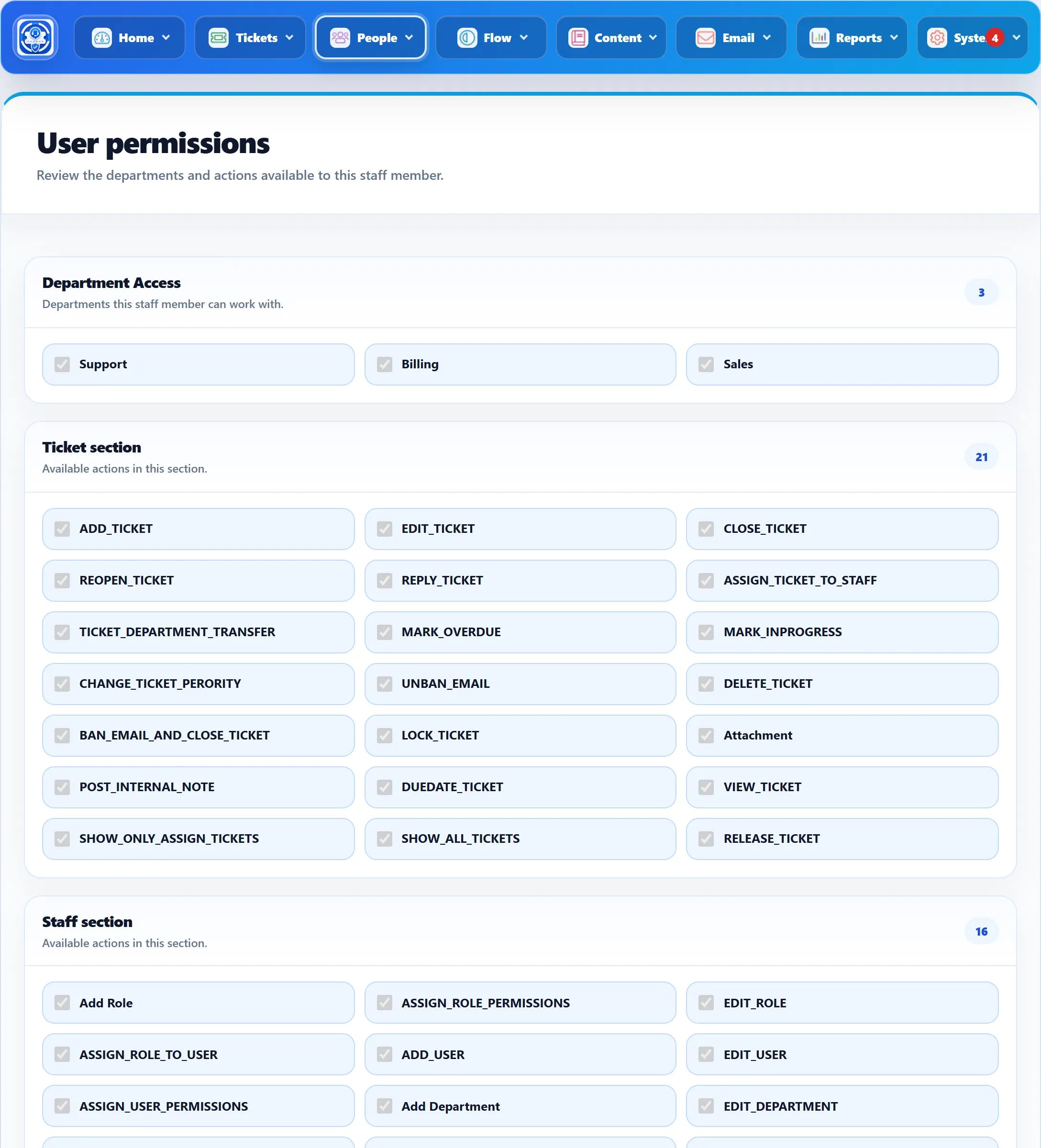
Section titled “Checking what someone can do”Click Permissions in the staff list to open User permissions: the person’s departments under Department Access and their permissions section by section, with a count for each. The boxes are read-only; edit the staff member to change them.
Deleting a staff member
Section titled “Deleting a staff member”Click the delete button in the list. A staff member who has tickets assigned, has posted replies, or has sent or received internal mail cannot be deleted; you see “This staff member is in use and cannot be deleted.” Set them to Disabled instead.