
The Control Panel
Components → JS Support Ticket opens the Control Panel. It shows how many tickets are in each state, what needs attention and how the work is spread across departments, priorities and staff. Almost every number and title on it is a link to the screen behind it.
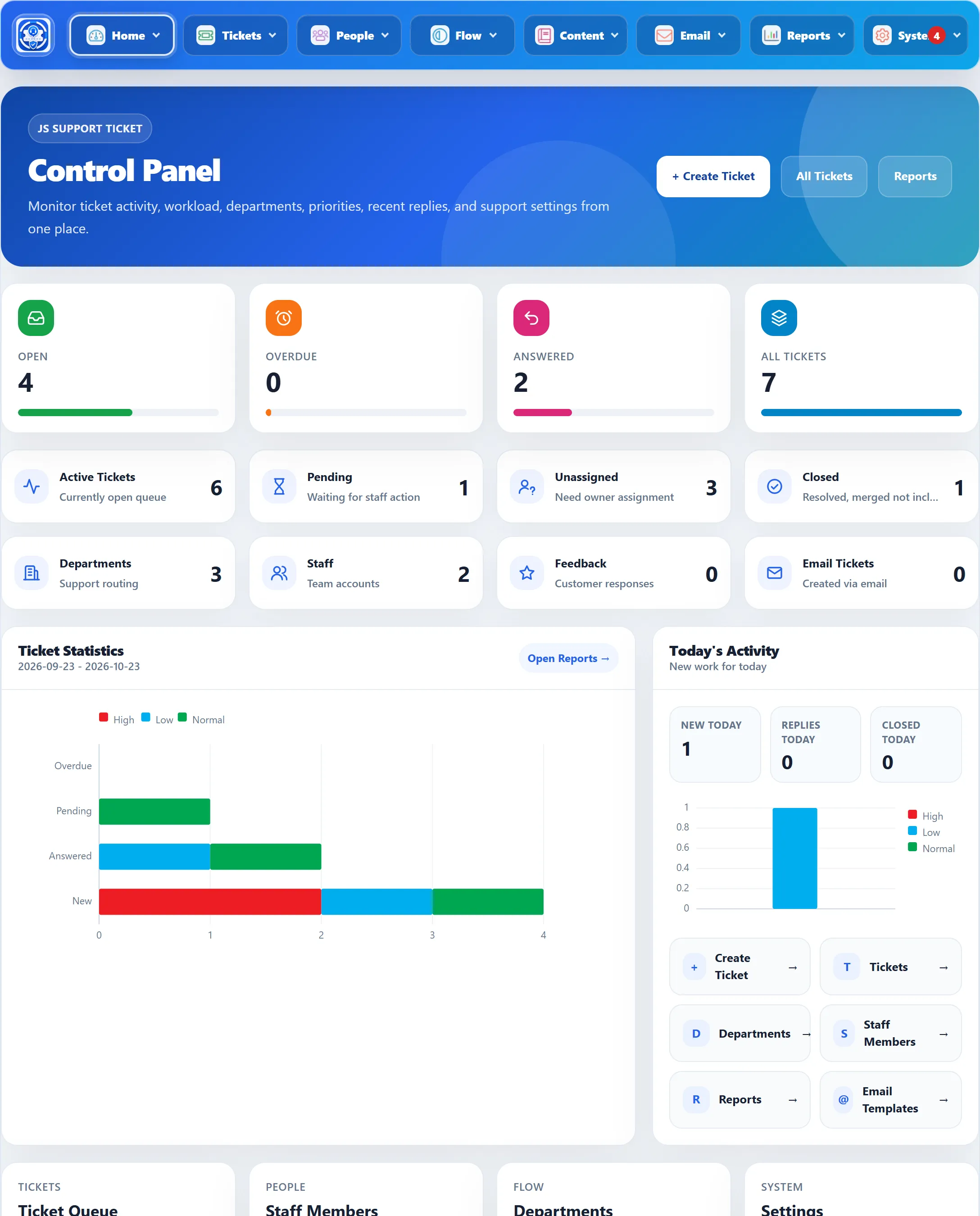
If Show count on my tickets is set to No (see Setup wizard), the numbers on this screen are shown as a dash.
The menu bar
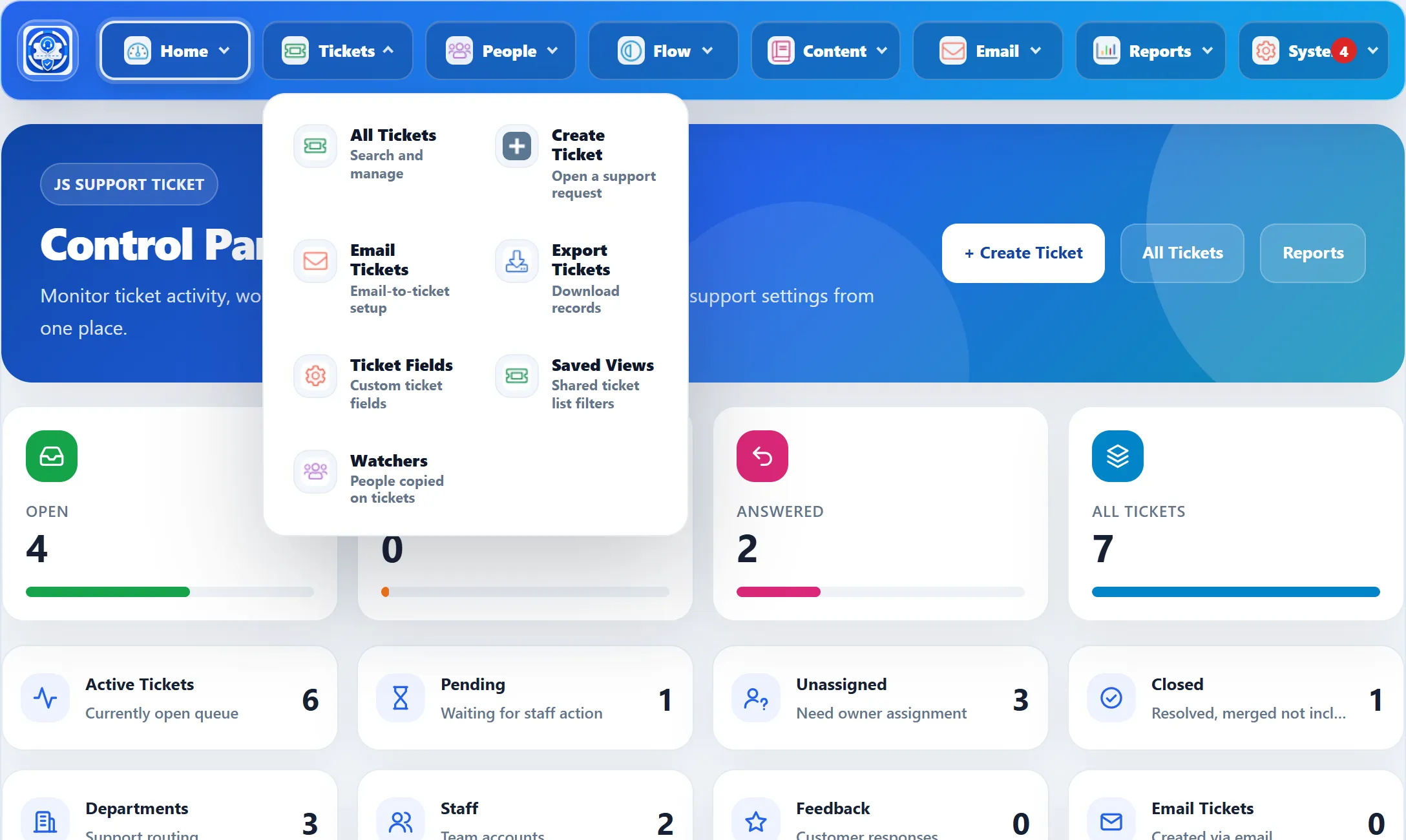
Section titled “The menu bar”The bar across the top of every JS Support Ticket screen has eight groups. Click one to open its list. Menu opens the whole menu on a narrow screen.
| Group | What is in it |
|---|---|
| Home | Control Panel, Update (the Pro Installer, for installing a new version), About |
| Tickets | All Tickets, Create Ticket, Email Tickets, Export Tickets, Ticket Fields, Saved Views, Watchers |
| People | Staff Members, Add Staff Member, Roles, Add Role, Departments, Add Department |
| Flow | Help Topics, Canned Responses, Priorities, Automation Rules, SLA Rules, Tags, Organisations, Integrations, Ticket Statuses, Feedback, Feedback Fields, each with its Add item where there is one |
| Content | Categories, Knowledge Base, Downloads, Announcements, FAQs, each with its Add item |
| Mail Inbox, Compose Message, System Emails, Add Email, Banned Emails, Banlist Log, Email Templates, Email Logs | |
| Reports | Overall Report, Staff Reports, Department Reports, User Reports, Satisfaction Reports, Performance and SLA |
| System | Settings, Themes, GDPR / User Data, System Errors, Error Logs, Activity Logs, Notifications, Translations |
A red number on System and on Notifications is the count of unread notifications.
The header
Section titled “The header”Create Ticket opens a new ticket form, All Tickets the ticket list and Reports the reports.
Ticket counters
Section titled “Ticket counters”The four large counters count every ticket in the help desk. The bar under each shows its share of all tickets.
| Counter | Counts |
|---|---|
| Open | Tickets not closed and not yet answered by staff |
| Overdue | Tickets marked overdue that are not closed |
| Answered | Tickets whose status is Answered |
| All Tickets | Every ticket |
The smaller cards
Section titled “The smaller cards”| Card | Counts |
|---|---|
| Active Tickets | Every ticket that is not closed |
| Pending | Tickets not closed, not answered, that already have a reply: usually the customer has answered and is waiting for you |
| Unassigned | Tickets that are not closed and not assigned to a staff member |
| Closed | Closed tickets. Tickets closed by merging are not included. |
| Departments | All departments |
| Staff | All staff members |
| Feedback | Feedback received from customers |
| Email Tickets | Tickets created from incoming e-mail |
Ticket Statistics
Section titled “Ticket Statistics”A bar chart of Overdue, Pending, Answered and New tickets, each bar split by priority in the priority’s colour. The New bar counts the same tickets as the Open counter. The chart counts all tickets, even though the dates under the title show the last month. Open Reports goes to the reports.
Today’s Activity
Section titled “Today’s Activity”New Today, Replies Today and Closed Today count what happened today, and the chart below shows today’s new tickets by priority. Under it are shortcuts to Create Ticket, Tickets, Departments, Staff Members, Reports and Email Templates.
Shortcut cards
Section titled “Shortcut cards”Four cards open the most used screens: Ticket Queue, Staff Members, Departments and Settings.
Needs Attention
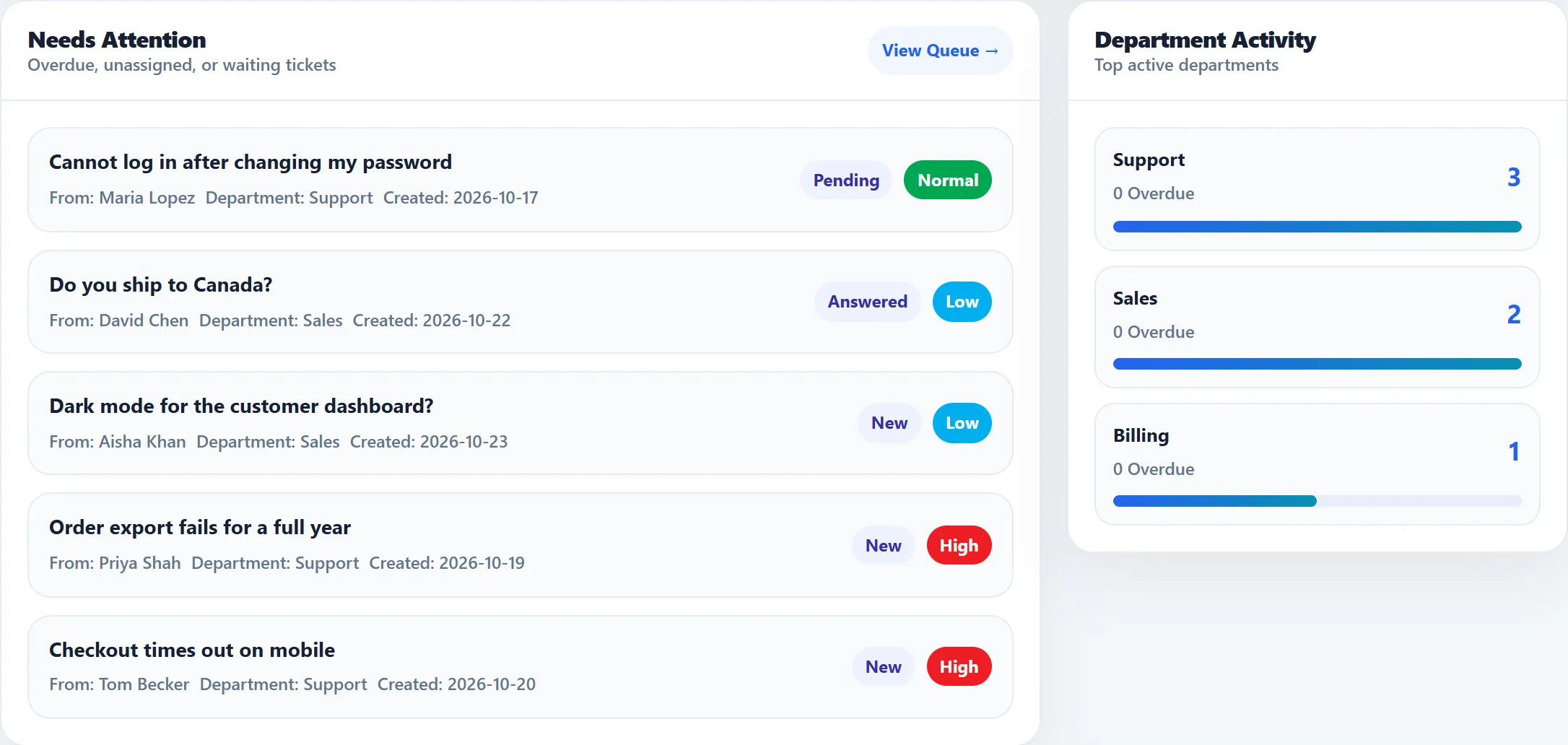
Section titled “Needs Attention”Up to five tickets that are not closed and are overdue, unassigned, or waiting for a staff reply. Overdue tickets come first, then unassigned ones, then the oldest. Each shows who it is from, its department, when it was created, its status and its priority. Click the subject to open the ticket. View Queue opens the full list.
Department Activity
Section titled “Department Activity”The five departments with the most tickets that are not closed. Each shows that number, how many of them are overdue, and a bar comparing it with the department’s total tickets.
Team Workload, Priority Breakdown and System Setup
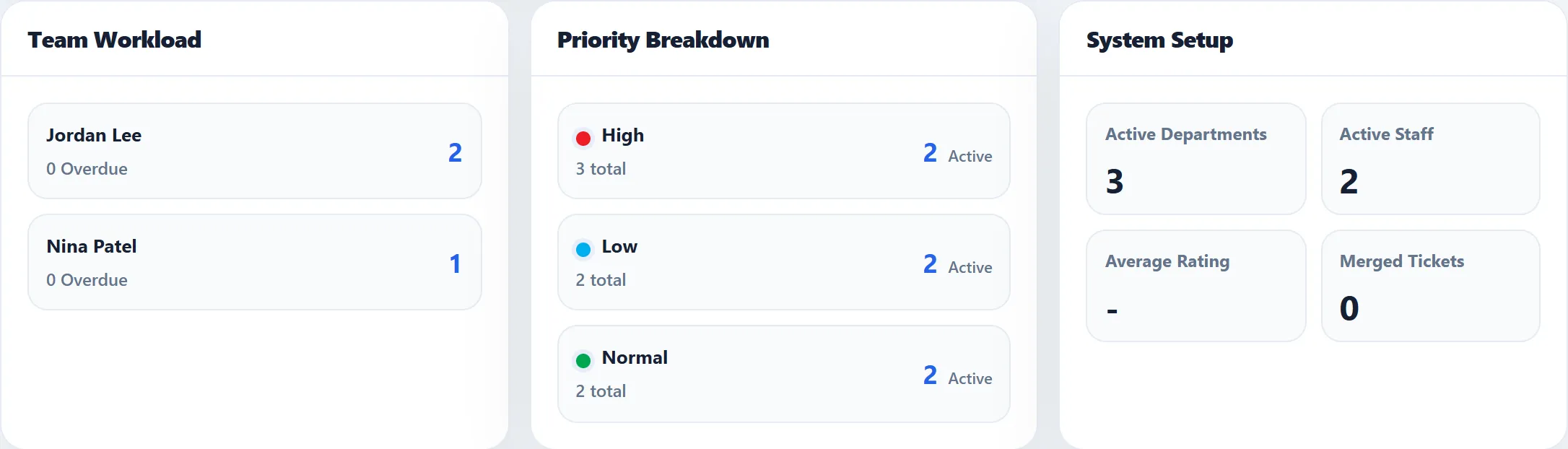
Section titled “Team Workload, Priority Breakdown and System Setup”- Team Workload lists up to five staff members with the most tickets assigned to them that are not closed, and how many of those are overdue.
- Priority Breakdown shows each priority with its total tickets and how many are still active.
- System Setup shows Active Departments, Active Staff, the Average Rating from customer feedback, and Merged Tickets.
Latest Tickets
Section titled “Latest Tickets”Five tickets, sorted by status (New first, Closed last) and newest first within each status, with who sent them, when, their status and priority. View All Tickets opens the list.
Latest content
Section titled “Latest content”Latest Downloads, Latest Knowledge Base and Latest Announcements show the newest items of each kind with the start of their text. No Data means there is nothing to show yet.
At the bottom
Section titled “At the bottom”A link to review JS Support Ticket on the Joomla Extension Directory, and a link to System Errors, where the help desk records errors it has run into.