
Canned responses
A canned response is a saved reply. While answering a ticket you pick one from a list and its text is put into the reply box, with the customer’s name, the ticket number and other details filled in. Each canned response belongs to a department and is offered only on that department’s tickets.
Open Flow → Canned Responses.
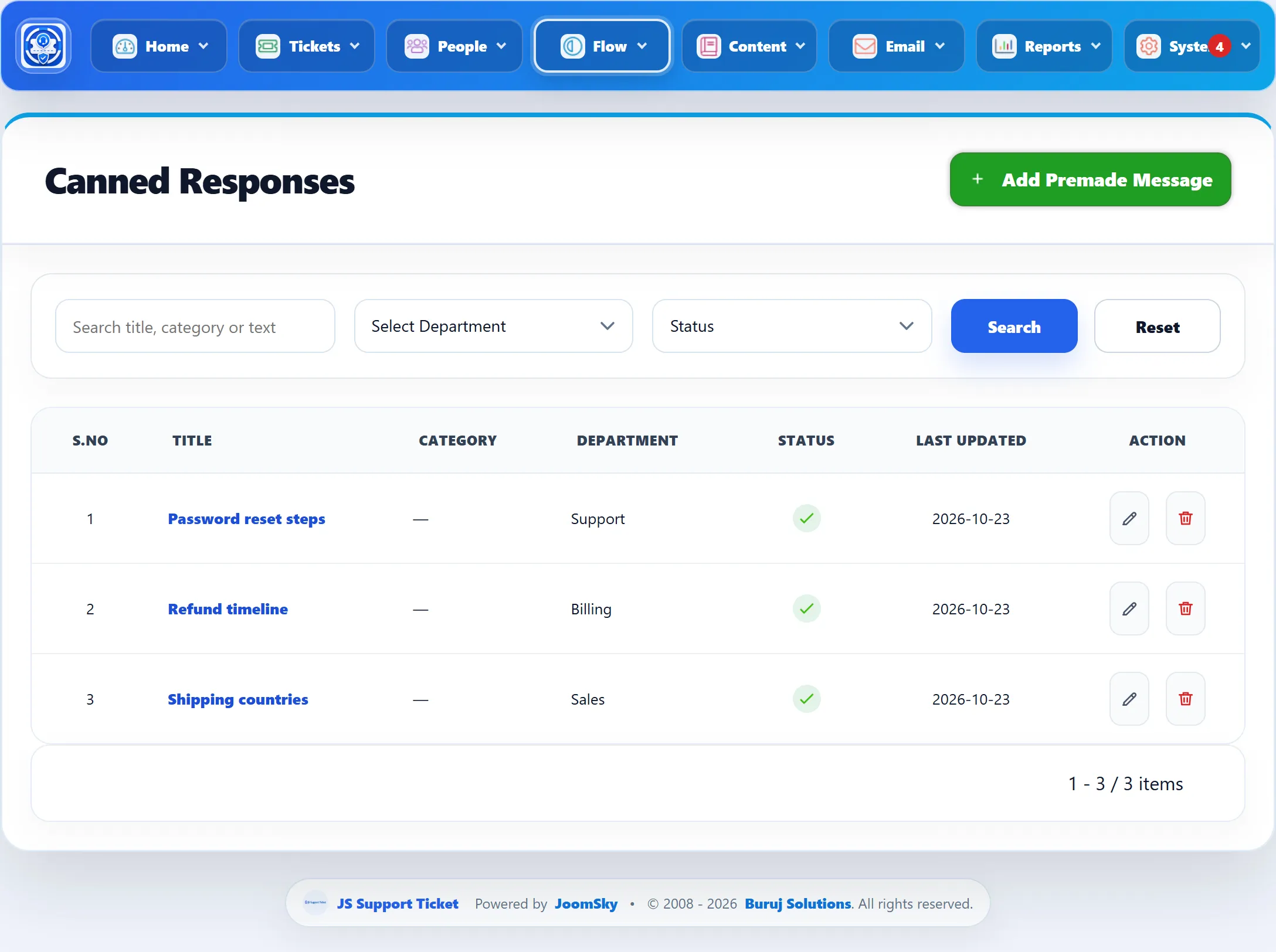
| Column | What it shows |
|---|---|
| Title | Click it to edit the response. |
| Category | The group it is listed under in the picker, or a dash. |
| Department | The department it belongs to. A Personal badge marks one only its author sees. |
| Status | A tick for Active, a cross for Offline. |
| Last Updated | When it was last saved. |
The search box looks in the title, the category and the text. You can also filter by department and status.
Adding a canned response
Section titled “Adding a canned response”-
Click Add Premade Message. (The menu calls it Add Canned Response; both open the same form.)
-
Fill in the form (below). Type placeholders such as
{customer_name}straight into the text. -
Click Save Canned Response.
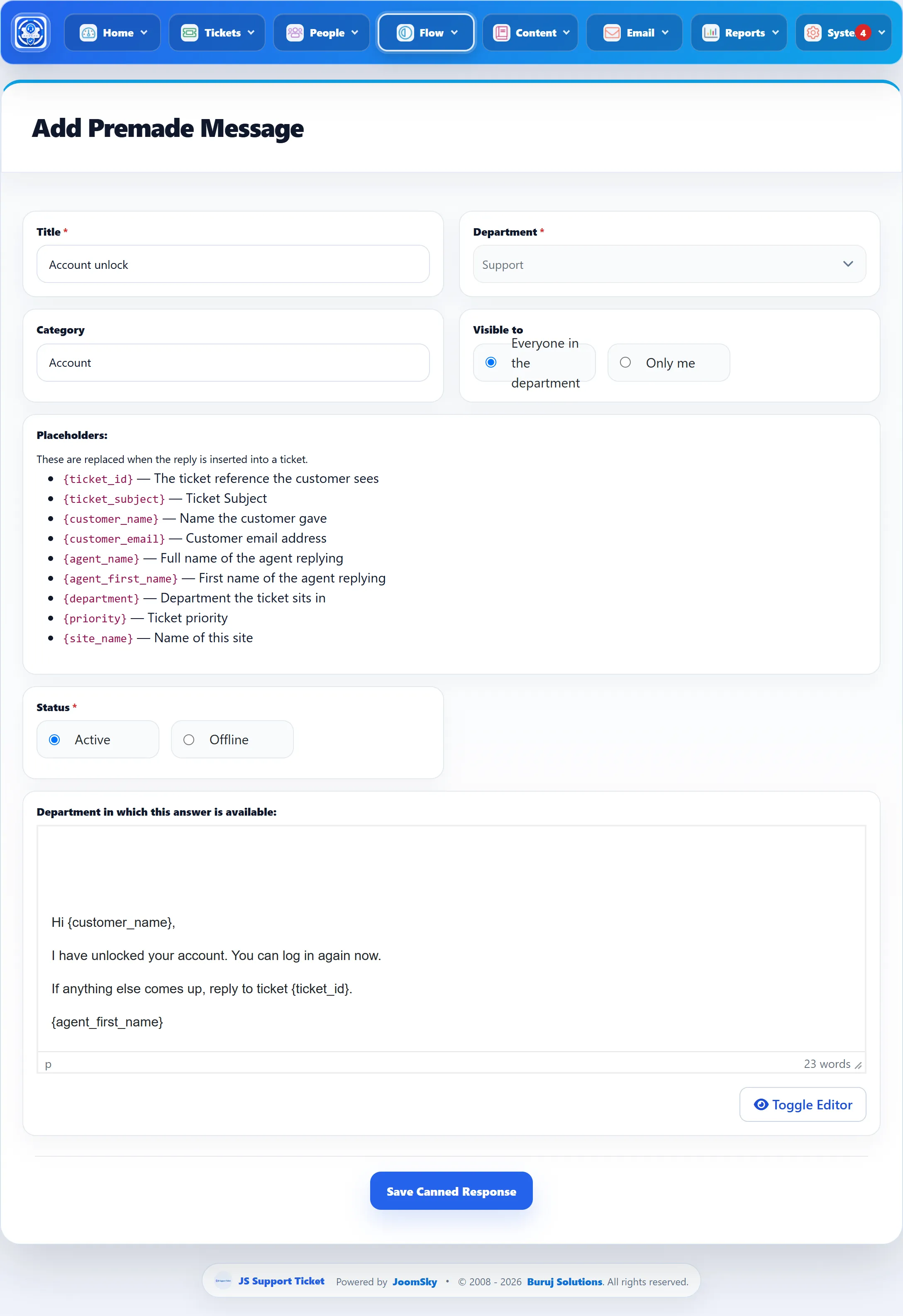
| Field | What it does | Default |
|---|---|---|
| Title | The name shown in the picker. Required. | |
| Department | The department whose tickets offer this response. Required. | |
| Category | Optional. Responses with the same category are grouped under it in the picker. Start typing to reuse a category that already exists. | |
| Visible to (Pro) | Everyone in the department shares it. Only me makes it personal: only the staff member who saved it is offered it. | Everyone in the department |
| Status | Active or Offline. | Active |
| Department in which this answer is available | Despite its label, this is the editor for the reply text itself. |
In 1.3.0, setting a response to Offline changes its status in this list but does not remove it from the picker on tickets. To stop it being offered, delete it.
Placeholders
Section titled “Placeholders”The form lists the placeholders you can use. They are replaced when the response is inserted into a reply.
| Placeholder | Replaced with |
|---|---|
{ticket_id} |
The ticket reference the customer sees. |
{ticket_subject} |
The ticket’s subject. |
{customer_name} |
The name the customer gave. |
{customer_email} |
The customer’s e-mail address. |
{agent_name} |
The full name of the person replying. |
{agent_first_name} |
Their first name. |
{department} |
The ticket’s department. |
{priority} |
The ticket’s priority. |
{site_name} |
Your site’s name, from Joomla’s Global Configuration. |
When a response is inserted while creating a ticket, there is no ticket yet, so the ticket and customer placeholders come out empty.
Using a canned response
Section titled “Using a canned response”On a ticket’s reply box, the canned response picker lists the responses for the ticket’s department, grouped by category. Type in Search canned responses to narrow the list, then pick one. With Append ticked (the default), the text is added after anything already in the reply box; untick it to replace what is there.
A staff member is offered only the responses of departments they have access to, plus their own personal ones. Canned responses need no permission of their own.
Deleting a canned response
Section titled “Deleting a canned response”Click the delete button in the list. Replies already sent are not affected.