
Installation
Requirements
Section titled “Requirements”| Requirement | Needed |
|---|---|
| Joomla | 5 or 6 |
| PHP | 8.3 or newer on Joomla 6, 8.1 or newer on Joomla 5 |
| Database | MySQL 8.0.13 or newer, or MariaDB 10.4 or newer |
| Database features | InnoDB tables, the utf8mb4 character set and FULLTEXT indexes |
| Database user | Allowed to create, alter and drop tables and indexes |
Before it changes anything, the installer tests the database: it creates a small test table with the features above, writes a row containing an emoji, alters the table and drops it again. If the server is too old or any part of the test fails, the install stops with a message saying why, and nothing on your site is changed.
Activating Pro needs a few more things from the server, which the
Pro Installer checks for you: cURL with SSL, ZIP support,
write access to the component folders and Joomla’s tmp folder, and the
ability to download files from the internet.
Installing the package
Section titled “Installing the package”-
In Joomla’s administrator, go to System → Install → Extensions.
-
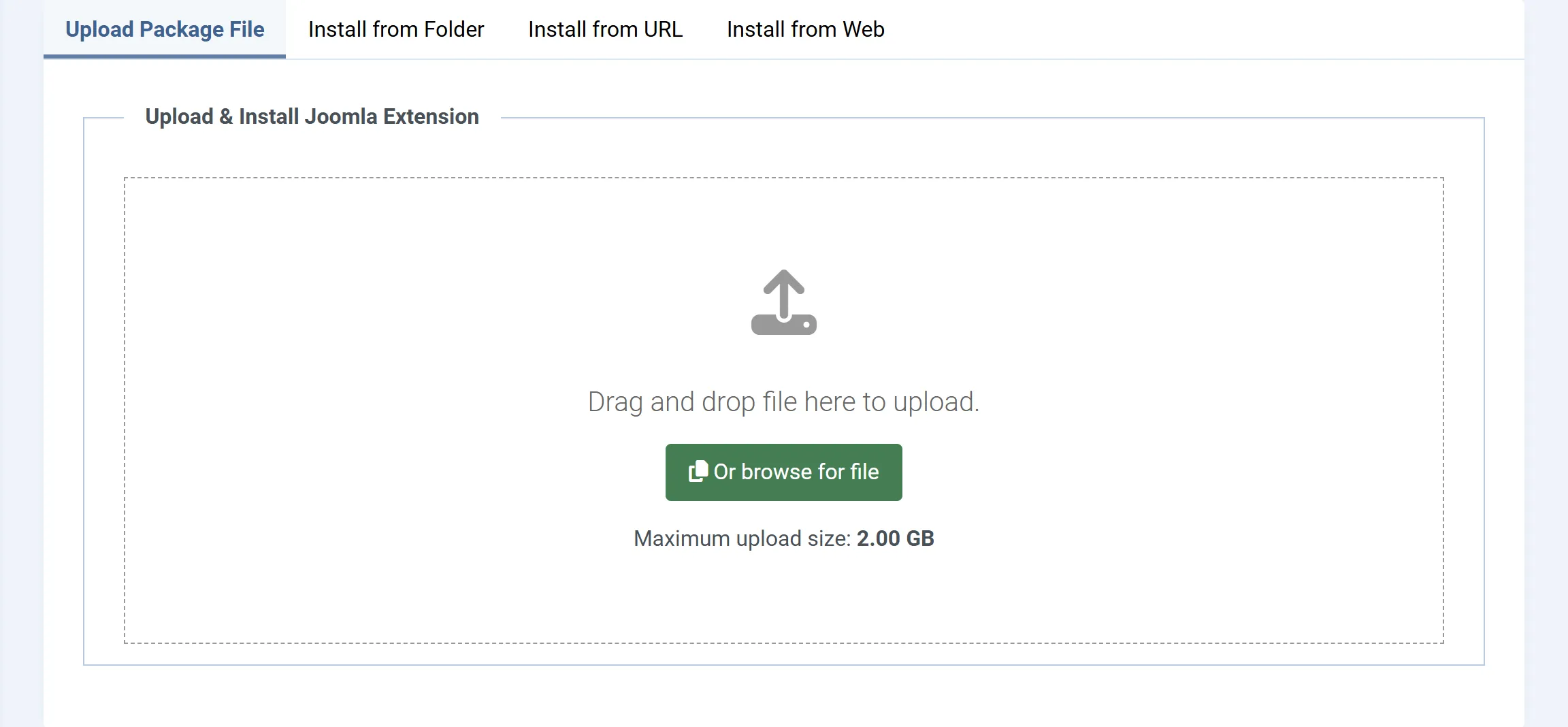
On the Upload Package File tab, drop the JS Support Ticket package onto the upload area, or click to choose it.
-
Joomla installs the component. When it finishes, you are taken straight to the first step of the setup wizard.
You can run the wizard now or later. Close it with the × at the top right to go to the Control Panel.
What the install sets up
Section titled “What the install sets up”-
Database tables. All of the help desk’s tables, created as InnoDB with
utf8mb4, so tickets can contain any character, emoji included. -
Starting data. The settings with their default values, one department (Support), three priorities (High, Low and Normal, with Normal the default), one staff role (Manager), the ticket form’s fields and the e-mail templates.
-
A system e-mail address. If the help desk has no e-mail address yet, the install adds yours (the administrator running the install) as the first one under Email → System Emails. The help desk sends its e-mail from these addresses.
-
Modules and plugins. The package carries these extensions and installs each one through Joomla’s installer:
Extension What it is for JS Support Ticket scheduled tasks (task plugin) Runs background jobs (auto-closing, overdue marking, e-mail collection, the mail queue, SLA checks) from Joomla’s Scheduled Tasks JS Support Ticket Smart Search (finder plugin) Lets Joomla’s Smart Search index the knowledge base JS Support Ticket Web Services API (webservices plugin) Joomla Web Services API routes for the help desk JS Support Ticket Privacy (privacy plugin) Adds the help desk’s data to Joomla’s privacy export and removal requests JS Support Ticket Knowledge Base Search (module) A search box for the knowledge base JS Support Ticket Submit A Ticket (module) A submit-a-ticket block The four plugins are switched on after they install. The two modules are installed but not placed: add them to a module position yourself under Content → Site Modules. After the install, Joomla shows a message for each extension. If one could not be installed, its message says so.
Activating Pro
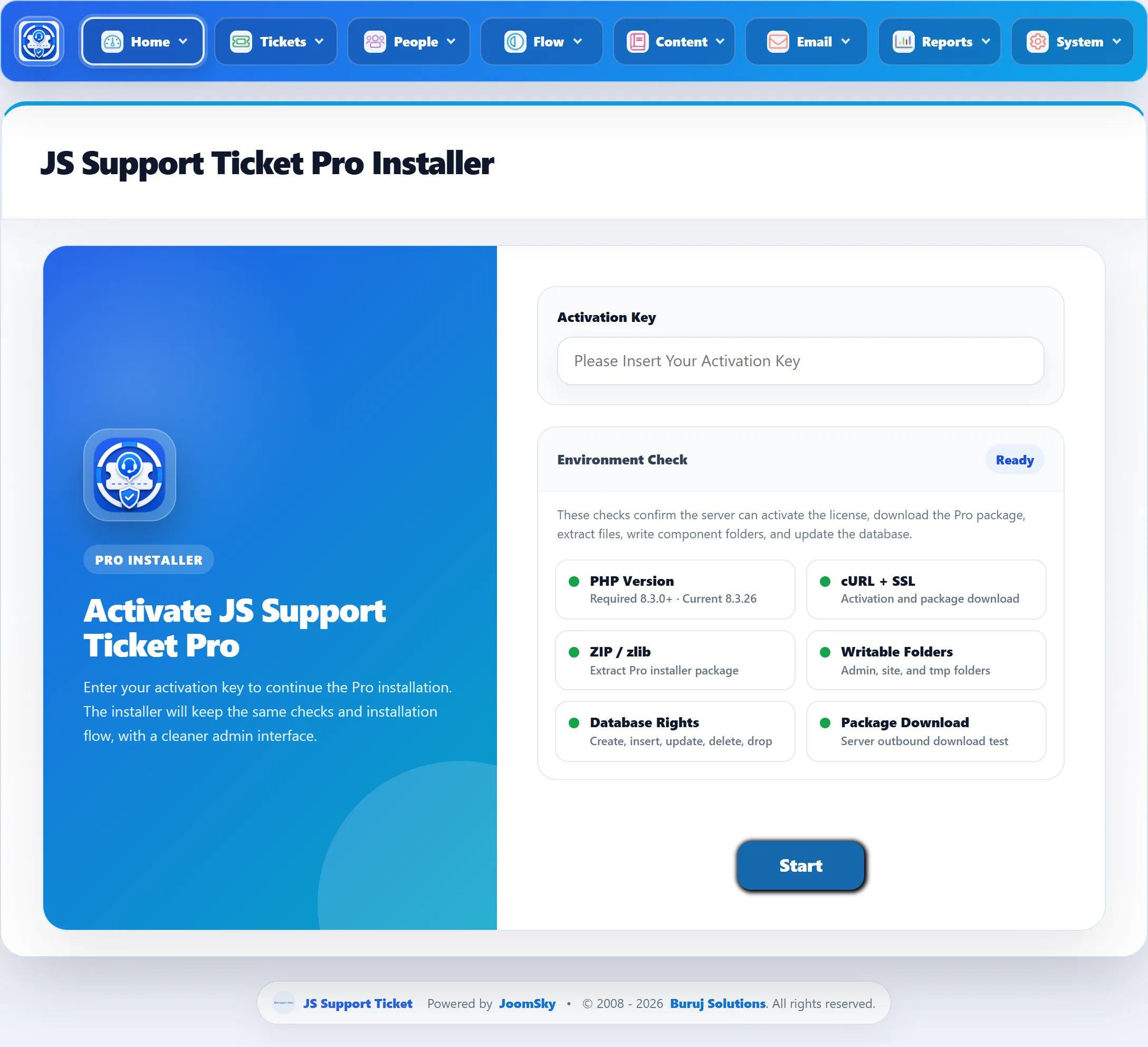
Section titled “Activating Pro”Pro must be activated with your activation key before you can use the administrator screens. Until then, opening Components → JS Support Ticket takes you to the Pro Installer with the message “Please activate JS Support Ticket Pro to continue.” The setup wizard still works before activation. The same screen is under Home → Update in the component’s menu bar.
The Environment Check
Section titled “The Environment Check”The right-hand side of the screen tests the server each time the page opens. The heading shows Ready when everything passes and Needs Attention when something does not.
| Check | What it tests |
|---|---|
| PHP Version | PHP is at least the version your Joomla needs: 8.3.0 on Joomla 6, 8.1.0 on Joomla 5. The current version is shown. |
| cURL + SSL | PHP’s cURL extension is installed with SSL support. Activation and the download use it. |
| ZIP / zlib | PHP can unpack ZIP files, to extract the Pro package. |
| Writable Folders | The component’s administrator folder, its site folder and Joomla’s tmp folder can be written to. |
| Database Rights | The database user can create a table, insert, update and delete rows, and drop the table. |
| Package Download | The server can download a test file from JoomSky into Joomla’s tmp folder. |
The Start button only appears when every check passes. Each failed check adds a message under the checks. For Writable Folders the message names each folder that is not writable.
Activating
Section titled “Activating”-
Type or paste your key into Activation Key and click Start.
Your key and your site’s address are sent to JoomSky’s installer server. If the key is not accepted, you come back to this screen with the reason under the key box.
-
On Choose Pro Version, pick the version in Select Version and click Continue. “Please wait, installation is in progress.” is shown while it works. Do not close the page.
-
When it is done, you are taken to the Control Panel with the message “JS Support Ticket installation complete.”
While it installs, the Pro Installer:
- downloads the Pro packages and checks each one against the checksum the installer server sent,
- copies the component’s current administrator and site folders to a backup
folder inside Joomla’s
tmpfolder, - puts the new files in place and installs the bundled extensions and language files,
- saves the licence for your site,
- brings the database up to date, the same way a normal update does (see Updating),
- deletes the backup.
If any step fails, the previous files are copied back from the backup, the
backup folder is kept, and you return to the Pro Installer with the error.
Failures are also written to jssupportticket-pro-installer.log in Joomla’s
log folder (System → Global Configuration → System → Path to Log Folder).
Your licence and your domains
Section titled “Your licence and your domains”The licence saved during activation lists the domains it covers. The help desk
checks the domain in your Joomla site’s address; www. is ignored, so
example.com and www.example.com are the same domain.
Development and staging sites do not use one of your domains. Once a site has been activated with your key, it is accepted on any of these addresses without the domain being on the licence:
localhost,127.0.0.1and::1- names ending in
.localhost,.local,.test,.exampleor.invalid - private network IP addresses, such as
192.168.x.xor10.x.x.x
If you move a live site to a domain the licence does not cover, the administrator screens take you back to the Pro Installer until you activate again. Your website’s help desk pages keep working in the meantime: customers can still submit and reply to tickets, because the licence is only checked in the administrator.
When your subscription ends
Section titled “When your subscription ends”A lapsed subscription does not switch Pro off. Everything you have installed keeps working. Once per login session, the administrator shows a notice: “Your JS Support Ticket Pro subscription has expired” with the date, followed by “JS Support Ticket Pro keeps working, but you can no longer install updates. Renew your subscription to receive new versions and support.”
What stops is installing new versions: the Pro Installer refuses with “Your JS Support Ticket Pro subscription has expired, so updates are no longer available. Your current installation continues to work. Renew your subscription to install this version.”
Uninstalling
Section titled “Uninstalling”Uninstalling the component from System → Manage → Extensions deletes every JS Support Ticket table: all tickets, replies, staff, settings and content. Back up your database first if you might want them again.