
Working a ticket
Click a ticket’s subject on the ticket list to open it. The customer and the action buttons are at the top, then the internal notes, the conversation and the reply form. The ticket’s status and details follow in a side panel.
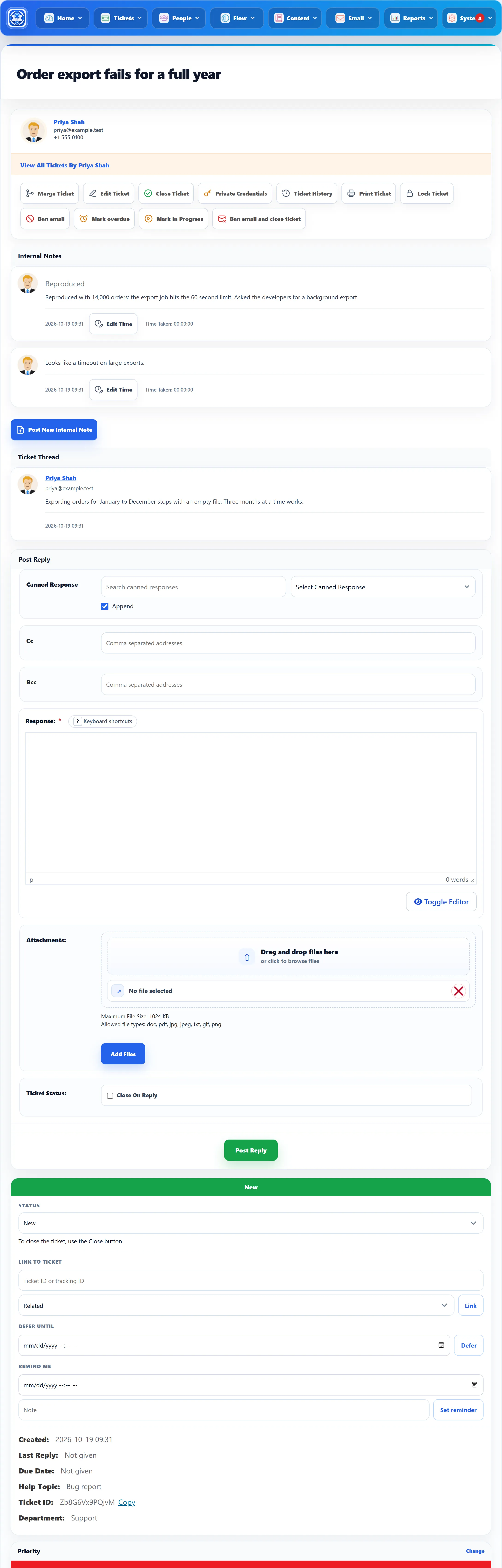
The customer and the actions
Section titled “The customer and the actions”The top card shows the customer’s name, email address and phone number. View All Tickets By followed by their name lists every ticket from that Joomla account.
The buttons below it act on the whole ticket: Merge Ticket, Edit Ticket, Close Ticket, Private Credentials, Ticket History, Print Ticket, Lock Ticket, Ban email, Mark overdue, Mark In Progress and Ban email and close ticket. See Ticket actions. A merged ticket shows no buttons and no reply form.
For a ticket that came in by email, Ticket Email shows the mailbox it arrived at.
The thread
Section titled “The thread”Internal Notes come first. Only your team sees them. See Internal notes and time.
Ticket Thread starts with the customer’s original message and its attachments, then every reply, oldest first. Replies from your team carry a Staff label. A reply that arrived by email carries Ticket via Email. Click an attachment to download it.
On replies written by staff members you also see Edit Reply, Edit Time and Time Taken (Pro). See Internal notes and time.
Replying
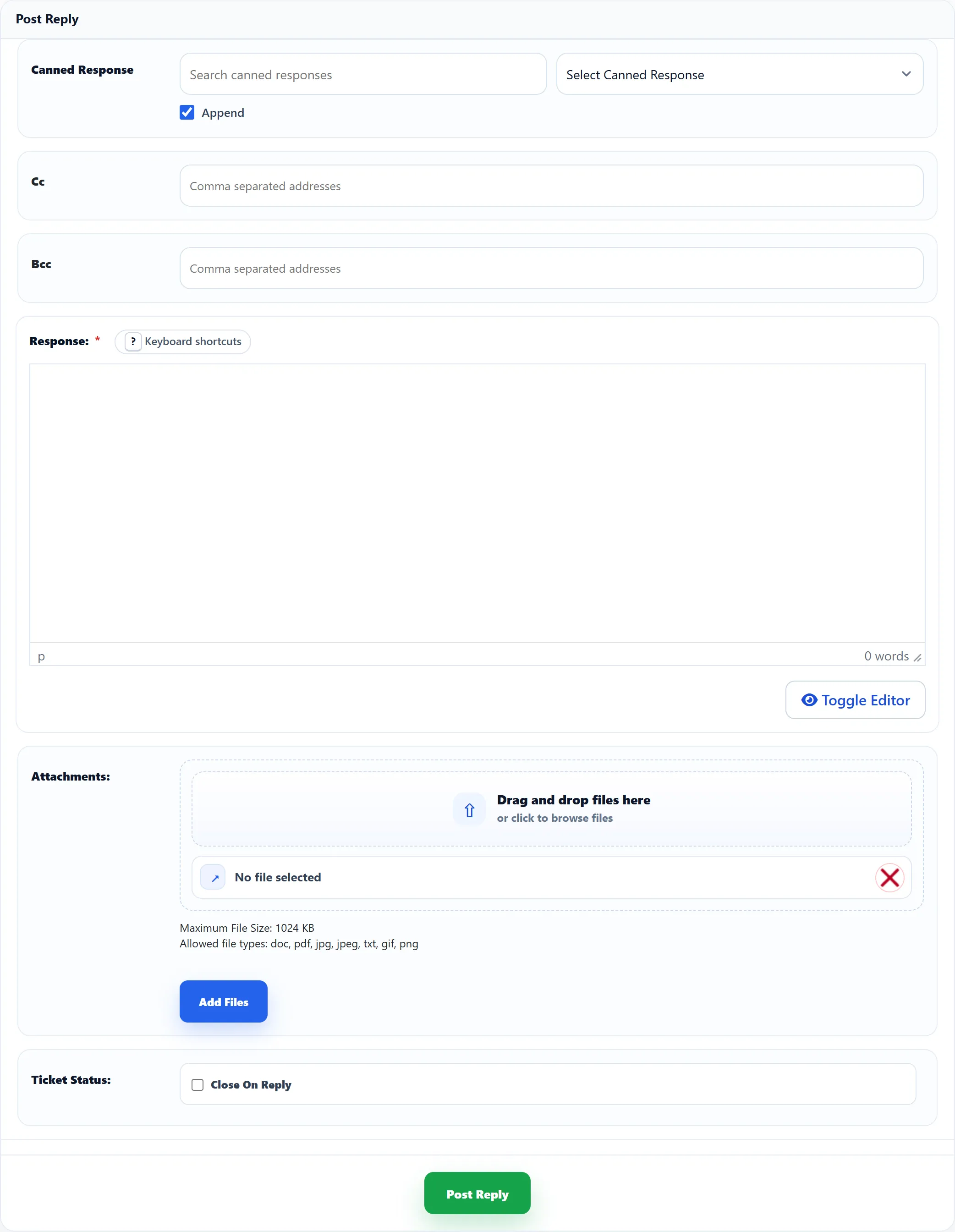
Section titled “Replying”Post Reply is below the thread.
| Field | What it does |
|---|---|
| Canned Response | Type in Search canned responses to narrow the list, then pick one. Its text goes into the reply, with the customer’s details filled in. With Append ticked (the default) it is added to the end of what you have written; unticked, it replaces it. The list holds the canned responses for the ticket’s department. |
| Cc, Bcc | Extra addresses, separated by commas, copied on the email that carries this reply. |
| Response | Your reply. Required. |
| Attachments | Files to attach. Shown when the Attachments field is published in Ticket fields. The limits under the box come from Maximum Attachments, Maximum File Size and Allowed File Extensions under System → Settings → General Settings. |
| Append Signature (Pro) | Own signature, Department signature or None. Shown only if your Joomla account is also a staff member. |
| Assign ticket to staff (Pro) | Assign To Me, ticked by default. Shown only to a staff member, and only while the ticket has no one assigned. |
| Ticket Status | Close On Reply closes the ticket as the reply is posted. |
Click Post Reply. The component then:
- sets the status to Answered and the ticket’s last reply time to now;
- records the first response for the SLA and pauses the SLA clock while the ticket waits for the customer (Pro);
- sends the reply email (the Ticket Response Staff row under System → Settings → Mail Settings decides who gets it), with your Cc and Bcc addresses, and emails the ticket’s watchers (Pro);
- runs any automation rules that react to replies (Pro).
With Close On Reply ticked, the ticket is also closed: it gets the Ticket close email, its resolution time is recorded and any private credentials are removed, as with Close Ticket.
Status and follow-ups
Section titled “Status and follow-ups”The coloured badge at the top of the panel shows the status: New, Pending, In Progress, Answered, Closed or Merged, or Locked while the ticket is locked. A custom status from Flow → Ticket Statuses shows beside it.
Status lets you pick another status for an open ticket. The list groups your custom statuses under the built-in status each one belongs to. The change is saved as soon as you pick, recorded in the history, and the watchers are emailed; the customer is not. Closing is not in this list: “To close the ticket, use the Close button.” Closed and merged tickets don’t show the list. See Statuses and flags.
Link to ticket, Defer until and Remind me sit below it. See Linking, deferring and reminders.
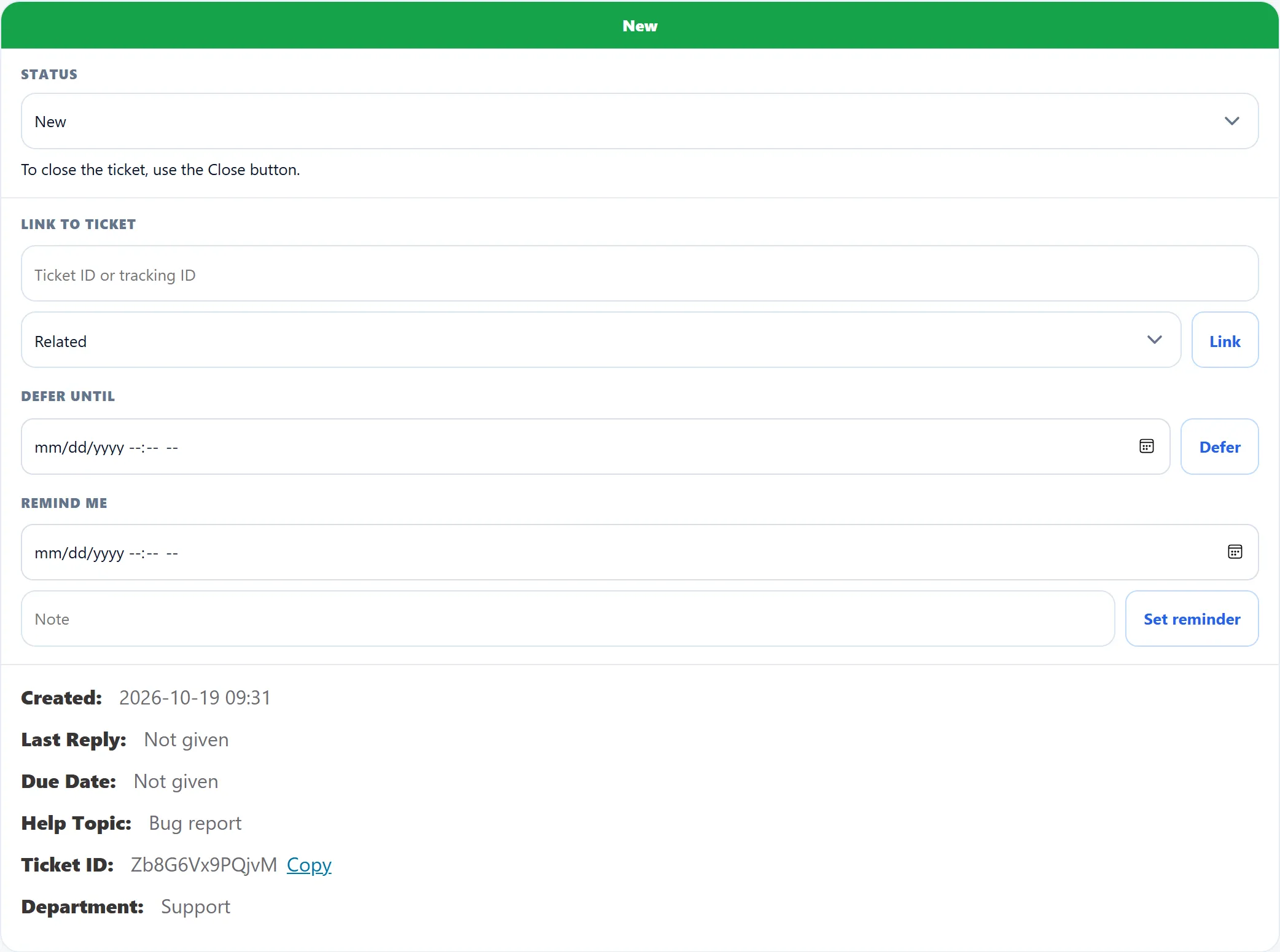
The ticket’s details
Section titled “The ticket’s details”| Detail | Shows |
|---|---|
| Created | When the ticket was opened. |
| Last Reply | The date of the last reply, or “Not given”. |
| Due Date | The due date set on the ticket form, or “Not given”. |
| Help Topic | The help topic, or “Not given”. |
| Ticket ID | The tracking ID. Copy puts it on your clipboard. |
| Department | The ticket’s department. |
| Organisation (Pro) | The customer’s organisation, linked to its form, and Tickets to list all of its tickets. Shown only when there is one. |
| Custom fields | The ticket’s custom field values. |
Below the details come the cards for Priority and Ticket Assign and Transfer (see Assigning, transferring and priority), Tags (see Tags), SLA and Watchers / CC (see Watchers). For a registered customer, a last card lists up to three of their other tickets.
SLA (Pro)
Section titled “SLA (Pro)”The SLA card shows the SLA rule on the ticket, First response due, Resolution due and Breach (Yes or No). When no rule is on the ticket but an active rule matches its department and priority, the rule is shown as “Ready to apply” and Apply puts it on. On a ticket that has a rule, Recalculate works the deadlines out again, for example after you change the rule. “No match” means no active rule fits the ticket’s department and priority. SLA rules live under Flow → SLA Rules.
When someone else has the ticket open
Section titled “When someone else has the ticket open”If another staff member opens the same ticket, a warning at the top of the panel says “Jordan Lee is viewing this ticket”, or “is replying to this ticket” once they click into the reply box. The screen checks every 45 seconds, and the warning goes about 90 seconds after they leave.
Keyboard shortcuts
Section titled “Keyboard shortcuts”Click Keyboard shortcuts beside Response to show the list.
| Key | Does |
|---|---|
R |
Jump to the reply box |
L |
Back to the ticket list |
? |
Show or hide the shortcut list |
Shortcuts are ignored while you are typing in a box.