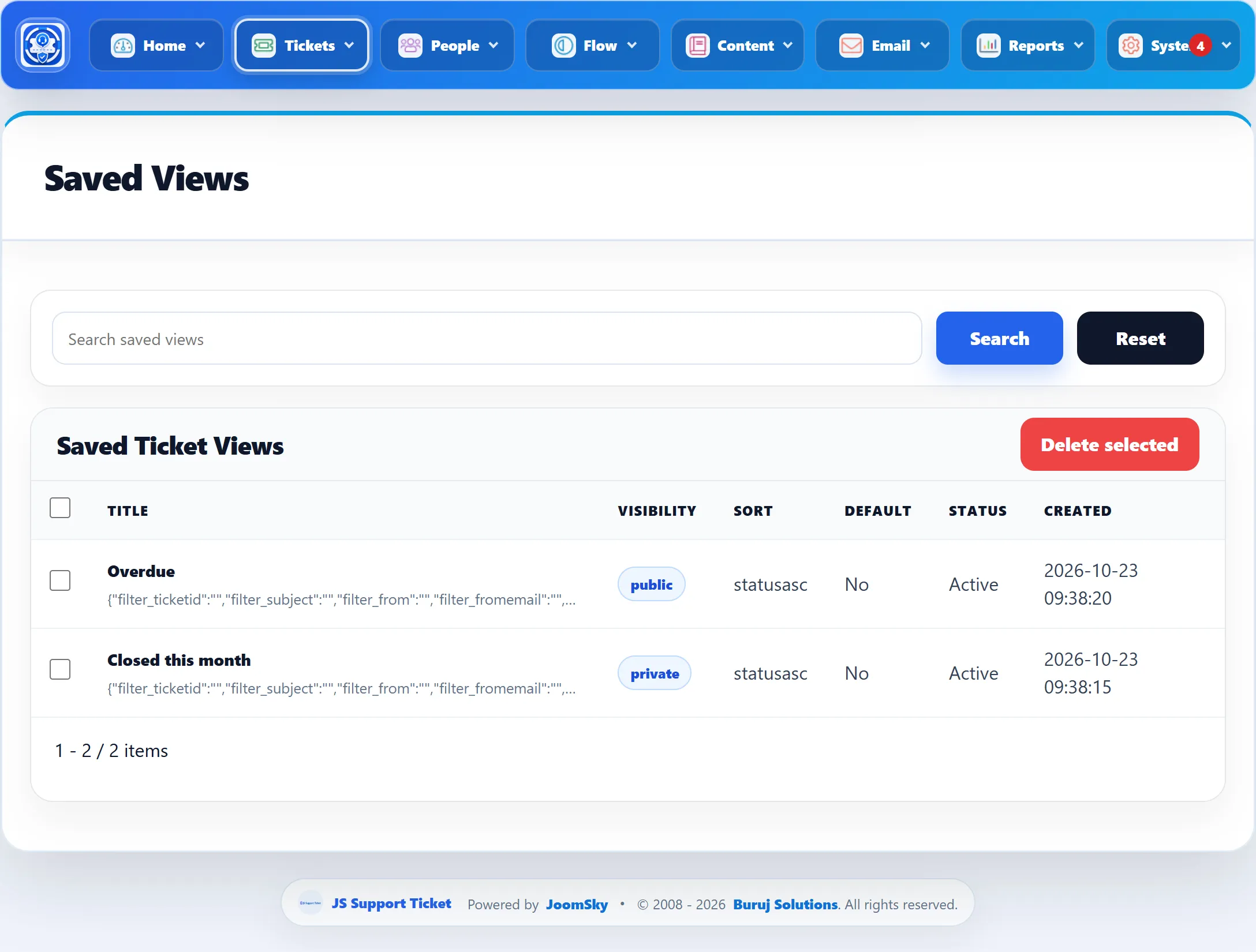
Saved views
A saved view is a named ticket list: the search filters, the status card you were on, the sort order and the columns you chose. Save the lists you check every day, such as “High priority billing” or “Closed this month”, and open them again with one click.
Saving a view
Section titled “Saving a view”The save form sits under Search Tickets on the ticket list. It only offers to save once the list differs from the plain Open list: until then it reads “Search, or change the tab or sort, then save the list here as a view to reuse it.”
- Set up the list: search or filter, pick a status card, change the sort or the columns.
- Type a name in Saved view name.
- Choose who sees it in the list beside it: Only me, My team (same role) or Everyone (Pro).
- Tick Make this my default view if the ticket list should open with it (Pro).
- Click Save View.
The list reloads showing the view you saved. Saving under a name you already use replaces that view, after asking “You already have a saved view with this name. Replace it?”.

A view stores Ticket ID, Subject, From, Email, the dates, Staff Members, Departments, Priorities and Tags, the status card, the sort and the columns. The Organisation filter and custom-field filters are not saved.
Who sees a view (Pro)
Section titled “Who sees a view (Pro)”| Visible to | Who can apply it |
|---|---|
| Only me | You. |
| My team (same role) | Everyone with your staff role, and you. Offered only if your Joomla account is a staff member with a role. |
| Everyone | Everyone who uses the ticket list. |
Shared views show “(My team)” or “(Everyone)” after their name in the list. Only the person who saved a view can make it their default or delete it.
Applying a view
Section titled “Applying a view”Once at least one view exists, Saved Views shows a list with Select saved view. Pick a view and click Apply View. The search, tab, sort and columns are put back, and the form below says “Showing the saved view” with its name until you change the search, tab or sort.
Your default view (Pro)
Section titled “Your default view (Pro)”With one of your own views selected, Make default makes it the view the ticket list opens with when you click Tickets → All Tickets. Your default is marked ★ in the list. Remove default goes back to the plain Open list. Each person has one default; setting a new one replaces the old.
Opening the list any other way (a status card, a search, another view) shows that list instead of your default.
Deleting a view
Section titled “Deleting a view”With one of your own views selected, click Delete view and confirm. Views other people saved can’t be deleted here.
Managing all views
Section titled “Managing all views”Tickets → Saved Views, or Manage beside Saved Views on the ticket list, lists every saved view on the site, whoever saved it.
| Column | Shows |
|---|---|
| Title | The view’s name, with its stored filters under it. |
| Visibility | private, role or public. |
| Sort | The stored sort. |
| Default | Whether it is its owner’s default view. |
| Status | Active or Disabled. |
| Created | When it was saved. |
Search saved views finds views by name or visibility. Tick views and click Delete selected to delete them, whoever owns them; this cannot be undone.