
Staff, roles and departments
A team lead doesn’t need the administrator to look after the team. The cards in the People And Access section of the staff dashboard open the same people screens on the front end, as far as your role allows. The administrator’s versions are described under People.
Staff members
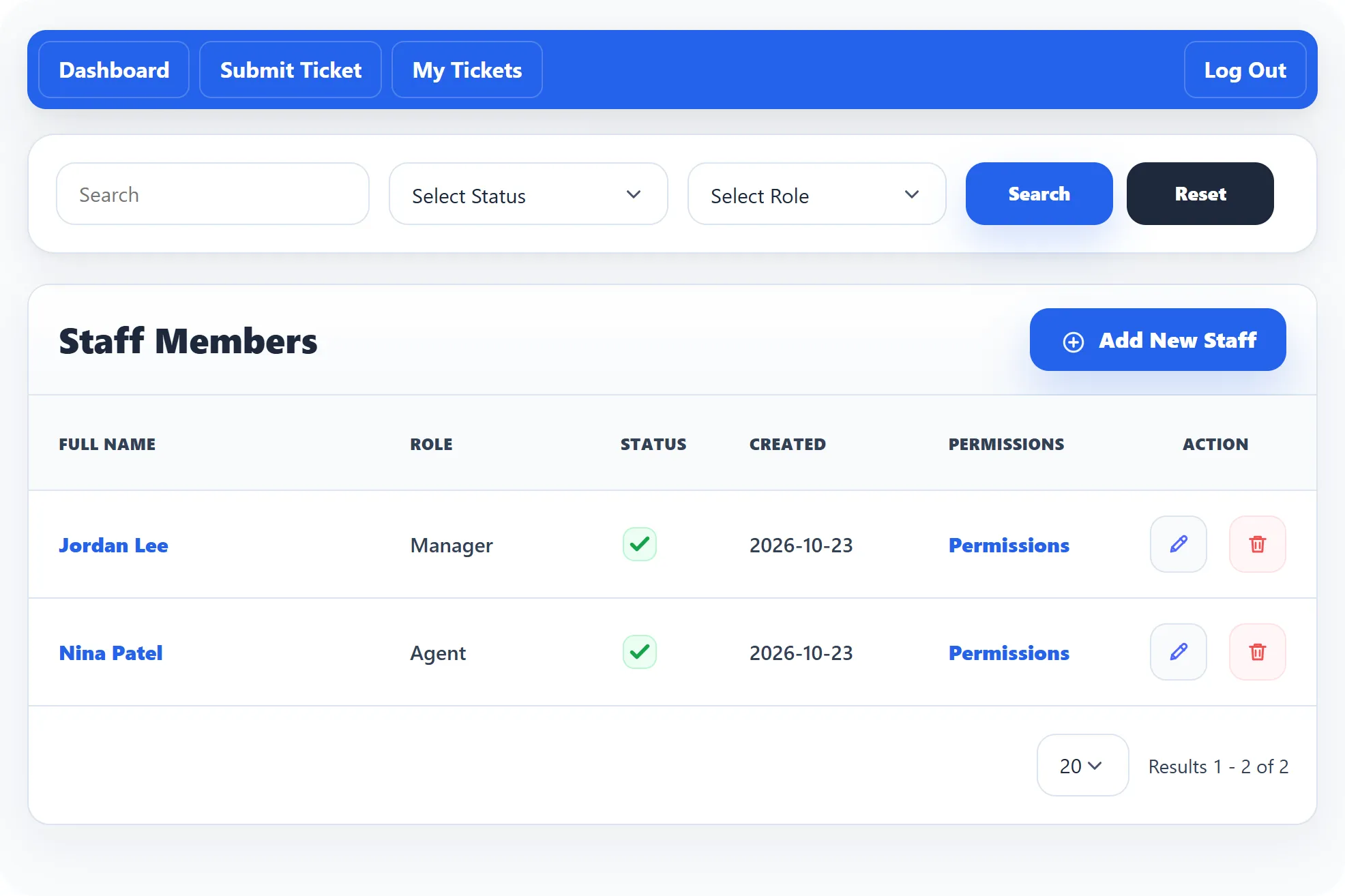
Section titled “Staff members”Staff Members (permission to view staff) lists the team with each person’s Full Name, Role, Created date and Status, a Permissions link and the row actions. Search and Reset at the top filter the list.
Add a staff member
Section titled “Add a staff member”A staff member must already have a Joomla user account. You need the permission to add staff.
-
Click Add New on the list, or Add Staff on the dashboard.
-
Click Select User, search for the person and pick them. If they are already staff, you see This user is already a staff member.
-
Fill in First Name, Last Name, Email address, and the phone numbers (Office Phone, Phone Extension, Mobile Number) as needed.
-
Choose a Role, and set Account Status to Active.
-
Write a Signature, and choose under Append Signature whether it is added to their replies by default.
-
Click Save.
The Role list only appears if you may assign roles.
Permissions for one person
Section titled “Permissions for one person”Below the main fields, the form lists the person’s permissions grouped by Ticket section, Staff section, Knowledge base section, FAQ section, Download section, Announcement section and Mail section, and the departments they may work under Department Section. Select / Deselect All ticks or clears a group. You can only change them if you have the permission to assign roles.
The Permissions link on the list opens a read-only summary: for each area (Tickets, Staff, Knowledge Base, FAQs, Downloads, Announcements, Mail, Departments) it shows how many permissions are Allowed and which ones are Not allowed.
To edit someone, click their name (permission to edit staff). Delete needs the permission to delete staff.
A role is a named set of permissions and departments, such as Manager or Agent. Give staff a role instead of ticking permissions person by person.
Roles (permission to view roles) lists each role with its Name and a Permissions link that opens a read-only summary, marked View only. Edit the role to change what it can do.
To add a role (permission to add roles), click Add Role:
-
Enter the role’s Name.
-
Under Department Section, tick the departments whose tickets this role works.
-
Tick the permissions in each section. Select / Deselect All handles a whole section.
-
Click Save Role.
Edit a role with the edit button in its row (permission to edit roles), or delete it with Delete (permission to delete roles).
Departments
Section titled “Departments”Departments are the teams tickets are sent to, such as Support, Billing and Sales. Departments (permission to view departments) lists each one with its Name, Outgoing Email, Created date and Status.
Add Department (permission to add departments) opens the form:
| Field | What it does |
|---|---|
| Title | The department’s name, shown to customers on the ticket form. |
| Outgoing Email | The address e-mails about this department’s tickets are sent from. |
| Status | Whether the department is in use. |
| Signature | The department’s signature, which staff can add to replies as Department signature. |
| Append Signature | Whether the signature is added to replies. |
Click Save Department. Editing and deleting need their own permissions.