
Options
Open the Options with the Options button in the toolbar of any JS Accessibility Fixer screen, or under System → Global Configuration → JS Accessibility Fixer. They have two tabs.
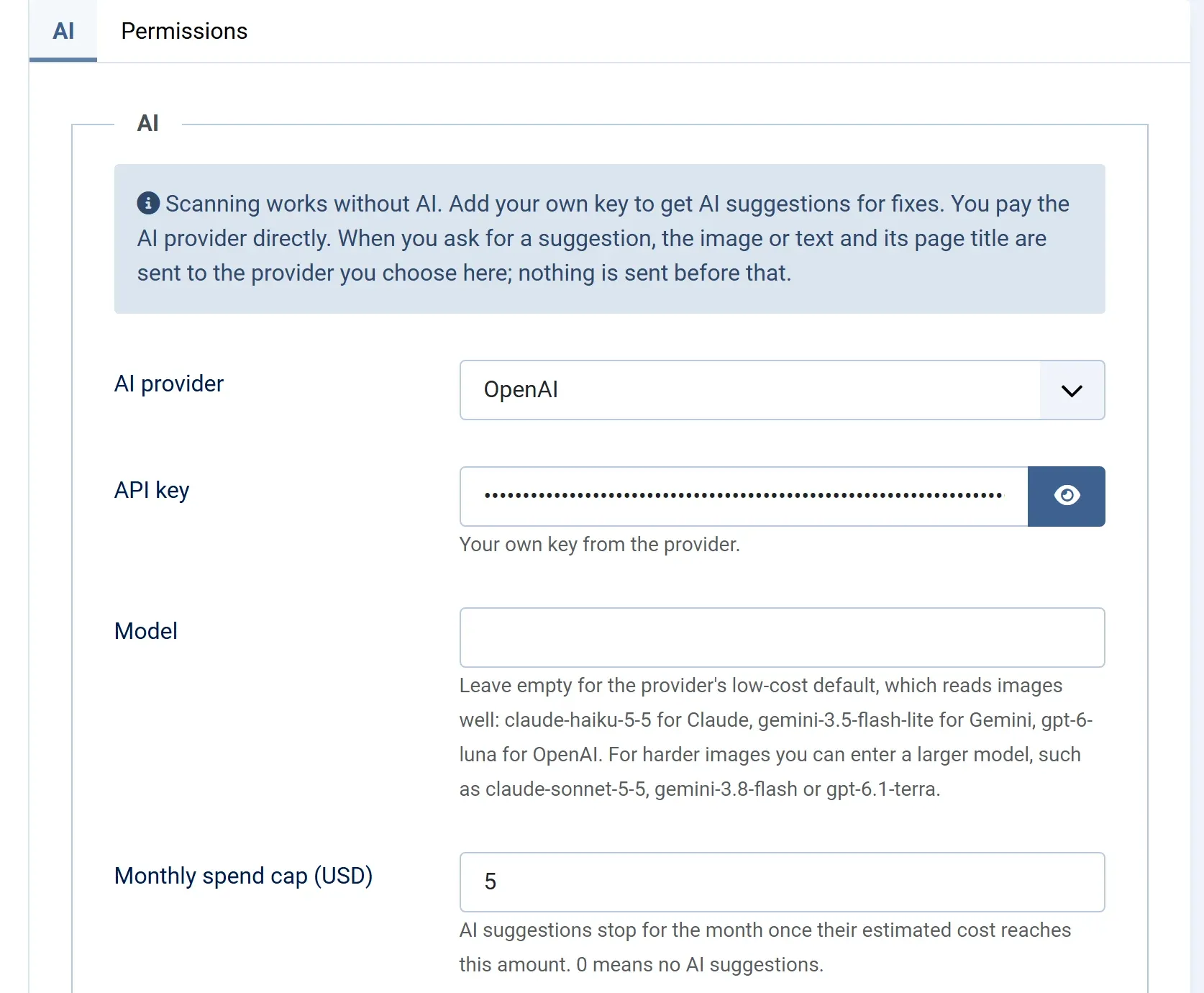
| Setting | What it does | Default |
|---|---|---|
| AI provider | Who writes the suggestions: Anthropic Claude, Google Gemini or OpenAI. None (scan only) turns AI off; scanning, video titles and fixes you type still work. | None |
| API key | Your own key from that provider. Shown only when a provider is chosen. | – |
| Model | Leave empty for the provider’s low-cost default: claude-haiku-5-5, gemini-3.5-flash-lite or gpt-6-luna. Enter a larger model’s name for harder images. |
Empty |
| Monthly spend cap (USD) | AI suggestions stop for the month once their estimated cost reaches this amount. 0 means no AI suggestions. | 5 |
See Choosing a provider, Getting an API key and Costs and the spend cap.
Permissions
Section titled “Permissions”Who may use the component, approve fixes and change these Options. See Permissions.
Settings kept elsewhere
Section titled “Settings kept elsewhere”| Setting | Where |
|---|---|
| Check on save on or off | System → Manage → Plugins: Content - JS Accessibility Fixer |
| Who gets the monthly email (Pro) | System → Manage → Plugins: Task - JS Accessibility Fixer, Email new problems to |
| When the monthly scan and nightly suggestions run (Pro) | System → Scheduled Tasks |
| Statement and client report details (Pro) | Saved from their own screens |
| Licence key (Pro) | The Licence screen |
| Number of rows per page in the Fix Queue and History | System → Global Configuration, Default List Limit |