Client report
If you look after a client’s site, the client report shows them what you did each month: the score, the problems fixed, and what is still open. It carries your agency’s name and logo, and you save it as a PDF from your browser.
Making a report
Section titled “Making a report”-
Go to Components → JS Accessibility Fixer → Client report, or press Make a report on the dashboard.
-
Fill in the settings on the left:
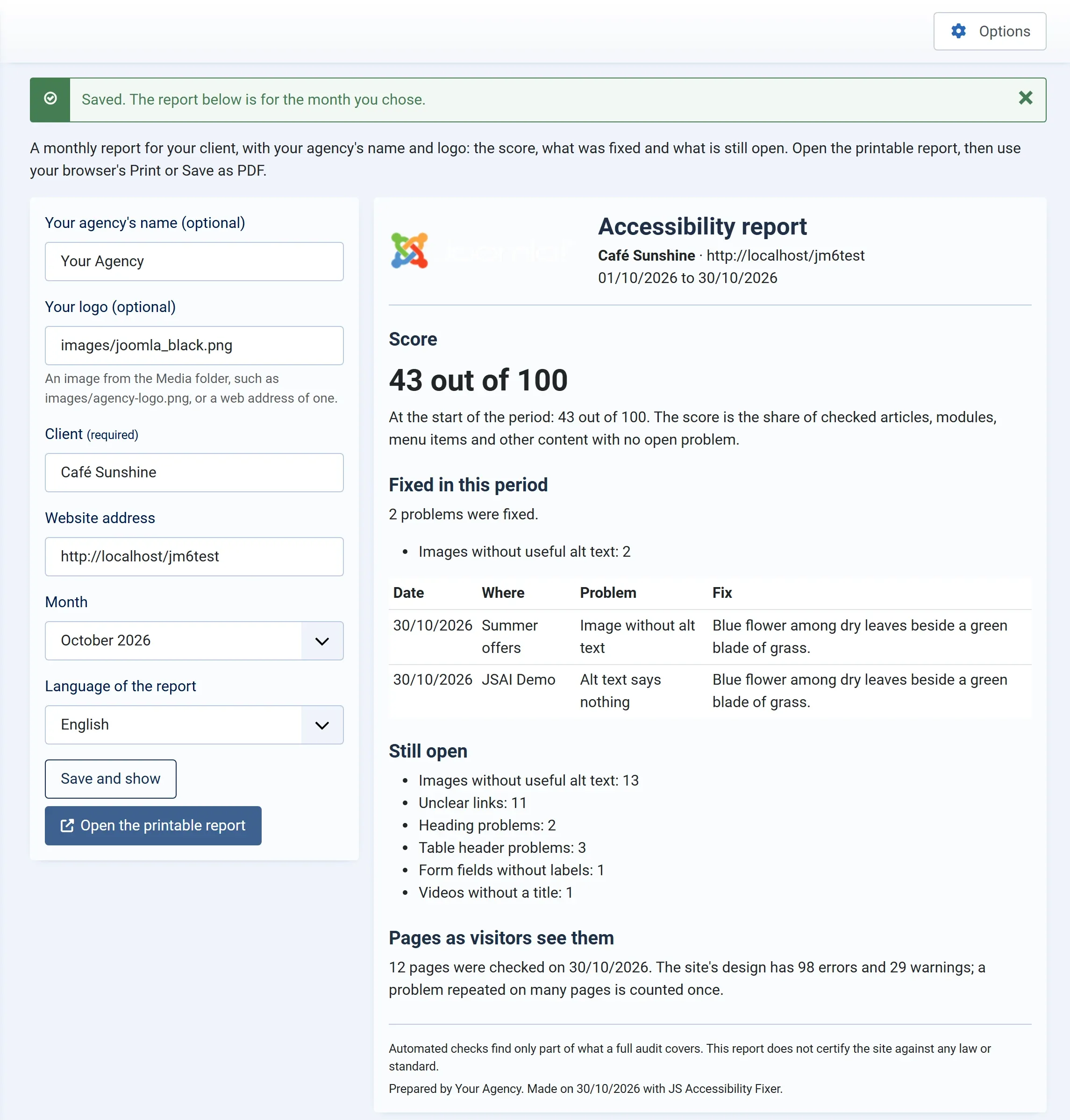
Field What to enter Your agency’s name (optional) Shown at the foot of the report: Prepared by … Your logo (optional) An image from the Media folder, such as images/agency-logo.png, or a web address of one. PNG, JPG, GIF, SVG or WebP.Client The client’s name, shown at the top Website address The site the report is for Month This month or one of the 11 before it Language of the report English or German -
Press Save and show. The report for that month appears on the right. Your settings are kept for next time.
-
Press Open the printable report. It opens in a new tab, as a clean page without Joomla’s menus.
-
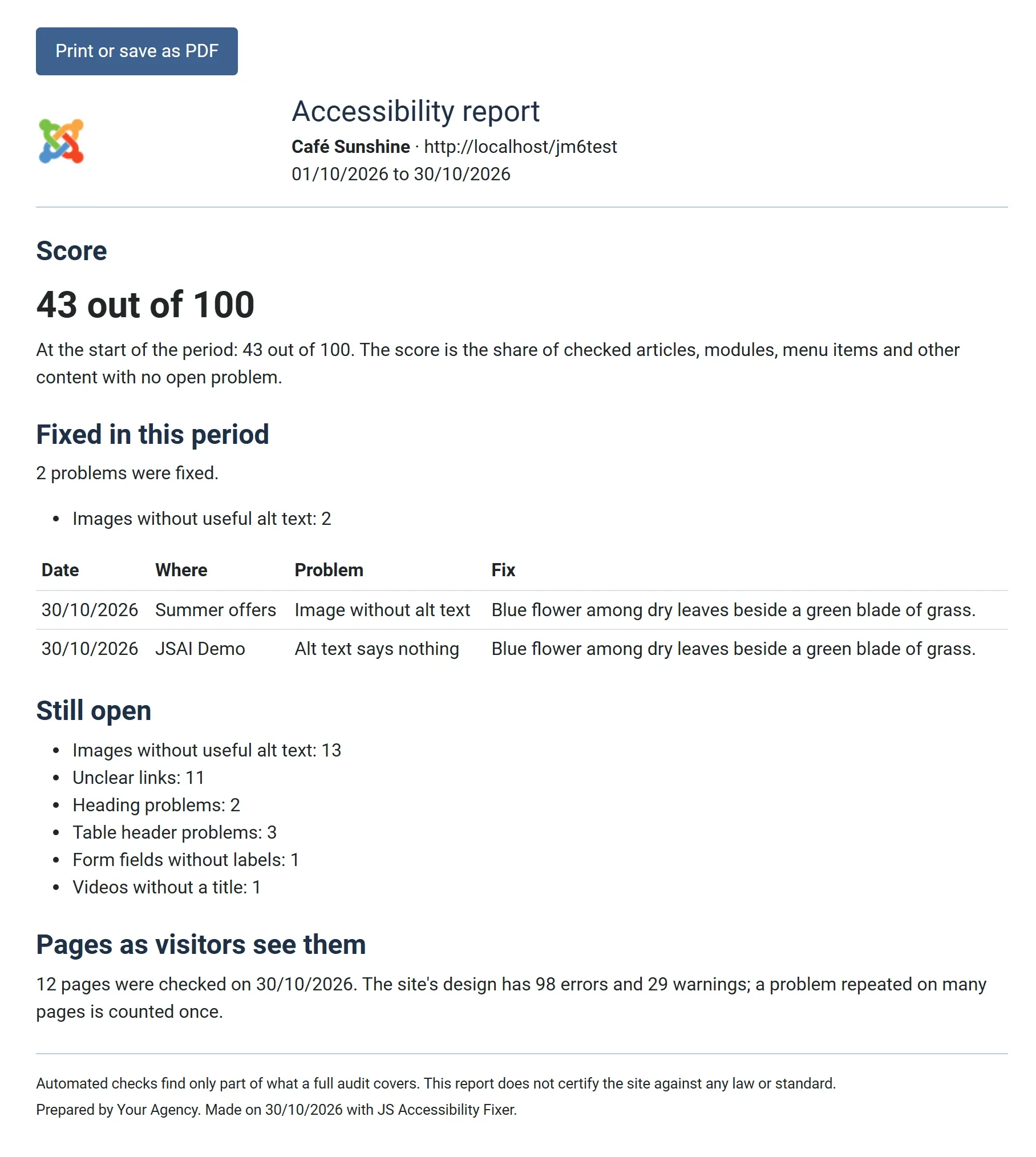
Press Print or save as PDF, and choose Save as PDF as the printer in your browser.
What the report shows
Section titled “What the report shows”- Score: for this month, the score now; for an earlier month, the score of its last scan. Then the score at the start of the month, and, when the site was scanned on several days, the score on each of those days.
- Fixed in this period: how many problems were fixed that month, by kind, and a table with the date, the article or module, the problem and the fix. The 50 most recent fixes are listed. Fixes that were later undone are not counted.
- Still open: the open problems from the latest scan, by kind.
- Pages as visitors see them: the result of the last page check, if you ran one.
- A note that automated checks find only part of what a full audit covers, and that the report doesn’t certify the site against any law or standard.
The report is written in the language you chose, including the names of the fixes, whatever language your administrator uses.
Every month
Section titled “Every month”Make the report at the start of each month for the month before. With the monthly scan on, the site is scanned on the 1st, so the report has a fresh score.
Example
Section titled “Example”The example PDF on the JS Accessibility Fixer page on joomsky.com shows what a client gets.