The Fix Queue
The Fix Queue lists every open problem from the latest scan. It is where you ask for suggestions, check them and accept them. Go to Components → JS Accessibility Fixer → Fix Queue, or click a problem card on the dashboard.
Toolbar
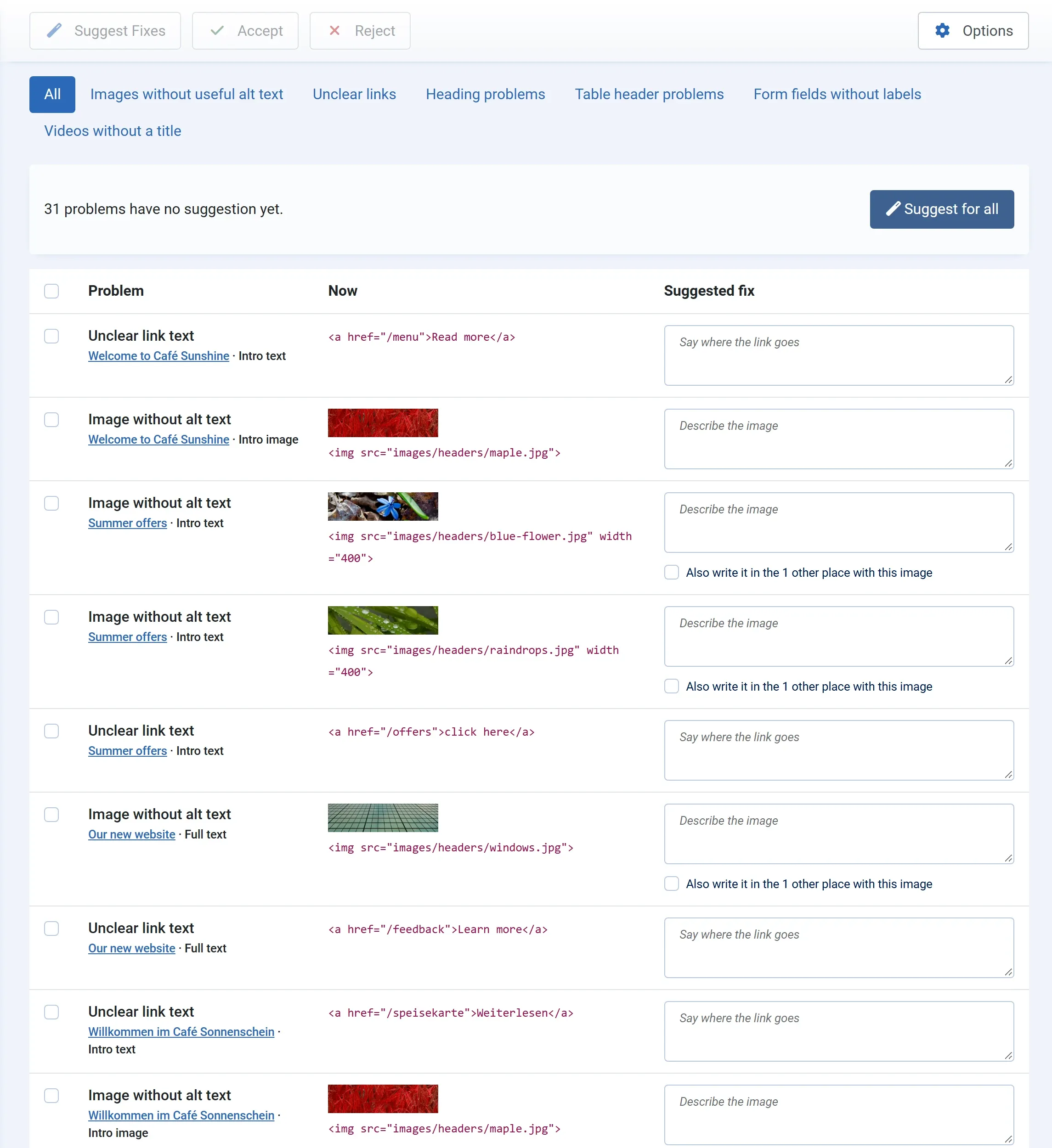
Section titled “Toolbar”| Button | What it does |
|---|---|
| Suggest Fixes | Asks the AI for a fix for each ticked problem. See Suggest fixes. |
| Accept | Writes the fix in the box into your content, for each ticked problem. See Accept or reject. |
| Reject | Turns down the suggestion for each ticked problem. Your content is not touched. |
| Options | The AI settings and permissions. |
Filters
Section titled “Filters”The tabs above the list show one kind of problem at a time: All, Images without useful alt text, Unclear links, Heading problems, Table header problems, Form fields without labels and Videos without a title. The problem cards on the dashboard open the same tabs.
When you come from Fix them now after saving an article (see Check on save), the queue shows only that article’s problems, with a line such as Showing article 12 only. Click Show everything to see the whole queue again. The same works for a module, a menu item, a category, and, in Pro, a shop product or a job.
Columns
Section titled “Columns”| Column | What it shows |
|---|---|
| Problem | What is wrong, such as Image without alt text or Unclear link text. Under it, the title of the article, module, menu item or category, linked to its edit screen, and the part it is in, such as Intro text or Intro image. |
| Now | The code as it is now, such as <a href="/offers">click here</a>. For an image, a small copy of the image is shown above it. |
| Suggested fix | A box with the suggestion, which you can change. Under it, who made it, such as Suggested by claude-haiku-5-5. For heading and table problems (Pro), a list to choose from. |
Problems that can be fixed here are listed first. A problem the AI cannot fix yet says AI cannot fix this one yet., with a link to edit it by hand.
Below the list, Joomla’s page links and the number of items. The number of rows per page follows Default List Limit in Joomla’s Global Configuration.
Above the list (Pro)
Section titled “Above the list (Pro)”In Pro, a panel above the list says how many problems have no suggestion yet, with Suggest for all. See Suggest for all.
When the queue is empty
Section titled “When the queue is empty”Nothing to fix. means every problem from the latest scan has been fixed, or the scan found none. Scan again after adding content, or turn on the monthly scan (Pro).