Accept or reject
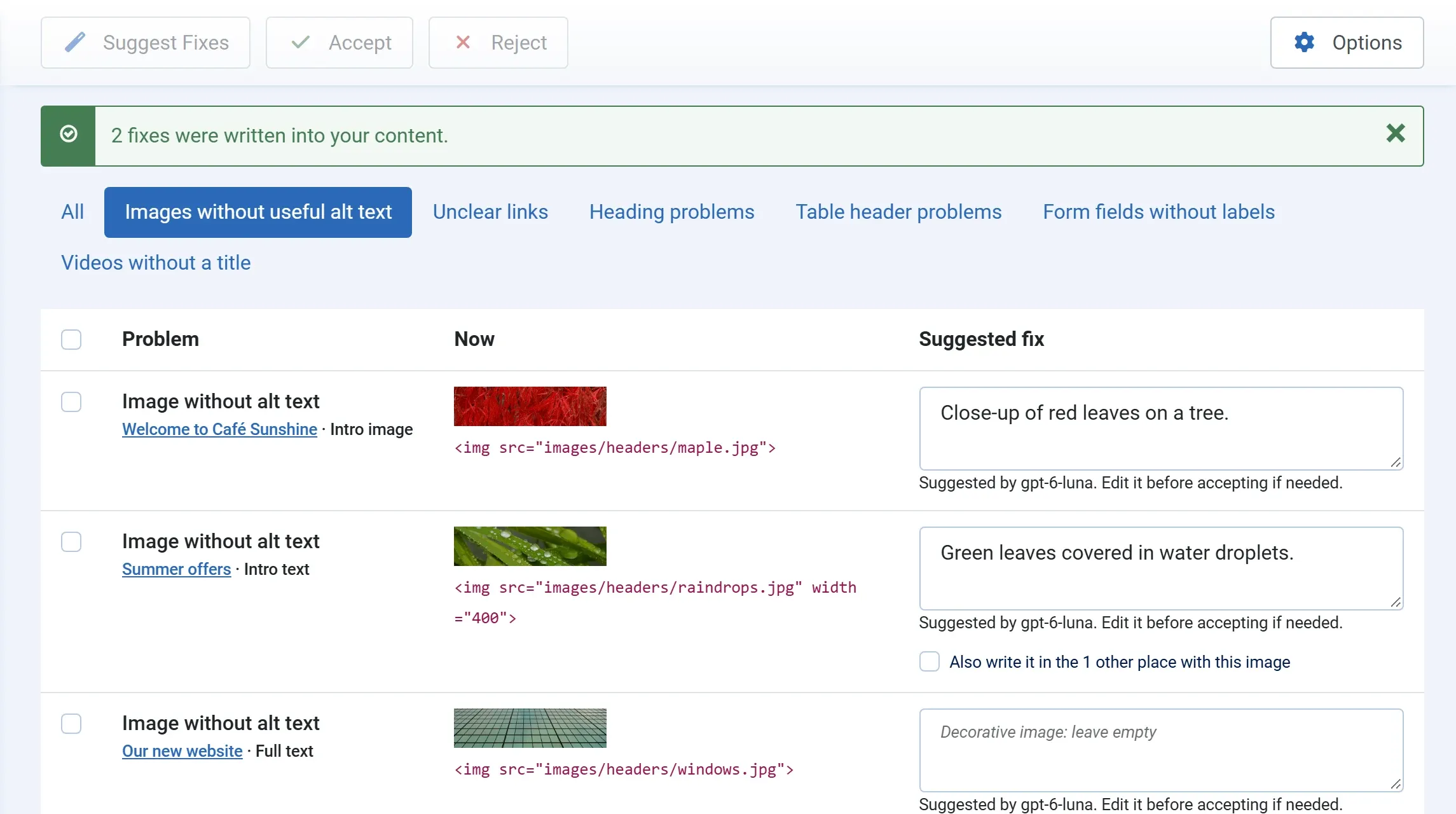
Nothing on your site changes until you accept a fix. Accepting writes that one fix into your content; rejecting leaves your content as it is.
Accepting
Section titled “Accepting”-
Read the suggestion in the Suggested fix box. Change the words if you want; what is in the box is what gets written.
-
Tick the problem. You can tick several and accept them together.
-
Press Accept.
The message says how many fixes were written, such as 2 fixes were written into your content. The fixed problems leave the queue, and the score on the dashboard rises straight away.
You don’t need a suggestion to accept a fix. Type the fix in the box yourself and accept it. This works without an AI key and does not count towards any limit.
What is written
Section titled “What is written”Only the part the problem is about changes:
- An image in the text: its
altattribute. Nothing else in the tag or the article changes. - The intro or full article image: the image’s description field, the same one you see on the article’s Images and Links tab. An empty fix ticks No Description.
- A link: the text between
<a>and</a>. The address stays the same. - A menu item: its title.
- A video: the
titleattribute of its<iframe>.
The article is saved the Joomla way. If Versions are on for articles, a new version is saved with the note Accessibility fix by JS Accessibility Fixer, so you can also compare or restore it with the article’s Versions button. Modules and menu items have no versions; use the History to undo their fixes.
When a fix is not written
Section titled “When a fix is not written”Before writing, the fixer checks that it is safe. If it is not, it writes nothing and says why:
| Message | Why | What to do |
|---|---|---|
| “Summer offers” has changed since the scan, so nothing was written. Scan again. | Someone edited that text after the scan, so the fixer can’t be sure it would change the right thing. | Scan again, then accept the new suggestion. |
| “Summer offers” is being edited by someone else… | The article is open in an editor (checked out). | Try again when they close it. |
| You are not allowed to edit article 12… | You may approve fixes, but not edit this article. | Ask an administrator. |
| Type the fix in the box, or use Suggest Fixes, before accepting. | The box is empty and there was no suggestion. | Type a fix, or ask for a suggestion. |
| “Read more” still does not say where the link goes… | The new link text is unclear too. | Write text that says where the link goes. |
Accepting needs the Approve fixes permission. See Permissions.
Rejecting
Section titled “Rejecting”Tick the problem and press Reject. The suggestion is dropped and your content is not touched. The problem stays in the queue, so you can ask for a new suggestion or type a fix yourself. In Pro, a rejected problem is not given a new suggestion on its own at night; you ask for one when you want it.
Undoing a fix
Section titled “Undoing a fix”Every accepted fix is in the History, where you can undo it. See History and undo.