Alt text in the article editor
When you add an intro image or a full article image to an article, you can have the AI write its alt text right there, before you save.
-
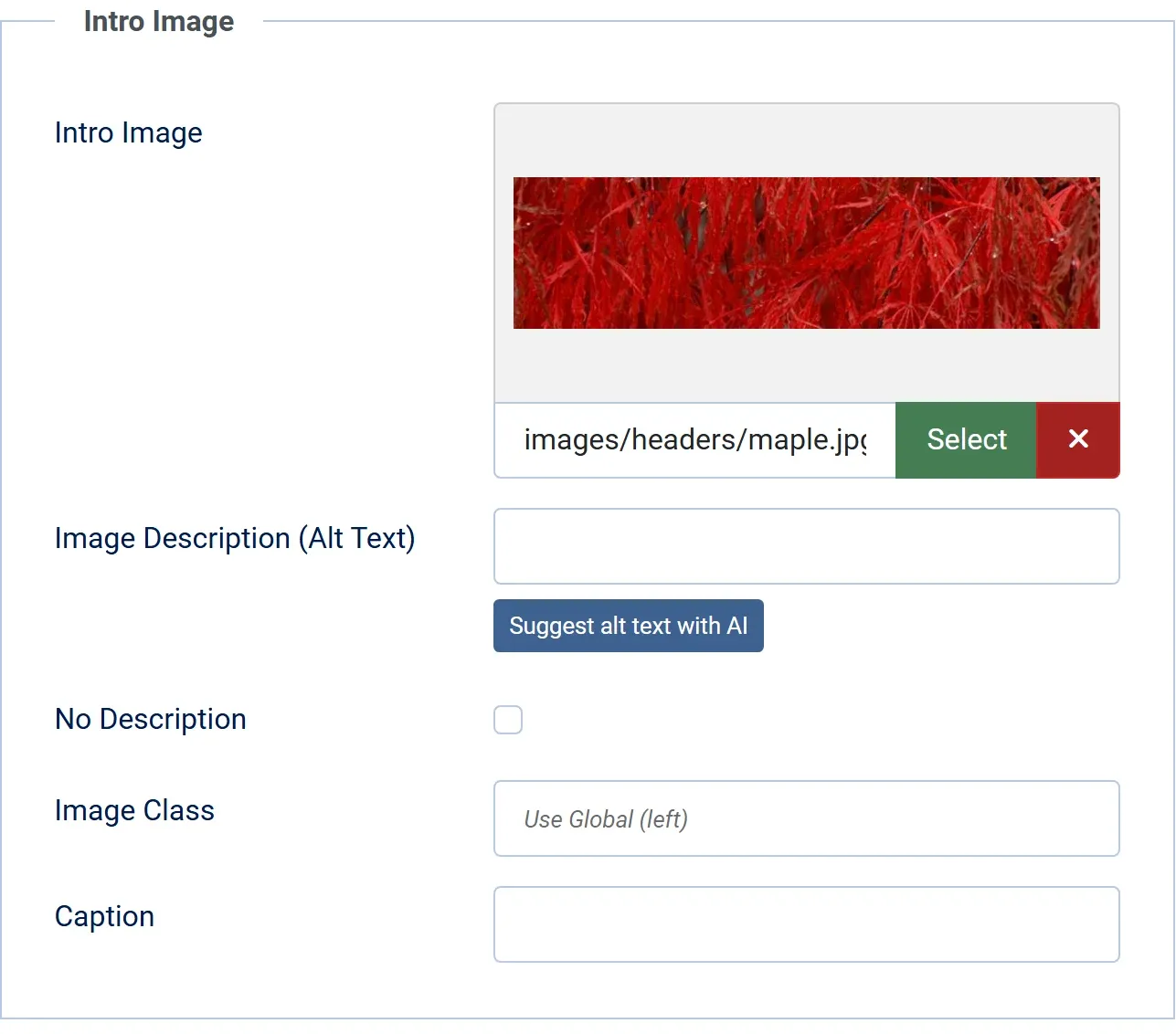
Edit an article in the administrator and open the Images and Links tab.
-
Pick the Intro Image or the Full Article Image.
-
Press Suggest alt text with AI under its Image Description (Alt Text) field. The button says Looking at the image… for a moment.
-
The alt text appears in the field. Check it, change it if needed, then save the article.
If the AI thinks the image is decorative, it leaves the field empty and ticks No Description, and says so. Check it before saving.
Nothing is saved until you save the article. If you close it without saving, the suggestion is gone.
Who sees the button
Section titled “Who sees the button”The button is shown in the administrator’s article editor, to users who may use JS Accessibility Fixer (the Access Administration Interface permission for the component). It needs the AI set up in Options.
Limits
Section titled “Limits”Each suggestion here counts like one in the Fix Queue: towards the monthly spend cap, and in the free version towards the 50 AI suggestions a month. When either is reached, the button says so instead of suggesting.
For images inside the article text, use the Fix Queue. Check on save tells you about them when you save.